




Spotify hides several powerful settings that directly affect sound quality, recommendations, privacy, and data usage. Tweaking the right options takes only a few minutes and can noticeably improve how the app behaves across mobile and desktop.
Table of contents
- Audio quality settings that actually improve sound
- Playback settings that change how Spotify behaves
- Personalization settings that fix bad recommendations
- Data and storage settings that save space and battery
- Privacy and social settings most users ignore
- Desktop-only Spotify settings worth changing
- Quick Spotify settings checklist
- FAQs
- Summary
Audio quality settings that actually improve sound
These settings control how Spotify streams and processes audio, not just how loud it sounds.
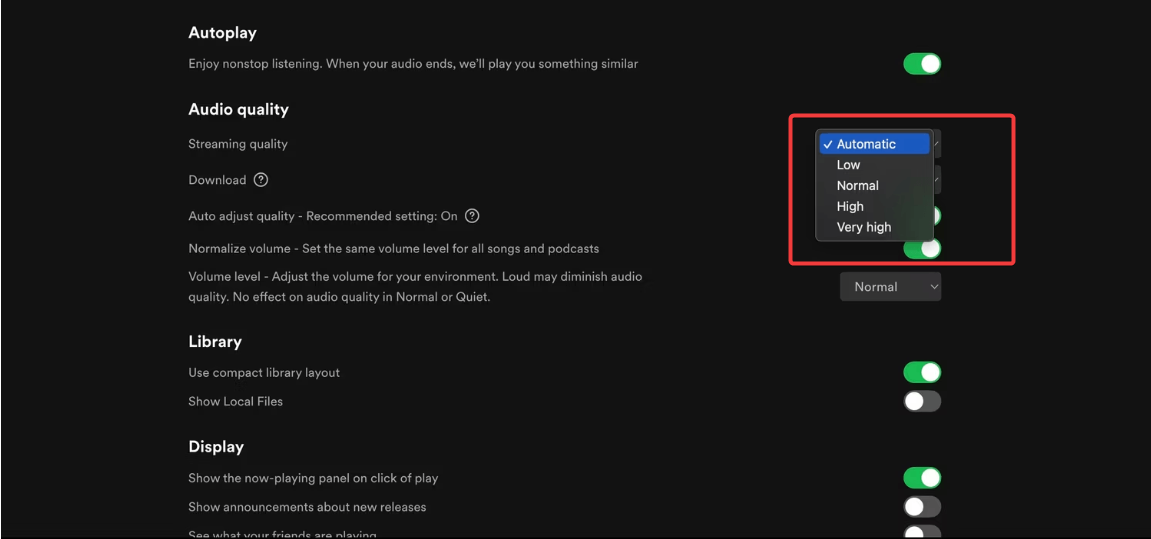
Set streaming quality to Very High
Spotify defaults to automatic or normal quality on many devices. Switching to Very High increases bitrate, which improves clarity and detail when you use good headphones or speakers.
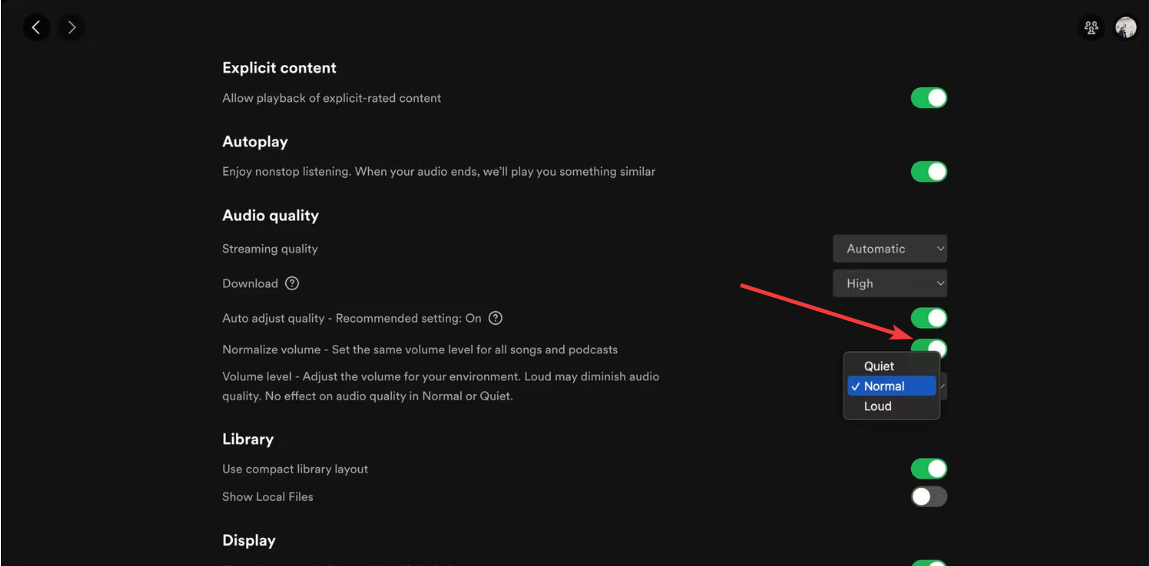
Disable audio normalization for cleaner dynamics
Audio normalization forces all songs to play at a similar loudness. Turning it off preserves the original dynamics, so quiet parts feel quieter and loud parts hit harder.
Tune crossfade and gapless playback
Crossfade blends the end of one song into the next, while gapless playback removes silence between tracks. Albums and live recordings sound more natural with gapless playback enabled and crossfade disabled.
Playback settings that change how Spotify behaves
Playback options shape how Spotify queues music and transitions between tracks.
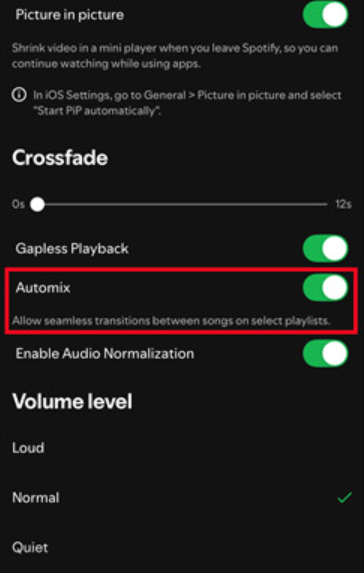
Turn off Automix if transitions feel off
Automix uses Spotify’s algorithm to mix songs together. It works well for some playlists but can sound awkward with classical, rock, or podcasts.
Control autoplay after playlists and albums
Autoplay decides whether Spotify continues with recommendations after your music ends. Turning it off gives you full control and stops unexpected tracks from playing.
Personalization settings that fix bad recommendations
Spotify’s recommendations react directly to your listening behavior and these toggles.
Use Private Session strategically
Private Session prevents Spotify from using your current listening to train recommendations. Use it when sharing music, exploring new genres, or playing content for others.
Manage explicit content and hidden artists
Blocking explicit content or hiding specific artists reshapes Discover Weekly, Daily Mixes, and radio stations over time.
Data and storage settings that save space and battery
These settings matter most on phones and tablets with limited storage or data plans.
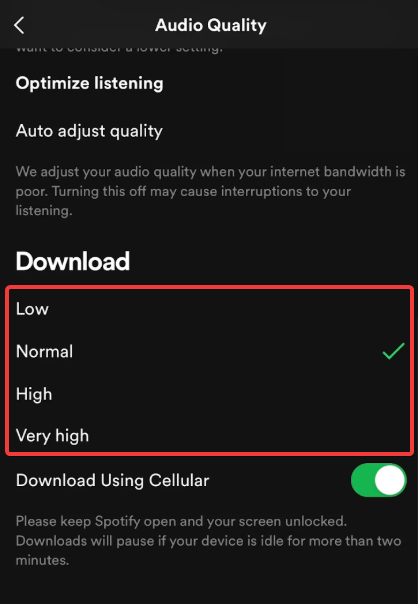
Adjust download quality separately from streaming
If you frequently download music from Spotify, lowering download quality while keeping the streaming quality high is something you should consider. This is because it saves storage space while letting you enjoy the best streaming quality when you listen online.
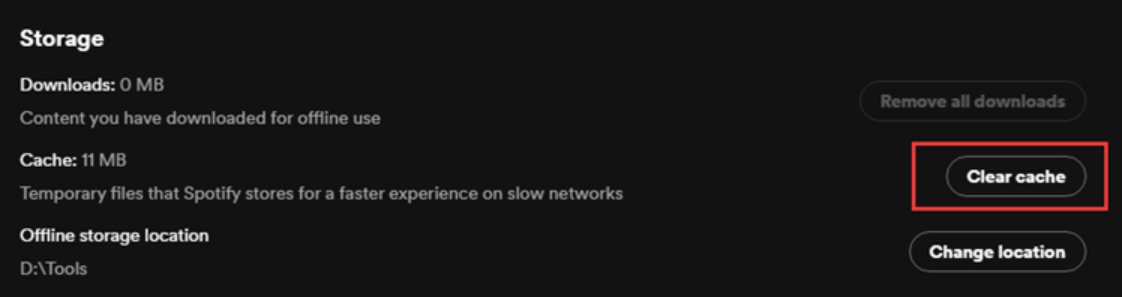
Clear cache to fix glitches and free space
Spotify’s cache grows over time and can cause slowdowns or playback issues. Clearing it often fixes random bugs without deleting downloads.
Privacy and social settings most users ignore
These options control what Spotify shares and how it connects to other services.
Hide listening activity from friends
You can stop Spotify from showing your real-time listening activity without disabling social features entirely.
Review connected apps and devices
Removing unused apps and devices improves account security and prevents Spotify from switching playback unexpectedly.
Desktop-only Spotify settings worth changing
Spotify on Windows and macOS includes extra controls you won’t find on mobile.
Enable hardware acceleration carefully
Hardware acceleration improves performance on modern systems but may cause stutters or crashes on older PCs.
Control startup and background behavior
Disabling Spotify at startup speeds up system boot and reduces background resource usage.
Quick Spotify settings checklist
- Set streaming quality to Very High
- Disable audio normalization if you want natural dynamics
- Review autoplay and Automix behavior
- Use Private Session when needed
- Clear cache periodically
- Check connected apps and devices
FAQs
Do Spotify settings sync across devices? Some settings, like playback behavior and recommendations, sync with your account. Audio quality, cache, and downloads stay device-specific.
Why do Spotify settings move or get renamed? Spotify frequently updates its interface. Settings often move between sections after app updates, especially on mobile.
Will changing settings improve recommendations immediately? Some changes apply instantly, but recommendation improvements usually take a few days of listening activity.
Does higher audio quality use more data? Yes. Very High quality uses significantly more data, so it works best on Wi-Fi or unlimited plans.
Summary
- Increase streaming quality for better sound clarity.
- Adjust playback options to control transitions and autoplay.
- Fine-tune personalization settings to fix poor recommendations.
- Optimize data, storage, and privacy controls.
Spotify works best when its settings match how you actually listen. A few targeted changes improve sound quality, reduce annoyances, and train the algorithm to recommend music you truly enjoy. Revisit these settings after major updates to keep your experience consistent.


Discussion (0)
Be the first to comment.