




If macOS shows “command not found,” your PATH variable likely misses the correct directory. PATH tells macOS where to find tools like Homebrew, Python, or Node, and one wrong setting can break them.
This guide shows how to set the PATH variable in macOS correctly, based on your shell and hardware. You’ll update the right config file, verify the change, and fix common PATH issues fast.
Table of contents
- What the PATH variable does on macOS
- Check your current PATH and active shell
- Set the PATH variable in macOS using zsh (default)
- Set the PATH variable in macOS using bash
- Add Homebrew directories to PATH
- Set PATH temporarily for one Terminal session
- Verify that PATH changes worked
- Fix common PATH problems on macOS
- Revert or reset PATH changes safely
- Best practices for managing PATH on macOS
- FAQs
- Summary
What the PATH variable does on macOS
The PATH variable tells macOS where to look for executable commands. When multiple tools share names, PATH order decides which one runs.
Check your current PATH and active shell
Always inspect your setup before changing anything. This step prevents conflicts and duplicate entries.
Verify your shell (zsh, bash, or fish)
Run echo $SHELL in Terminal. Modern macOS versions use zsh by default, while older systems often rely on bash.
View your current PATH value
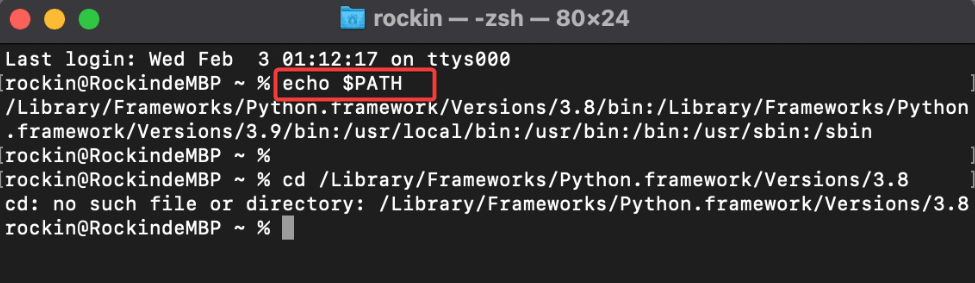
Run echo $PATH to see all active directories. Look for missing paths, repeated entries, or unexpected order.
Set the PATH variable in macOS using zsh (default)
zsh reads PATH values from user configuration files on every new Terminal session.
Edit the .zshrc file
Open Terminal and run nano ~/.zshrc. Add new paths using export, placing custom tools before system paths when needed.
export PATH="/your/custom/path:$PATH"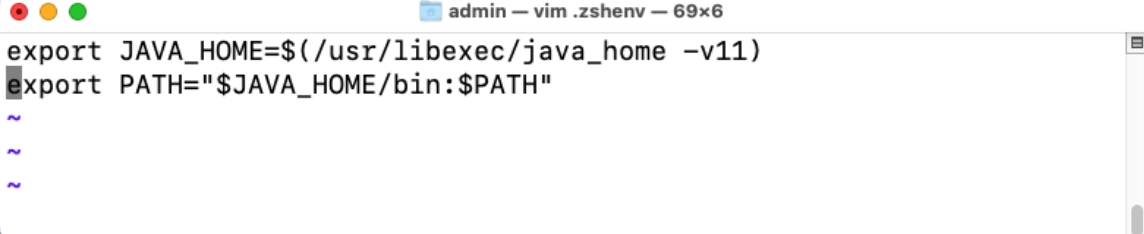
Apply changes without restarting Terminal
Run source ~/.zshrc to reload the file. This command applies changes immediately.
source ~/.zshrcSet the PATH variable in macOS using bash
Some users still rely on bash or switched shells manually.
Use .bash_profile or .bashrc
Edit ~/.bash_profile for login shells or ~/.bashrc for interactive shells. Add PATH exports the same way you would in zsh.
nano ~/.bash_profile
# or
nano ~/.bashrc

export PATH="/your/custom/path:$PATH"
Add Homebrew directories to PATH
If you have installed Homebrew on your Mac, you can use it to install tools outside the default system paths, so PATH updates matter.
Apple Silicon vs Intel Homebrew paths
Apple Silicon Macs use /opt/homebrew/bin. Intel Macs use /usr/local/bin. Add the correct directory at the start of PATH to ensure Homebrew tools run first.
# Apple Silicon
export PATH="/opt/homebrew/bin:$PATH"

# Intel
export PATH="/usr/local/bin:$PATH"
Set PATH temporarily for one Terminal session
Temporary changes help with testing or one-off commands. Run an export command, then close Terminal to reset it. An is example is: export PATH="/example/path:$PATH"
Verify that PATH changes worked
Run which toolname to confirm the correct binary executes. Compare results before and after your change.
which python
which node
echo $PATH
Fix common PATH problems on macOS
- Command still not found after updating PATH: Reload your shell config and confirm file names. zsh ignores bash files unless you explicitly source them.
- PATH changes not persisting after restart: Check that you used export and edited the correct file. Login shells and interactive shells load different configs.
Revert or reset PATH changes safely
Open the config file you edited and remove recent lines. Reload the file or open a new Terminal window to restore defaults.
Best practices for managing PATH on macOS
- Keep PATH entries short and intentional.
- Avoid duplicates and document custom additions with comments.
FAQs
Why does macOS ignore my PATH changes? You likely edited the wrong config file or forgot to reload it.
Should I edit .zprofile instead of .zshrc? Use .zprofile for login-only variables and .zshrc for interactive commands.
Is it safe to modify PATH on macOS? Yes, as long as you avoid removing system directories like /usr/bin.
Do GUI apps use the same PATH as Terminal? No, GUI apps often ignore shell PATH unless you configure launch services.
Summary
- Identify your active shell before editing PATH.
- Modify the correct config file for zsh or bash.
- Add paths carefully and verify changes immediately.
- Fix persistence issues by checking file order and exports.
Changing the PATH variable on macOS solves most “command not found” errors within minutes. After verification, open a new Terminal session and continue working normally.

Discussion (0)
Be the first to comment.