



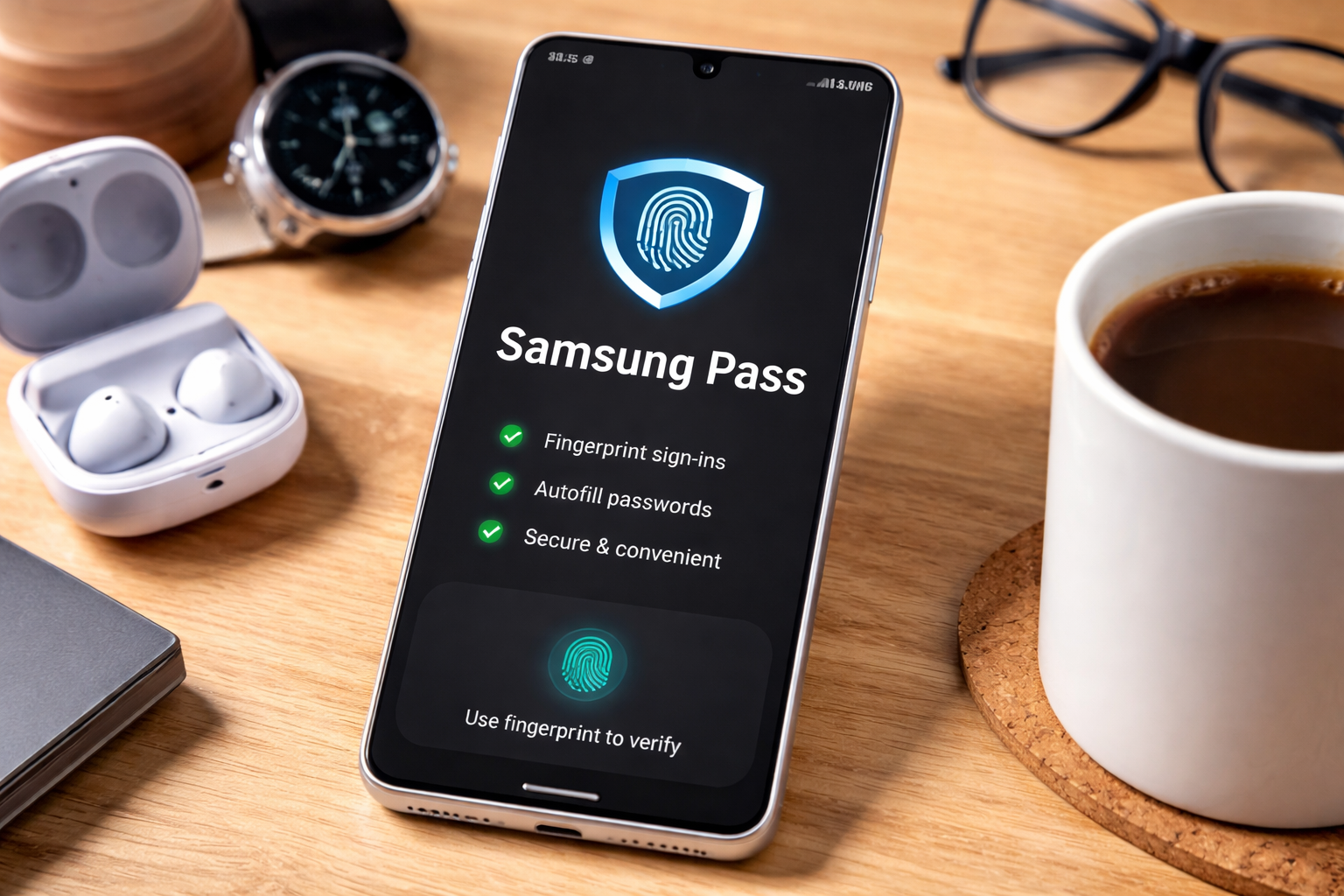
Samsung Pass lets you sign in to apps and websites with your fingerprint or face instead of typing passwords. After you set it up and pick it as your autofill service, it can save logins and fill them back in when you return.
However, it is important to note that to set up Samsung Pass, you need a Samsung account, a screen lock (PIN, pattern, or password), and at least one biometric method like Fingerprint or Face recognition. You should install the latest updates for your phone and Samsung apps to reduce autofill glitches.
Once everything is set and ready, proceed to the steps below to complete the set up.
Set up Samsung Pass
Do this once to turn on Samsung Pass and link it to your biometrics. Your exact menu names can vary by One UI version, so use the closest match on your device.
- Open Settings.
- Tap Security and privacy (or Biometrics and security).
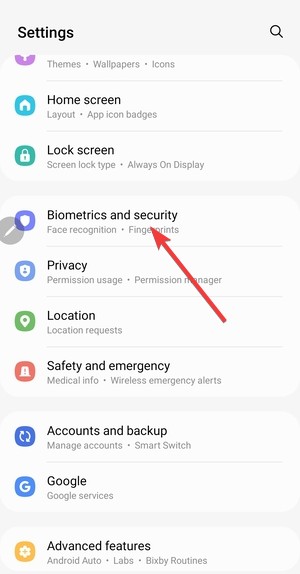

- Tap Samsung Pass.
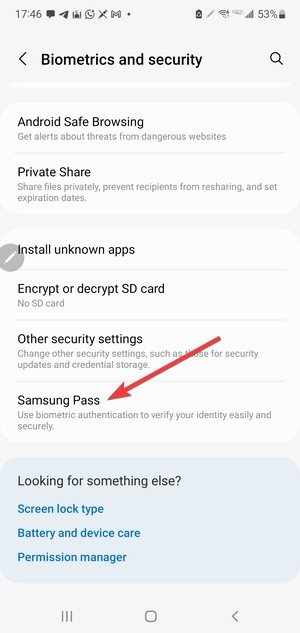

- Tap Sign in, then log into your Samsung account.
- Confirm your screen lock, then register Fingerprint (or Face) when prompted.
Set Samsung Pass as your autofill service
This setting controls which tool fills usernames and passwords across apps and browsers. If another autofill provider stays selected, Samsung Pass will not show up reliably.
- Open Settings.
- Tap General management.
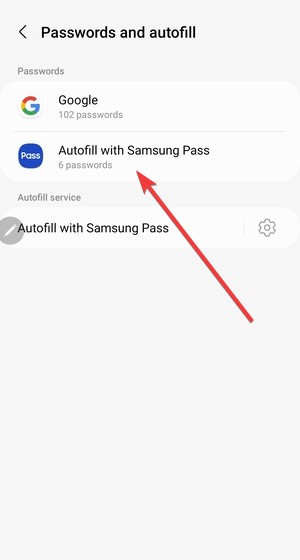
- Tap Passwords and autofill.


- Tap Preferred service.
- Select Samsung Pass.

Save a login in Samsung Internet
Samsung Pass works most consistently with Samsung Internet and many Android apps. Save one login first so you can test autofill right away.
- Open Samsung Internet.
- Go to a site where you already have an account.
- Enter your username and password, then tap Sign in.
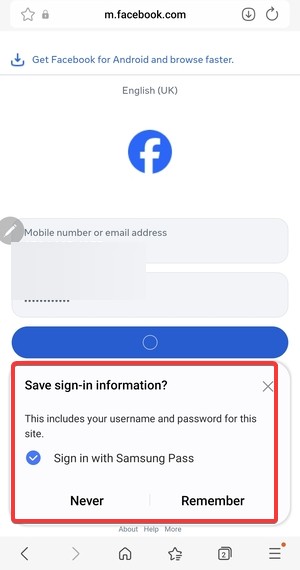
- When Samsung Pass asks to save the login, tap Save (or Remember).

Use Samsung Pass to sign in next time
After Samsung Pass saves a login, it can fill it when you tap a sign-in field. You confirm the fill with biometrics, so you do not need to type your password again.
- Open the same app or website again.
- Tap the username or password field.
- Tap the Samsung Pass prompt when it appears.
- Approve with Fingerprint or Face.
- Tap Sign in if the app or site does not submit automatically.
Use Samsung Pass to autofill personal info
Samsung Pass can also fill common form fields like your name and address. This saves time when you create accounts or complete checkout forms on your phone.
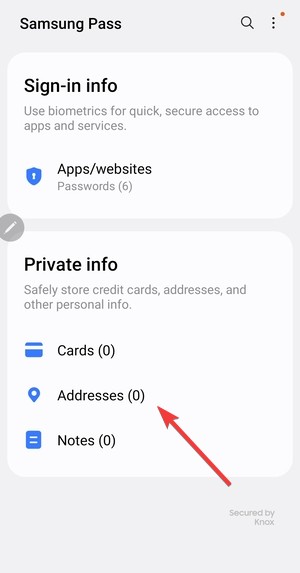
- Open Settings and tap Samsung Pass.
- Open the section for personal information, then add the details you want to reuse.

- Open a supported app or website and tap a form field.
- Approve the autofill prompt with your biometrics.
Manage saved passwords and entries
Clean entries help Samsung Pass fill the right login every time. Edit saved items after you change a password, and delete accounts you no longer use.
- Open Settings and tap Samsung Pass.
- Review your saved sign-ins.
- Open an entry to edit details or tap Delete to remove it.
Troubleshoot Samsung Pass when it does not autofill
Autofill usually fails because the wrong preferred service is selected, or because Samsung Pass excludes an app or site. Start with these checks before you reset anything.
Check the preferred autofill service
If Samsung Pass does not appear, another provider may control autofill. Switch the preferred service back to Samsung Pass, then test on a login screen.
- Open Settings → General management.
- Tap Passwords, passkeys, and autofill.
- Tap Preferred service and choose Samsung Pass.
- Review excluded apps or excluded sites
Samsung Pass can ignore specific apps or websites if you excluded them earlier. Remove the exclusion, then try saving and filling the login again.
- Open Settings → Samsung Pass.
- Find Excluded apps or Excluded sites.
- Remove the app or site you want Samsung Pass to fill.
Fix Samsung Pass when it does not ask to save
If the save prompt disappeared, refresh your autofill selection and try again. This often restores the save dialog after updates.
- Open Settings → General management → Passwords, passkeys, and autofill.
- Tap Preferred service and switch to a different option (if available).
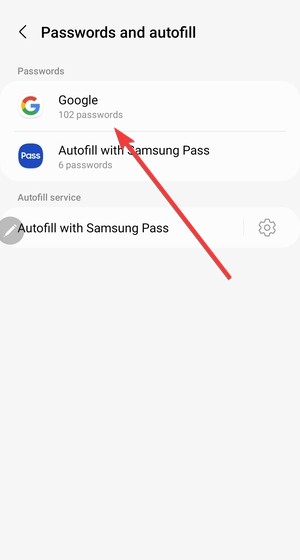
- Switch Preferred service back to Samsung Pass.
- Sign in again in Samsung Internet and tap Save when prompted.
Tips for using Samsung Pass
- Use a strong screen lock PIN even if you rely on biometrics daily.
- Save logins in Samsung Internet first if another browser fails to trigger prompts.
- Update saved entries after password changes to avoid repeated sign-in failures.
- Check Excluded apps and Excluded sites when autofill stops suddenly.
FAQs
Does Samsung Pass work in Chrome? Samsung Pass can work in many apps, but it often behaves most consistently in Samsung Internet. If Chrome does not trigger prompts, confirm Samsung Pass is the Preferred service and test again.
Why does Samsung Pass keep asking for my PIN? Samsung Pass may request your screen lock when biometrics fail or after you change fingerprint or face data. Re-register your biometrics if the PIN prompt keeps showing up.
What should I do if Samsung Pass does not autofill in one specific app? Remove the app from Excluded apps, then test a different login screen. If only one app fails, that app may not support Android autofill consistently.
Summary
- Set up Samsung Pass in Settings and register biometrics.
- Set Samsung Pass as your Preferred service for autofill.
- Sign in once and tap Save to store the login.
- Fix autofill by checking Preferred service and exclusions.
Samsung Pass works best when you keep it selected as your autofill provider and review exclusions when prompts disappear. Clean up saved entries after password changes so your next sign-in works on the first try.


Discussion (0)
Be the first to comment.