



ASUS PCE-AC88 is a wireless PCI-Express network adapter that is so new, you will have a hard time finding any information about it. It is a premium network card for people who want to stop using wires in their home network and who want the best network performance possible. It was created with the latest wireless routers and wireless technologies in mind and it promises some unbelievable speeds on your wireless network. We have tested this network card for a week, on a daily basis and this is what we have learned:
Unboxing the ASUS PCE-AC88 dual-band AC3100 wireless PCI-Express network card
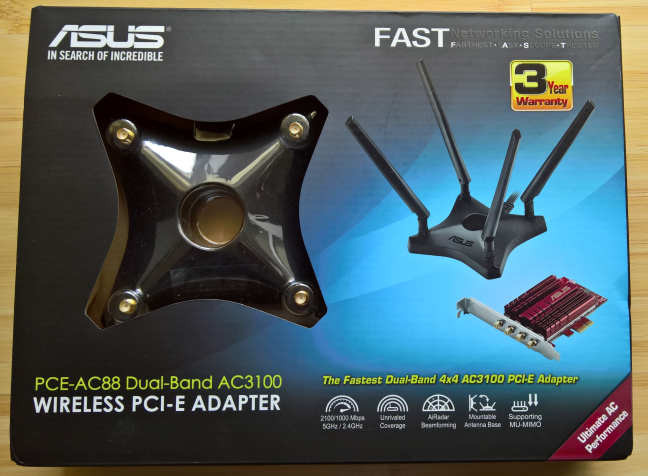
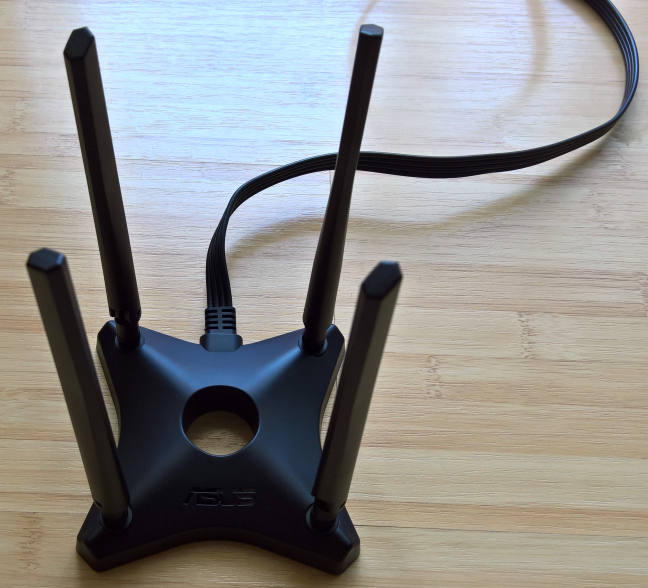
The packaging used for the ASUS PCE-AC88 wireless PCI-Express network adapter allows you to view the antenna base without opening the box. On the front of the box you will see a picture of the network adapter, the antenna base with the four antennas connected to it, and the most important features of this networking device.
On the back side of the box you will see a comparison with other PCI-E network adapters made by ASUS as well as more details about the features of the ASUS PCE-AC88 wireless PCI-Express network adapter.
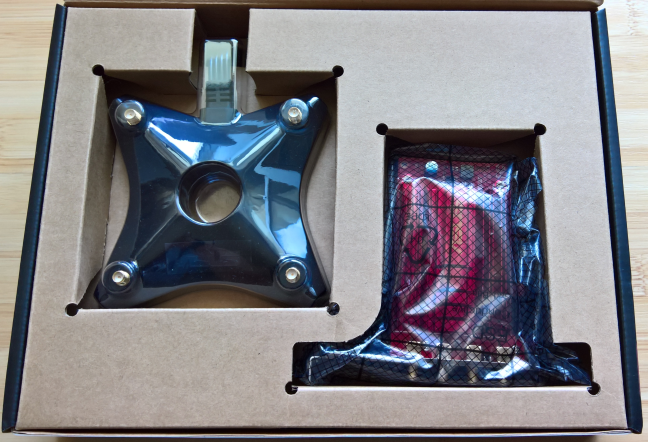
When you open the box, you immediately see the network adapter and the antenna base.
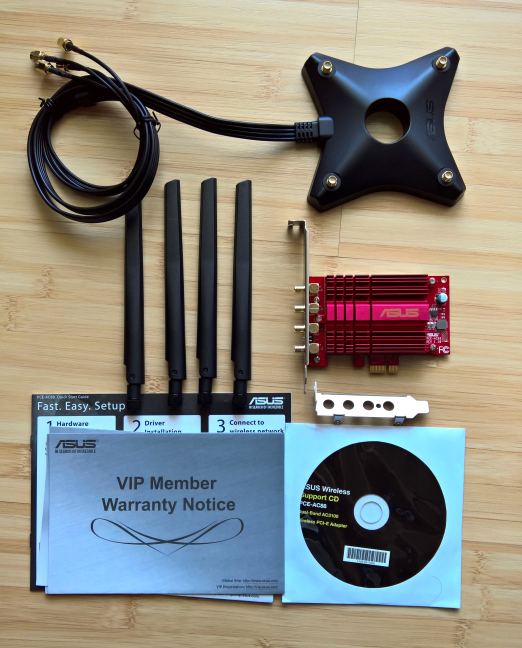
After you unpack everything, you will find the following items: the ASUS PCE-AC88 network adapter, four antennas, the antenna base, a low profile bracket, a support disc with drivers and the user manual, the quick start guide and the warranty.
Before we talk about the user experience offered by the ASUS PCE-AC88 wireless PCI-Express network adapter, let's see what it has to offer in terms of specifications.
Hardware specifications
ASUS PCE-AC88 has a Broadcom BCM4366 processor which is able to operate using both the 2.4 GHz and 5GHz frequencies. This network adapter promises a maximum theoretical bandwidth of 2100 Mbps on the 5GHz frequency and of 1000 Mbps on the 2.4 GHz frequency. This adapter uses the PCI Express x1 interface and fits in a single PCI Express x1, x4 or x16 slot. ASUS PCE-AC88 is passively cooled by a fairly large heat sink, which should ensure good cooling even in warm environments.
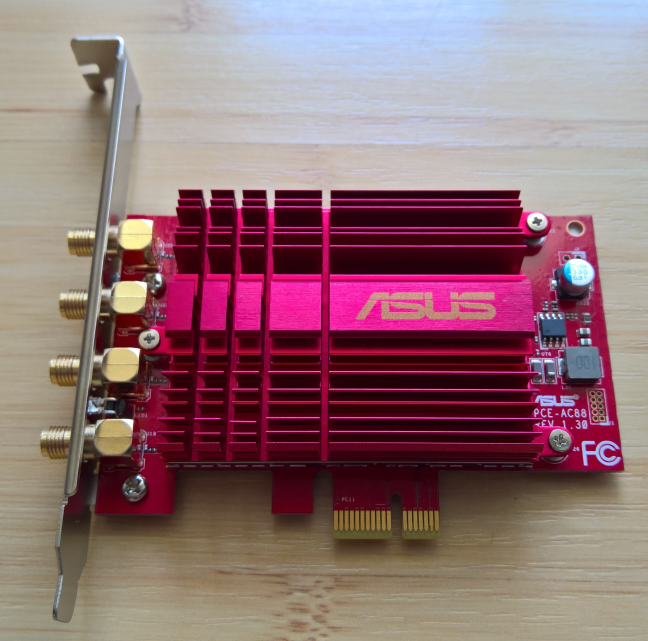
It has four antennas which can be used both for transmitting and receiving data, as they use the 4x4 MU-MIMO technology. These antennas can be mounted both on the magnetic base (which is what ASUS recommends), as well as on the connectors on the back of the network card.
As you would expect from a new networking device, ASUS PCE-AC88 offers support for all the modern wireless networking standards, including 802.11ac.
In terms of size, the network adapter (without the antennas and the antenna base) is 4.07 inches (103.3mm) in length and 2.71 inches or 68.9mm in width. Its weight is 0.27 lbs or 125 grams.
One strange aspect that we noticed about ASUS PCE-AC88 network card and the specifications that we received from ASUS is that this wireless network card works on Windows 7 and Windows 10. There is no information about its compatibility with Windows 8.1. Therefore, if you are using this operating system, you should check this aspect before purchasing this network card. At the time of this review, this network card is so new that there is no entry about it on the official ASUS website.
Setting up and using the ASUS PCE-AC88 dual-band AC3100 wireless PCI-Express network card
Installing the ASUS PCE-AC88 network adapter means shutting down your computer, opening up the case, ensuring that all static electricity is discharged and plugging the network adapter into an open PCI-Express slot.
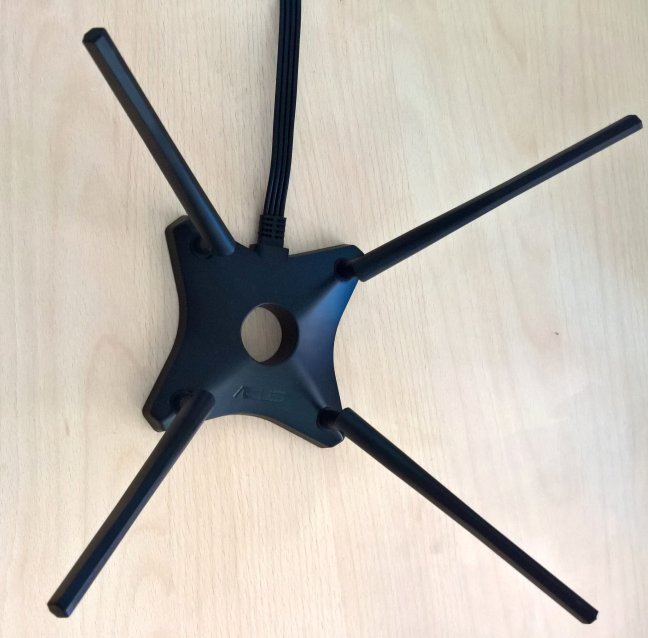
Then, close the case and connect the antenna base to the network card. Place the base in the position that you desire and plug the external antennas into the base. ASUS suggests tilting each antenna outward by about 45 degrees to get the best performance. Also try to place your external antenna base at higher elevations to minimize interference between the network adapter and its paired router.
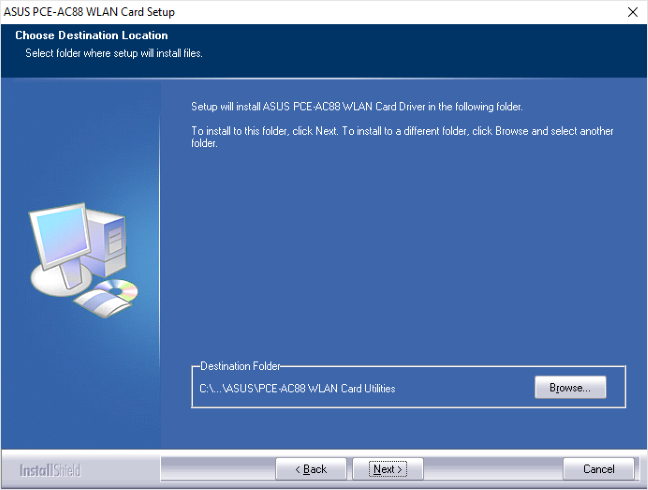
Next, start your Windows computer and install the drivers from the support disc that is bundled with ASUS PCE-AC88. You can also check for the latest drivers on the ASUS Support website.
After the driver is installed, you can start using the ASUS PCE-AC88 network card to connect to the wireless networks that are available in your area. There's no ASUS application for connecting to wireless networks. You simply use the features that are available in Windows for this purpose.
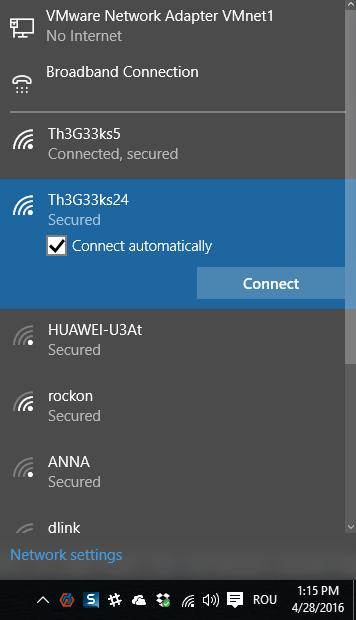
We connected a desktop computer to the wireless networks that were broadcast by an ASUS RT-AC88U router. We had no issues in connecting to the network and our connections were fast and stable. We transferred files over the network, did media streaming, online gaming and plain web browsing. All activities were performed without stability issues and we enjoyed very good performance. But, more on that, on page two of this review.
Wireless network performance
We installed the ASUS PCE-AC88 network card on a desktop computer with an Intel Core i5 4460 processor, running at 3.20GHz, 16GB of RAM and a very fast Samsung 850 Pro 512GB SSD. We also used Windows 10 Pro with the latest updates installed. During our testing we used a very fast Internet connection capable of downloads of 1 Gbps and of uploads up to 200 Mbps.
To evaluate the performance of the ASUS PCE-AC88 network card we performed two tests on each wireless network that was broadcast by our router:
- We ran SpeedTest both on the 2.4 GHz wireless and 5GHz wireless network that were broadcast by our ASUS RT-AC88U router. This test showcases how fast the Internet connection is. Please remember that the maximum speeds that can be achieved on our Internet connection are 1 Gbps for the download and 200 Mbps for the upload.
- We transferred an 883 MB file between our desktop computer and a Microsoft Surface Pro 3 with an Intel Core i5-4300U processor, running at 1.9 GHz, 8 GB of RAM and a fast 256 GB SSD drive from Samsung. The desktop computer was connected wirelessly to the network using the ASUS PCE-AC88 network card, while the Microsoft Surface Pro 3 connected to the network using a network cable and a Microsoft Surface Ethernet Adapter.
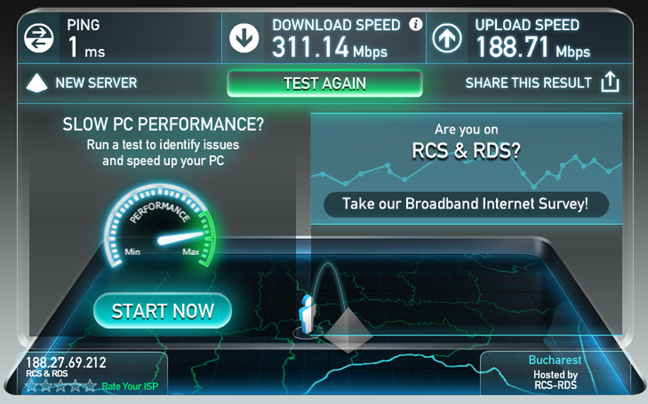
First, we evaluated the performance of the 2.4 GHz wireless network connection that is offered by ASUS PCE-AC88. As you can see below, in SpeedTest, the maximum download speed we obtained was 311.14 Mbps.
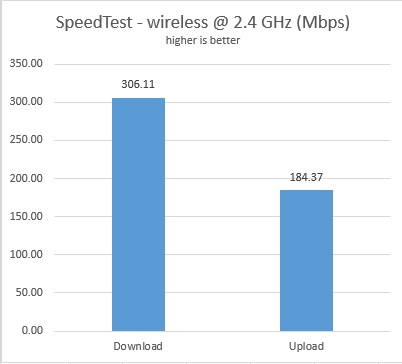
The average download speed we obtained in SpeedTest is 306.11 Mbps while the average upload speed is 184.37 Mbps.
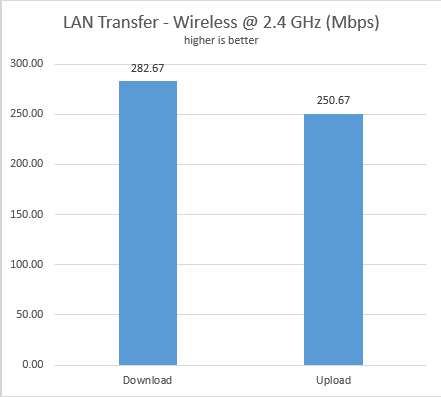
When transferring the 883 MB file between the two computers in our network, we obtained an average download speed of 282.67 Mbps and an average upload speed of 250.67 Mbps.
The ASUS PCE-AC88 network adapter delivers very fast wireless connections using the 2.4 GHz network. They are the fastest we've seen so far in our years of testing networking products.
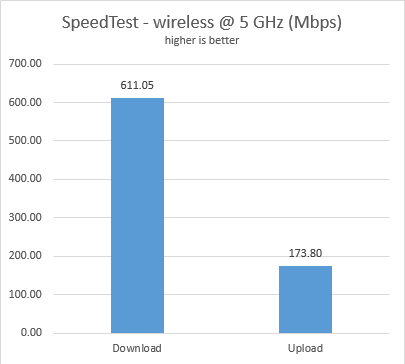
Next, we evaluated the performance of the 5 GHz wireless network connection offered by ASUS PCE-AC88. The maximum download speed which we recorded in SpeedTest was 613.46 Mbps.
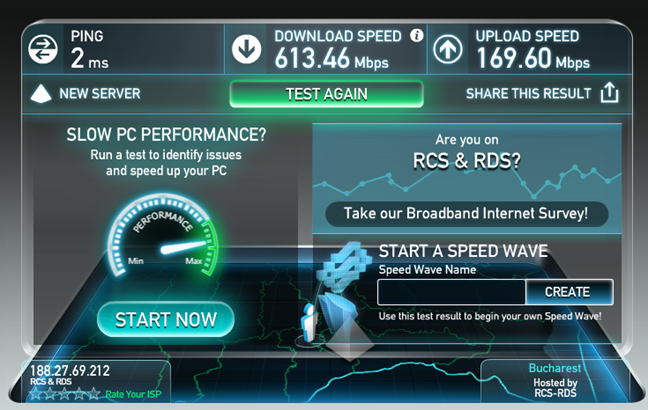
The average download speed we obtained in SpeedTest was 611.05 Mbps while the average upload speed was 173.80 Mbps. This is a fantastic result if you ask us.
When transferring the 883 MB file between the two computers in our network, we obtained an average download speed of 778.67 Mbps and an average upload speed of 421.33 Mbps. Again, a great result!
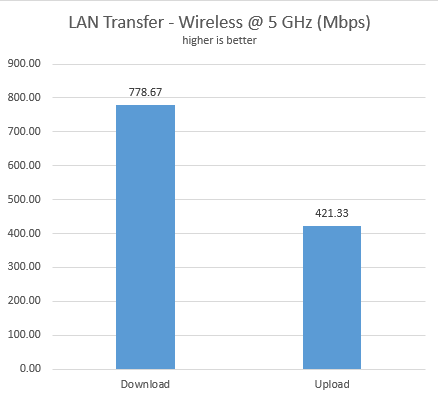
The ASUS PCE-AC88 network adapter delivers very fast wireless network connections when using the 5GHz frequency. Most probably, you will experience the fastest wireless network connection you can possibly have at this time.
Pros and cons
We loved many things about the ASUS PCE-AC88 network adapter:
- It delivers very fast wireless network connections both on the 2.4 GHz and 5 GHz frequencies
- It is compatible with the modern multi-user MIMO technologies that are offered by modern premium routers
- It is easy to setup, install and use
There are also a few cons about the ASUS PCE-AC88 network adapter:
- It is unclear at this time whether it will work on computers with Windows 8.1 installed
- Its pricing is unknown at this time. Most probably it is going to be an expensive product

Verdict
ASUS PCE-AC88 is a very powerful wireless PCI-Express network adapter that allows you to replace wired network connections with wireless network connections. If you want to stop using network cables and you have a generous budget, you should definitely consider it. With this device, you get wireless network connections that are close to 1 Gbps in terms of transfer rates, as long as you have a powerful computer to back it up and your desktop computer is not very far from your wireless router. Setting it up is not complicated, its performance is amazing and, most probably, you will be very pleased with your purchase. Except for some lack of information from ASUS's part, there's no fault that we could find for this wireless network adapter.
Discussion (9)
I installed my card into the PCIE x4 slot but it doesn’t appear to recognize the card nor can I install the driver????
Shame such a top end product fails to have hotspot/access point support.
Are you familiar with how to review network hardware in the least?
Speedtest? Really? This doesnt tes the card at all, only your ISPs bandwidth.
lan speed test point to point with another machine or NAS with the at least the same speed abilites through a wiresless router that supports 4×4 802.11ac MU-MIMO technology and can thus use four 802.11n (2.4 GHz/5 GHz) or four 802.11ac (5 GHz) streams can even be thought of to test this card. Currently only 3 on the market. ASUS RT-88U, ASUS RT-AC5300 and Netgear nighthawk X8 R8500 AC5300. If you didnt use one of these you are trying to prove a 1GB over copper connection on a 1MB coaxial network.
Ciprian, just a note to remind you that the images from your page, and also Codrut’s, won’t save in Evernote 5. I reported the problem to Evernote some time ago.
Some pages in the past saved without incident but lately, not so much!
Thought you should know???
Thanks for the reminder. Unfortunately, we don't know what we can do to solve this issue. 😐
Ciprian, I’m not a coder nor can I write html but I’m guessing there’s a glitch in the code somewhere.
I thought at first it was caused by a template “Tutorial” but the last one with a problem was “Review” and I’m not sure those pages even use a “template”?
I just scrolled through Evernote looking for clues and can tell you this:
Your last article “Review Asus…….” shows no images in Evernote.
Your article “How to use libraries……..Oct 2013” all the images rendered just fine.
Maybe a comparison between the code would give you a clue?
It’s an interesting problem and I’m glad to help if I can. The old DOS command, FC (File Compare) comes to mind but I’m betting there is something available with new technology.
I can go back through Evernote and identify the bad pages if that will help? Screenshots I can do too. I noticed too that the image placeholders is those bad pages varied. Some were the full size of the missing image and others were reduced to a single line block.
Talk to me!
Jus
EUREKA!!!
Ciprian, I think I found your problem?
I’ve been scrolling through source code trying to find the reason images won’t save in Evernote and “lazyloader” shows up in the pages where the images are missing. I also have pages from How-to-Geek with NO images. Maybe Chris Hoffman is behind the whole thing? The first time I came across lazyload was in an article by Chris Hoffman and you have to scroll clear to the bottom of the page before the images load. Perhaps Evernote doesn’t do that? I always scroll to the bottom of a page anyway since lazyload surfaced and save a selected article mode in Evernote. When saving the edited article perhaps Evernote somehow loses the lazyload call and the images aren’t saved?
I have hated “lazyload” since it was born and I’ve seen other complaints on the internet.
Perhaps if you edited your last pages removing lazyload I could try again saving in Evernote to confirm my suspicions and make everything work again???
Jus
MORE NEWS!
Since my last post I chased down and loaded a current post from How-To-geek. It contained lazyload and when saved to Evernote, using Selected article, the images saved as advertised. Either my theory is wrong or there is a difference between how you use lazyload and the way they use it. Could using lazyloader vs lazyload in the code make a difference?
I’ve got to find an answer or give up saving imageless tips and tutorials to Evernote.
And I still think lazyload has something to do with it!!!
Jus
Hi. I have news as well: I have talked about this issue with the developer that will be working on our website. We found the rootcause of this issue. However, it is going to take us a while to fix it. Since we migrated from 7tutorials to digitalcitizen, we had many technical issues. The company we worked with did a very poor job and now we have to fix many things, one at a time, with someone else.
We are preparing a development effort which will fix many issues including the issue that you are encountering. However, it might take up to two months to finish the development. I'm sorry for the annoyance and I hope that you will keep reading us while we continue to fix things.