



Malwarebytes makes security software that is renowned for its malware removal powers, especially when it comes to adware and spyware. Their products are also known for their simplicity and ability to work alongside classic antivirus products, without interfering with their activity. In December 2016, the Malwarebytes Corporation released Malwarebytes for Windows (version 3), which is designed to offer protection against malware, ransomware, exploits and malicious websites. In their own words, Malwarebytes for Windows "is a next-generation antivirus replacement." We were curious to see if this statement is true, so we decided to test the latest version of Malwarebytes for Windows. Here is our review of this product:
What is Malwarebytes for Windows good at?
Malwarebytes for Windows is a good choice for you if:
- You want to enhance your Windows computer's security by adding a second layer of defense against malware and ransomware, besides your main antivirus product
- You want to be well protected against malicious websites regardless of the web browser you prefer using
Malwarebytes for Windows Premium vs. Free
Malwarebytes for Windows is offered in two versions: a Premium version and a Free version. The Free version can detect malware and spyware, and can remove rootkits from your Windows machine. The Premium version does the same things, but it also offers:
- Real-time protection: identifies and stops malware before it infects your computer
- Anti-exploit: protects common applications from vulnerability exploits and zero-day attacks
- Anti-ransomware: stops ransomware from encrypting your files
- Malicious website protection: blocks dangerous websites before your web browser loads them
Considering all the additional security features that you get from the Premium version, we believe that it is a better deal than the Free one. In other words, if you want to be proactive, buy Malwarebytes for Windows. If you prefer to use it as a reactive security tool, alongside your main antivirus, the Free version is good enough.
Pros and cons
Here are some of the good things to consider about the Premium version of Malwarebytes for Windows:
- It includes anti-exploit features that some traditional antivirus products do not, and which can protect you more efficiently against zero-day attacks and apps vulnerabilities
- You can use it together with an antivirus product, without hurting your system's speed or stability
- It can efficiently stop you from visiting malicious websites in any web browser you prefer using
- It does not slow down your internet connection or local network data transfers
- The user interface is straightforward and easy to use
There are some negatives to consider too:
- It does not scan or ask to scan removable drives, and you cannot change this behavior anywhere in its user interface
- It is not the most efficient at detecting malware, so it is preferable to use it alongside another antivirus solution
- The price for a license is a bit high in our view, especially if you consider that you can't use it as a real antivirus replacement
Verdict
Malwarebytes for Windows is a useful security tool but only if you use it alongside another antivirus product or security suite. You must use at least Windows Defender as a complement to it. Although Malwarebytes for Windows brags on its website about being your next "next-generation antivirus replacement," as far as we can tell, this claim is false. When we used it on its own, with no other antivirus active, Malwarebytes for Windows failed to detect all of the malware samples that we used. Together with the lack of any firewall module, the price of Malwarebytes for Windows Premium feels high. The company says that the real power of Malwarebytes for Windows is it smarter technology and its anti-exploit protection abilities. That may be true, but the company is not honest about the fact that their software should not be used as an antivirus replacement because it cannot protect you efficiently against all forms of malware. You must have an antivirus alongside. If you already have one and you want a second layer of defense against malware, ransomware, exploits and harmful websites, and money is not an issue, you should buy Malwarebytes for Windows. If not, it is better to invest in a good antivirus product or use the Free version of Malwarebytes for Windows to scan your computer from time to time.
The download and installation experience
To get a trial version of Malwarebytes for Windows on your computer, you have to download an executable called mb3-setup-consumer-3.3.1.2183.exe, with a size of 74.7MB. Running the installer triggers the launch of the installation wizard, which lets you do a quick install using the default options. You can also configure the Advanced Options.
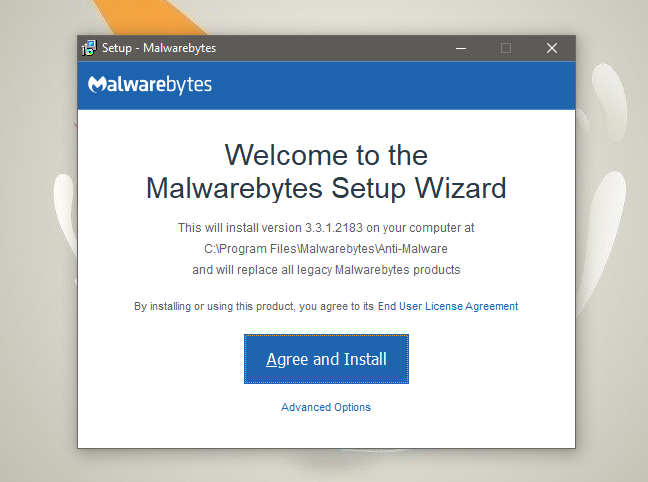
However, the only Advanced Options are choosing the installation folder and deciding whether to create a desktop shortcut or not. They are not "advanced" options if you ask us.
When the installation is done, you can see the user interface, and you are presented with a welcome message to "your 14-day Premium Trial". When this trial ends, Malwarebytes for Windows can be used to clean your computer if it is infected, but it no longer prevents malware or proactively stops ransomware and dangerous websites.
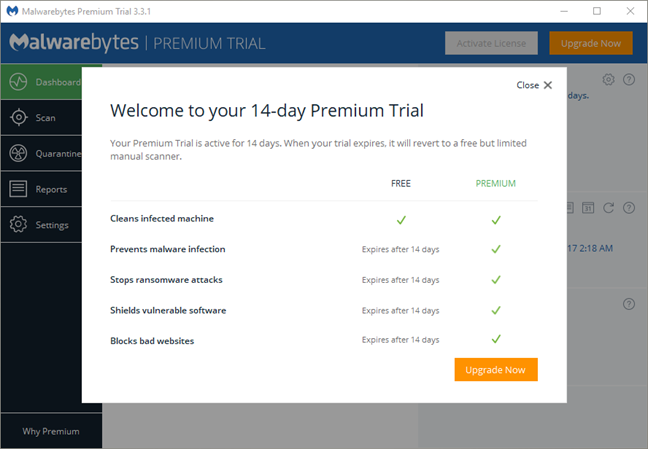
The download and install processes for Malwarebytes for Windows are straightforward and fast. Beginners and experienced users alike can perform it smoothly. Also, no user data is requested, which is excellent.
Integration with Windows, web browsers and universal Windows platform apps
Malwarebytes for Windows does not automatically disable Windows Defender, and it does not disable Windows Firewall either. We were expecting it to disable Windows Defender because the official website presents Malwarebytes for Windows as being a "next-generation antivirus replacement." However, it looks like this statement is at least deceiving. While scouring their forums and help documentation, we found out that Malwarebytes for Windows is designed to work well alongside other antivirus products, Windows Defender included.
When we test antivirus products like this one, we also check whether they disable Windows Firewall and replace it with a proprietary firewall module. Malwarebytes for Windows does not include a firewall module, so it has no reason for disabling the Windows Firewall. That also means that you should not expect to get better protection against attacks originating from your network because Malwarebytes for Windows cannot provide such protection.
The good side of not having a firewall module is that it is unlikely for you to have any problems in using the networking features from Windows. Creating or joining a Homegroup is easy, and so is sharing files or folders over the network. We also had no problems at all when running or updating universal Windows platform apps.
To protect you against dangerous websites, Malwarebytes for Windows scans and filters all the internet traffic that goes in and out of your computer. That means that you are safe in any web browser you like using and that is an excellent thing.
Moving further ahead, we wanted to see whether Malwarebytes for Windows has a meaningful negative effect on our test laptop's performance. We began by using BootRacer to measure the boot time of our computer before and after installing it. The numbers we got with Malwarebytes for Windows installed increased by 10 percent, which is a significant increase. We also looked at how much RAM it consumes. During normal circumstances, when nothing out of the ordinary is taking place, Malwarebytes for Windows uses about 227 MB of RAM which is a bit more than what other security products need but is still not a significant number by today's standards.
To check whether the internet or local network speeds are affected by Malwarebytes for Windows, we ran a few tests with Speedtest.net and with LAN Speed Test. The results showed no meaningful changes, so it looks like this security product does not hurt the internet or local network performance.
Malwarebytes for Windows is security software that is integrated well with Windows. It can function alongside other antivirus software without issues. This security product did not appear to slow down our test computer too much, although it did increase the boot time by 10%.
On the next page of this review, you can see how easy it is to use Malwarebytes for Windows and how effective it is at protecting your computer from malware and malicious websites. You can also check our recommendations for what settings you should consider adjusting.
Ease of use and configuration
Malwarebytes for Windows has a simple user interface that is easy to use by anyone. It has a resizeable window with five different sections: Dashboard, Scan, Quarantine, Reports, and Settings. These sections are displayed in a menu on the left side of the window, and their contents are shown on the right side. The user interface uses blue and green colors, and most features and options can be enabled or disabled with switches or checkmarks. That makes this software easy to use on traditional computers, with a mouse and a keyboard, as well as on devices with touchscreens, with your fingers.
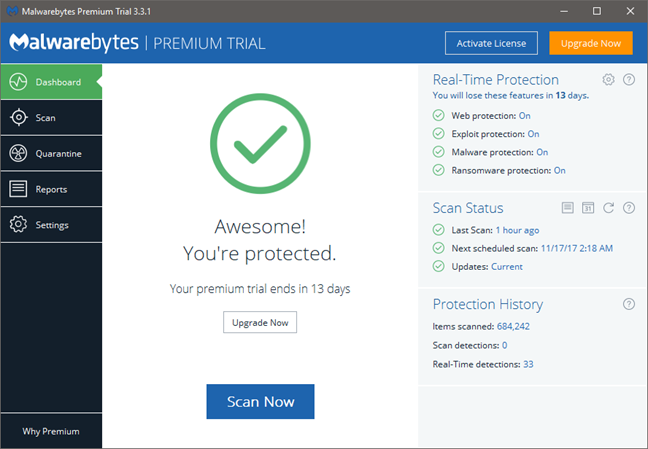
If you want to run a scan, you can do it straight from the Dashboard, by clicking on the Scan Now button.
However, if you want to run a custom scan for which you can choose which objects are to be checked, as well as select how potentially unwanted programs are handled, you should use the Scan section. That is also the place where you can schedule scans if you want.
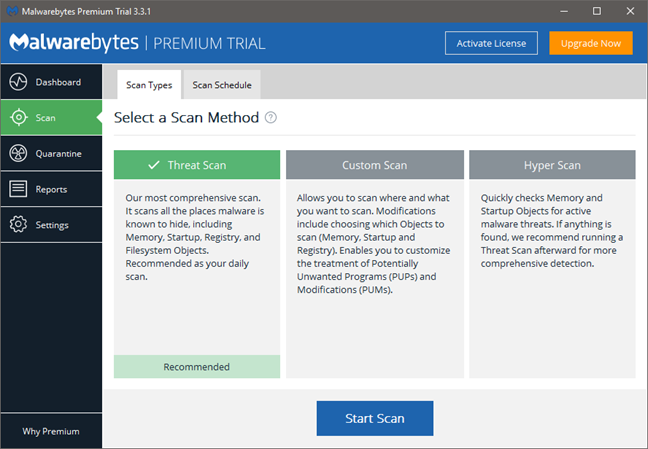
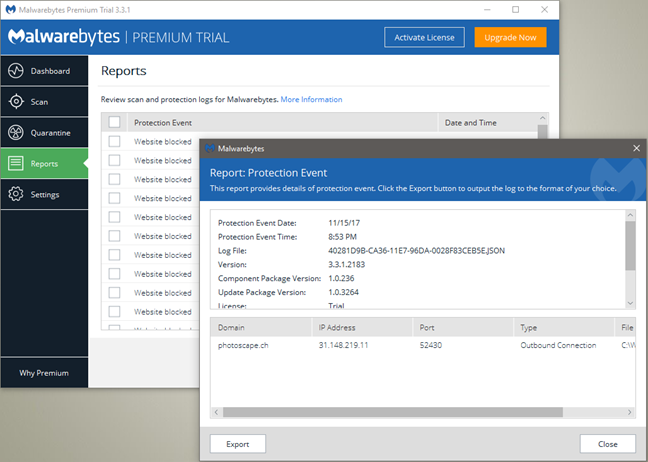
A good thing that many will appreciate is the Reports you get from Malwarebytes for Windows. There are no visual statistics, but all the events are recorded and listed in the Reports section of the interface. They are detailed, and a double-click on one of them gives you all the details you might want to know about it.
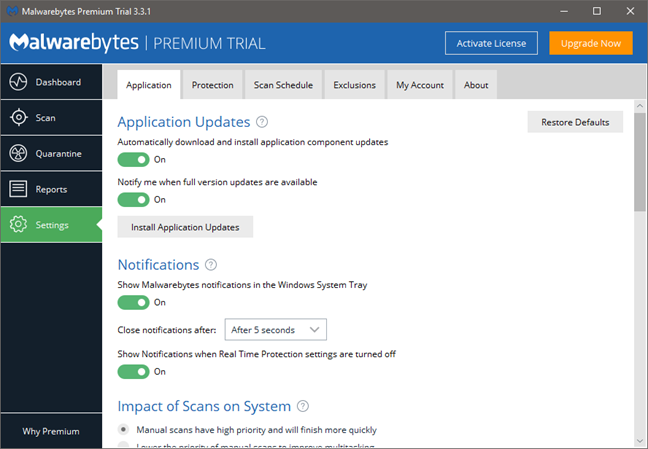
All the settings, both simple and complex, are found in the Settings section. Most of them are easy to understand and, if you need additional help for any of them, all you have to do is click the small question mark icon near that setting or option. Malwarebytes for Windows does not offer offline help files, but the online documentation is detailed, well organized and easy to search. As for the support options, you get access to the community forums, live chat and also email options, but no phone support of any kind.
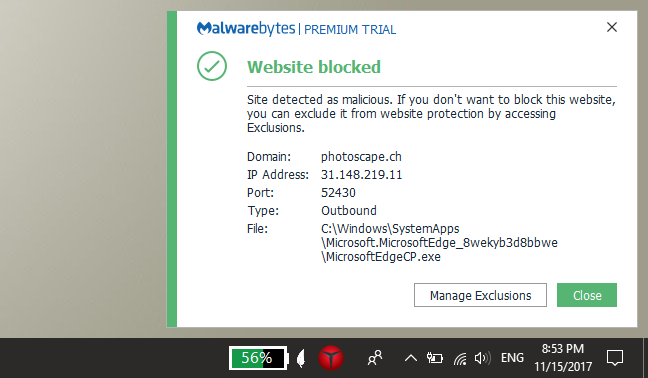
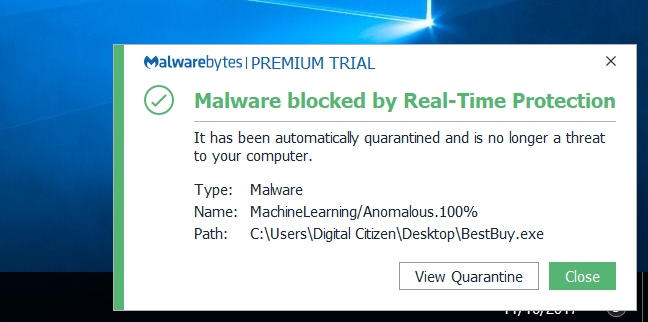
As far as alerts and notifications go, we saw alerts that were related to dangerous files, as well as notifications about bad websites that were blocked by Malwarebytes for Windows. This security software is not verbose and does not bother you with unimportant alerts, which is a good thing.
Malwarebytes for Windows is a security software with a simple and easy to use interface. It looks good, and everything is easy to find.
Antivirus and antispyware protection
The first thing we checked regarding antivirus and antispyware protection, was to see how efficient Malwarebytes for Windows is at protecting you when surfing the web. Malwarebytes for Windows filters all the internet traffic that goes on your computer, and that means that you should get the same protection regardless of the web browser you prefer using.
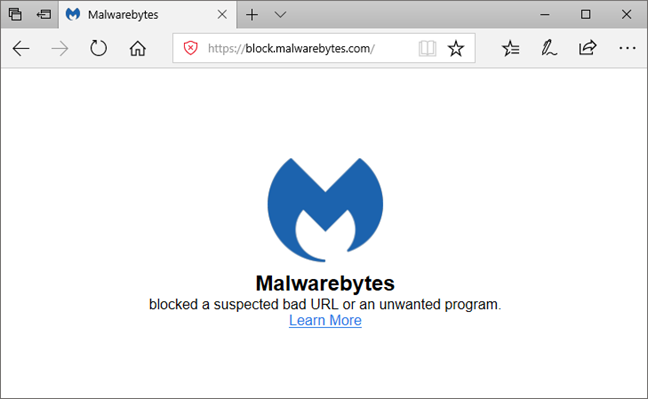
To test how good the web shield is, we used the most popular web browsers today - Google Chrome, Mozilla Firefox, Microsoft Edge and Opera - and tried to visit a series of websites known to be dangerous. Malwarebytes for Windows managed to stop us from loading all the websites we tried visiting, in all the web browsers we mentioned. That is an excellent result!
Next, we wanted to see what Malwarebytes for Windows does when you plug in a removable drive that has malware files on it. We took a USB memory stick and copied some malware files on it, after which we connected it to our test laptop. Unfortunately, Malwarebytes for Windows did not have any reaction. Even if we opened the USB memory stick in File Explorer, Malwarebytes for Windows did not initiate a scan. The only way to check the USB memory stick for malware was to scan it manually. Out of the 12 malware samples that we placed on it, Malwarebytes for Windows did not identify four infected files. When we tried to execute them, the security software detected another two of them. However, two malicious files were left untouched, as Malwarebytes for Windows did not see them as dangerous. This is an average result. We would have also preferred to be able to configure Malwarebytes for Windows to scan removable drives automatically but, unfortunately, the user interface does not allow that.
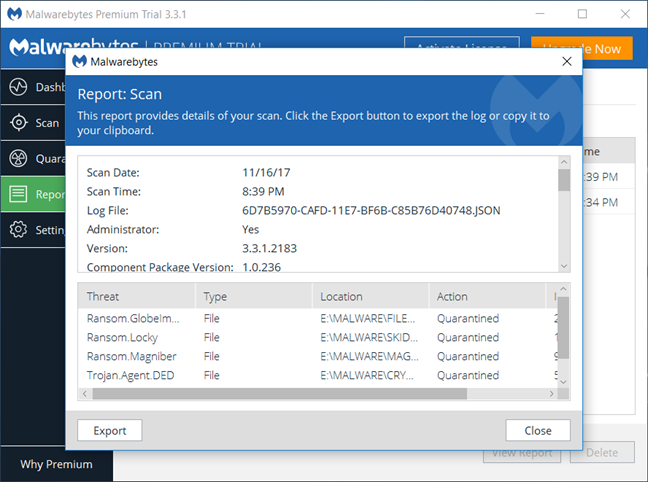
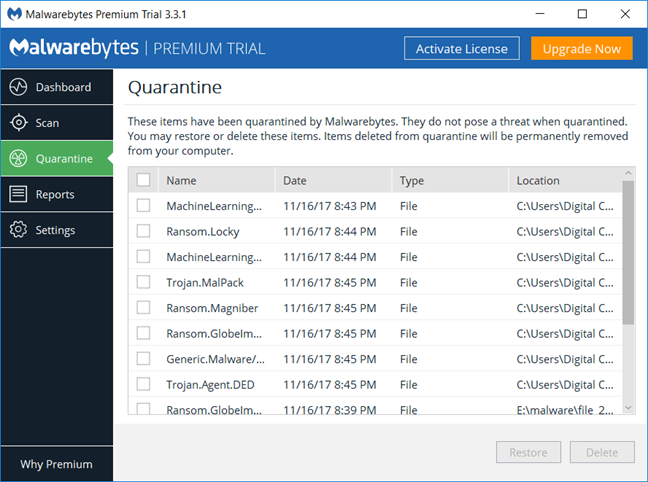
Finally, we performed a more complicated test. On our test laptop, we installed Windows 10, infected it with some nasty malware, and then we asked Malwarebytes for Windows to install itself and clean our mess. It was not an easy job, but it did manage to clean our test computer. After one full computer scan and one reboot, it managed to disinfect all the infected files. We also used Windows Defender to see if anything was left, but all the evidence pointed out that the computer was alive and working well again. This is a good result!
We also measured the time needed by Malwarebytes for Windows to scan our 126GB system partition with 35GB of data on it, and we found that it takes only about 5 minutes. That is fast.
Finally, we checked what other independent security organizations had to say about Malwarebytes for Windows, but apparently no major security organizations test and review this security app.
Malwarebytes for Windows does a good job when it comes to protecting you against online threats. It is also capable of repairing an infected machine, but it seems that its malware detection powers are only average. The good thing is that you can use it alongside another antivirus, and that way you can get a much better anti-malware protection.
Default settings you might want to adjust
While using Malwarebytes for Windows, we found a few settings that we believe some users might want to change:
- Enable the "Scan for rootkits" - it increases the scanning times, but it also checks for nasty rootkits that might hide on your machine. For a higher level of protection, turn this setting on.
- If you feel that Malwarebytes for Windows slows down the boot time of your computer, or it interferes with the startup of other software, you might want to "Delay Real-Time Protection when Malwarebytes starts."
- If you believe there is some malware found on your system, you might want to "Enable self-protection module early start." This changes the Windows startup order of drivers and apps and makes sure that Malwarebytes for Windows begins protecting your computer as soon as possible.
All the settings above are found in the Settings section of the user interface, in the Protection tab.
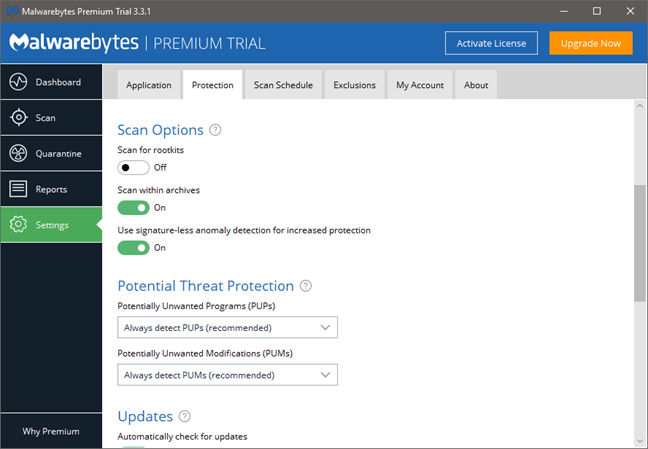
Malwarebytes for Windows is a security software that is configured well by default, but there are a few settings that you might want to adjust to make your Windows computer faster or more secure.
What is your opinion about Malwarebytes for Windows?
If you have read this review, you know what our opinions about Malwarebytes for Windows are, and you have seen the results of our testing. Before closing the review, share your thoughts about this security product, in the comments section below.
Discussion (2)
Pathetic, you can only turn off: start with windows boot if you have a paid Premium version, I will never pay anything for this behavior.
I’ve used the Premium version for years. I read this because I almost never get an alert from it and wondered if it did anything. Sounds as if it does and I’ve changed the settings as suggested apart from the start-up delay; I am so resigned to slow starts that I just let it take however long it takes, adding a few seconds for a little more security (and value from the product) is a small price to pay.