




Did your Windows 10 desktop icons disappear, or do they look different from the way they used to? In most cases, it takes just a few clicks to bring them back. Sometimes, the problem is that all your desktop icons are hidden, and you need to make them visible again. Other times, you may want to restore the default Windows 10 shortcuts like This PC, Network, Control Panel, User’s Files, or the Recycle Bin. You might even want to reset their appearance to the original icons or get back an icon you accidentally deleted. In this guide, I’ll show you how to restore your desktop icons in Windows 10, no matter what’s wrong with them. Sounds interesting? Then read on:

 The default desktop icons in Windows 10
If you want to bring back some or all of these shortcuts, first, right-click an empty area of your desktop and choose Personalize.
The default desktop icons in Windows 10
If you want to bring back some or all of these shortcuts, first, right-click an empty area of your desktop and choose Personalize.
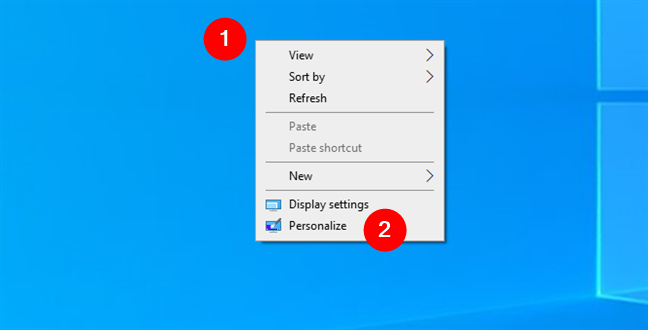
 Right-click the desktop and choose Personalize
In the Settings window, select Themes in the sidebar on the left.
Right-click the desktop and choose Personalize
In the Settings window, select Themes in the sidebar on the left.

 Access Themes
On the right, scroll down and click or tap Desktop icon settings under the Related Settings section.
Access Themes
On the right, scroll down and click or tap Desktop icon settings under the Related Settings section.

 Click or tap Desktop icon settings
In the window that appears, check the boxes for the shortcuts you want to see on your desktop, then click or tap OK.
Click or tap Desktop icon settings
In the window that appears, check the boxes for the shortcuts you want to see on your desktop, then click or tap OK.

 Select the desktop icons you want
From now on, the selected icons will appear on your desktop, ready to use.
Select the desktop icons you want
From now on, the selected icons will appear on your desktop, ready to use.
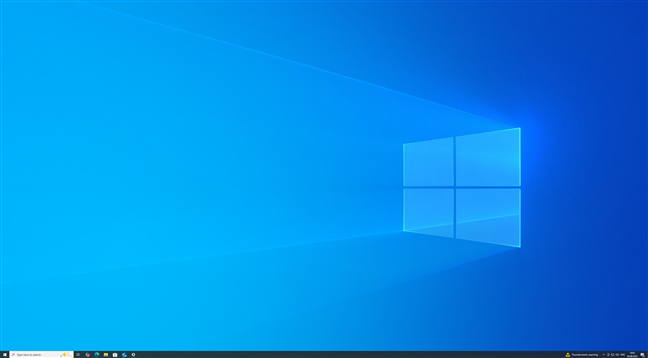
 A Windows 10 desktop with no icons
Right-click an empty space on your desktop. Go to View and click or tap Show desktop icons to make sure it’s checked.
A Windows 10 desktop with no icons
Right-click an empty space on your desktop. Go to View and click or tap Show desktop icons to make sure it’s checked.

 Right-click the desktop, go to View, and check Show desktop icons
The moment you do this, your icons should reappear in their last positions. Note that if you uncheck this option again, they will be hidden.
Right-click the desktop, go to View, and check Show desktop icons
The moment you do this, your icons should reappear in their last positions. Note that if you uncheck this option again, they will be hidden.
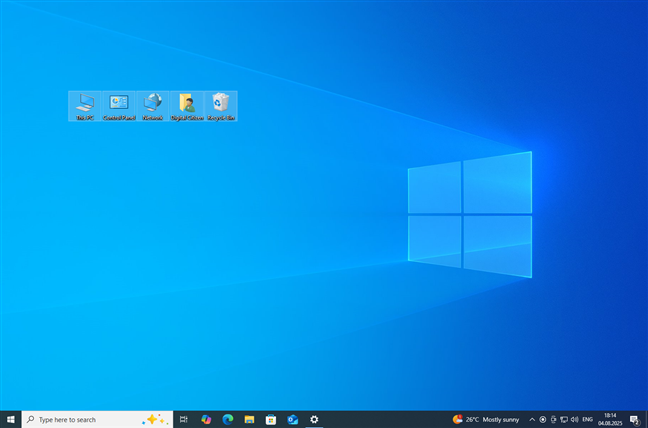
 The desktop icons are visible again
TIP: If you still can’t find what you’re looking for, there’s a chance you deleted the shortcut by mistake. Check the Recycle Bin, and if the icon is there, right-click it and choose Restore. If you need help with this process, see this step-by-step guide on how to recover deleted files from the Recycle Bin.
The desktop icons are visible again
TIP: If you still can’t find what you’re looking for, there’s a chance you deleted the shortcut by mistake. Check the Recycle Bin, and if the icon is there, right-click it and choose Restore. If you need help with this process, see this step-by-step guide on how to recover deleted files from the Recycle Bin.
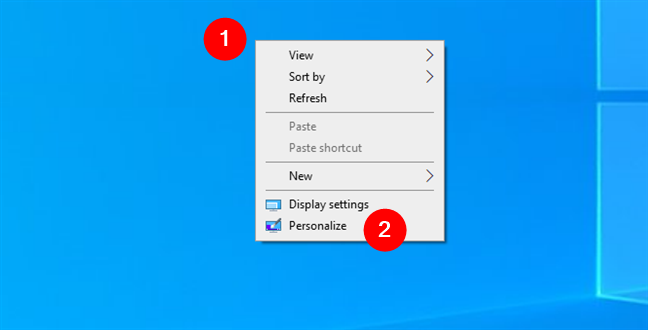 Right-click the desktop and go to Personalize
Go to Themes and click or tap Desktop icon settings.
Right-click the desktop and go to Personalize
Go to Themes and click or tap Desktop icon settings.
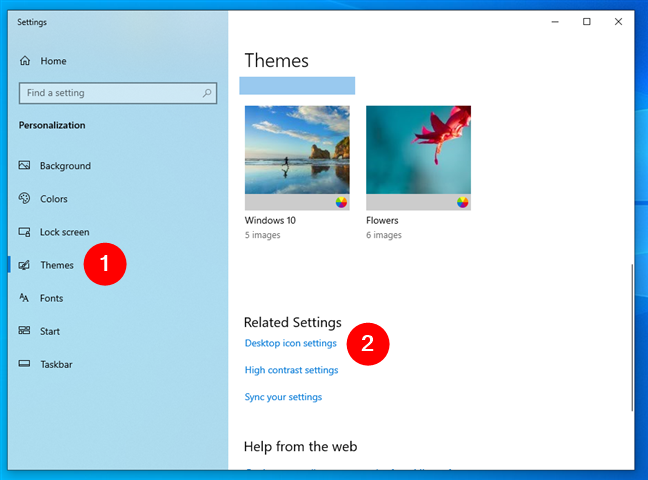
 Click or tap Desktop icon settings
Select the icon you want to reset (for example, This PC). Click Restore Default, then OK.
Click or tap Desktop icon settings
Select the icon you want to reset (for example, This PC). Click Restore Default, then OK.

 How to restore default desktop icons
Your icon will immediately return to its original appearance.
TIP: You can use the default icons in Windows 10 for other shortcuts you create. However, finding them is a bit more complicated, so here’s a guide on Windows icons’ locations to help you locate them.
How to restore default desktop icons
Your icon will immediately return to its original appearance.
TIP: You can use the default icons in Windows 10 for other shortcuts you create. However, finding them is a bit more complicated, so here’s a guide on Windows icons’ locations to help you locate them.

 Show medium icons on the desktop
Oh, and if you also need to reset icon position, right-click your desktop, go to View, and make sure the Auto arrange icons option is checked.
Show medium icons on the desktop
Oh, and if you also need to reset icon position, right-click your desktop, go to View, and make sure the Auto arrange icons option is checked.
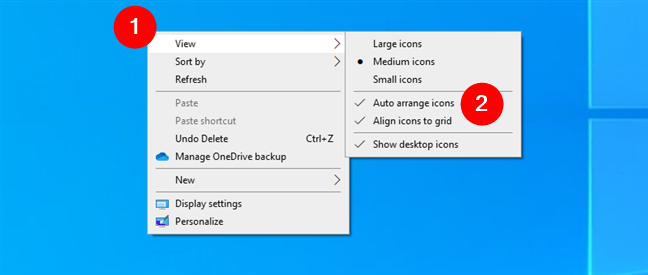
 Auto arrange icons on the desktop
This will snap icons back to the default alignment.
Auto arrange icons on the desktop
This will snap icons back to the default alignment.
How to restore default Windows 10 desktop icons
Windows 10 includes a set of classic desktop icons that make it easy to access important locations: This PC, Network, Control Panel, User’s Files, and Recycle Bin. Unlike older versions of Windows, only the Recycle Bin is shown by default on the Windows 10 desktop.How to restore missing desktop icons in Windows 10
If none of your icons are visible, not even files or folders, it could be that desktop icons are simply hidden. Like in the screenshot below, this can happen accidentally. The good news is that there’s a quick fix. 🙂How to reset desktop icons to their default look
Sometimes, your icons are still on the desktop, but they’ve been changed to something else. Maybe they no longer look like they used to because you’ve installed a new theme, an icon pack, or simply because you’ve changed them by accident. Whatever the case, this is what you can do to reset them: Right-click your desktop and choose Personalize.Bonus: How to reset desktop icon size and position in Windows 10
While researching what people are looking for when getting to this tutorial, I found out that when they say “reset desktop icons to normal,” they sometimes mean restoring their size and position. If that’s what you’re looking for, check out the detailed instructions here: How to make desktop icons smaller (or bigger) in Windows - 4 methods. Or, if you’re in a hurry, just take these simple steps: Right-click your desktop, go to View, and choose Medium icons. This is the standard, default option in Windows 10, so that’s probably the desktop icon size you want.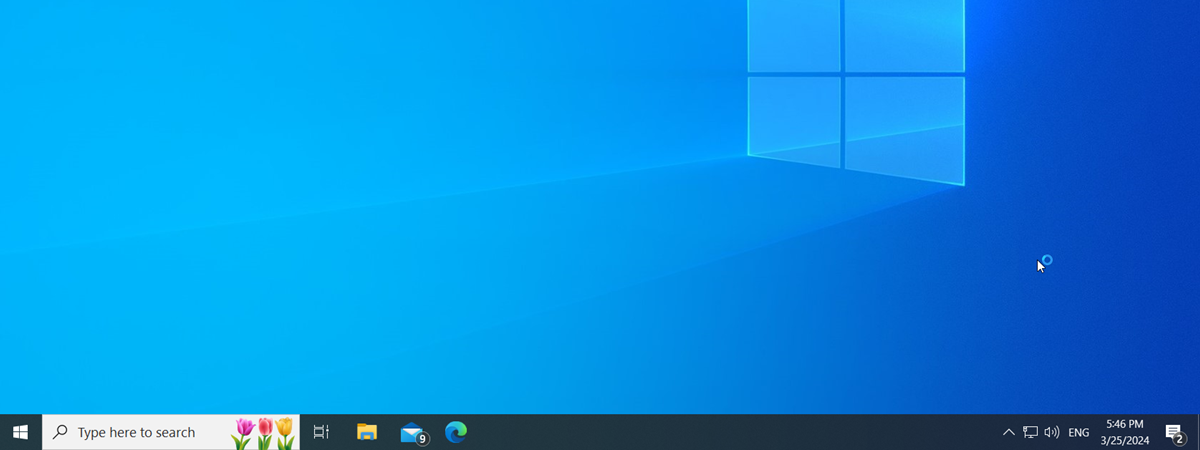

Discussion (0)
Be the first to comment.