



If you cleared your browsing data by mistake, here’s how to recover deleted history on Chrome quickly and safely. Start with Google My Activity, then try restore or file recovery if needed.
KEY POINTS BEFORE YOU START
- If Chrome sync is enabled, you can often view your deleted search history in Google Chrome on your Google account.
- Without sync, recovery depends on backups, restore points, or undeleted history files.
- Act fast. Heavy use of the device can overwrite recoverable data.
METHOD 1: CHECK GOOGLE MY ACTIVITY
This is the fastest option when sync is enabled. It can surface searches and visits even after local deletion.
- Open a browser and sign in to your Google account.
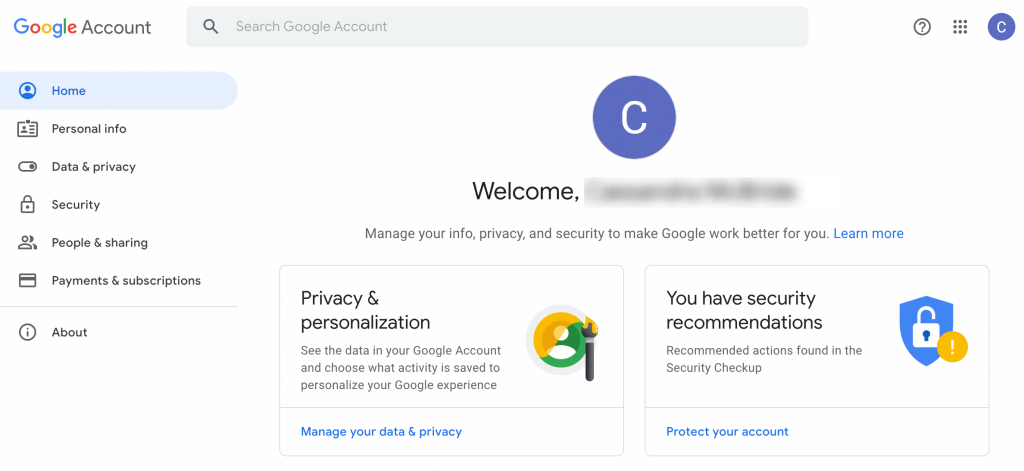
- Go to My Activity, then open Data & privacy → History settings.
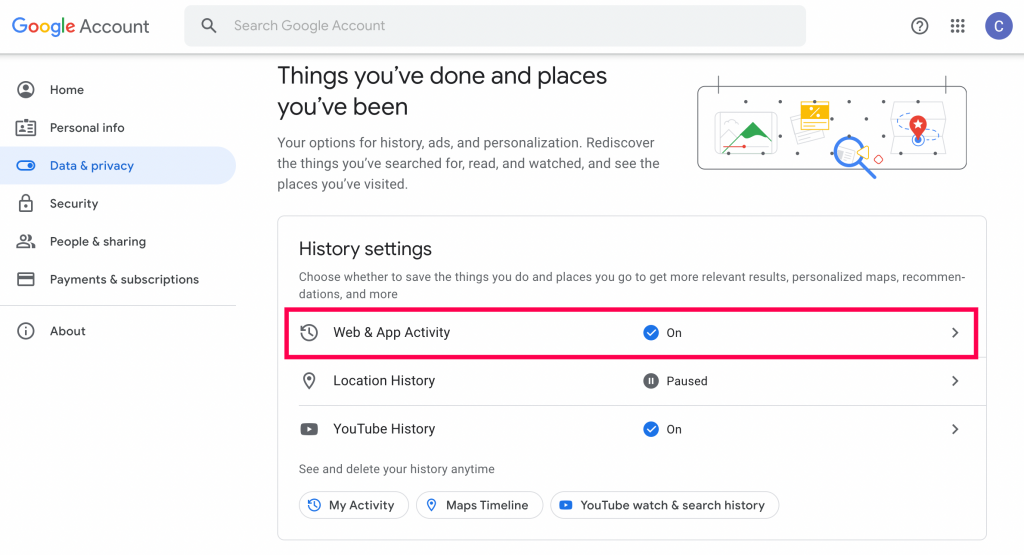
- Select Web & App Activity and filter by Chrome and date.
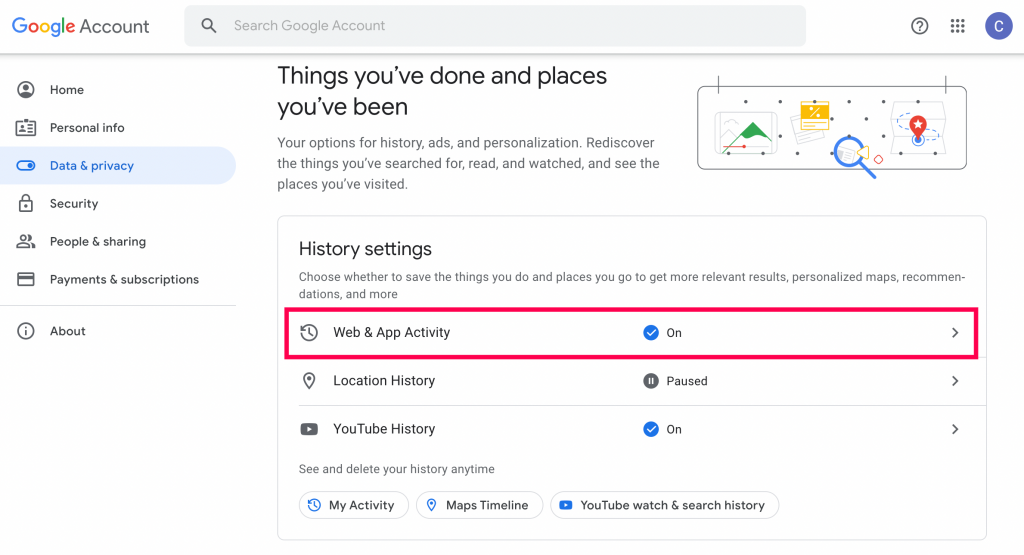
- Review entries and reopen needed pages. You can also export data for safekeeping.
If you’re using a laptop, this also answers the common query “how to recover deleted history on Chrome laptop” when sync was active.
METHOD 2: CONFIRM CHROME SYNC SETTINGS
If you don’t see anything in My Activity, make sure the Chrome browser is syncing history going forward.
- In Chrome, open Settings and choose Sync and Google services.
- Open Manage what you sync and turn on History.
- Sign in with the same Google account across devices to keep history backed up.
This step also helps if you searched “how to view deleted search history on Google account” and found no results because sync was off earlier.
METHOD 3: USE WINDOWS SYSTEM RESTORE
On Windows, a restore point from before deletion can bring the local history database back.
- Press Win + S, search System Restore, and open it.
- Choose a restore point dated before you cleared history.
- Run the restore and let the PC restart.
- Open Chrome and check History to confirm recovery.
Note: System Restore can change other settings and apps. Use it only if you’re comfortable with that trade-off.
METHOD 4: RECOVER THE CHROME “HISTORY” FILE
When sync is off, try file recovery. Chrome stores visits in a SQLite database named History inside your profile folder.
- Close Chrome completely.
- Go to your profile path, for example:
C:\Users\<User>\AppData\Local\Google\Chrome\User Data\Default\on Windows or the~/Library/Application Support/Google/Chrome/Default/path on macOS. - Use trusted recovery software to scan for deleted versions of the
Historyfile. - Recover it to a different drive, then replace the current file (keep a backup).
- Reopen Chrome and check if entries reappear.
Success depends on whether the file blocks were overwritten. Try this as soon as you notice the loss.
METHOD 5: LOOK FOR RECENT ACTIVITY IN DNS CACHE OR SESSION FILES
These aren’t full replacements for history, but they can help you retrace your steps after a recent wipe.
- DNS cache (Windows): Open Command Prompt and run
ipconfig /displaydnsto list recently resolved domains. - Session/Tab files: check Chrome’s
Sessionsfolder forSession_*orTabs_*files and inspect them with a text or SQLite viewer.
FAQS
Is Chrome history permanently deleted? If sync was off and the file was overwritten, it can be permanent. With sync, you can still review entries in My Activity.
How to recover deleted history on Chrome Android? Sign in to the same Google account and check My Activity. If sync was off, recovery is unlikely on the device.
How to find deleted Google history on iPhone? Use the same approach—sign in to Google My Activity. Mobile recovery tools are limited if sync was disabled.
How to recover deleted history on Chrome laptop? Start with My Activity, then try System Restore or history file recovery if you use Windows.
PREVENTION TIPS
- Keep Chrome sync on for History to protect against local wipes.
- Back up your profile folder regularly with system backups.
- Avoid heavy use of the machine after deletion to preserve recoverable data.
CONCLUSION
Start with Google My Activity, verify sync, then try System Restore or file recovery. With quick action and the right method, you can recover deleted Chrome history and restore your browsing trail.


Discussion (0)
Be the first to comment.