




If you just bought a Fitbit Alta or pulled one out of a drawer again, you can set it up in a few minutes and start tracking your steps, calories, and sleep. This quick setup guide for setting up your Fitbit Alta walks you through charging the tracker, installing the Fitbit app, pairing it with your phone, and syncing your activity. You can use the same basic Fitbit Alta setup whether you are on an iPhone or Android.
Before you start, make sure you have your Fitbit Alta, the original charging cable, and a compatible smartphone with Bluetooth turned on. Once you walk through these steps, your Fitbit Alta quick start is complete and you can customize goals, notifications, and reminders from the Fitbit app.
How To Set Up Your Fitbit Alta
This section covers the full Fitbit Alta setup process, from first charge to syncing. Follow the steps in order so your Alta pairs correctly and updates its firmware if needed.
Charge Your Fitbit Alta
Start by fully charging your Fitbit Alta so it does not shut down during setup or updates.
- Connect the charging cable to a USB port on your computer or a certified USB wall adapter.
- Align the contacts on the back of your Fitbit Alta with the pins on the charger until it clips into place.
- Check the Alta display and confirm the battery icon appears to show charging has started.
- Leave the tracker on the charger until the battery icon shows full or the level bar looks nearly full.
Install The Fitbit App On Your Phone
The Fitbit app handles almost everything for your Fitbit Alta quick start, including pairing, syncing, and settings.
- Unlock your phone and open the app store (App Store on iPhone or Google Play Store on Android).
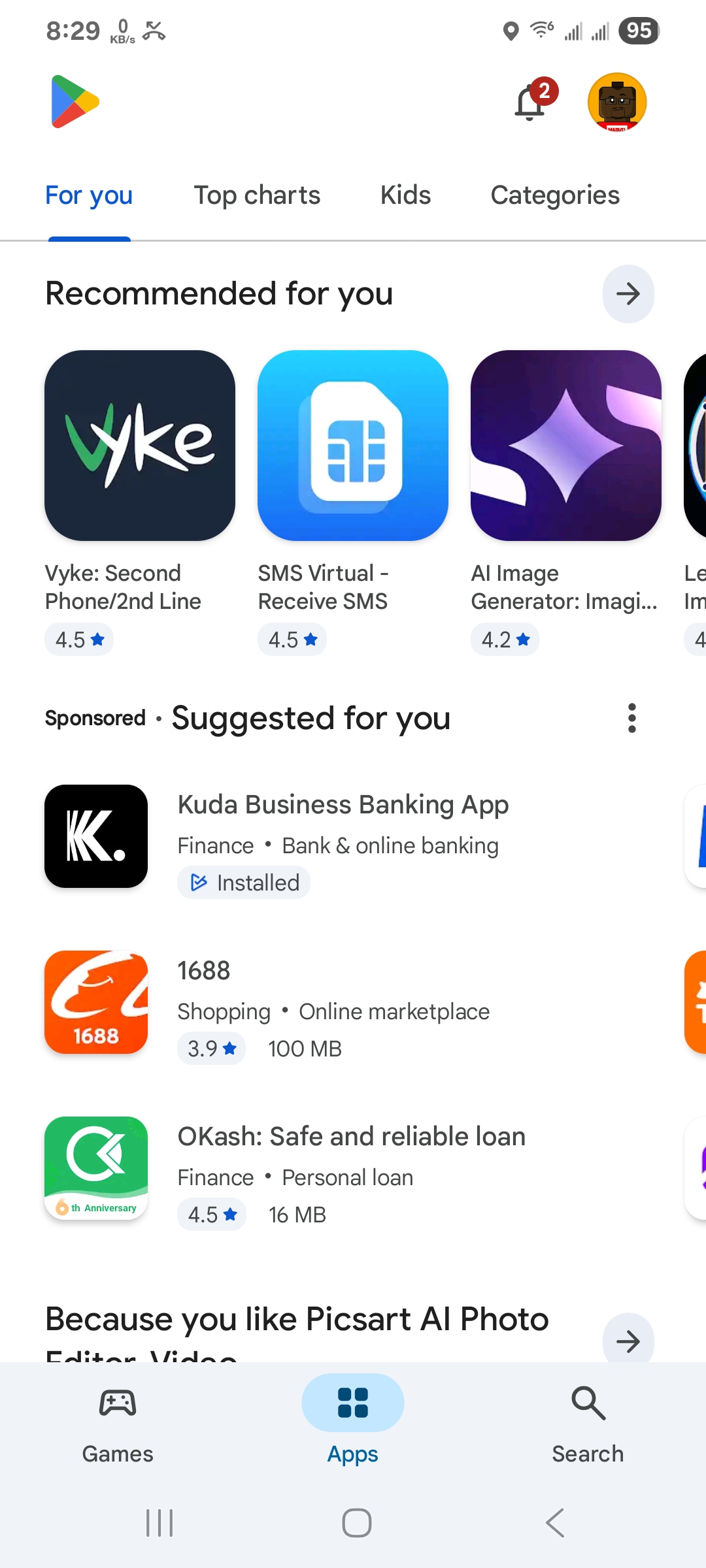
- Search for Fitbit and install the official Fitbit app from Google.
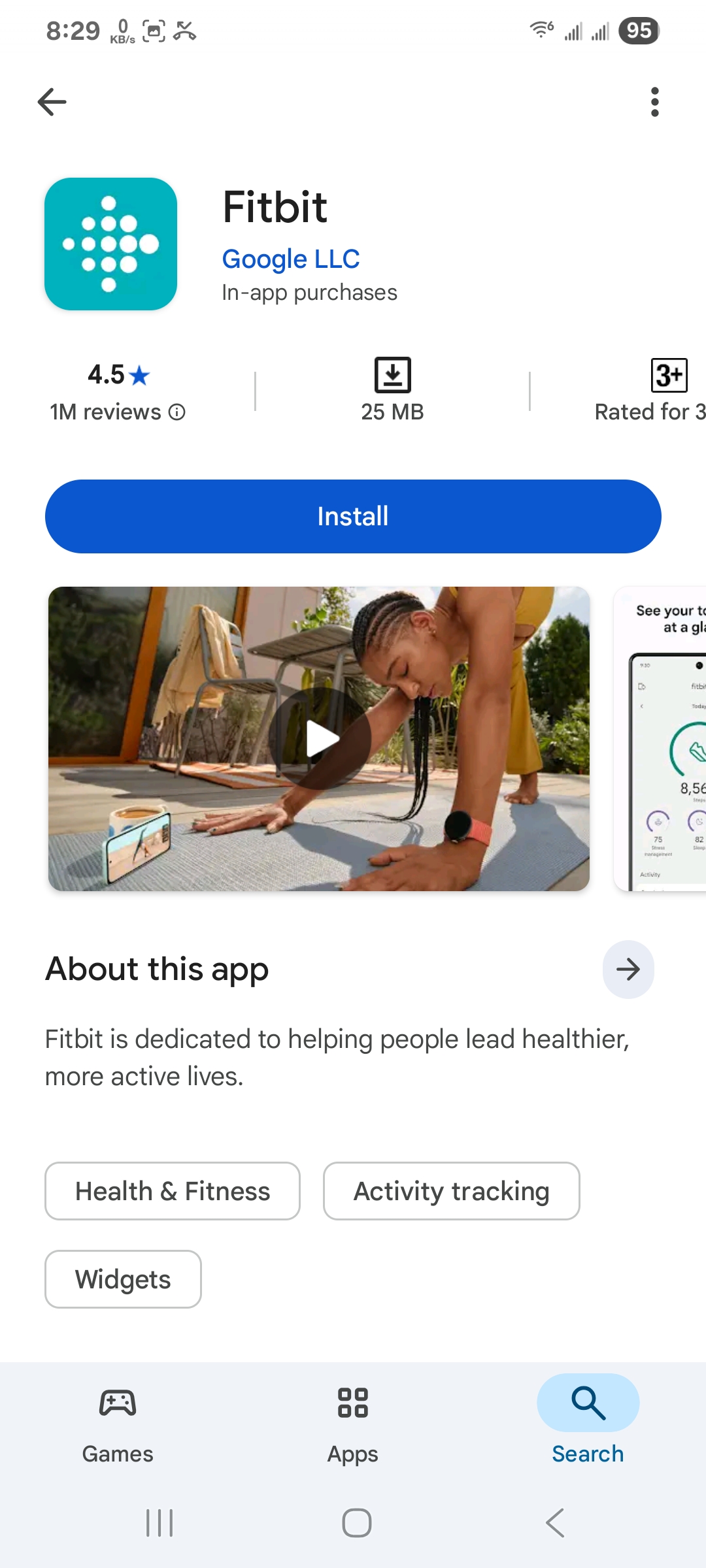
- Open the Fitbit app after it installs and choose Sign In With Google or the sign-in option that matches your account.
- If you are new to Fitbit, create a new account and enter your height, weight, and other details so step and calorie estimates stay accurate.
Add And Pair Your Fitbit Alta
Once the Fitbit app is installed, you can add the Alta as a new device and pair it over Bluetooth. This is the core step in any how to set up Fitbit Alta guide.
- Keep your Fitbit Alta on your wrist or near your phone and make sure Bluetooth is turned on in your phone settings.
- Open the Fitbit app and go to the main dashboard.
- Tap the Devices icon and choose the option to add a new device.
- Select Fitbit Alta from the list of trackers.
- Follow the on-screen instructions until the app shows a pairing request and a code on your Alta display.
- Confirm the code in the Fitbit app so the phone and Fitbit Alta pair successfully.
- Wait while the app finishes the Fitbit Alta setup and applies any firmware updates.
Sync Your Fitbit Alta For The First Time
After pairing, you need a first sync so the tracker and your account share the same settings and time.
- Keep your Fitbit Alta close to your phone with the Fitbit app open.
- From the dashboard, pull down or use the Sync Now option on the Alta device page.
- Wait while steps, battery level, and settings sync between the tracker and your account.
- Confirm the time on your Fitbit Alta matches your phone and that steps reset to zero if you just started your day.
Customize Basic Fitbit Alta Settings
With syncing ready, you can personalize your Fitbit Alta quick setup guide by changing clock faces, goals, and notifications.
- In the Fitbit app, open the Devices tab and tap your Fitbit Alta.
- Choose a clock face style that is easy for you to read at a glance.
- Set daily goals for steps, distance, calories, and active minutes that match your fitness level.
- Turn call, text, and calendar notifications on or off based on how much you want your Fitbit Alta to buzz.

- Toggle reminders to move if you want hourly nudges when you sit too long.
Fit And Wear Your Fitbit Alta Correctly
Proper fit helps your Fitbit Alta track steps and motion more accurately and keeps it comfortable for all-day wear.
- Place the Fitbit Alta on your non-dominant wrist for more accurate activity tracking.
- Position the tracker about a finger’s width above your wrist bone.
- Adjust the band so it stays snug but does not pinch or leave deep marks after you remove it.
- For workouts, tighten the band slightly so the tracker does not slide around when you move.
Troubleshooting Common Problems
If your Fitbit Alta will not pair, sync, or turn on, you can fix most issues with a few quick checks. Use these common fixes before you contact support or replace the tracker.
Fitbit Alta Not Pairing With Your Phone
Pairing issues usually come from Bluetooth conflicts or an old connection stuck in your phone’s settings.
- Turn Bluetooth off and back on in your phone’s settings.
- Restart your phone and then reopen the Fitbit app.
- In your phone’s Bluetooth list, forget any old Fitbit Alta entries, then try to add the device again from the Fitbit app.
- Move away from other Bluetooth devices that might interfere with pairing.
Fitbit Alta Not Syncing Data
If your Fitbit Alta will not sync steps or sleep data, a few quick checks usually restore the connection.
- Confirm Bluetooth is enabled and your phone is within a few feet of the Fitbit Alta.
- Open the Fitbit app and use the Sync Now option on the Alta device page.
- Force close the Fitbit app and reopen it if the sync fails.
- Restart your Fitbit Alta by connecting it to the charger and following any on-screen restart instructions in the app.
- Check that you use the latest version of the Fitbit app from your app store.
Fitbit Alta Not Turning On Or Charging
Charging and power problems often relate to cable alignment or debris on the contacts.
- Check that the charging cable clips securely to the back of the Fitbit Alta and that the pins line up with the contacts.
- Wipe the metal contacts on both the tracker and charger with a dry, soft cloth to remove dust or sweat.
- Try a different USB port or a different USB wall adapter.
- Leave the tracker connected for at least 30 minutes and then press the side or tap the display to wake it.
Tips
These quick tips help you get more accurate readings and a smoother experience with your Fitbit Alta setup.
- Sync your Fitbit Alta at least once a day so the app always shows up-to-date steps and sleep data.
- Turn on all-day sync only if your phone battery can handle it; otherwise, use manual sync to save power.
- Update the Fitbit app regularly to get bug fixes and the latest syncing improvements.
- Use gentle soap and water to clean the band every so often to avoid skin irritation from sweat and lotions.
- Adjust your goals in the Fitbit app if you consistently hit them or miss them by a wide margin.
- Use silent alarms on your Fitbit Alta if you want a gentle vibration wake-up without disturbing anyone else.
FAQ
Can I Set Up My Fitbit Alta Without A Smartphone?
In most cases you get the best Fitbit Alta setup experience with a smartphone and the Fitbit app. At the time of writing, some users can still install the Fitbit app on a Windows 10 PC and pair the Alta there, but notifications and some features work best with a phone.
Do I Need A Google Account To Set Up My Fitbit Alta?
New Fitbit accounts now use Google sign-in in most regions, so you usually need a Google Account to create or manage your Fitbit profile. If you already had a legacy Fitbit login, the app may prompt you to move your Fitbit data to Google during setup.
How Often Should I Charge My Fitbit Alta?
Most people charge their Fitbit Alta every few days, depending on how often they check the display and use notifications. When battery percentage drops low in the Fitbit app or the tracker shows a low battery icon, place it on the charger before a long day.
Can I Use My Fitbit Alta For Sleep Tracking?
Yes, your Fitbit Alta can track sleep automatically when you wear it at night. For best results, keep the band snug but comfortable and sync your data each morning so you can review your sleep patterns in the Fitbit app.
What If My Fitbit Alta Is Very Old And Will Not Update?
If your Fitbit Alta refuses to install updates even after charging and restarting, it may be running older firmware that no longer receives new features. You can still use it for basic step and activity tracking as long as it pairs and syncs correctly with the Fitbit app.
Summary
Here is a quick recap of the key steps in this quick setup guide for setting up your Fitbit Alta.
- Charge your Fitbit Alta fully before you start the setup.
- Install the Fitbit app on your iPhone or Android phone and create or sign in to your account.
- Add and pair your Fitbit Alta through the Devices section in the Fitbit app.
- Sync your Fitbit Alta and confirm the time, steps, and battery stats look correct.
- Customize goals, notifications, and clock faces to match your routine and comfort.
Conclusion
Once you know the steps, setting up your Fitbit Alta is a quick process that you only need to complete once per device. A good Fitbit Alta setup gives you accurate stats, reliable notifications, and a tracker that feels comfortable enough to wear all day and night.
Use this guide as your Fitbit Alta quick start whenever you switch phones, reset the tracker, or help someone else pair their device. With your Alta charged, paired, and syncing regularly, you can focus on moving more, sleeping better, and letting the tracker handle the numbers in the background.

Discussion (0)
Be the first to comment.