




Setting up your Plantronics headset takes just a few minutes when you know the right steps. This quick guide explains how to connect it to your desk phone, computer, or smartphone, pair it via Bluetooth, and fix common audio or pairing issues.
1) Check your Plantronics model
Plantronics headsets come in several families - CS, Savi, Voyager, and Blackwire. Identify your model number on the base or earcup label. Knowing this ensures you use the right connection type and avoid pairing mistakes during setup.
2) Quick setup steps for any Plantronics headset
These fast steps work for most wired and wireless Plantronics headsets used in offices or home setups.
- Charge or Power On Your Headset: Make sure your battery is fully charged or plugged in. A complete charge improves connection stability and audio clarity.
- Connect the Base or USB Adapter: Plug the base into your desk phone’s port or your computer’s USB slot. Keep it close to your workstation to reduce wireless interference.
- Pair the Headset: Hold the pairing button on both the headset and base until the indicator lights flash. On Bluetooth models, choose Plantronics from your device’s pairing list.
- Test the Audio: Make a quick call or play a sound. Adjust volume using the headset buttons or your app settings until both mic and speaker sound balanced.

3) Connecting to different devices
Desk phone: Plug the included telephone cable into the TEL port on the base, then connect the other end to your phone’s handset port. If you can’t hear audio, toggle the compatibility switch on the base until the sound clears.

Computer or laptop: Insert the USB cable or adapter into an open port. On Windows 11 or macOS, install the Plantronics Hub software for improved firmware management and volume control.

Mobile phone via Bluetooth: Hold the headset’s call or power button until the LED flashes blue and red. On your smartphone, open Bluetooth settings, check under Available devices or Other devices, and select Plantronics. Once connected, test with a short call to verify microphone clarity.
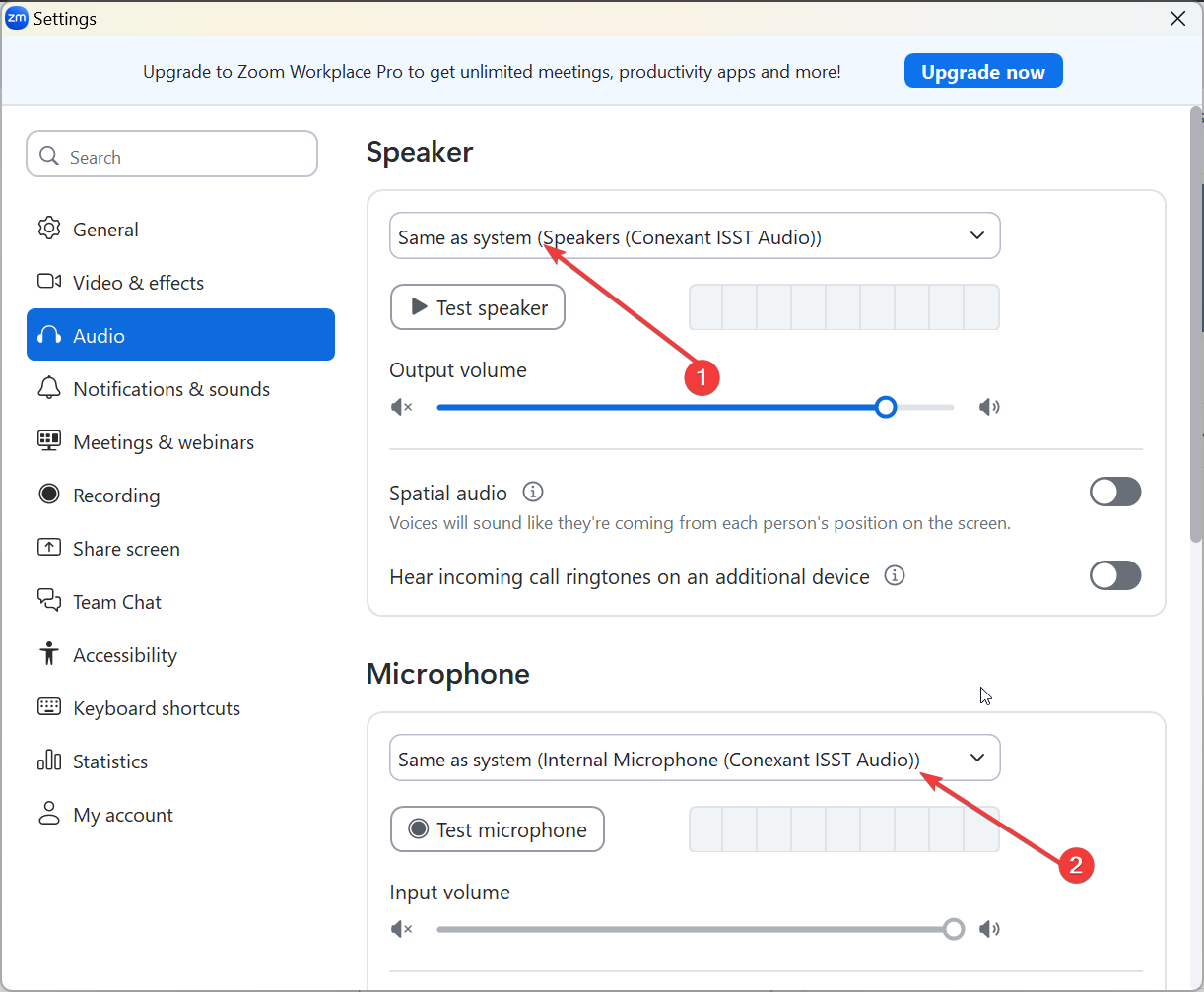
4) Configure for Microsoft Teams or Zoom
Open the settings in your communication app and choose your Plantronics headset for both input and output. This ensures the call buttons and mute features on your headset work directly inside Teams or Zoom.
5) Troubleshooting common setup problems
- Headset not pairing: Press and hold the pairing buttons on both the headset and base for ten seconds to reset. Make sure the headset isn’t still linked to another device and that Bluetooth is enabled on your computer or phone.
- No sound or one-way audio: Check that cables are snug and the volume isn’t muted. In Windows, right-click the sound icon and select your headset under both Input and Output. Restart your app if changes don’t take effect.
- Echo or background noise: Move the base away from Wi-Fi routers and metal surfaces. Lower microphone sensitivity inside the Plantronics Hub app or reposition the mic boom slightly away from your mouth.
Tips for optimal performance
- Keep firmware updated using Plantronics Hub to prevent dropouts.
- Charge the headset fully before long meetings or shifts.
- Store the headset on its base to maintain battery life.
- Clean the microphone boom weekly with a soft, dry cloth.
- Use an extension cable or lifter only if approved for your model.
FAQs about Plantronics headset setup
How long does it take to set up a Plantronics headset? Usually, less than five minutes if the battery is charged and the devices are nearby. Most users can pair and test audio in under three minutes.
Do I need software for my headset to work? Most wired USB models are plug-and-play. However, installing Plantronics Hub gives you access to advanced controls, mute options, and firmware updates for stable performance.
Can I connect my headset to multiple devices? Yes. Savi and Voyager models support multipoint connections, allowing you to switch between computer and mobile calls with a single tap.
Summary
- Identify your Plantronics model before setup.
- Charge or power on your headset and base.
- Pair it with your phone, PC, or Bluetooth device.
- Configure for Teams or Zoom to enable call controls.
- Troubleshoot quickly with resets and cable checks.
Conclusion
A properly configured Plantronics headset delivers clear, reliable communication across all your devices. Follow these quick steps to connect, pair, and troubleshoot efficiently, and you’ll stay productive whether you work from home or in the office.


Discussion (0)
Be the first to comment.