




Have you ever received a file on your iPhone that just won’t open? Maybe someone sent you something by AirDrop or email, or maybe you downloaded it from Safari, and now you’re staring at a file with a weird extension that iOS doesn’t recognize. What can you do? Read on, ‘cause in this guide, I’ll walk you through how to open unknown files on an iPhone, step by step, using built-in features and trusted third-party apps. Whether it’s a strange document, an audio file, or a compressed archive, there’s usually a way to see what it’s all about. Let’s get started:
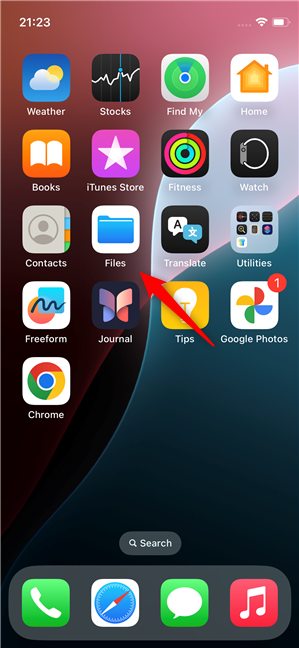
 Open the Files app on your iPhone
Then, use the Files app to locate the unknown file. If you received it recently, you might find it in the Recents section, as shown in the next screenshot. If not, you can use the Search bar, check the Shared section, or tap Browse to navigate through your iPhone’s folders and storage locations.
Open the Files app on your iPhone
Then, use the Files app to locate the unknown file. If you received it recently, you might find it in the Recents section, as shown in the next screenshot. If not, you can use the Search bar, check the Shared section, or tap Browse to navigate through your iPhone’s folders and storage locations.
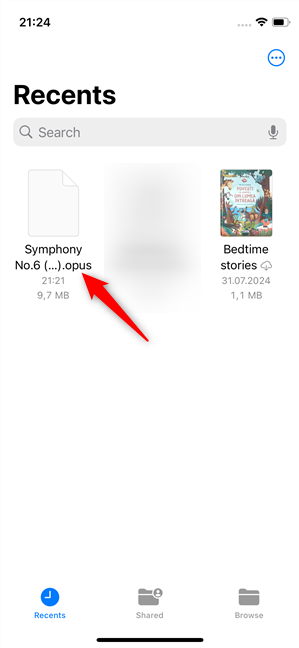 Locate the unknown file on the iPhone
Tap once on the file in the Files app. If the file opens, great - mystery solved! If you get an error or nothing happens, like in the screenshot below, move on to the next step.
Locate the unknown file on the iPhone
Tap once on the file in the Files app. If the file opens, great - mystery solved! If you get an error or nothing happens, like in the screenshot below, move on to the next step.
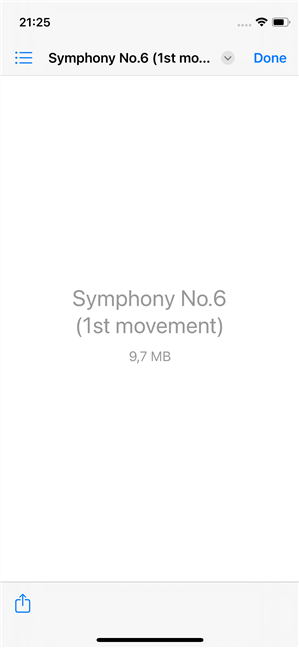 An unknown file on an iPhone
TIP: On the same subject, you may be interested in finding out how to open an unknown file in Windows, too.
An unknown file on an iPhone
TIP: On the same subject, you may be interested in finding out how to open an unknown file in Windows, too.
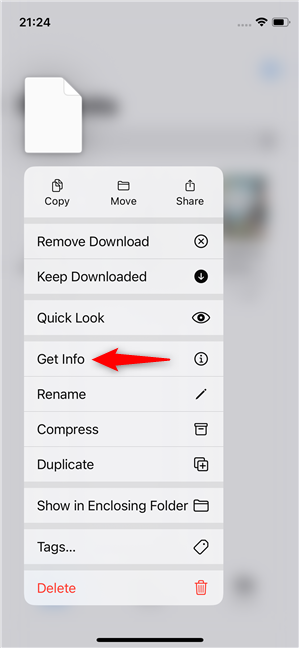 Touch and hold, then choose Get Info
Look at the end of the file’s name to find its extension. You may see something like .rar or .opus.
Touch and hold, then choose Get Info
Look at the end of the file’s name to find its extension. You may see something like .rar or .opus.
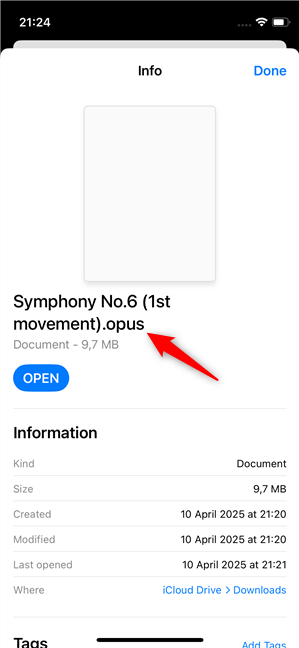 Look at the file extension
TIP: If the file doesn’t have an extension or it’s unclear what it is, you might get an answer by scanning its contents with an online service like this: Online TrID File Identifier.
Look at the file extension
TIP: If the file doesn’t have an extension or it’s unclear what it is, you might get an answer by scanning its contents with an online service like this: Online TrID File Identifier.
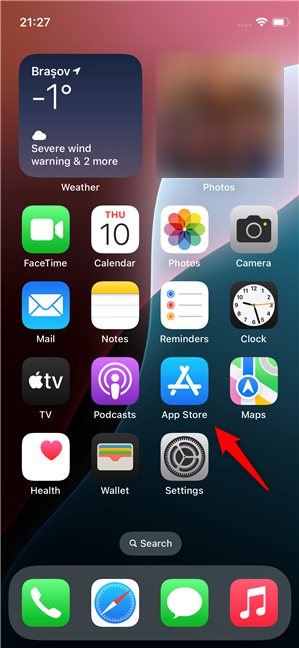 Open the App Store
In the search bar, type the file extension or a description. For example, RAR file extension or Opus file format, as I did in the screenshot below.
Open the App Store
In the search bar, type the file extension or a description. For example, RAR file extension or Opus file format, as I did in the screenshot below.
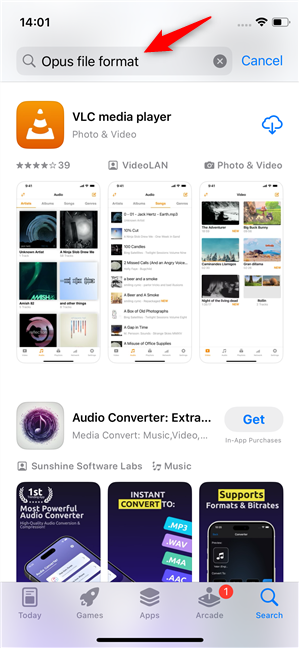 Search for a third-party app that can open the unknown file
Browse the results and choose an app with good reviews.
In my case, I already made up my mind: VLC media player is probably the best option out there, so I chose it.
Search for a third-party app that can open the unknown file
Browse the results and choose an app with good reviews.
In my case, I already made up my mind: VLC media player is probably the best option out there, so I chose it.
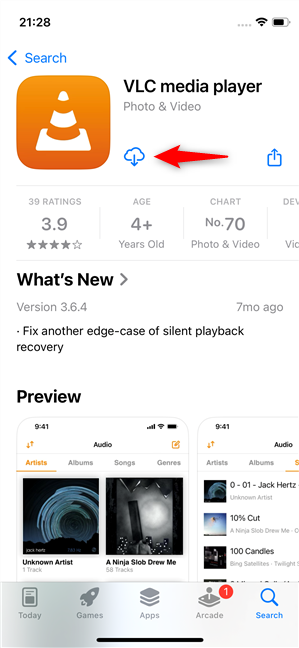 Install the app
After installing the app, return to the Files app, touch and hold the file again, and choose Share.
Install the app
After installing the app, return to the Files app, touch and hold the file again, and choose Share.
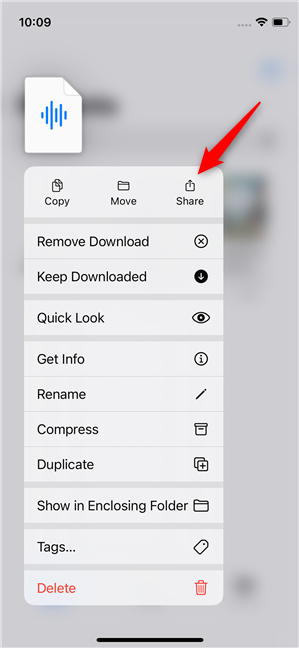 Tap the Share option in the menu
In the top row of available apps, select the one you just installed.
Tap the Share option in the menu
In the top row of available apps, select the one you just installed.
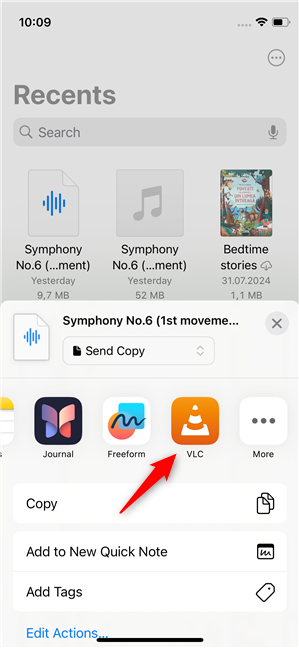 Choose the app you installed
If it supports the file type, the app should now open the unknown file on your iPhone.
Choose the app you installed
If it supports the file type, the app should now open the unknown file on your iPhone.
 An unknown file that's no longer unknown
TIP: Some popular all-in-one apps that can handle a wide variety of files include Documents by Readdle (opens PDFs, archives, media, and more), VLC media player (handles almost every audio/video format), and WinZip or iZip (opens .zip, .rar, and other compressed files).
An unknown file that's no longer unknown
TIP: Some popular all-in-one apps that can handle a wide variety of files include Documents by Readdle (opens PDFs, archives, media, and more), VLC media player (handles almost every audio/video format), and WinZip or iZip (opens .zip, .rar, and other compressed files).
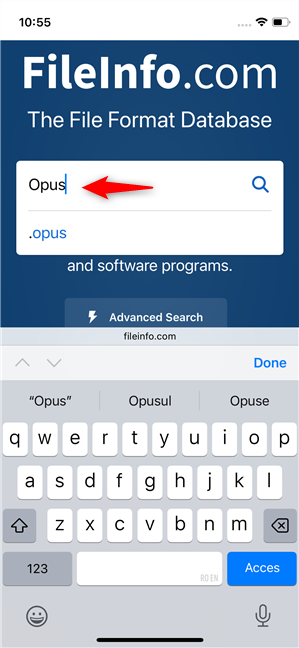 Search for a file extension on FileInfo
The results will explain the file format and often list both desktop and mobile apps that can open it. Based on what you find, you can return to the App Store and try installing one of the suggested apps.
For instance, if you’re trying to open an OPUS file, you’ll discover that one of the best apps you can use on any platform is the one I installed earlier: VideoLAN VLC media player.
Search for a file extension on FileInfo
The results will explain the file format and often list both desktop and mobile apps that can open it. Based on what you find, you can return to the App Store and try installing one of the suggested apps.
For instance, if you’re trying to open an OPUS file, you’ll discover that one of the best apps you can use on any platform is the one I installed earlier: VideoLAN VLC media player.
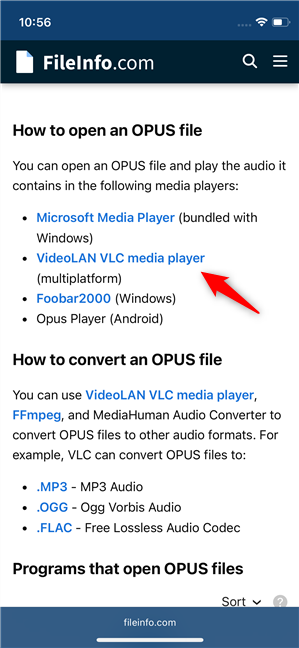 Software that should be able to open the files with the specified extension
This step is especially helpful if the file is obscure or rarely used on mobile.
Software that should be able to open the files with the specified extension
This step is especially helpful if the file is obscure or rarely used on mobile.
Step 1. Try opening the unknown file with the Files app
The first thing you need to do is figure out whether the unknown file really is unknown to your iPhone or only to you. 🙂 That’s easy: just try opening the unknown file with your iPhone’s Files app. On your iPhone, browse through your iPhone’s Home Screens until you find the Files app. When you do find it, tap to open it.Step 2. Check the file type or extension
The next thing you need to do is figure out what kind of file you’re dealing with. The file extension tells you what app might be able to open it. To check the file type on your iPhone, go back to it in the Files app. Once you find it, touch and hold the file until a menu pops up. In it, choose Get Info to view details about the unknown file.Step 3. Search the App Store for a compatible app
If iOS can’t open the file as is, it’s time to look for a third-party app that can. This is how: Open the App Store.Step 4. Use a file extension website to find the right app for opening the unknown file
If you’ve tried opening the file through the Files app and other apps on your iPhone without success, the next step is to figure out what the file actually is. One of the easiest ways to do that is by using a website like fileinfo.com or filext.com. I prefer the former, as it offers clearer and more detailed information. These sites let you search for a file extension, like the .opus I used earlier, and they’ll show you what type of file it is, what it’s commonly used for, and what apps can open it. To do this, open Safari (or any browser you prefer) on your iPhone and go to the website. Then, type the file extension (the part after the dot) into the search box. For example, if your file is named mozart.opus, search for opus.


Discussion (0)
Be the first to comment.