



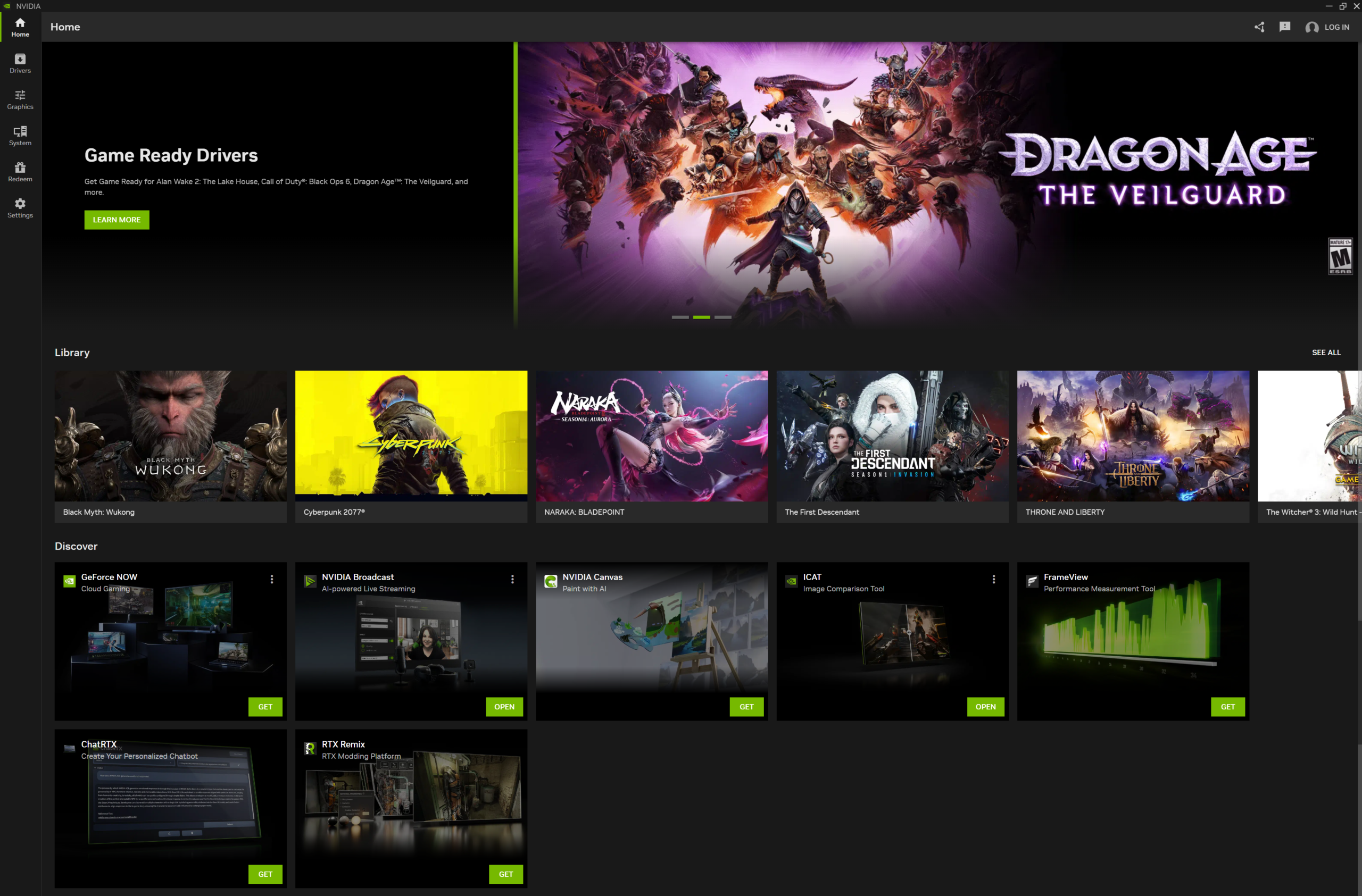
NVIDIA GeForce Experience is a free Windows app for NVIDIA graphics card users that helps update GPU drivers, optimize game settings, record gameplay, capture screenshots, and access in-game overlay features. However, NVIDIA now recommends the newer NVIDIA App for most gamers and creators because it combines driver updates, game optimization, recording tools, and several older GeForce Experience features into one modern app. NVIDIA’s official driver page describes the NVIDIA App as the companion for keeping PCs updated with the latest NVIDIA drivers and technology.
You can download the original GeForce experience from Nvidia's website.
GeForce Experience may still be useful for some users, especially those with older systems or users who prefer the classic interface. But for the safest and most up-to-date experience, you should download NVIDIA software from NVIDIA’s official website instead of relying on older third-party installer pages.
What Is NVIDIA GeForce Experience?
NVIDIA GeForce Experience is a companion app for PCs and laptops with NVIDIA GeForce graphics cards. It was designed to make gaming setup easier by automatically detecting supported games, suggesting optimized graphics settings, and helping users install the latest Game Ready Drivers.
You can use GeForce Experience to:
- Update NVIDIA graphics drivers
- Optimize game settings
- Record gameplay
- Capture screenshots
- Use in-game overlay features
- Stream gameplay
- Check supported installed games
- Improve game performance settings
- Access NVIDIA ShadowPlay features
It is mainly useful for PC gamers who want easier driver updates and automatic game optimization.
GeForce Experience vs NVIDIA App
NVIDIA has been moving users from GeForce Experience to the newer NVIDIA App. NVIDIA officially released the NVIDIA App in November 2024 and says it brings together settings and features from GeForce Experience, NVIDIA RTX Experience, and the NVIDIA Control Panel into one app.
In simple terms:
- GeForce Experience is the older app.
- NVIDIA App is the newer replacement.
- NVIDIA App is the better choice for most current users.
- GeForce Experience may still work on some systems.
- Older versions may be useful only if the new app does not support your setup properly.
If you are installing NVIDIA software today, choose NVIDIA App first unless you specifically need GeForce Experience.
What Is NVIDIA App?
NVIDIA App is the newer all-in-one app for NVIDIA GPU users. It is designed for gamers, creators, and PC users who want driver updates, GPU settings, recording tools, and game optimization in one place.
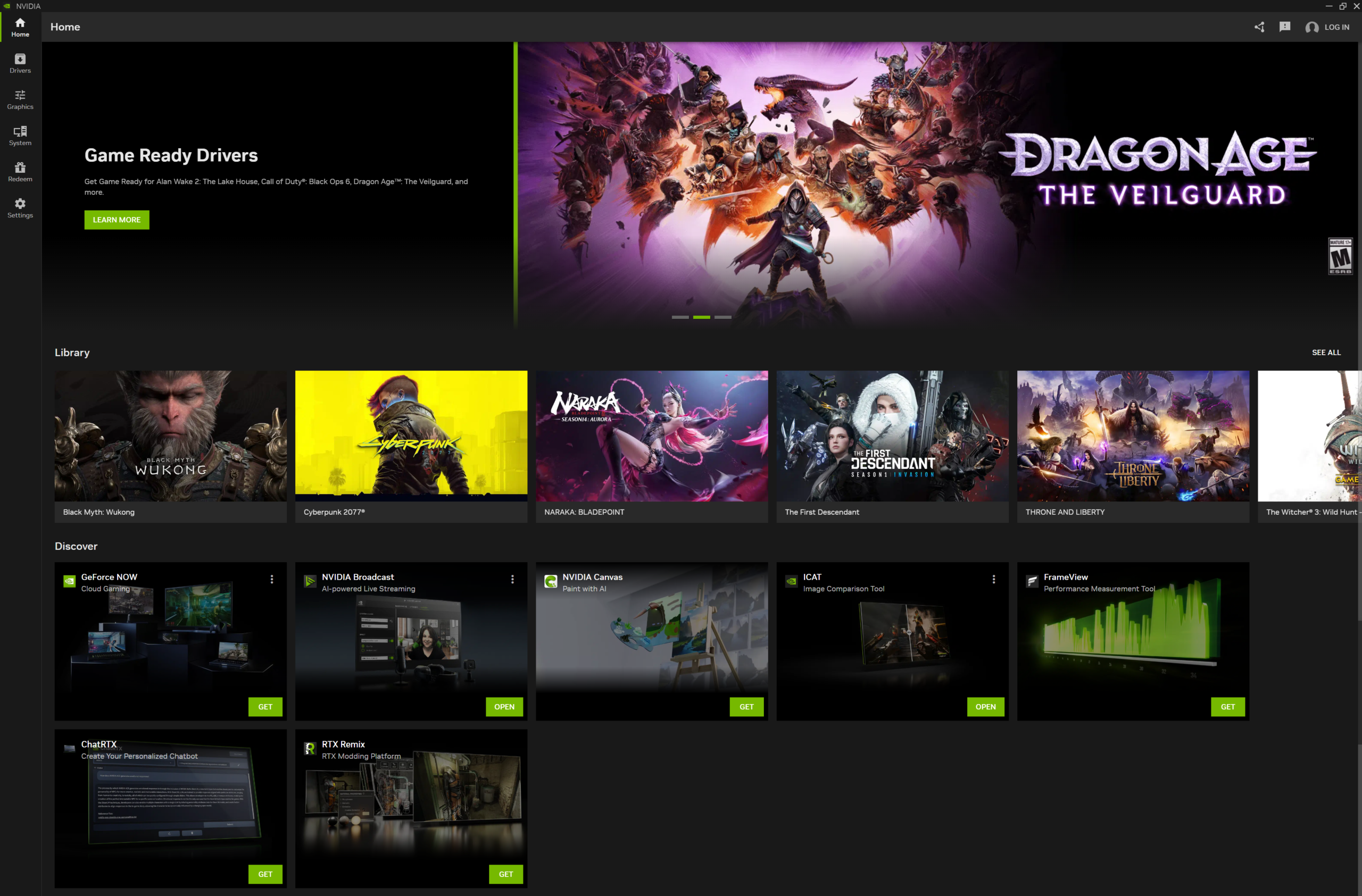
NVIDIA says the app helps users keep their PC updated with the latest GeForce Game Ready and NVIDIA Studio Drivers and also helps users discover NVIDIA apps such as GeForce NOW and NVIDIA Broadcast.
NVIDIA App can help with:
- Driver updates
- Game Ready Drivers
- Studio Drivers
- Game optimization
- GPU settings
- In-game overlay
- Recording tools
- Screenshot capture
- NVIDIA Broadcast access
- GeForce NOW access
- Performance tools
For most users, NVIDIA App is the recommended download.
Should You Download GeForce Experience or NVIDIA App?
You should download NVIDIA App if you want the newest NVIDIA software experience. It is the current direction for NVIDIA’s gaming and creator tools.
Download NVIDIA App if:
- You have a modern NVIDIA GPU.
- You want the latest driver update tool.
- You want a cleaner modern interface.
- You want game optimization.
- You want recording and overlay tools.
- You want Studio Driver or Game Ready Driver access.
- You want software supported by NVIDIA’s current roadmap.
Use GeForce Experience only if:
- NVIDIA App does not work on your older GPU.
- You have an older system.
- You prefer the old interface.
- A specific feature works better for you in GeForce Experience.
- You are troubleshooting driver or compatibility issues.
For long-term use, NVIDIA App is the safer choice.
Is NVIDIA GeForce Experience Free?
Yes, NVIDIA GeForce Experience is free. NVIDIA App is also free. You do not need to pay to download NVIDIA’s official driver tools.
However, you need a compatible NVIDIA GPU to use most features. Some features may require specific GPU models, driver versions, or Windows versions.
Is NVIDIA GeForce Experience Safe?
GeForce Experience is safe when downloaded from NVIDIA’s official website. The same is true for NVIDIA App and NVIDIA drivers.
To stay safe:
- Download from NVIDIA’s official website.
- Avoid modified installers.
- Avoid fake driver update pop-ups.
- Do not download from unknown mirrors.
- Keep Windows updated.
- Keep your NVIDIA driver updated.
- Avoid “cracked” or repacked GPU tools.
- Scan older third-party installers before running them.
Driver software has deep system access, so downloading it from official sources is important.
Why Avoid Random Third-Party Downloads?
Third-party software sites may host older versions, mirrors, or repackaged installers. Some are legitimate download mirrors, but they may not always provide the newest or safest version.
Risks include:
- Outdated installers
- Wrong version
- Modified files
- Unwanted bundled software
- Fake download buttons
- Unsafe ads
- Missing driver components
- Compatibility problems
If you only need NVIDIA software, go directly to NVIDIA’s official website.
Main Features of NVIDIA GeForce Experience
GeForce Experience includes tools that help gamers manage drivers and optimize games.
Main features include:
- Automatic driver detection
- Game Ready Driver updates
- Game optimization
- NVIDIA ShadowPlay
- Screenshot capture
- Video recording
- Live streaming
- In-game overlay
- Game library scanning
- Graphics settings recommendations
These features are useful if you want a simpler way to manage your NVIDIA gaming setup.
Game Ready Driver Updates
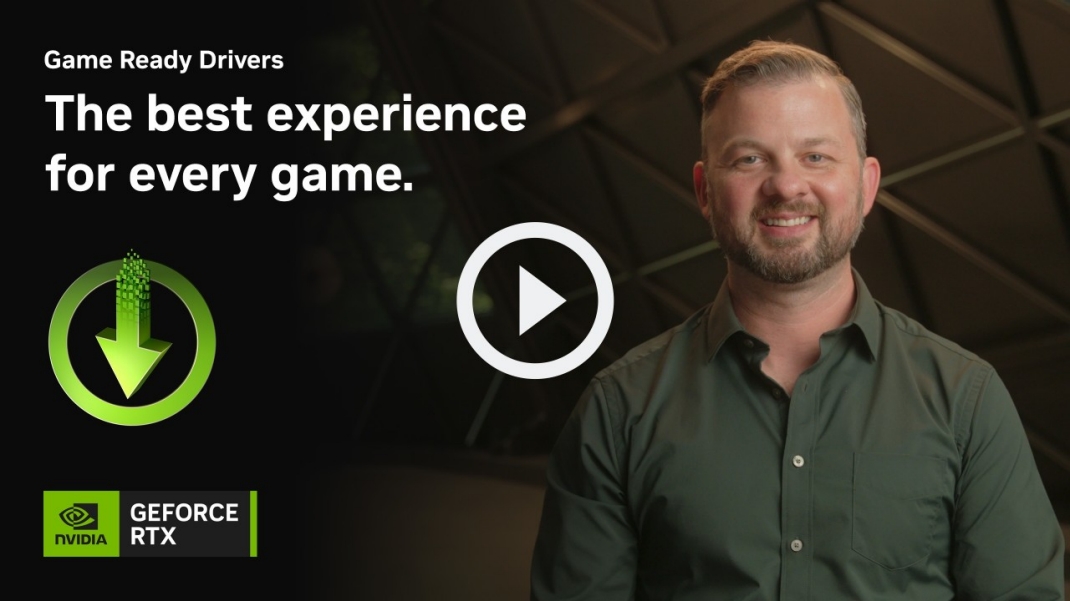
One of the most important features of GeForce Experience is driver updating. NVIDIA Game Ready Drivers are designed for gaming performance, stability, and support for new game releases.
NVIDIA’s official driver page says Game Ready Drivers are tested to deliver the best experience for major games and are certified by Microsoft’s Windows Hardware Quality Labs.
Driver updates can help with:
- Better game performance
- Bug fixes
- New game support
- Stability improvements
- Graphics feature support
- DLSS support
- Reflex support
- Ray tracing improvements
Keeping your GPU driver updated is especially useful if you play new games.
Game Optimization
GeForce Experience can scan your installed games and recommend graphics settings based on your hardware. This is useful if you do not want to manually adjust every graphics option.
Game optimization can adjust settings such as:
- Texture quality
- Shadow quality
- Resolution
- Anti-aliasing
- Effects quality
- Ray tracing settings
- DLSS settings where supported
- Display mode
- Performance settings
The goal is to balance image quality and performance.
NVIDIA ShadowPlay
ShadowPlay is a recording feature that lets you capture gameplay videos, screenshots, and highlights.
You can use it to:
- Record gameplay
- Save recent gameplay clips
- Capture screenshots
- Stream to supported platforms
- Record highlights
- Create gaming content
- Share clips with friends
This is useful for streamers, YouTubers, and casual players who want to save game moments.
In-Game Overlay
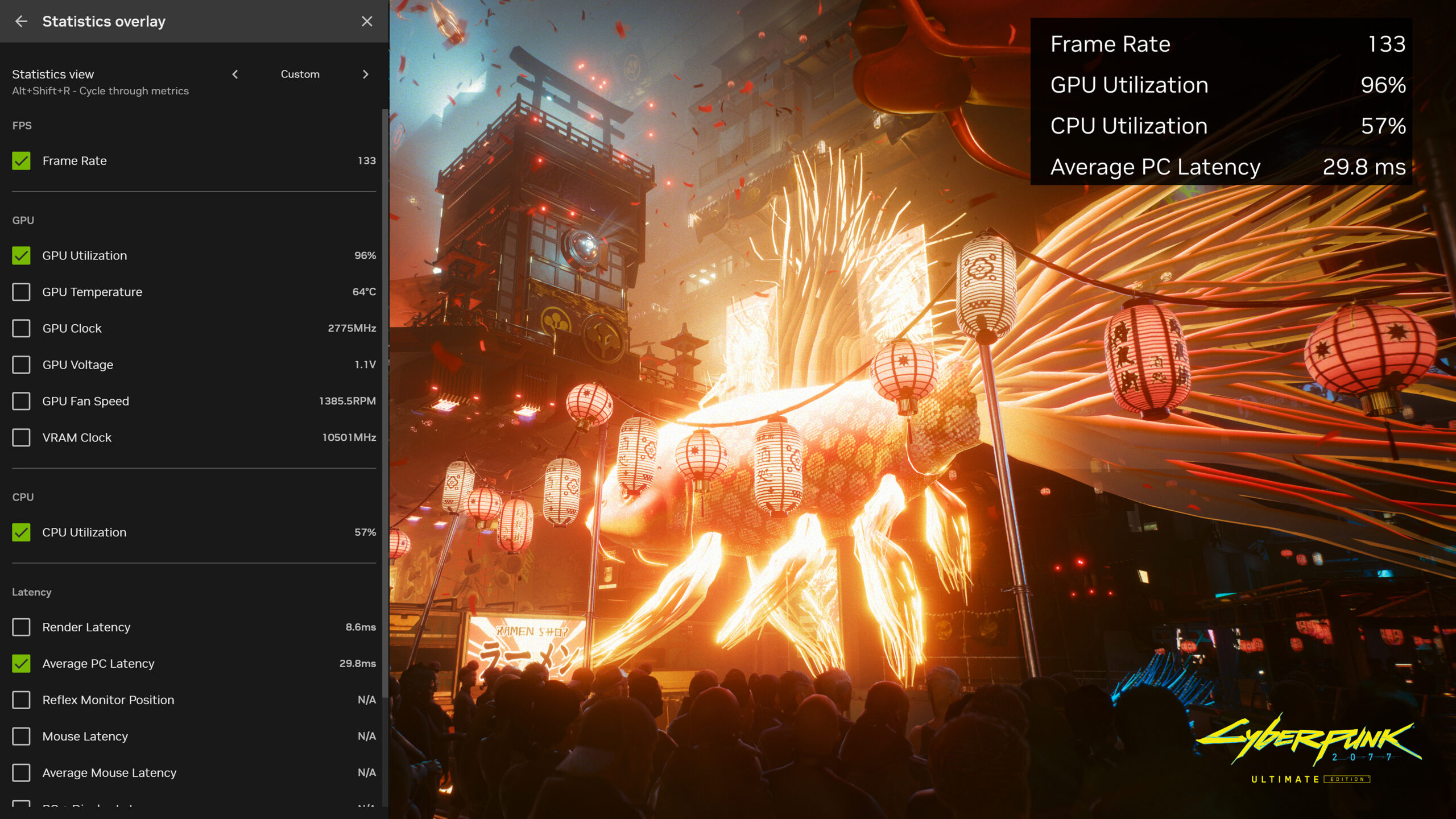
The in-game overlay gives quick access to recording, screenshots, performance tools, and other NVIDIA features while playing.
You can usually open the overlay with a keyboard shortcut.
The overlay can help with:
- Recording gameplay
- Taking screenshots
- Starting instant replay
- Viewing performance stats
- Applying game filters
- Managing broadcast options
- Accessing capture settings
If the overlay causes problems in a game, you can disable it from the app settings.
NVIDIA Game Filters
NVIDIA game filters let you change how supported games look. You can apply visual effects such as sharpening, color adjustments, brightness changes, contrast changes, and other filters.
Game filters can help if:
- A game looks too dark.
- You want sharper visuals.
- You want more colorful graphics.
- You want a cinematic style.
- You want easier visibility.
Not every game supports filters, and using filters may slightly affect performance.
Who Should Use NVIDIA GeForce Experience?
GeForce Experience is best for users with NVIDIA GeForce GPUs who want easy driver updates and game optimization.
It is useful for:
- PC gamers
- Laptop gamers
- Streamers
- Content creators
- Users who record gameplay
- Beginners who do not know graphics settings
- Players who want quick driver updates
- Users who prefer automatic optimization
If you only need drivers and do not want extra tools, you can also download drivers manually from NVIDIA.
Who Should Use NVIDIA App Instead?
NVIDIA App is better for most users today because it is NVIDIA’s newer software platform. It combines several older tools into one app and is designed to replace GeForce Experience for many users.
Use NVIDIA App if you want:
- Newer interface
- Driver updates
- Game optimization
- Recording tools
- Unified GPU settings
- Game Ready Drivers
- Studio Drivers
- Modern NVIDIA features
- No need for the old GeForce Experience workflow
NVIDIA’s FAQ says users can get GeForce Game Ready Drivers or NVIDIA Studio Drivers through NVIDIA App and GeForce.com, and NVIDIA recommends using NVIDIA App to download drivers.
NVIDIA App Features
NVIDIA App includes many features that were previously spread across GeForce Experience and other NVIDIA tools.
Features may include:
- Driver download and installation
- Game Ready Driver support
- Studio Driver support
- Game optimization
- Unified GPU control center
- In-game overlay
- Video capture
- Screenshot tools
- Performance monitoring
- NVIDIA app discovery
- Creator tools
- Game filters
- RTX-related settings where supported
This makes it more complete than the older GeForce Experience app.
How to Download NVIDIA App
The safest way to download NVIDIA App is from NVIDIA’s official website.
Steps:
- Open your browser.
- Go to NVIDIA’s official website.
- Search for NVIDIA App.
- Open the official NVIDIA App download page.
- Click Download.
- Save the installer.
- Open the downloaded file.
- Follow the installation steps.
- Restart your PC if asked.
After installation, open NVIDIA App and check for driver updates.
How to Download GeForce Experience
If you still need GeForce Experience, download it only from NVIDIA’s official GeForce Experience page when available.
Steps:
How to Install NVIDIA Software on Windows
The installation process is usually simple.
Steps:
- Download NVIDIA App or GeForce Experience from NVIDIA.
- Open the installer.
- Accept the license agreement.
- Choose the installation options.
- Wait for the installation to complete.
- Restart the PC if required.
- Open the app.
- Sign in if needed or skip if supported.
- Check for driver updates.
NVIDIA App does not require the same old GeForce Experience workflow for many features.
How to Update NVIDIA Drivers
You can update NVIDIA drivers through NVIDIA App, GeForce Experience, or the NVIDIA driver download page.
Steps using NVIDIA App:
- Open NVIDIA App.
- Go to Drivers.
- Check for updates.
- Choose Game Ready Driver or Studio Driver.
- Click Download.
- Click Install.
- Choose Express Installation for normal use.
- Restart if asked.
Game Ready Drivers are usually best for gamers. Studio Drivers are better for creative apps and stability-focused workflows.
Game Ready Driver vs Studio Driver
NVIDIA offers different driver types for different users.
Game Ready Driver is best for:
- Gaming
- New game releases
- Day-one game support
- DLSS updates
- Game performance fixes
- Gaming laptops and desktops
Studio Driver is best for:
- Video editing
- 3D rendering
- Creative apps
- Design software
- Stable creator workflows
- Adobe apps
- Blender and similar tools
If you mainly play games, choose Game Ready Driver. If you mainly create content, choose Studio Driver.
How to Optimize Games with NVIDIA Software
NVIDIA software can automatically apply recommended game settings.
Steps:
- Open NVIDIA App or GeForce Experience.
- Let the app scan installed games.
- Select a supported game.
- Review recommended settings.
- Click Optimize if available.
- Launch the game.
- Test performance.
- Adjust manually if needed.
Automatic optimization is helpful, but manual settings may still be better for advanced users.
How to Record Gameplay with NVIDIA Overlay
If your GPU supports recording features, you can capture gameplay with the NVIDIA overlay.
Steps:
- Open NVIDIA App or GeForce Experience.
- Enable the in-game overlay.
- Launch your game.
- Open the overlay with the shortcut.
- Choose Record or Instant Replay.
- Start recording.
- Stop recording when done.
- Find the video in the saved location.
Recording may reduce performance slightly, especially on lower-end GPUs.
How to Fix NVIDIA GeForce Experience Not Working
If GeForce Experience does not open or update properly, try basic troubleshooting first.
Fixes:
- Restart your PC.
- Update Windows.
- Install the latest NVIDIA driver.
- Run the app as administrator.
- Reinstall GeForce Experience.
- Switch to NVIDIA App.
- Disable antivirus temporarily if it blocks installation.
- Check your internet connection.
- Restart NVIDIA services.
- Remove old driver files if needed.
If GeForce Experience is no longer reliable on your system, NVIDIA App may work better.
How to Fix NVIDIA App Not Working
If NVIDIA App does not open or detect your GPU, try these fixes:
- Restart your computer.
- Install the latest NVIDIA display driver.
- Check that your GPU is supported.
- Update Windows.
- Run the installer as administrator.
- Uninstall older NVIDIA software.
- Reinstall NVIDIA App.
- Use NVIDIA’s official driver page.
- Try a clean driver installation.
- Check Windows Device Manager.
Older GPUs may have limited support for newer features.
NVIDIA Software Not Detecting Games
If NVIDIA software does not detect your games, the game may be installed in a folder that is not being scanned.
Try this:
- Open NVIDIA App or GeForce Experience.
- Go to settings.
- Find game scan locations.
- Add your game folder.
- Rescan for games.
- Restart the app.
- Make sure the game is supported.
- Launch the game once, then scan again.
Not every game supports automatic optimization.
NVIDIA Overlay Not Working
The overlay may fail if it is disabled, blocked, or unsupported by the game.
Try these fixes:
- Enable in-game overlay.
- Restart the app.
- Restart the game.
- Update your NVIDIA driver.
- Disable conflicting overlays.
- Close apps like Discord overlay or Xbox Game Bar temporarily.
- Run the game in supported display mode.
- Reinstall NVIDIA software.
Some games block overlays for anti-cheat or compatibility reasons.
NVIDIA Driver Installation Failed
Driver installation can fail because of corrupted files, old driver conflicts, antivirus tools, or Windows problems.
Try these fixes:
- Restart the PC.
- Download the driver again.
- Use Express Installation.
- Try Custom Installation.
- Select Clean installation if available.
- Temporarily disable third-party antivirus.
- Free up disk space.
- Update Windows.
- Use Device Manager only if needed.
- Use Display Driver Uninstaller only if you know what you are doing.
Always download drivers from NVIDIA’s official website.
Can You Use GeForce Experience Without an NVIDIA GPU?
No. GeForce Experience is made for NVIDIA GeForce graphics cards. Most features require supported NVIDIA hardware.
If your PC uses AMD or Intel graphics, use the official tools for those brands instead:
- AMD Software Adrenalin Edition for AMD GPUs
- Intel Graphics Software or Intel Driver & Support Assistant for Intel graphics
Do not install NVIDIA GPU tools on a PC without NVIDIA graphics unless you have a specific reason.
Does GeForce Experience Improve FPS?
GeForce Experience itself does not magically increase FPS. It can help improve performance by installing better drivers and choosing optimized game settings.
It may improve FPS if:
- Your old driver was outdated.
- Your game settings were too high.
- DLSS is enabled in supported games.
- NVIDIA optimization lowers heavy settings.
- A new Game Ready Driver fixes performance problems.
It may not improve FPS if:
- Your hardware is too weak.
- The game is CPU-limited.
- The game is poorly optimized.
- Your settings are already optimized.
- Your PC has overheating problems.
Driver updates and settings changes can help, but hardware still matters.
Does GeForce Experience Slow Down PC?
GeForce Experience and NVIDIA App run in the background, so they can use some system resources. On modern PCs, this is usually not a major issue.
It may affect performance if:
- In-game overlay is enabled
- Instant Replay is recording in the background
- Your PC has low RAM
- Your storage is nearly full
- You are using an older GPU
- Too many background apps are running
If you want maximum performance, disable overlay features you do not use.
How to Uninstall GeForce Experience
If you no longer want GeForce Experience, you can remove it from Windows.
Steps:
- Open Settings.
- Go to Apps.
- Click Installed apps.
- Find NVIDIA GeForce Experience.
- Click Uninstall.
- Follow the prompts.
- Restart your PC.
Removing GeForce Experience does not normally remove your NVIDIA display driver.
How to Uninstall NVIDIA App
You can remove NVIDIA App from Windows like a normal program.
Steps:
- Open Settings.
- Go to Apps.
- Click Installed apps.
- Find NVIDIA App.
- Click Uninstall.
- Follow the instructions.
- Restart if needed.
You can still install drivers manually from NVIDIA’s driver download page.
Best Alternatives to GeForce Experience
If you do not want to use GeForce Experience, there are other ways to manage drivers and game settings.
Alternatives include:
- NVIDIA App
- NVIDIA official driver download page
- NVIDIA Control Panel where available
- Steam game settings
- Windows Graphics settings
- In-game graphics menus
- MSI Afterburner for monitoring
- OBS Studio for recording and streaming
For most NVIDIA users, NVIDIA App is the best replacement.
Tips for Better NVIDIA GPU Performance
NVIDIA software can help, but good PC maintenance also matters.
Useful tips:
- Keep drivers updated.
- Use Game Ready Drivers for gaming.
- Use Studio Drivers for creative apps.
- Keep Windows updated.
- Close background apps while gaming.
- Enable DLSS in supported games.
- Monitor GPU temperature.
- Clean dust from your PC.
- Use the correct power mode.
- Keep games installed on SSD if possible.
- Adjust graphics settings manually when needed.
Performance depends on both software and hardware.
FAQ
What is NVIDIA GeForce Experience?
NVIDIA GeForce Experience is a free app for NVIDIA GPU users that helps update drivers, optimize games, record gameplay, and use in-game overlay features.
Is GeForce Experience still available?
GeForce Experience may still be available in some regions or older downloads, but NVIDIA now recommends NVIDIA App for driver updates and modern GPU tools.
What replaced GeForce Experience?
NVIDIA App is the newer replacement. It combines many GeForce Experience features with newer GPU settings, driver tools, and recording features.
Is NVIDIA App free?
Yes, NVIDIA App is free to download and use.
Should I install NVIDIA App or GeForce Experience?
Most users should install NVIDIA App because it is the newer official NVIDIA tool. Use GeForce Experience only if you specifically need the older app.
Is GeForce Experience safe to download?
Yes, it is safe if downloaded from NVIDIA’s official website. Avoid random third-party downloads and modified installers.
Does GeForce Experience update drivers?
Yes, GeForce Experience can detect, download, and install NVIDIA graphics driver updates.
Does NVIDIA App update drivers?
Yes, NVIDIA App can download GeForce Game Ready Drivers and NVIDIA Studio Drivers. NVIDIA recommends using NVIDIA App for driver downloads.
Does GeForce Experience improve gaming performance?
It can help by updating drivers and optimizing game settings, but actual FPS improvement depends on your hardware, game, and settings.
Can I use GeForce Experience without an NVIDIA graphics card?
No. GeForce Experience requires supported NVIDIA graphics hardware.
Can I uninstall GeForce Experience?
Yes. You can uninstall it from Windows Settings. Your NVIDIA display driver should remain installed.
What is the safest way to download NVIDIA drivers?
The safest way is to download drivers from NVIDIA’s official driver page or through NVIDIA App.


Discussion (0)
Be the first to comment.