



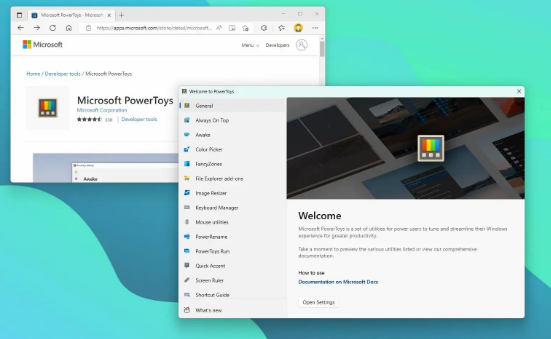
Windows 11 is capable but it has gaps. The built-in search is slow for some users, window snapping has limits, renaming multiple files is tedious, and there is no easy way to pick a color from your screen or keep a window on top. Microsoft PowerToys fills those gaps. It is a free, open-source collection of utilities that extends Windows with tools Microsoft never built into the operating system itself. Some of them are genuinely life-changing for productivity. Others are highly specific. This guide explains what PowerToys is, how to get it, and which tools are actually worth your time.
What Is Microsoft PowerToys?
PowerToys is an official Microsoft project, not a third-party tool. It has existed in various forms since Windows 95, where it shipped as a set of 15 utilities for power users. The modern version for Windows 10 and Windows 11 is free, open-source, and available through the Microsoft Store or GitHub. It is maintained by Microsoft engineers and updated regularly with new tools and improvements.
The idea behind PowerToys is straightforward. Rather than building every possible feature into Windows itself and adding bloat for everyone, Microsoft puts experimental and specialized tools into PowerToys. Users who need them can install them. Everyone else does not have to.
You do not need to be a developer or a power user to benefit from it. Several tools in the collection are genuinely useful for everyday users. The key is knowing which ones apply to how you work.
How to Install PowerToys
The easiest way to install PowerToys is through the Microsoft Store. Search for Microsoft PowerToys and click Install. This version updates automatically, which means you always get the latest features and bug fixes without thinking about it.
Alternatively, you can download it directly from the PowerToys GitHub releases page and run the installer manually. The GitHub version is slightly more flexible but requires you to handle updates yourself. For most users, the Microsoft Store version is the better choice.
Once installed, PowerToys runs in the background and is accessible from the system tray. You open the PowerToys settings panel to enable or disable individual tools. Each tool that is enabled sits quietly in the background until you call on it. You do not need to have them all switched on. In fact, enabling tools you do not need wastes system resources. Turn on only the ones you will actually use.
The Tools Worth Knowing About
PowerToys includes a large number of utilities. Rather than listing all of them, here are the ones that deliver the most practical value across different types of users.
FancyZones
Windows 11's built-in Snap Layouts are useful but fixed. FancyZones lets you design your own custom window layouts. You define zones on your screen however you like, and then hold Shift while dragging a window to snap it precisely into any zone you have created. For anyone working with multiple apps open simultaneously, particularly on a large or ultrawide monitor, FancyZones makes the desktop significantly more organized. You can save multiple layouts and switch between them depending on what you are working on.
PowerToys Run
This is the tool most often compared to Spotlight on Mac. Press Alt + Space and a clean, fast search bar appears on screen. Type the name of an app, file, or folder and it appears instantly. Press Enter to open it. You can also use it to perform quick calculations, convert units, search the web, and run shell commands, all without leaving whatever you are doing. It is faster and cleaner than the built-in Windows search for launching apps and finding files quickly. Note that Microsoft is transitioning this to a newer tool called Command Palette, which is available in PowerToys now and will eventually replace Run.
Keyboard Manager
Keyboard Manager lets you remap any key to any other key or to a custom keyboard shortcut. If you have a keyboard missing a key you rely on, or if you want to reassign a key you never use to something more useful, this handles it cleanly without third-party software. You can also create app-specific shortcuts that only trigger when a particular application is in focus.
FancyZones Workspaces
Workspaces, a newer addition to PowerToys, takes FancyZones further by letting you save a snapshot of your entire desktop including which apps are open and where they are positioned. You can restore that exact setup with a single click. If you regularly switch between different workflows, like a writing setup and a communication setup, Workspaces removes the friction of rearranging everything from scratch each time.
PowerRename
Renaming files in Windows one at a time is fine. Renaming fifty of them is painful. PowerRename adds a right-click option to any file selection that opens a search-and-replace interface for bulk renaming. You can rename hundreds of files at once using simple text matching or regular expressions, preview the results before applying them, and undo changes if something goes wrong.
Color Picker
Press Windows key + Shift + C and your cursor turns into a color picker that works anywhere on screen. Hover over any pixel and Color Picker captures its color, automatically copying it to your clipboard in the format you choose, including HEX, RGB, and HSL. It is invaluable for designers, developers, or anyone who regularly works with color values and does not want to take a screenshot and open an image editor just to identify a color.
Text Extractor
Text Extractor does something that feels almost magical the first time you use it. Press Windows key + Shift + T and drag to select any area of your screen. PowerToys reads the text in that selection using OCR and copies it to your clipboard. This works on images, PDFs where you cannot select text, video frames, screenshots, and anything else visual. It saves real time whenever you need to copy text from something that would normally require retyping.
Always On Top
Press Windows key + Ctrl + T while a window is in focus and it pins that window above all others, staying visible even when you click into different apps. The pinned window gets a subtle colored border so you can see it is active. Useful for keeping a reference document, a timer, or a chat window visible while working in other applications.
Awake
Awake prevents your computer from going to sleep without permanently changing your power settings. You can set it to stay awake indefinitely or for a specific duration, after which your normal sleep settings resume. Useful when running a long download, a video render, or anything else that needs the machine to stay active without you having to remember to change settings back afterward.
Advanced Paste
Advanced Paste expands what you can do with your clipboard. Instead of pasting whatever format something was copied in, you can paste it as plain text, as Markdown, as JSON, or in other structured formats. It also includes an optional AI-powered feature that lets you describe the transformation you want and have it applied automatically. For anyone who frequently pastes content from one format into another, this saves time that adds up quickly.
Image Resizer
Right-click on any image or selection of images and Image Resizer adds an option to resize them instantly. You choose from preset sizes or define your own, and the resized copies are saved alongside the originals. Batch resizing photos for a website, an email, or a presentation takes seconds instead of opening an image editor for each one.
Who Is PowerToys Actually For?
The name suggests it is only for power users, and some of the tools are genuinely technical. But several tools in the collection, particularly FancyZones, PowerRename, Color Picker, Text Extractor, and Image Resizer, are immediately useful for anyone regardless of technical experience. If you work with files, manage a desktop with multiple apps open, or regularly deal with images and text, PowerToys has something that will make your day easier.
Developers and IT professionals will find additional value in tools like the Environment Variables editor, the Command Palette, Keyboard Manager, and the Registry Preview tool. But you do not need to use all of them to benefit from the package.
Final Thoughts
Microsoft PowerToys is one of the most underused free tools available for Windows. The fact that it comes from Microsoft itself, is actively maintained, open source, and available at no cost makes it an easy recommendation for almost any Windows 11 user. Install it, enable the tools that fit how you work, leave the rest off, and you will likely wonder how you used Windows without it.
Frequently Asked Questions
Is Microsoft PowerToys free?
Yes. PowerToys is completely free and open source. It is available through the Microsoft Store and GitHub at no cost and is maintained by Microsoft's own engineering team.
Does PowerToys work on Windows 11 Home?
Yes. PowerToys works on all editions of Windows 11 including Home, Pro, Enterprise, and Education. It also works on Windows 10 version 2004 and newer.
Will PowerToys slow down my PC?
Each enabled tool uses a small amount of background resources while it waits to be used. If you enable all tools at once, you will notice the overhead. The solution is simple: only enable the tools you actually plan to use and leave the rest off.
Is PowerToys safe to install?
Yes. PowerToys is an official Microsoft project, not a third-party tool. The source code is publicly available on GitHub and can be audited by anyone. It is as safe to install as any other Microsoft software.
What is the difference between PowerToys Run and Command Palette?
PowerToys Run is the original quick launcher in PowerToys, activated with Alt + Space. Command Palette is its successor, activated with Windows key + Alt + Space, and is designed to be more extensible and capable. Microsoft is in the process of transitioning users from Run to Command Palette, but both are currently available in PowerToys.



Discussion (0)
Be the first to comment.