




A quick reset often fixes the most common Fitbit Luxe problems, including freezes, sync issues, and missing notifications. This guide explains every reset method in clear steps, from a simple restart to a full factory reset. You also get troubleshooting paths for cases where the Luxe does not respond, does not vibrate during restart, or does not appear in the Fitbit app.
But before you start, note that a factory reset erases settings, paired devices, and stored information. Hence, ensure you sync your data in the Fitbit app so you do not lose recent activity. Also, attach the Luxe to the charger while you reset to prevent shutdown mid-process.
Once everything is set, you can proceed to the steps below.
How to restart (soft reset) your Fitbit Luxe
A soft reset clears temporary system errors without wiping your data. Most users recover functionality with this method.
Restart using the Settings menu
You can restart the Luxe through its built-in system menu.
- Swipe down from the clock face.
- Scroll and tap Settings.


- Choose Restart device.


- Confirm the restart and wait for the Fitbit logo to appear.
This reset resolves most display and Bluetooth issues.
Restart when the screen is frozen
If the screen stops responding, you can force a restart.
- Connect the tracker to the charger.
- Hold the button on the charging cable for several seconds.
- Release when the Fitbit logo appears.
This method works when taps and swipes fail.
How to factory reset your Fitbit Luxe
A factory reset removes all stored data and returns the Luxe to its original software state. Use this only when standard restarts do not fix the issue.
Factory reset directly on the Luxe
Use this method when the display still works.
- Swipe down from the clock face.
- Tap Settings.
- Scroll to Device info.
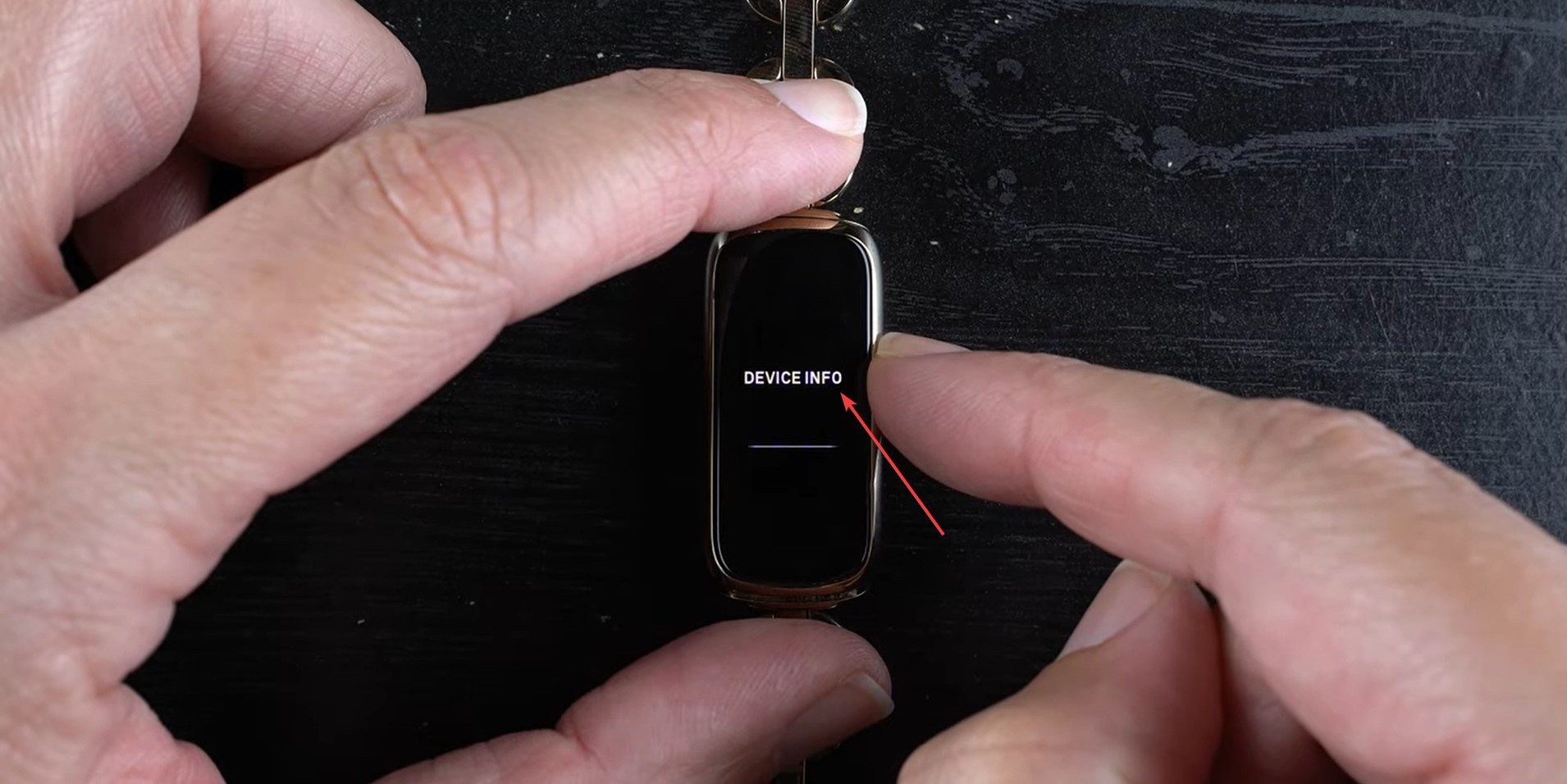

- Select Clear user data.


- Confirm the reset.
The Luxe wipes your data and reboots. You will pair it again during setup.
Factory reset using the Fitbit app
If the Settings menu does not load, you can reset it from the app.
- Open the Fitbit app on your phone.
- Tap your Luxe from the device list.
- Choose Remove device.
- Follow the prompts to complete the reset.
After removal, the Luxe resets automatically and becomes ready for setup.
After resetting: Pairing and setup steps
Open the Fitbit app and select Add a device to reconnect your Luxe. Enable notifications, allow Bluetooth permissions, and customize your clock face. You can also try to sync your Fitbit with your computer.

You may need to re-enable features such as alarms or Do Not Disturb.
What to do if your Fitbit Luxe won’t reset
- Luxe frozen or black screen: Clean the charging contacts with a dry cloth, attach the Luxe firmly to the charger, and hold the charging button for a longer period to trigger a forced restart.
- Charging or battery conflicts: Try a different USB port or wall adapter, confirm the cable clicks into place, and leave the Luxe charging for 15 minutes before restarting.
- Bluetooth or sync conflicts: Turn Bluetooth off and on again on your phone, restart your phone, and clear cached data in the Fitbit app settings. If the Luxe appears twice in the Bluetooth list, remove both entries and try again.
Tips for keeping your Fitbit Luxe stable
- Sync your device regularly to prevent data conflicts.
- Keep firmware updated for the newest fixes and improvements.
- Clean the charging contacts to maintain a reliable connection.
- Reboot the device occasionally if performance slows.
FAQs
How long does a Luxe reset take? A restart typically takes a few seconds. A factory reset may take up to a minute.
Will I lose my step history? A restart keeps your data. A factory reset erases information stored on the device but restores anything already synced.
Why won’t my Luxe vibrate when restarting? This often indicates a low battery or poor charging contact.
Is a restart different from a factory reset? A restart refreshes the operating system. A factory reset wipes all settings and removes your paired account.
Summary
- Restart the Luxe through Settings or with a forced restart.
- Use a factory reset when major issues continue.
- Check charging and Bluetooth when resets fail.
- Reconnect the Luxe through the Fitbit app after resetting.
- Follow stability tips to reduce future issues.
A reliable reset process keeps your Fitbit Luxe functioning smoothly and removes most performance issues. Finish the restart or reset, reconnect the tracker, and verify your notifications and sync features work as expected.


Discussion (0)
Be the first to comment.