




Setting up a Fitbit for the first time feels simple when you follow a clear, step-by-step path. New users usually want help with pairing the device, learning the interface, and understanding what their data means.
This guide walks you through the fundamentals so your Fitbit tracks accurately from day one. If you want more wearable guidance, see our guide on [placeholder internal link: best fitness trackers].
1) What you need before setting up your Fitbit
Your Fitbit works best when you prepare a few essentials first. A compatible phone and the Fitbit app give you the tools to track and sync your health data without issues.
Supported devices and platforms
Fitbit works with most iPhones and Android phones. You need Bluetooth, Wi-Fi, and the latest version of the Fitbit app for consistent syncing.
Choosing the right Fitbit model
Charge, Inspire, Versa, and Sense models each serve different needs. Versas and Sense devices offer more advanced metrics, while Charge and Inspire models focus on everyday tracking, so understanding these differences helps you operate the device more confidently.
2) How to set up your Fitbit for the first time
Open the App Store or Google Play, search for Fitbit, and install the app. Sign in or create a new Fitbit account. This gives you access to activity logs, settings, and firmware updates.

Next, turn on your Fitbit and enable Bluetooth on your phone. Open the Fitbit app and tap the Set Up a Device icon, and click Add device. Now, select your model and follow the onscreen prompts.
Finally, enter your height, weight, gender, and fitness goals. This information helps Fitbit calculate distance, calories, and health metrics with better accuracy.
3) Learning the Fitbit interface
Your Fitbit uses taps and swipes to access menus and data. Learning this early helps you navigate quickly during workouts and daily activities.
Swipe and tap navigation
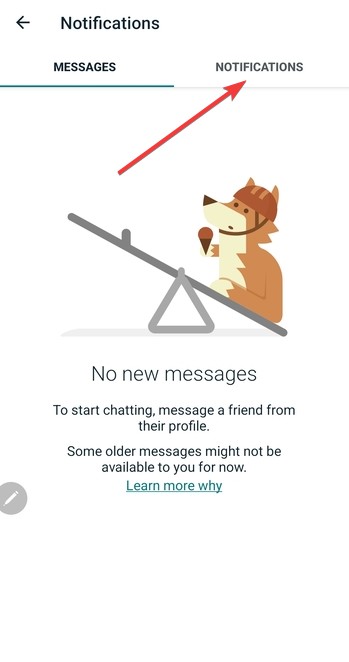
You can swipe left or right to browse apps and modes. Swipe down for notifications, and tap to open menus or start a workout.
Understanding dashboard metrics
The main dashboard displays steps, heart rate, distance, calories, and Active Zone Minutes. These metrics help you understand your daily activity level and training intensity.
4) Using core Fitbit features
Fitbit devices track essential health stats automatically. These features give you quick insights into your daily movement, sleep, and wellness patterns.
Step and activity tracking
Your Fitbit records steps, movement, and general activity throughout the day. You can start specific workouts like running or cycling if you want detailed metrics.

Heart rate monitoring
Keep the device snug on your wrist for accurate heart-rate tracking. Fitbit shows zones like Fat Burn and Cardio so you understand how hard you’re working.
Sleep tracking
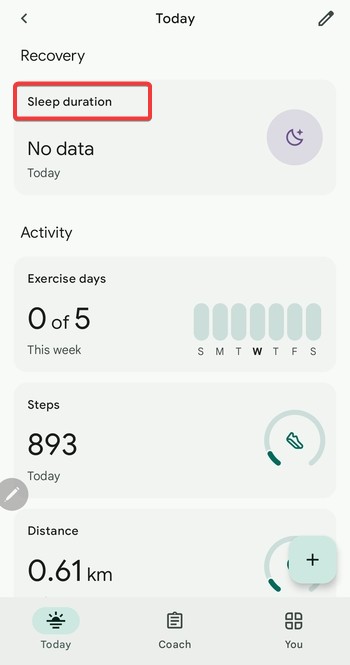
Fitbit detects sleep stages such as Light, Deep, and REM while you rest. Reviewing the Sleep tab helps you spot patterns that affect your energy levels.
Notifications and alarms
You can enable call, text, and app alerts from your phone. Silent alarms wake you gently using vibration instead of sound.
5) Using the Fitbit app
The Fitbit app acts as the main hub for all your health information. Beginners should explore a few key areas to use the device efficiently.
Today tab overview
The Today tab shows steps, sleep, heart rate, and Active Zone Minutes in one place. This gives you a quick snapshot of your day.

Device settings and customization
You can change watch faces, adjust goals, set reminders, and update your firmware. Regular updates improve accuracy and add new features.
Friends, challenges, and social features
Adding friends and joining challenges helps you stay motivated. Leaderboards give you a fun way to improve your daily step count.
6) Advanced tools for better results
Once you learn the basics, you can explore advanced tools that improve your performance and wellness.
Workout modes and GPS
Fitbit offers dedicated modes for running, cycling, hiking, and more. Some models include built-in GPS, while others use your phone’s GPS.
Mindfulness and stress tools
Supported models offer mindfulness sessions and on-wrist stress tracking. These tools help you manage stress throughout the day.
Food and water logging
You can track calories, macronutrients, and water intake in the app. This helps you monitor your overall wellness and hydration.
7) How to personalize your Fitbit experience
Adjusting goals for weight loss, sleep, or fitness
You can set custom goals for step count, weekly workouts, or sleep duration. These goals help you track progress more clearly.
Changing watch faces and widgets
Explore the Watch Face gallery in the app. Choose layouts that highlight steps, heart rate, or battery life based on your preferences.
8) Fitbit Premium: what you get
Fitbit Premium adds advanced guidance, deeper analysis, and exclusive workouts. Beginners can decide whether upgrading helps their fitness goals.
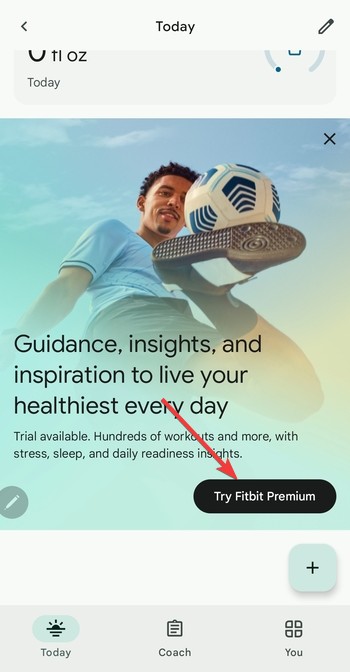
Premium unlocks structured plans, readiness scores, and detailed health insights. You also gain access to additional videos and guided routines for strength, cardio, and mindfulness.
Troubleshooting common beginner problems
- Syncing issues: Restart Bluetooth on your phone, force-close and reopen the Fitbit app, and restart your Fitbit to refresh the connection.
- Battery and charging problems: A loose charger or dirty contacts cause most charging failures. Clean the charging pins and keep the cable connected firmly during charging.
- Incorrect data or missing stats: Wear the device above the wrist bone for better step and heart-rate accuracy. If sleep or steps look off, sync your device after waking or after a long walk.
FAQs about operating a Fitbit
Why is my Fitbit not syncing? Bluetooth conflicts or app glitches usually cause sync issues. Restart Bluetooth, force-close the Fitbit app, and reboot your device to restore syncing.
Why is my heart rate not showing? A loose band or incorrect placement affects readings. Wear your Fitbit above the wrist bone and tighten the strap so the sensor stays in contact with your skin.
Why does my Fitbit battery drain fast? Alerts, always-on display, and continuous GPS reduce battery life. Lower brightness, disable unused notifications, and turn off GPS when you don’t need it.
Why is my sleep tracking inaccurate? Sleep tracking works best when the device detects long periods of stillness. Make sure the band fits snugly and sync your device after waking.
Summary
- Install the Fitbit app and pair your device.
- Learn basic navigation and dashboard metrics.
- Track steps, heart rate, workouts, and sleep.
- Use the Fitbit app to customize goals and settings.
- Explore advanced tools like GPS and mindfulness.
Conclusion
A Fitbit becomes easier to use once you learn how to navigate the device and app. Start with basic setup, track your movement, and build healthier habits through clear daily insights.
With consistent use, your Fitbit becomes a reliable companion for improving your wellness.


Discussion (0)
Be the first to comment.