




Your Fitbit Versa 2 can track workouts, monitor sleep, and display notifications - but only if it’s set up correctly. Whether you just unboxed your smartwatch or need to pair it again, here’s a complete walkthrough to get your Versa 2 running smoothly.
Step 1: Charge your Fitbit Versa 2
Before doing anything else, connect your Versa 2 to its charging cradle and a USB port or wall adapter. Make sure the pins on the charger align with the contacts on the back of the watch. A full charge helps prevent pairing interruptions.
Step 2: Download and install the Fitbit app
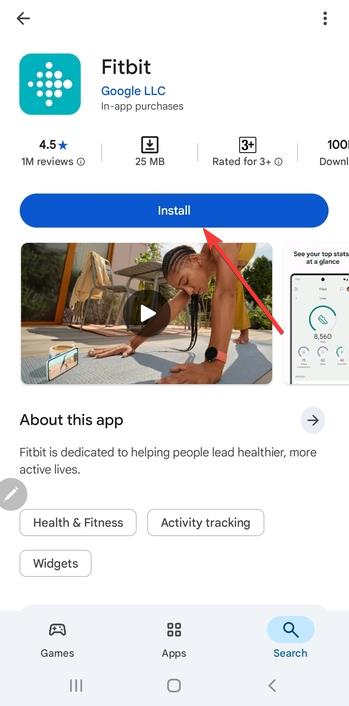
Go to the Google Play Store or App Store and download the Fitbit app. This app is required for setup, syncing your stats, and managing settings. Once installed, open it on your phone.
Step 3: Create or log in to your Fitbit account

If you already use Fitbit on another device, sign in with your existing credentials. New users can tap Join Fitbit to create a profile. Your account keeps your health history backed up and synced across devices.
Step 4: Pair your Versa 2 with the Fitbit app
Turn on Bluetooth on your phone and open the Fitbit app. Tap your phone icon, select Add Device, and choose Versa 2 from the list. Follow the on-screen instructions until the pairing code appears and the watch vibrates to confirm.

Tip: If your Versa 2 doesn’t appear in the app, restart your phone and the watch, then try again. On the watch, press and hold both buttons for 10 seconds to reboot. Also, ensure no other device is paired with the same Fitbit account.
Step 5: Connect to Wi-Fi
After pairing, connect the Versa 2 to Wi-Fi for faster app installs and firmware downloads. Go to Settings → Wi-Fi → Add Network, then pick a 2.4 GHz network. The Versa 2 does not support 5 GHz bands.
Step 6: Update the firmware
Open the Fitbit app to check for updates. If an update is available, install it before continuing. Firmware updates improve performance, fix bugs, and add compatibility for newer phones.
Step 7: Customize your watch settings
Use the Fitbit app to pick a clock face, adjust brightness, and enable the Always-On Display. You can also change shortcuts or add widgets for weather, music, or workouts.
Enable voice assistant (Alexa)
Press and hold the left button on your Versa 2 to start Alexa setup. Sign in with your Amazon account to issue voice commands or check the weather directly from your wrist.
Set up notifications and apps
In the Fitbit app, grant notification permissions for calls, texts, and calendar alerts. Browse the Fitbit Gallery to install extra watch faces, Spotify controls, or workout trackers.
Step 8: Fine-tune health tracking

Tap the Today tab in the app to set activity goals like steps, calories, or heart-rate targets. Make sure the watch is snug but comfortable on your wrist for accurate readings. Enable Sleep Mode at night to reduce notifications.
Step 9: Sync and start using your Versa 2
Tap Sync Now in the Fitbit app to apply all your preferences. Once syncing completes, your Versa 2 will start tracking workouts, steps, and notifications automatically.
Common Versa 2 setup problems and fixes
- Versa 2 won’t pair: Toggle Bluetooth off and back on, then retry. If that fails, uninstall and reinstall the Fitbit app, then pair again.
- Firmware update stuck: Switch from mobile data to Wi-Fi and keep your phone within three feet of the watch. Close other apps to free resources.
- Fitbit app doesn’t detect the device: Reset your phone’s network settings and try pairing from a different phone. Once connected, your account data will sync automatically.
Tips for a smooth Fitbit Versa 2 setup
- Keep your phone’s Bluetooth and Wi-Fi turned on during setup.
- Use the original charger for consistent power.
- Stay close to your phone to prevent connection drops.
- Restart both devices if syncing fails.
- Keep your Fitbit app updated to the latest version.
FAQs
Can I set up my Versa 2 without a phone? You can power it on, but a full setup requires the Fitbit app to sync data and install updates.
Why won’t my Versa 2 pair with my phone? It often happens due to Bluetooth interference. Restart both devices, clear previous pairings, and try again.
Do I need Wi-Fi to finish setup? Not strictly, but Wi-Fi allows faster updates and app installations than Bluetooth alone.
How long does setup take? A complete setup typically takes 10–15 minutes, depending on firmware update size and network speed.
Summary
- Charge your Fitbit Versa 2 fully.
- Install and log in to the Fitbit app.
- Pair via Bluetooth and connect to Wi-Fi.
- Update firmware and customize settings.
- Set goals and start tracking your activities.
Conclusion
Once you’ve charged, paired, and customized your Fitbit Versa 2, it’s ready to track every step and heartbeat. Spend a few minutes exploring the Fitbit app to personalize notifications and goals. Your smartwatch is now set to deliver accurate insights and help you stay active each day.
Discussion (0)
Be the first to comment.