




When the on-screen keyboard disappears on an iPhone or iPad, typing becomes impossible. This issue usually comes from a UI glitch, a misconfigured keyboard setting, or an app-specific bug. The fixes below start simple and move toward deeper troubleshooting, so you can restore the keyboard as quickly as possible.
Table of contents
Quick checks to bring back the keyboard (start here)
These fixes solve the problem for most users in under a minute.
Switch apps or reopen the text field
Tap away from the text field, then tap it again. If the keyboard still does not appear, close the app completely and reopen it to reset the input focus.
Rotate the device or exit landscape mode
Rotate your iPhone or iPad to portrait mode. Landscape layout glitches often hide the keyboard, especially in older or poorly optimized apps.
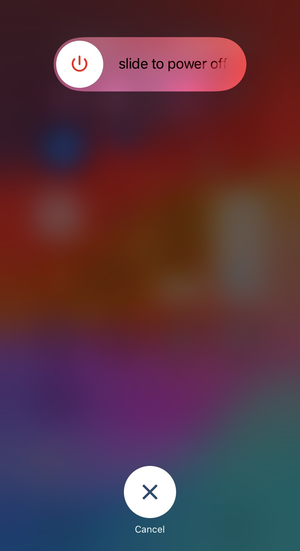
Restart the iPhone or iPad
Restarting clears temporary UI and memory issues. After the reboot, open an app with a text field and check if the keyboard appears.
Check keyboard settings in iOS
Incorrect keyboard settings can prevent the system keyboard from loading.
Ensure the iOS keyboard is enabled
Open Settings, go to General, then Keyboard, and check the Keyboards list. Make sure at least one default Apple keyboard appears in the list.

Disable third-party keyboards temporarily
Remove third-party keyboards like Gboard or SwiftKey for testing. If the keyboard returns, reinstall the third-party keyboard later to confirm compatibility.
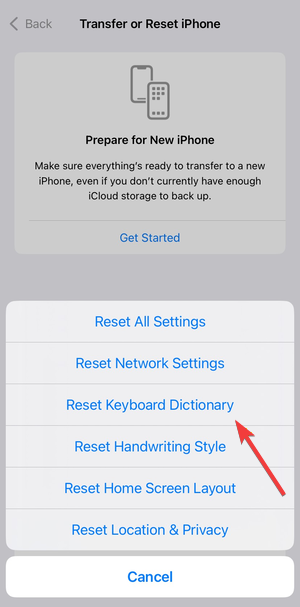
Reset keyboard dictionary
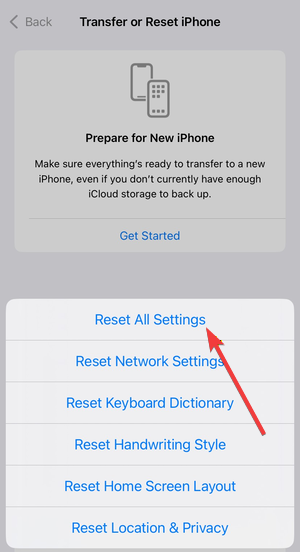
Go to Settings, open General, then Transfer or Reset iPhone or Transfer or Reset iPad, and tap Reset, then Reset Keyboard Dictionary. This step fixes corrupted prediction data that can block the keyboard.
Fix keyboard missing only in specific apps
If the keyboard works elsewhere, the issue likely comes from one app.
Force close and reopen the affected app
Swipe the app away from the app switcher. Reopen it and tap a text field to reload the keyboard interface.
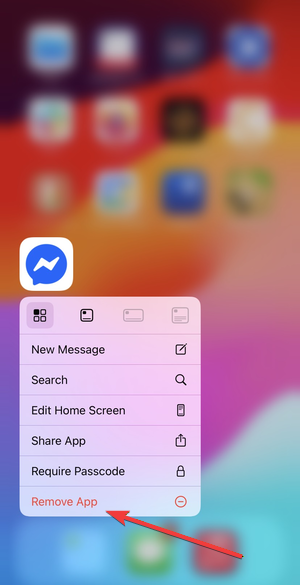
Update or reinstall the app
Check the App Store for updates. If updates do not help, delete the app and install it again to clear corrupted app data.
iPad-specific fixes for missing keyboard
iPadOS includes features that can make the keyboard appear hidden.
Disable Floating Keyboard
Pinch outward on the small floating keyboard to restore it to full size. Floating mode often makes the keyboard look missing.
Turn off Split Keyboard mode
Hold the keyboard icon and choose Merge and Dock. Split Keyboard mode can move the keys to the edges, which confuses many users.
Disconnect external keyboards
Turn off Bluetooth or detach the Smart Keyboard. External keyboards can disable the on-screen keyboard entirely.
Advanced system fixes
Use these steps only if the keyboard still refuses to appear.
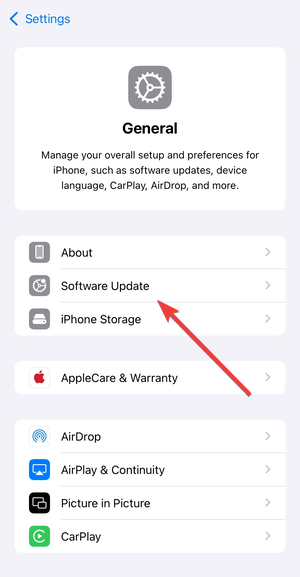
Update iOS or iPadOS
Install the latest system update from Settings. Apple often fixes keyboard-related bugs silently through system updates.
Reset all settings
Go to Settings, open General, then Transfer or Reset iPhone or Transfer or Reset iPad, and tap Reset, then Reset All Settings. This does not erase data but resets system preferences that may block the keyboard.
When the keyboard still won’t appear
At this point, the issue may involve deeper system conflicts.
Check for accessibility features affecting input
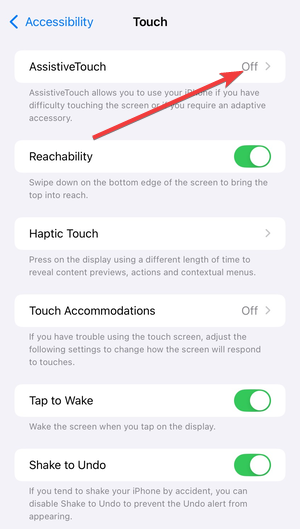
Review AssistiveTouch, Switch Control, and other accessibility settings. These features can interfere with standard keyboard behavior.
Contact Apple Support
If none of the fixes work, contact Apple Support. A software reinstall or hardware inspection may be required.
Tips
- Keep at least one default Apple keyboard enabled at all times.
- Avoid running multiple third-party keyboards together if issues appear.
- Restart the device after major iOS or app updates to prevent UI glitches.
- Disconnect Bluetooth keyboards when you expect to use the on-screen keyboard.
- Update apps regularly, especially messaging and note-taking apps.
FAQs
Why does the keyboard disappear only on my iPad? On iPad, Floating Keyboard, Split Keyboard, or an external keyboard connection can hide the on-screen keyboard.
Can third-party keyboards cause the keyboard to go missing? Yes. Third-party keyboards can crash or fail to load, which prevents the keyboard from appearing system-wide.
Will resetting all settings delete my data? No. Resetting all settings on iPhone or iPad only restores system preferences and does not remove apps, photos, or personal files.
When should I contact Apple Support for a missing keyboard? If the keyboard never appears after updates, resets, and accessibility checks, Apple Support can help diagnose deeper software or hardware issues.
Summary
- Restart the device and rotate it to portrait mode.
- Check keyboard settings and disable third-party keyboards.
- Apply iPad-specific fixes like disabling the Floating or Split Keyboard.
- Update iOS or reset all settings if the problem persists.
A missing keyboard on an iPhone or iPad usually points to a temporary software or layout issue. Most users fix it quickly by restarting, adjusting keyboard settings, or correcting iPad-specific modes. If the keyboard still does not appear after all steps, Apple Support can help resolve deeper system problems.


Discussion (0)
Be the first to comment.