



Twitch streams work on most smart TVs, even if the official app does not appear in your store. You can install the Twitch app on supported devices, cast streams from your phone, use a streaming stick, open Twitch in your TV browser, or rely on safe alternatives when the app is not available.
This guide walks through every working method with simple steps anyone can follow.
Table of contents
- Install the Twitch app on supported smart TVs
- Watch Twitch using casting features on mobile devices
- Watch Twitch on your TV using a streaming device
- Watch Twitch via PlayStation or Xbox consoles
- Open Twitch in your TV's web browser
- Use alternative apps when Twitch is not available on your smart TV
- Common problems and easy fixes
- Tips for better Twitch playback
- FAQs
- Summary
Install the Twitch app on supported smart TVs
Some smart TVs include a native Twitch app. These options usually deliver the smoothest experience and support better quality settings.
Amazon Fire TV
To download the Twitch launcher on Fire TV, follow the steps below:
- Open the Amazon Appstore.
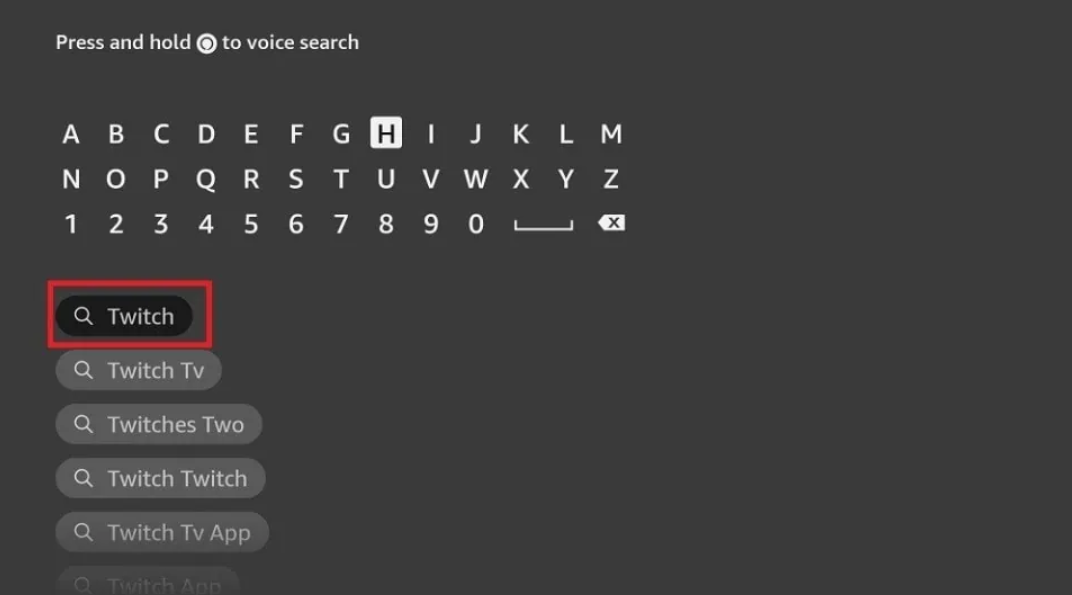
- Search for Twitch.

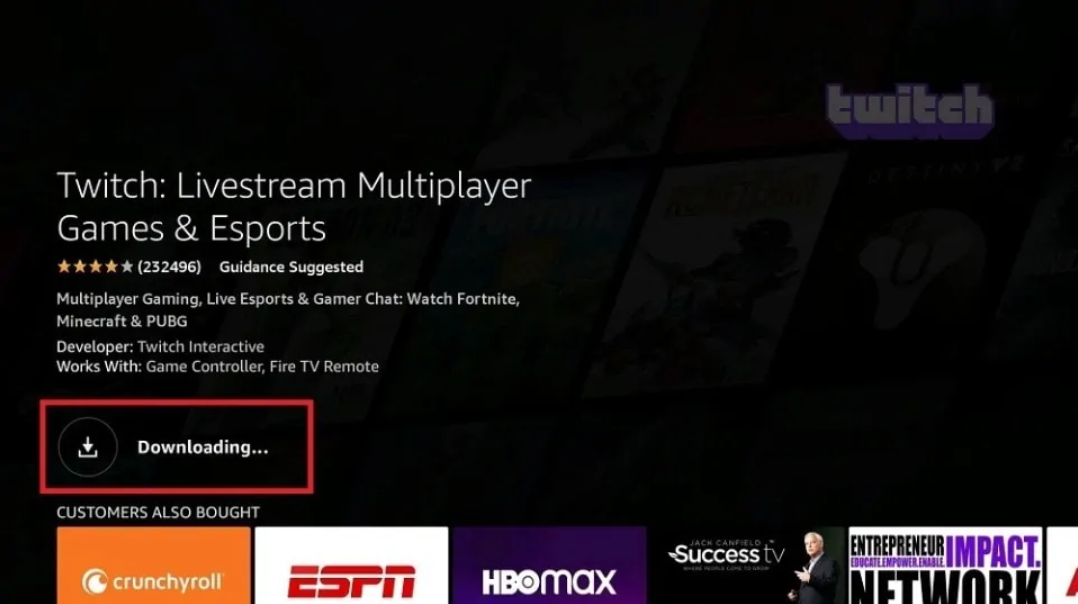
- Select Get and wait for the installation to finish.

- Open Twitch and sign in to your account.
Android TV and Google TV
Android TV and Google TV devices include the official Twitch app.
- Open the Google Play Store.
- Search for Twitch.
- Install the app.
- Launch it and log in.
Watch Twitch using casting features on mobile devices
Casting works well when your TV does not support the Twitch app. It mirrors the stream from your phone to your TV.
Cast Twitch from an iPhone or iPad
- Connect your TV and iPhone or iPad to the same Wi-Fi network.
- Open the Twitch app on your phone and start a stream.
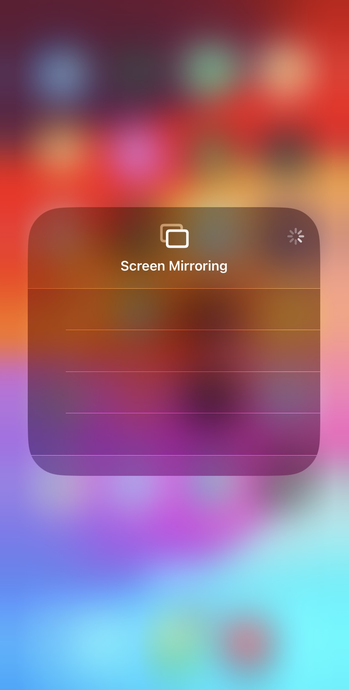
- Tap the AirPlay icon and select your TV.
- You can also use the Screen mirroring option.

Cast Twitch from an Android phone
Chromecast works with Google TV and many TVs that include Chromecast built in.
- Connect your phone and TV to the same Wi-Fi network.
- Open Twitch on Android and start a stream.
- Tap the Cast or Smart View icon, depending on your device.
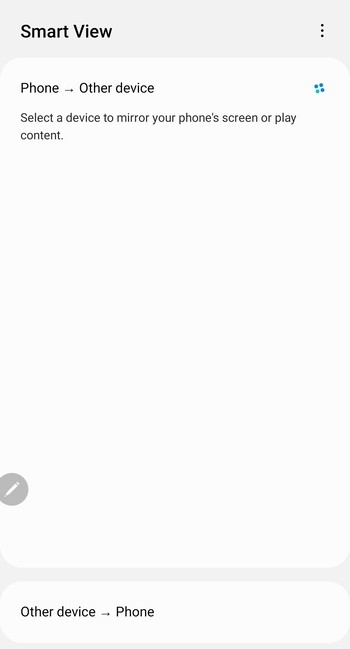

- Lastly, pick your TV.
Watch Twitch on your TV using a streaming device
Streaming devices provide full Twitch support even when your TV does not.
Apple TV
Apple TV supports a native Twitch app.
- Open the App Store on Apple TV.
- Search for Twitch.
- Install it and launch the app.
- Sign in with your Twitch account.
Chromecast with Google TV
Google TV works directly with the app or through casting.
- Open the Google Play Store.
- Install the Twitch app.
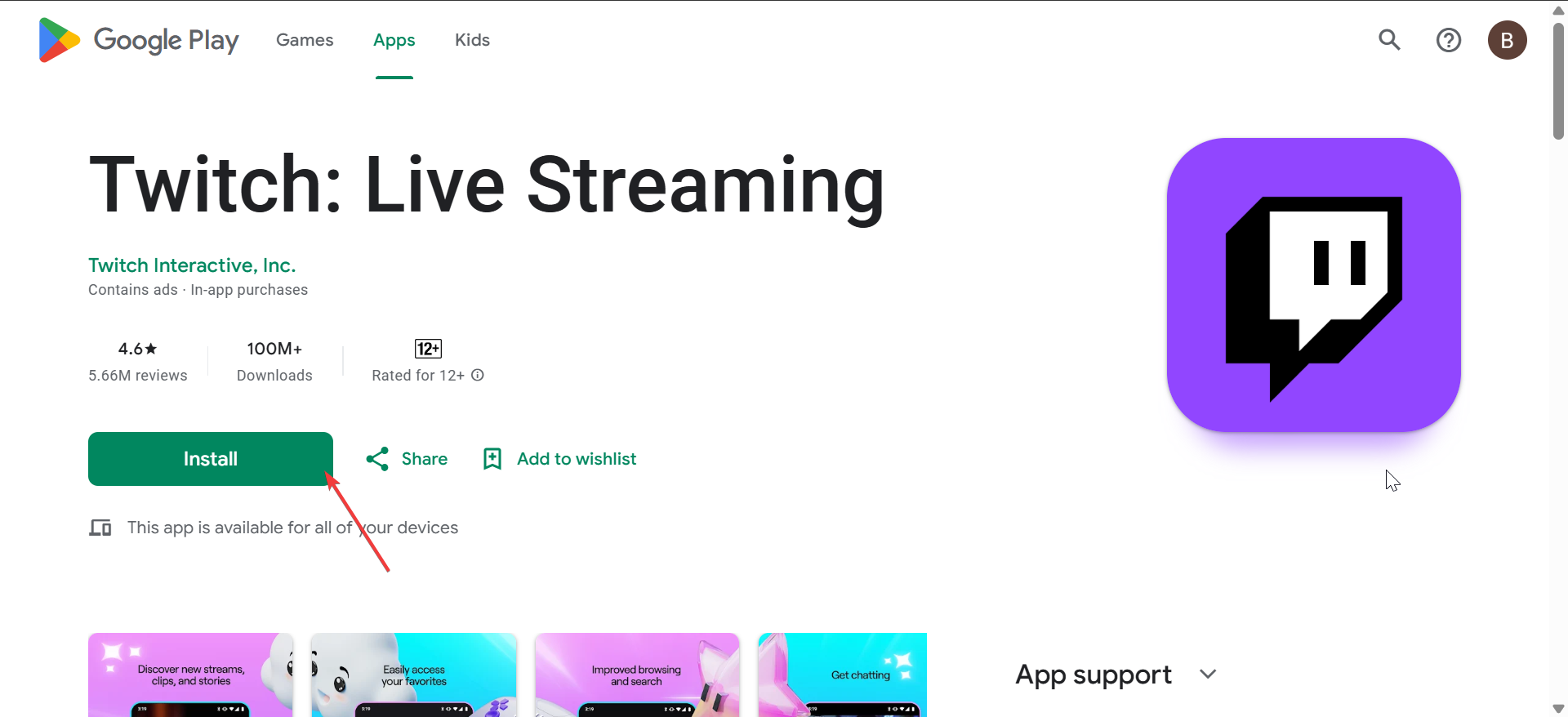

- Open Twitch and log in, or cast from your phone using the Twitch app.
Fire TV Stick
The Fire TV Stick includes the same Twitch app as Fire TV.
- Open the Amazon Appstore.
- Search for Twitch and install it.
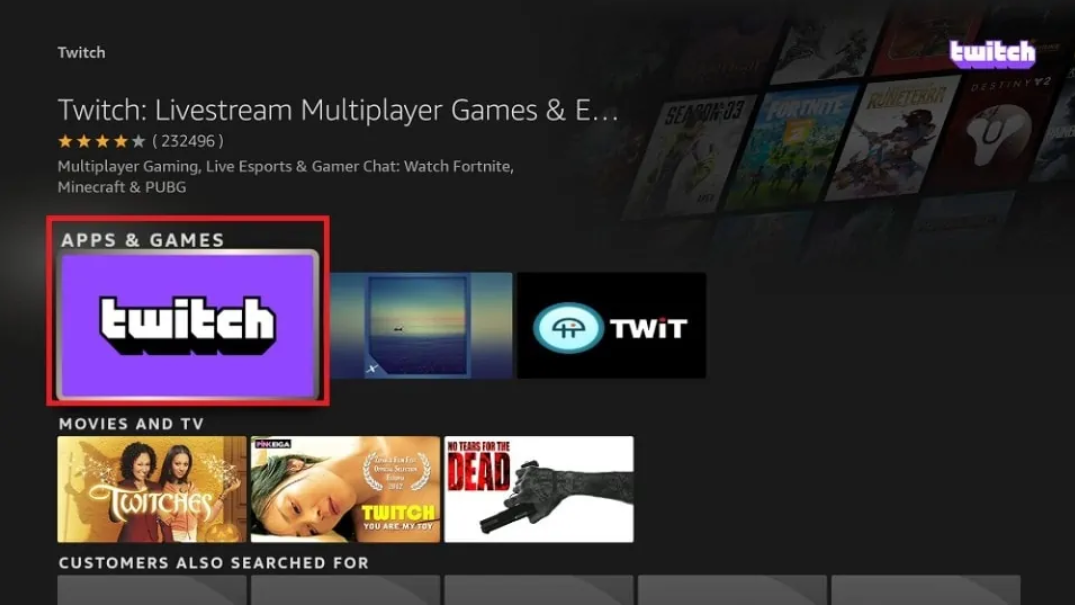

- Launch Twitch and sign in to your account.
Watch Twitch via PlayStation or Xbox consoles
Most gaming consoles support the official Twitch app, so you can watch streams without extra hardware.
PlayStation 4 and PlayStation 5
- Open the PlayStation Store.
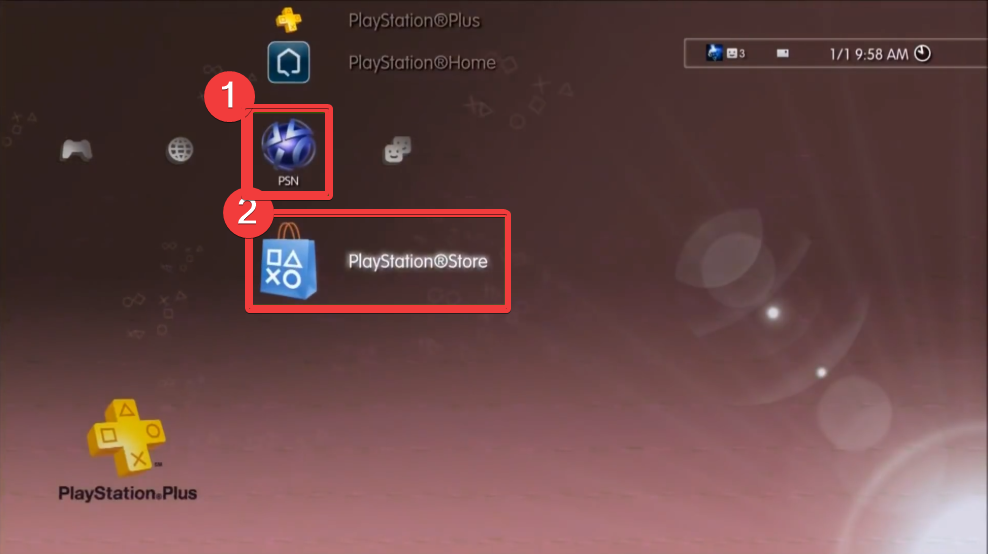
- Search for Twitch.
- Install the app and launch it.
- Sign in using the on-screen instructions.
Xbox One and Xbox Series X/S
- Go to the Microsoft Store.
- Search for Twitch.
- Install and open the app.
- Log in to your Twitch account.
Open Twitch in your TV's web browser
When your TV does not support the official app, the built-in browser may still work as a fallback option.
Samsung Tizen browser
- Open the Web Browser app.
- Go to twitch.tv.
- Select a stream and switch to full-screen mode.
Performance can vary depending on the model and your Wi-Fi speed.
LG webOS browser
- Open the Browser app.
- Visit twitch.tv.
- Choose a stream and tap the full-screen icon.
Browser streaming may reduce quality compared to native apps, especially on older models.
Use alternative apps when Twitch is not available on your smart TV
Some TVs removed the Twitch app from their stores. These workarounds let you continue watching safely.
AirScreen
AirScreen lets you cast Twitch streams to Fire TV or other supported platforms.
- Install AirScreen on your TV or streaming device.
- Open Twitch on your phone.
- Cast the stream to your TV using AirPlay or Chromecast through AirScreen.
Web Video Caster
This companion app streams Twitch links to your TV.
- Install Web Video Caster on your phone.
- Enter or open the Twitch stream URL inside the app.
- Cast it to your TV over Wi-Fi using your preferred receiver.
Common problems and easy fixes
- Twitch app not appearing in your TV's store: This usually happens because the app was discontinued in your region or your TV uses an older operating system. Casting or browser playback gives you the simplest workaround.
- Casting fails or the stream does not load: Check that both devices use the same Wi-Fi network. Restart your router and TV, then try casting again from the Twitch app.
- Video buffering or low quality on TV: Switch to a 5 GHz Wi-Fi network if your router supports it. Reduce the stream quality briefly to stabilize playback, then increase it again if the connection improves.
Tips for better Twitch playback
- Place your router closer to your TV for a stronger Wi-Fi signal.
- Use Ethernet when your TV or streaming device supports a wired connection.
- Close unused apps on your TV or mobile device before you start streaming.
- Restart the Twitch app if video quality drops suddenly.
- Use official apps whenever possible for smoother performance and better stability.
FAQs
Can I watch Twitch on Samsung or LG TVs? Older models once supported Twitch, but most no longer include the app. You can still cast from your phone or use the browser to watch streams.
What is the best method for older TVs? A streaming device such as Fire TV Stick or Chromecast usually provides the best experience and long-term support.
Why does Twitch buffering happen more on TVs? Smart TVs often use weaker processors and older Wi-Fi chips. A stronger internet connection and better router placement improve stability.
Can I watch Twitch in 1080p on my TV? Yes, if your TV, internet speed, and the streamer’s broadcast all support 1080p or higher quality.
Summary
- Install the Twitch app on supported smart TVs or streaming devices when it is available.
- Cast Twitch from iPhone or Android when your TV does not offer a native app.
- Use Apple TV, Chromecast, Fire TV Stick, or game consoles for full compatibility and better performance.
- Open Twitch in your TV browser as a universal fallback when apps are missing.
- Improve stability by optimizing Wi-Fi, using Ethernet, and restarting apps or devices when needed.
The easiest way to watch Twitch on a TV use the official app on Fire TV, Google TV, or Apple TV. Casting from a phone works well for unsupported models, while browser playback and third-party tools provide flexible alternatives. Choose the method that matches your TV model and network setup, so you enjoy smoother streams and fewer interruptions.


Discussion (0)
Be the first to comment.