



Twitch is one of the most popular live streaming platforms for gamers and content creators. While many users access it through a browser or mobile app, downloading the Twitch Launcher for Windows or Mac offers faster access and more control over your streams, chats, and games. This guide explains how to download Twitch Launcher safely and install it step by step.
Why Use the Twitch Launcher?
The Twitch desktop app, formerly known as the Twitch or Curse Launcher, lets you browse streams, manage mods, and interact with communities without using a web browser. It’s especially useful if you watch or stream often and want smoother performance, mod support, and integrated chat. Whether you’re on Windows or macOS, installing the Twitch app gives you a complete streaming setup.
Step 1: Visit the Official Twitch Downloads Page
To get started, open your preferred browser and go to twitch.tv/downloads. This is the official page where you can download Twitch app versions for Windows, Mac, Android, and iOS. Make sure you’re on the authentic Twitch domain to avoid fake downloads or third-party installers.
If you’re downloading Twitch on mobile, use the Google Play Store or Apple App Store to get the official app. For PC users, the desktop version remains the best option for performance and mod management.
Step 2: Choose Your Platform
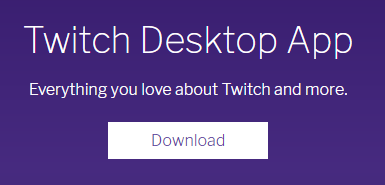
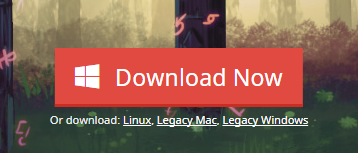
On the download page, you’ll see separate buttons for Download for Windows and Download for macOS. Click the one that matches your operating system. The Twitch installer will start downloading automatically.
Make sure you have at least 500 MB of free space and that your system runs Windows 10 or later (or macOS 10.12 or newer). If you encounter issues downloading the Twitch Launcher, check your internet connection or temporarily disable antivirus software that might block the download.
Step 3: Install the Twitch Launcher
Once the installer finishes downloading, locate it in your Downloads folder and double-click the file. Follow the on-screen setup wizard to install the Twitch desktop app. Accept the license terms, choose your installation folder, and click Install.
After installation, launch the Twitch app from your desktop or Start menu. If Windows SmartScreen warns you, click Run anyway; it’s a verified Twitch installer.
Step 4: Sign In or Create a Twitch Account
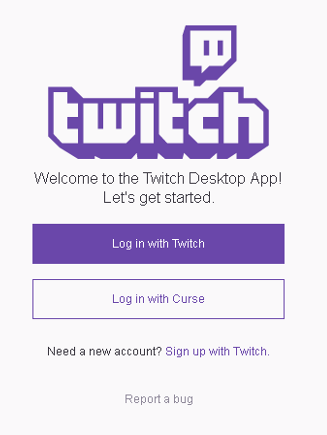
When you open the Twitch Launcher for the first time, you’ll be prompted to sign in. Enter your Twitch username and password. If you don’t already have an account, click Sign Up to create one.
Your Twitch account gives you access to channels, subscriptions, and chat. You can also sync your Twitch Launcher settings across devices once you’re logged in.
Step 5: Explore Twitch Launcher Features
After signing in, take a moment to explore what the Twitch app offers:
- Library: Manage and launch installed games directly.
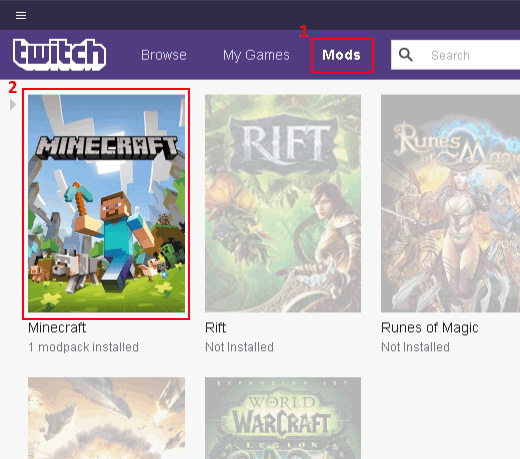
- Mods: Browse and install community-made game modifications.
- Streams: Watch live Twitch channels without using your browser.
- Notifications: Stay updated on new followers and messages.
- Settings: Customize appearance, notifications, and account options.
These features make the Twitch desktop app a convenient hub for all your streaming and gaming needs. It’s faster than browser access and integrates well with popular games that support modding.
Troubleshooting Twitch Launcher Installation
If the Twitch Launcher fails to install, try running the installer as an administrator. Also, check if your system has the latest Windows updates and restart before reinstalling. Alternatively, you can install Twitch as a Progressive Web App (PWA) using Microsoft Edge: open twitch.tv, click the three-dot menu → Apps → Install this site as an app.
This lightweight option still lets you access your Twitch account without needing the full desktop installer.
Tips for a Smooth Twitch Experience
- Keep your Twitch app updated for new features and bug fixes.
- Use a stable Wi-Fi or wired connection when streaming or downloading mods.
- Enable two-factor authentication to secure your Twitch account.
- Regularly clear cache files to improve the app’s performance.
- For mobile streaming, get the Twitch app for Android or iPhone from the official stores only.
Summary
- Go to twitch.tv/downloads.
- Select Download for Windows or Download for Mac.
- Run the Twitch installer and complete setup.
- Sign in or create a Twitch account.
- Explore mods, streams, and chat inside the Twitch Launcher.
Conclusion
You now know exactly how to download Twitch Launcher and install it on your computer. The Twitch desktop app makes it easy to manage your games, watch streams, and connect with your favorite creators, all from one place. At the time of writing, this remains the best method to access Twitch outside your browser or mobile device.
Whether you’re downloading it for gaming mods or a smoother viewing experience, the Twitch Launcher continues to be an essential tool for any dedicated streamer or viewer. Install it, sign in, and enjoy a more seamless Twitch experience.


Discussion (0)
Be the first to comment.