




Escape from Tarkov is an intense first-person shooter with a heavy focus on tactical gameplay, survival mechanics, and a persistent world. Whether you're a newcomer or a seasoned player, understanding how to download and install the game is crucial. This guide will walk you through every step of the process, from creating an account to troubleshooting common installation issues, ensuring that you’re ready for action.
Step 1: Official Download from the Escape from Tarkov Website
Create an account and log in
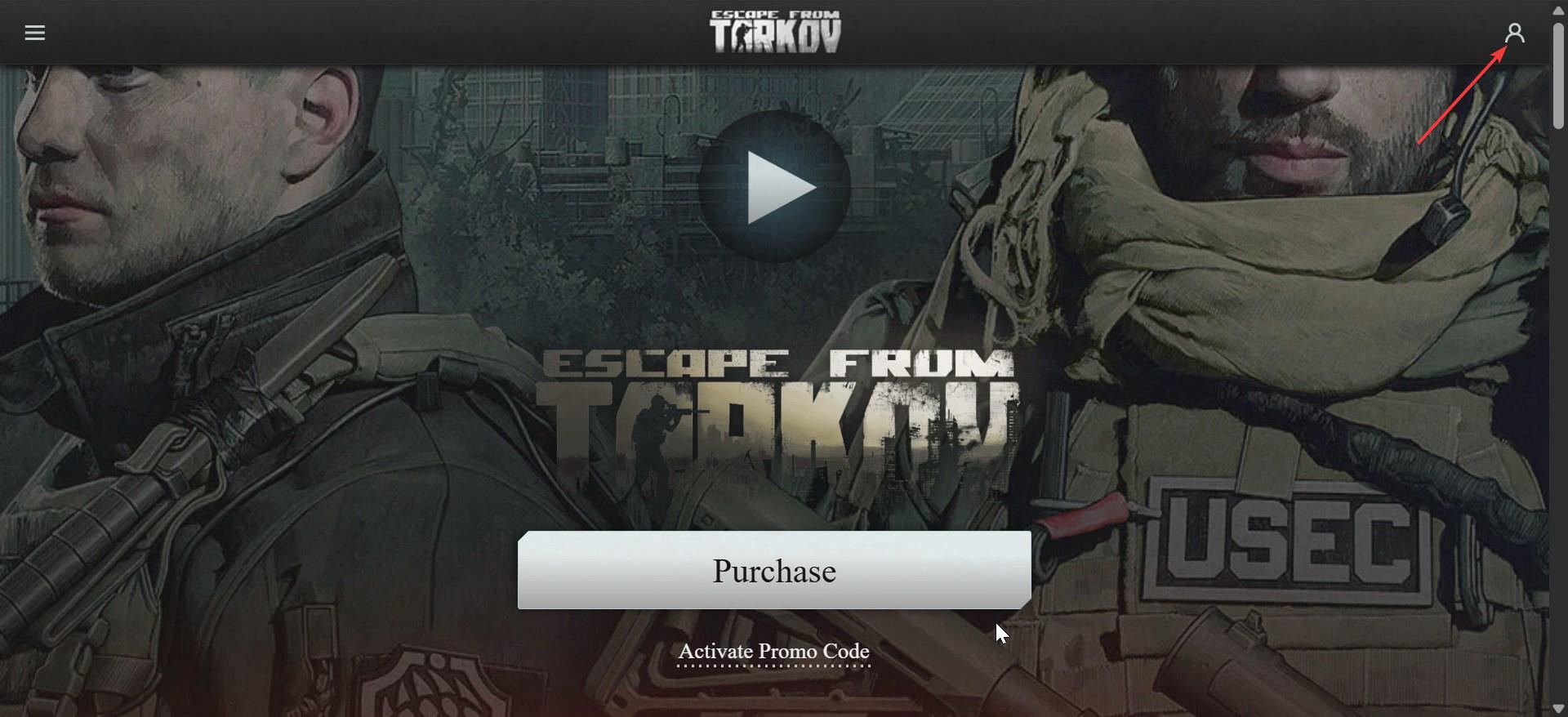
To begin your Escape from Tarkov journey, the first step is to create an account. Head to the official Escape from Tarkov website, click the Profile icon in the top right corner, select Registration register, and create an account.
Once you’ve registered, check your inbox for a confirmation email to verify your account.
Purchase the game
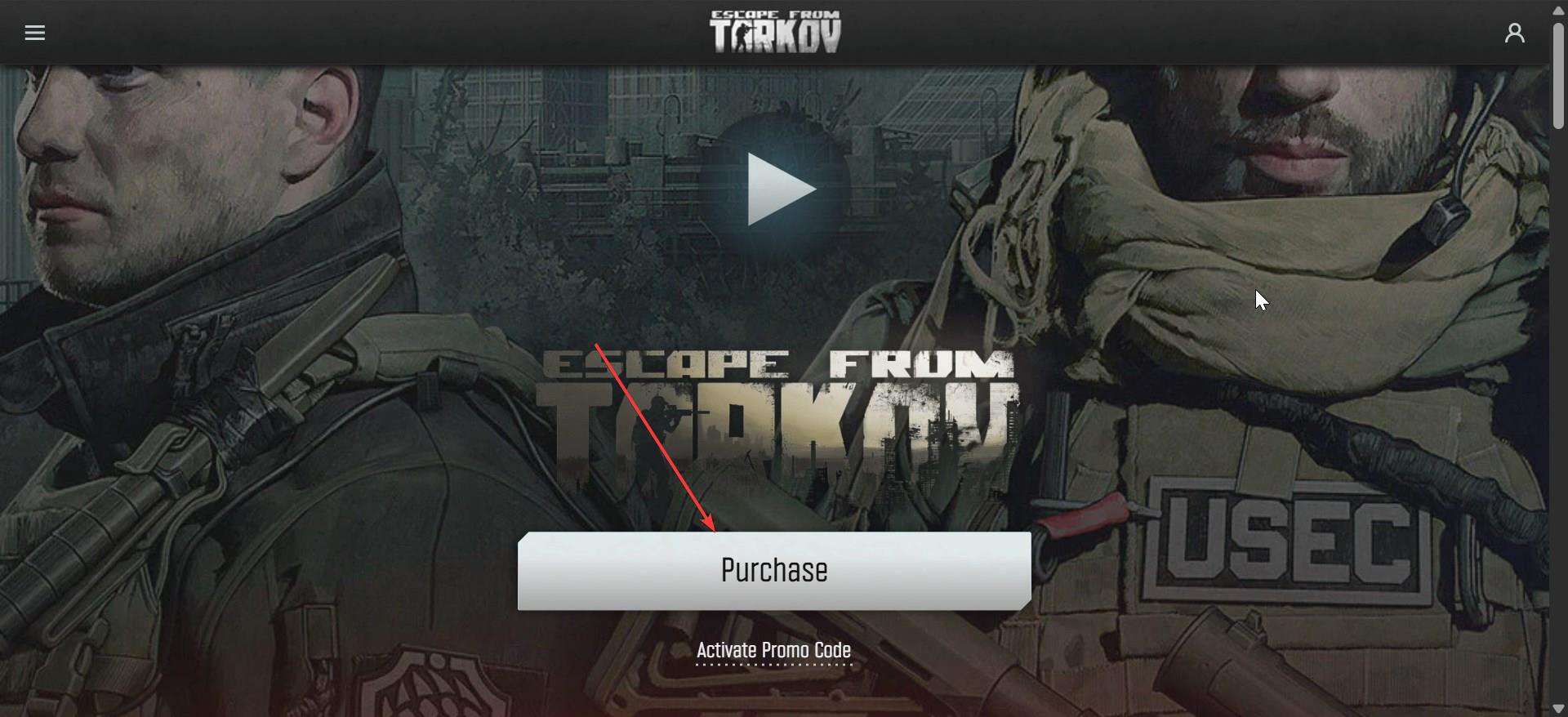
Once your account is set up, log in and go back to the homepage. Now, click the Purchase button and select your editon, with each offering different perks.
After selecting your preferred edition, proceed to payment. You can pay using a variety of methods such as credit card, PayPal, or other available options.
Downloading the game client
After your purchase is complete, the next step is to download the official Escape from Tarkov game client, which is the Battlestate Games Launcher. This launcher will manage all your game files and updates.
Click the Downloadable content option in the left pane of your Escape from Tarkov dashboard and click the Download button before Battlestate Games Launcher.
Step 2: Installing Escape from Tarkov
Once the Battlestate Games Launcher has been downloaded, open the file and follow the on-screen instructions to install the client on your computer. For an effortless process, ensure you have enough disk space and a stable internet connection.
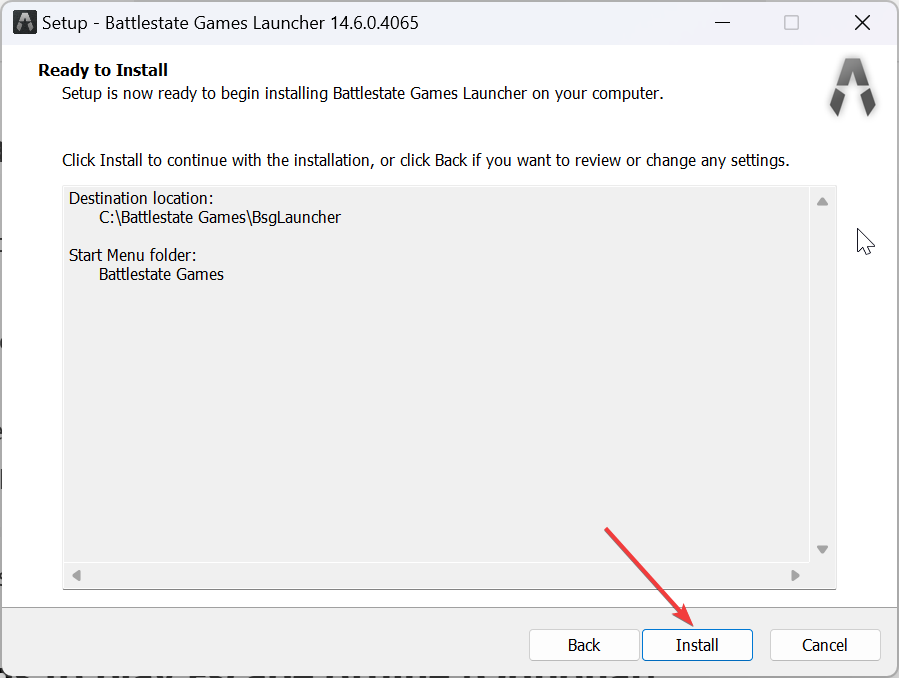
After the launcher is installed, open it and log in using your newly created account. Upon your first launch, the game will begin downloading the necessary files. This may take some time depending on your internet speed. Once the download is complete, you'll be prompted to configure the game settings, such as selecting your preferred game server and language.
Step 3: Installing mods to play Escape offline (Optional)
If you're looking to play Escape from Tarkov offline, you might want to install the Single Player Tarkov (SPT) mod. This mod allows you to play the game in single-player mode, without the need for an internet connection.
To install SPT Tarkov, you need to download the mod files from a community-supported source, like SPT-Forge. Follow the mod installation instructions carefully, as incorrect setup can lead to errors. After installation, launch SPT Tarkov from the Battlestate Games Launcher, and you’ll be able to play the game offline.
Troubleshooting Installation Issues
- Download Failed: Check your internet connection and ensure that there is enough disk space on your computer. Try restarting the launcher if the issue persists.
- Slow Installation: If the installation is slow, consider pausing any other active downloads or applications that may be consuming bandwidth.
- Launcher Not Opening: If the launcher fails to open, try running it as an administrator. Right-click on the launcher shortcut and select "Run as administrator."
- Server connection errors: Check your firewall settings to ensure that the game is not being blocked. Also, if the servers are overloaded, try again after some time or select a different server from the game’s settings.
Tips for optimizing performance after installation
- Lower the graphical settings to improve frame rates, especially if you’re running the game on older hardware. Reduce the resolution, shadow quality, and texture detail for a smoother experience.
- Update your graphics drivers before launching the game. Visit your GPU manufacturer’s website (NVIDIA, AMD, etc.) or the Windows Device Manager for the latest drivers.
FAQs
Can I play Escape from Tarkov on a Mac? Currently, Escape from Tarkov is only officially available for Windows. However, you can use Boot Camp or a Windows emulator to run the game on a Mac.
How long does the download take? The download time depends on your internet speed. On a fast connection, it could take around 30 minutes to an hour to download the entire game client.
Do I need an internet connection to play the game? Yes, Escape from Tarkov requires an internet connection for the online multiplayer modes. If you wish to play offline, you can use the SPT Tarkov mod.
Summary
- Create an account and log in: Register on the official Escape from Tarkov website and verify your email.
- Purchase the game: Choose your preferred edition and complete the payment process.
- Download the game client: Download the official Battlestate Games Launcher.
- Install the game launcher: Run the installer and follow the on-screen instructions to set up the launcher.
- Set up the game: Launch the launcher, log in, and configure your game settings (server, language).
Conclusion
By following these steps, you can easily download, install, and configure Escape from Tarkov on your PC. Whether you’re playing the official multiplayer version or opting for Single Player Tarkov, these instructions ensure a smooth start. If you run into any problems, don’t hesitate to refer to our troubleshooting section or seek help from the Escape from Tarkov community.
Discussion (0)
Be the first to comment.