




Apple TV works on most modern Roku devices, letting you stream Apple TV+, watch your iTunes purchases, and access premium channels in one place. Many users run into issues with compatibility or setup, so learning the correct steps helps you get the app running quickly.
The guide below explains compatibility requirements, installation steps, Apple ID login, AirPlay options, and troubleshooting methods that fix most playback problems.
Step 1: Check device compatibility
Most recent Roku players and Roku TVs support the Apple TV app. You can confirm support on your device by checking its model number under Settings > System > About.
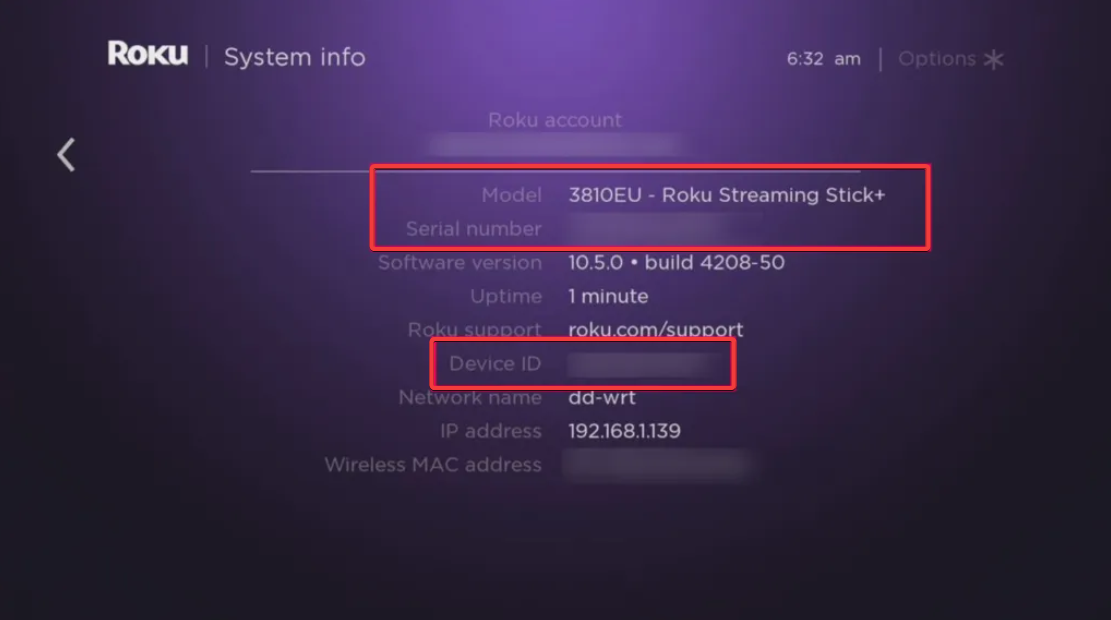
If you use some of the early Roku Express and Roku LT models, you cannot install the Apple TV app. These older units lack the hardware needed for smooth playback and advanced formats.
Step 2: Install the Apple TV app on Roku
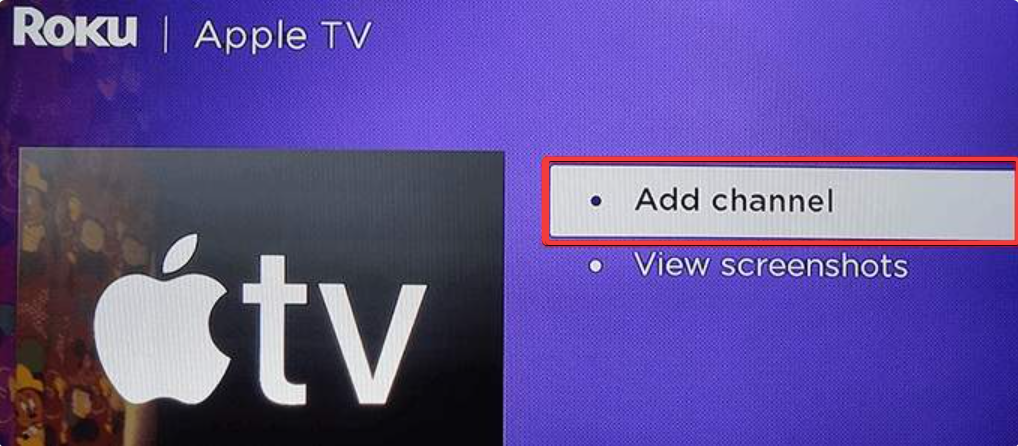
Press Home on your Roku remote and scroll to Streaming Channel or Search. Next, type Apple TV and select the app from the results. Now, choose Add channel and open the app once installation finishes.
Step 3: Sign in with your Apple ID
When the app opens, select Sign in, and enter your Apple ID email and password. You can also create a new Apple ID using a computer or mobile device if you do not have one yet.
Lastly, Roku may provide a code you enter on a separate device. This method speeds up the login process and avoids typing on the remote.
Step 4: Watch Apple TV+ content on Roku
Apple TV+ offers originals like Ted Lasso, Severance, and The Morning Show. You can stream everything directly inside the Apple TV app.
Just open the Apple TV+ tab on the home screen. You will see featured shows, trending movies, and recommended series based on viewing history. You can also start or cancel an Apple TV+ subscription from your Apple account. Billing syncs across all devices logged into the same Apple ID.
Step 5: Access your iTunes purchases and rentals
Select Library at the top of the Apple TV app. You will see categories like Movies, TV Shows, and Recently Added. You can select and watch any of your purchases from here.
Tip: Some bonus features, commentary tracks, or Dolby Vision extras may not appear on Roku hardware. Standard formats usually stream without issue.
Use AirPlay to watch Apple content
AirPlay offers a fallback if your Roku model does not support the Apple TV app. You can mirror videos, photos, or your entire display from an Apple device.
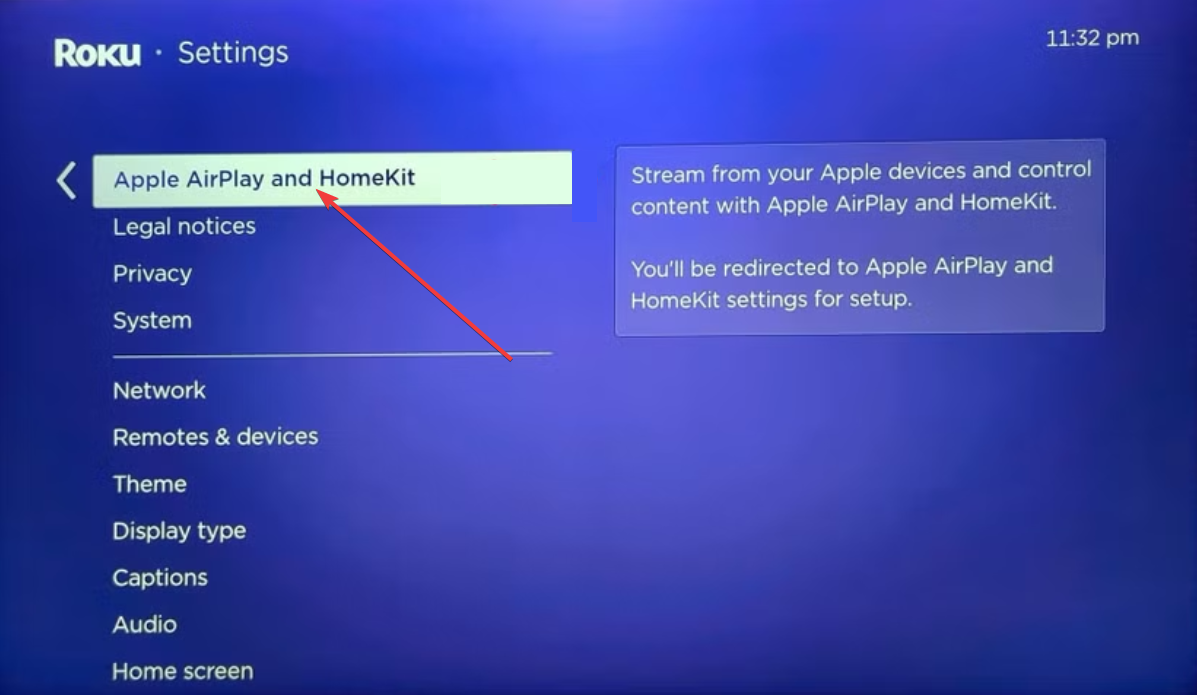
To enable AirPlay on Roku, go to Settings > Apple AirPlay and HomeKit. Turn AirPlay on and confirm your network connection.
Now, tap the AirPlay icon in the video player on your Apple device. Choose your Roku from the list to start streaming instantly.
Troubleshoot Apple TV app issues
- login and activation problems: Sign out and sign back in to refresh your session. If activation fails, restart Roku, relaunch the app, and re-enter the code when prompted.
- Resolve playback and loading errors: Go to Settings > System > System update to install the latest Roku OS. If the app freezes, remove it, restart the device, and install it again from the channel store.
- Handle region or availability errors: Some Apple TV+ shows and movies vary by country. If titles appear missing, check your Apple ID region under your account settings.
Tips: Improve streaming quality on Roku
- Check 4K, HDR, and Dolby Atmos support: Some Roku models support 4K, HDR10, and Dolby Atmos inside the Apple TV app. You can confirm capabilities in Settings > Display type.
- Adjust Roku network and display settings: Switch to a 5 GHz Wi-Fi network for better stability where possible. You can also set Display type to match your TV’s maximum resolution.
FAQs
Why is the Apple TV app not showing on my Roku? Your Roku model may not support the Apple TV app. Older devices like early Roku Express or Roku LT models can’t install it. Check your model under Settings > System > About.
Do I need an Apple ID to watch Apple TV on Roku? Yes. An Apple ID is required to access Apple TV+, your library, and Apple TV Channels. You can create an Apple ID on any computer or mobile device if you don’t have one.
Can I watch my iTunes purchases on Roku? Yes. Once you sign in, your movies and TV shows appear under the Library tab. Some extras, such as commentary tracks, may not be available on Roku hardware.
Does Roku support 4K and HDR for Apple TV? Many newer Roku models support 4K and HDR10 in the Apple TV app. You can confirm support by checking Settings > Display type on your device.
Summary
- Check that your Roku model supports the Apple TV app.
- Install Apple TV from the Roku Channel Store.
- Sign in using your Apple ID or use an activation code.
- Stream Apple TV+ shows or access your iTunes library.
Conclusion
You can watch Apple TV on Roku by installing the Apple TV app, signing in, and exploring Apple TV+ along with your purchased library. AirPlay provides an alternate method for unsupported devices, and updating the Roku system or reinstalling the app usually restores smooth playback when problems appear.


Discussion (0)
Be the first to comment.