




Raise to Wake lets your iPhone turn on the screen automatically when you lift it. You can quickly check notifications, the time, or Face ID alerts without pressing any buttons. The feature works quietly in the background and feels natural once enabled.
Below, you’ll find clear steps to turn it on, turn it off, fix common issues, and decide if it’s right for your daily use.
Table of contents
- How to turn on Raise to Wake on iPhone
- How to turn off Raise to Wake
- Raise to Wake vs Tap to Wake
- Which iPhones support Raise to Wake
- Why Raise to Wake is not working on iPhone
- Does Raise to Wake drain battery
- When Raise to Wake is most useful
- Tips for using Raise to Wake effectively
- FAQs about Raise to Wake on iPhone
- Summary
How to turn on Raise to Wake on iPhone
You can enable Raise to Wake in seconds from Settings. Apple hides the option under Display settings, not Lock Screen.
Enable Raise to Wake from Settings
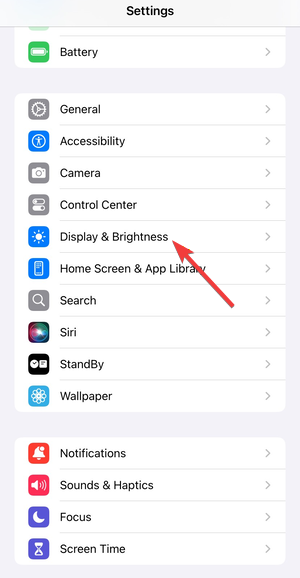
- Open Settings.
- Tap Display & Brightness.

- Turn on Raise to Wake.
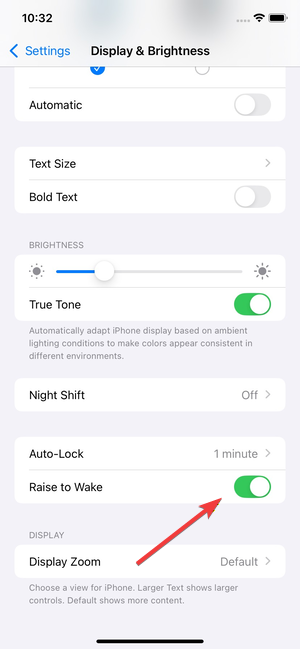

Your iPhone now wakes the screen whenever you lift it.
How to turn off Raise to Wake
Some users prefer manual control or want to avoid accidental screen wake-ups. You can disable the feature at any time.
- Open Settings.
- Tap Display & Brightness.
- Turn off Raise to Wake.
The screen will only turn on when you tap it or press a button.
Raise to Wake vs Tap to Wake
Raise to Wake activates when you lift the phone, while Tap to Wake turns on the screen after a tap. Both features can work together.
If you keep your phone on a desk often, Tap to Wake feels more reliable. If you pick up your phone frequently, Raise to Wake feels faster.
Which iPhones support Raise to Wake
Raise to Wake works on iPhones with motion sensors capable of detecting lift gestures. Apple introduced it starting with iPhone 6s.
If you don’t see the toggle, your iPhone model doesn’t support the feature.
Why Raise to Wake is not working on iPhone
When Raise to Wake stops working, the cause usually involves system settings or accessories. Hardware issues remain rare.
Check Motion & Fitness settings
Raise to Wake relies on motion tracking.
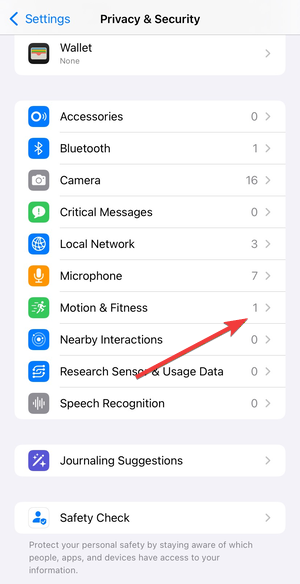
- Open Settings.
- Go to Privacy & Security > Motion & Fitness.

- Turn on Fitness Tracking.
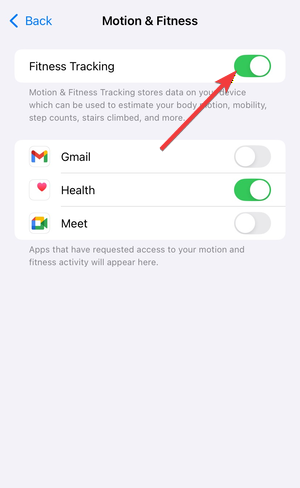

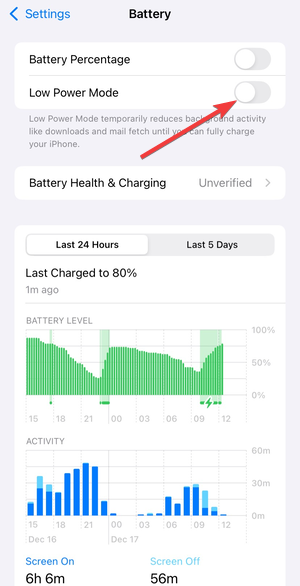
Disable Low Power Mode
Low Power Mode limits motion-based features.
- Open Settings.
- Tap Battery.
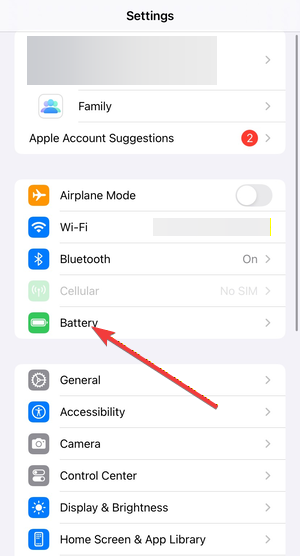

- Turn off Low Power Mode.

Remove thick cases or magnetic accessories
Heavy cases, wallet covers, or magnetic mounts can block sensors. Remove accessories and test Raise to Wake again.
Restart iPhone and update iOS
Updating your phone's software and restarting it resets motion services.
- Restart your iPhone.
- Go to Settings > General > Software Update.
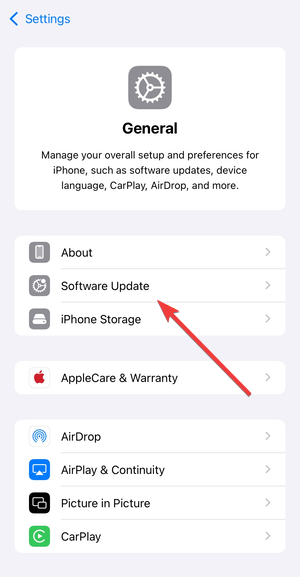

- Install any available updates.
Does Raise to Wake drain battery
Raise to Wake uses low-power motion sensors designed for efficiency. In normal use, it has minimal impact on battery life.
Battery drain usually increases only if the screen wakes repeatedly in pockets or bags.
When Raise to Wake is most useful
Raise to Wake shines when you unlock your phone frequently. It works well for Face ID checks, quick notification previews, and one-handed use.
It feels especially useful when you grab your phone from a table or nightstand.
Tips for using Raise to Wake effectively
- Use Raise to Wake together with Tap to Wake for flexibility.
- Turn it off if your screen wakes inside pockets or bags.
- Pair it with Face ID for faster glance access.
- Disable it temporarily during long trips to avoid unnecessary wake-ups.
FAQs about Raise to Wake on iPhone
Does Raise to Wake unlock my iPhone automatically?
No. Raise to Wake only turns on the screen, and your iPhone still requires Face ID, Touch ID, or your passcode to unlock.
Why is Raise to Wake not working on my iPhone?
Start by turning off Low Power Mode and confirming Fitness Tracking is enabled in Settings > Privacy & Security > Motion & Fitness. If it still fails, restart your iPhone and install any iOS updates.
Does Raise to Wake drain battery?
Battery impact stays low in normal use because iOS relies on efficient motion sensors. You may notice more drain if the screen wakes repeatedly inside a pocket or bag.
Can I use Raise to Wake and Tap to Wake at the same time?
Yes. Keeping both on gives you more flexibility, since Raise to Wake works when you lift the phone, and Tap to Wake works when the phone stays on a desk.
Summary
- Enable Raise to Wake from Settings > Display & Brightness.
- Use it with Face ID for faster access.
- Check Motion & Fitness if it stops working.
- Disable it anytime if battery or pocket wake-ups bother you.
Raise to Wake works best when you frequently lift your iPhone to check the screen. If you prefer full manual control, turning it off won’t affect other features.


Discussion (0)
Be the first to comment.