




How to Borrow Library Books on Kindle Using OverDrive (vs Kindle Prime Lending Library)
If you’re a Kindle reader looking for more free books, you have two main options: Amazon’s Kindle Prime Lending Library and the OverDrive system used by public libraries. Both let you borrow ebooks, but they work in very different ways.
In this guide, you’ll learn how to borrow library books on Kindle using OverDrive, how it compares to Prime Reading, and how to make the most of both.
Kindle Prime Lending Library vs OverDrive: The Basics
Kindle Prime Lending Library is an Amazon-exclusive perk for Prime members. You can borrow ebooks marked with the “Prime” badge directly from your Kindle device or Kindle app. There’s no due date, but there’s a limit on how many books you can borrow at a time.
OverDrive, on the other hand, connects your Kindle to your local library’s digital catalog. All you need is a library card. OverDrive (and its newer app, Libby) lets you browse, borrow, and send books to your Kindle through Amazon’s website.
The key difference is that Kindle Prime Lending Library is included with your paid Prime subscription, while OverDrive borrowing is completely free through your library.
How to Borrow Library Books on Kindle Using OverDrive
To get started, you’ll need a library card and an Amazon account linked to a Kindle device or the Kindle app. Then follow these steps:
- Go to your library’s OverDrive website or open the Libby app on your phone or tablet.
- Sign in with your library card number and PIN. Many libraries let you register online if you don’t have a card yet.
- Search for ebooks labeled “Kindle Book.” Not every title supports Kindle format, so check before borrowing.
- Once you find a title, click Borrow. Choose your lending period (usually 7, 14, or 21 days).
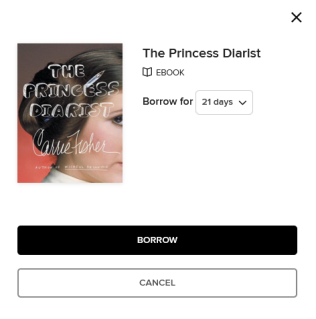
- Select Read now with Kindle. You’ll be redirected to Amazon’s website.

- Log in to your Amazon account, choose your Kindle device or app, and click Get Library Book.
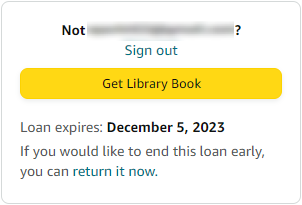
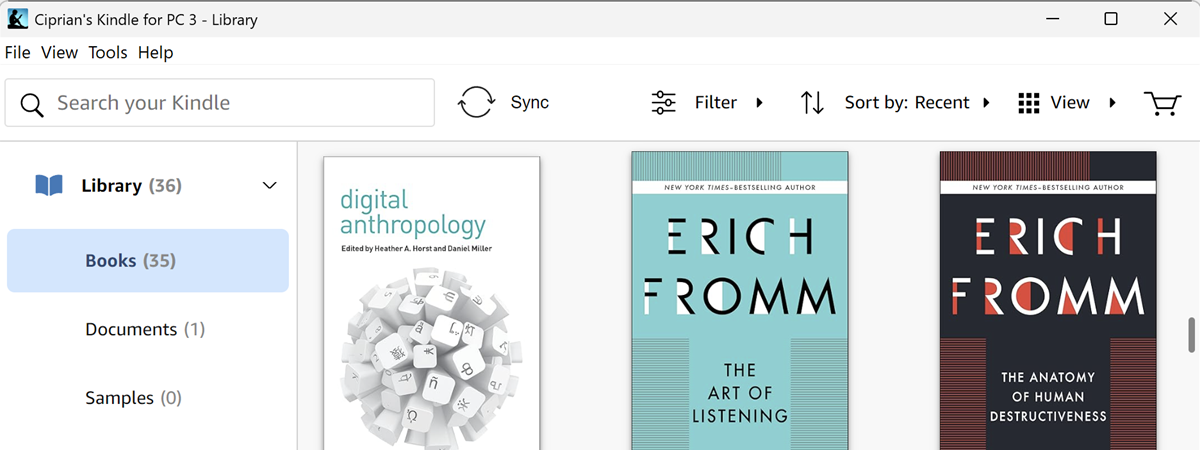
- When your Kindle syncs, the borrowed book appears in your library automatically.
That’s all it takes to borrow Kindle books from a public library through OverDrive or Libby. You can read them offline, highlight text, or make notes just like any other Kindle book. When your lending period ends, the book disappears automatically.
How to Borrow from Kindle Prime Lending Library
If you have an Amazon Prime membership, you can still use the Kindle Prime Lending Library or Prime Reading for additional free books. Here’s how:
- On your Kindle or in the Kindle app, go to the Store or Prime Reading section.
- Look for titles marked with a “Prime” badge.
- Tap Borrow or Read for Free to add it to your library.
- Read the book as long as you want; there’s no due date.
Unlike OverDrive, there are no waiting lists or holds with Prime Reading. However, the selection is limited compared to a public library’s catalog.
Which Is Better: OverDrive or Kindle Prime Lending Library?
Each option has strengths depending on your reading habits:
- OverDrive gives you access to thousands of titles from your local library, often including bestsellers and new releases. You’ll need to wait if a book is already checked out, but there’s no cost.
- Kindle Prime Lending Library offers a smaller but instantly available collection. It’s ideal for casual reading if you already pay for Prime.
Many readers use both. Borrow new releases through OverDrive and explore rotating picks through Prime Reading. Together, they cover nearly every reading need without buying individual books.
Tips for Borrowing Kindle Books Through OverDrive
• Use the Libby app for faster borrowing. It syncs automatically with OverDrive and your Kindle.
• Add multiple libraries if you qualify for cards in nearby counties; this widens your catalog.
• Enable Amazon Whispersync to sync notes and highlights between borrowed and purchased books.
• Return books early to free up slots for new loans. You can do this in the Libby app or on your Amazon account under Manage Your Content and Devices.
• Check your library’s website for OverDrive Advantage titles, which are exclusive copies reserved for local patrons.
FAQs
Can I use OverDrive and Kindle Prime Lending Library together?
Yes. You can borrow public library books via OverDrive or Libby and still use your Prime Reading benefits. They operate independently of each other.
Do I need a Kindle device for OverDrive?
No. You can read borrowed titles in the Kindle app on smartphones, tablets, or computers. A physical Kindle simply makes syncing easier.
Are OverDrive books really free?
Absolutely. As long as you have a valid library card, OverDrive and Libby let you borrow Kindle-formatted ebooks without any subscription or late fees.
Summary
- Use OverDrive or Libby to borrow free Kindle books from your local library.
- Use Kindle Prime Lending Library for instantly available ebooks included with your Prime membership.
- Both services can coexist — OverDrive for library collections, Prime Reading for Amazon exclusives.
By combining both options, you can build a massive digital reading library without paying extra for each book. That’s the true benefit of learning **how to borrow library books on Kindle using OverDrive**.
Happy reading!

Discussion (0)
Be the first to comment.