



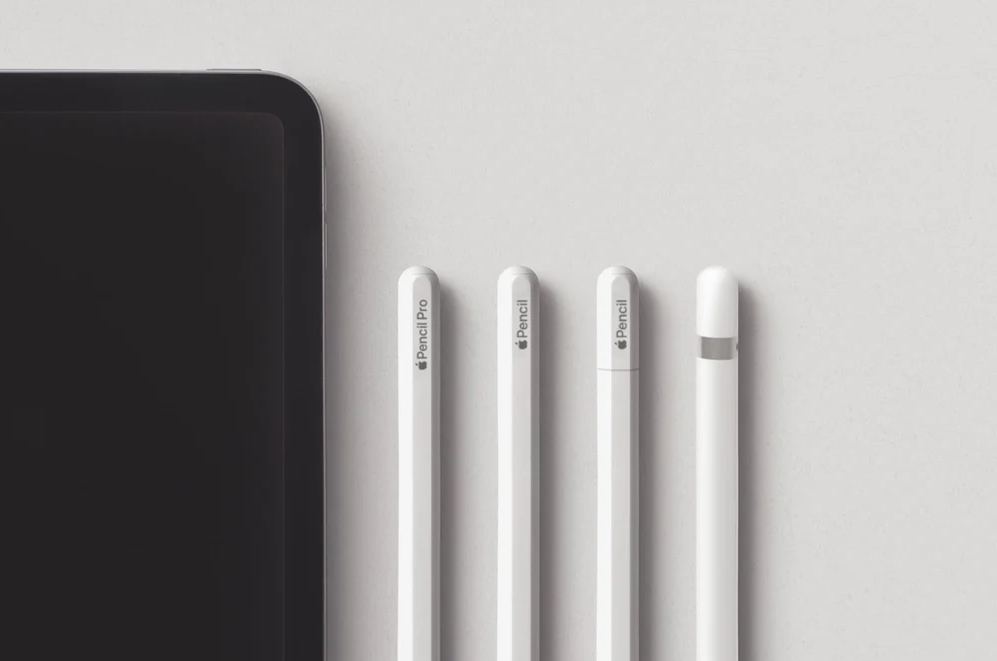
Apple Pencil turns your iPad into a sketchpad, notebook, and annotation tool. Before pairing one, you need to know which model you have, as each version connects differently and works with specific iPad models.
Which Apple Pencil Do You Have?
There are four Apple Pencil versions. The pairing method depends entirely on which one you own.
Apple Pencil 1st generation has a Lightning connector under a cap at the top. It works with older iPad models including iPad 6th through 10th generation, iPad mini 5th generation, and iPad Air 3rd generation.
Apple Pencil 2nd generation has a flat edge that snaps magnetically to the side of the iPad. It works with iPad Pro 11-inch and 12.9-inch from 3rd generation onward, iPad Air 4th generation and newer, and iPad mini 6th generation.
Apple Pencil USB-C has a sliding cover on the side revealing a USB-C port. It connects via cable but does not support pressure sensitivity or magnetic charging. It works with any iPad that has a USB-C port.
Apple Pencil Pro is the newest model. It connects magnetically like the 2nd generation and adds squeeze gestures, barrel roll, and haptic feedback. It works exclusively with M4 iPad Pro models.
If you are unsure which iPad you have, go to Settings, General, About and check the model name.
How to Pair Each Model
Apple Pencil 1st Generation
Make sure Bluetooth is on. Remove the cap from the top of the Pencil to reveal the Lightning connector. Plug it directly into your iPad's Lightning port. A Pair button appears on screen. Tap it. Unplug the Pencil once paired. It is ready to use.
On the 10th generation iPad which uses USB-C, you need a USB-C to Apple Pencil Adapter. Plug the adapter into the iPad's port and connect the Pencil to the adapter to initiate pairing.
Apple Pencil 2nd Generation
Make sure Bluetooth is on. Attach the flat edge of the Pencil to the magnetic strip on the right side of the iPad. A pairing notification appears on screen. Tap Connect. The Pencil pairs and charges wirelessly whenever it is attached.
Apple Pencil USB-C
Open the sliding cover on the side of the Pencil to reveal the USB-C port. Connect it to your iPad using the included USB-C cable. A pairing prompt appears on screen. Tap Connect. Once paired, you can disconnect the cable and use the Pencil wirelessly.
Apple Pencil Pro
Make sure Bluetooth is on. Attach the flat edge of the Pencil to the magnetic strip on the right side of a compatible M4 iPad Pro. Tap Connect when the pairing message appears. The Pencil Pro charges magnetically and stays paired until you restart the iPad or pair a different Pencil.
Customising Apple Pencil Settings
After pairing, go to Settings and scroll down to tap Apple Pencil. The options available depend on your Pencil model.
Double-tap is available on the 2nd generation. You can set it to switch between the current tool and eraser, switch between the current tool and the last used tool, show the colour palette, or show the ink attributes menu. Choose the action that suits your workflow in apps like Notes or Procreate.
Squeeze is available on the Apple Pencil Pro. It opens the tool palette without touching the screen. Assign it in the Apple Pencil settings.
Barrel roll is available on the Pencil Pro and allows brush angle to change as you rotate the Pencil. This is particularly useful in drawing apps that support it.
Only Draw with Apple Pencil separates Pencil input from finger input. Enable this if you prefer to navigate the iPad with your fingers while using the Pencil exclusively for writing and drawing. This setting prevents accidental marks from resting your palm on the screen.
Scribble converts your handwritten text into typed text in any text field across iPadOS. Enable it in Apple Pencil settings and tap Try Scribble to test it. Write naturally in any text box and iPadOS converts it automatically.
Using Apple Pencil Day to Day
Apple Pencil works in any app that accepts touch input, but dedicated apps take full advantage of its precision. The Notes app supports pressure-sensitive drawing and handwriting. Pages and Word support annotation. Safari supports Markup for annotating screenshots. PDF apps allow document annotation directly on the page.
Markup is available anywhere you can take a screenshot. Press the side button and volume up button simultaneously to take a screenshot, then tap it in the corner to open Markup. Use the Pencil to annotate, highlight, and draw directly on the image.
Quick Note lets you create a note instantly from any screen. Swipe from the bottom right corner of the display with the Apple Pencil. A small note window appears over whatever you were doing. Tap the corner and drag to expand it.
Corner swipe gestures can be configured in Apple Pencil settings. Swiping from the bottom left or bottom right corner with the Pencil opens either Quick Note or takes a screenshot, depending on how you configure each corner.
Checking Battery Level
For 2nd generation and Pro models, swipe right from the Home screen to open Today View. Add the Batteries widget by tapping Edit at the bottom. Once added, the widget shows battery percentages for the iPad and all connected accessories including the Pencil.
For the 1st generation, attach it to the Lightning port briefly. The charging status appears as a notification on screen.
Frequently Asked Questions
Why is my Apple Pencil not pairing?
Check that Bluetooth is enabled in Settings. Make sure the Pencil is sufficiently charged. For the 1st generation, try plugging it in and waiting up to a minute for the Pair button to appear. For the 2nd generation and Pro, remove any case from the iPad as thick cases can prevent the magnetic connection from registering. If it previously paired but stopped responding, go to Settings, Bluetooth, find the Pencil under My Devices, tap the information icon, tap Forget This Device, and pair again from scratch.
Can I use Apple Pencil with iPhone?
No. Apple Pencil is exclusively compatible with iPad models. It does not work with any iPhone model.
Does Apple Pencil work with all apps?
Apple Pencil works as a stylus in any app that supports touch input. However, features like pressure sensitivity, tilt, and double-tap gestures only function in apps specifically built to use them. Apps like Procreate, GoodNotes, Notability, Adobe Fresco, and Apple's own Notes and Pages support the full feature set.



Discussion (0)
Be the first to comment.