



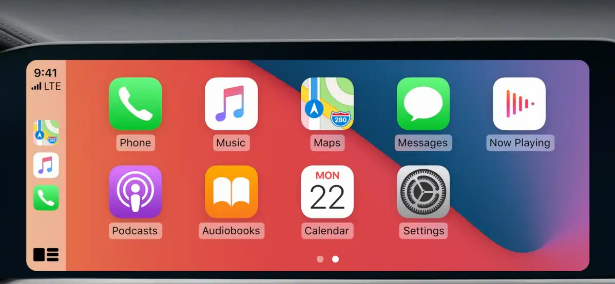
Apple CarPlay turns your car's built-in screen into a simplified iPhone interface. Instead of glancing at your phone while driving, everything you need appears on the dashboard. Navigation, music, calls, messages, and Siri all work through the car's touchscreen, physical buttons, or voice commands.
Over 800 car models support CarPlay as of 2026. If your car was made from 2016 onwards, there is a good chance it is compatible. Here is everything you need to get it running and working well.
What You Need Before You Start
CarPlay requires an iPhone 5 or later running iOS 7.1 or newer. For the best experience, iOS 14 or later is recommended. Most of CarPlay's recent features work best on iPhone 8 or newer.
Your car needs to be CarPlay compatible. Check the infotainment menu, the owner's manual, or Apple's CarPlay page at apple.com/ios/carplay/available-models to confirm.
For wired setup, you need a Lightning to USB-A or USB-C to USB-C cable depending on your iPhone model and the car's USB port. Always use an Apple cable or an MFi-certified alternative. Cheap third-party cables are the most common cause of connection problems.
Connecting With a Cable
Wired CarPlay is the most reliable method and works in virtually every compatible car. It also charges your iPhone while connected.
Turn on your car and ensure the infotainment system is powered on. Find the USB port labelled with a CarPlay icon, a phone symbol, or simply the main USB port near the centre console. Plug your iPhone in using the appropriate cable. Your car should automatically detect the connection and launch CarPlay.
The first time you connect, your iPhone asks you to allow CarPlay. Tap Allow. The CarPlay interface appears on the car's screen within a few seconds.
If a prompt to enable CarPlay does not appear, go to Settings on your iPhone, tap General, then CarPlay. If you see your car listed, tap it and make sure it is enabled. If the car is not listed, check that the USB port is the correct one, as many cars have multiple USB ports and only one is designated for CarPlay.
Connecting Wirelessly
Wireless CarPlay removes the cable entirely. Your iPhone connects automatically when you start the car. Most new cars from 2019 onwards support it, with earlier premium brands like BMW and Mercedes-Benz supporting it from 2017.
To set up wireless CarPlay for the first time, connect your iPhone via cable first. Once connected, your iPhone will typically offer an option to use wireless in the future. Accept this prompt and CarPlay switches to wireless from that point.
Alternatively, enable Bluetooth on your iPhone and put your car's infotainment system into Bluetooth pairing mode. Once paired, your iPhone should detect the wireless CarPlay network. Go to Settings, General, CarPlay and select your car to confirm the connection.
Wireless CarPlay is convenient for short trips where you get in and out frequently. For long journeys, wired CarPlay is more stable and keeps your battery topped up throughout the drive.
Navigating the CarPlay Interface
The CarPlay home screen shows your apps in a grid layout. At the bottom of the screen sits a dock with your most frequently used apps and a home button. Swiping right on the home screen reveals additional apps.
At the top of most CarPlay screens, you see a status bar showing the time, your phone signal, and whether you are connected wirelessly or by cable. A battery icon in the top right indicates wireless CarPlay is active.
To return to the CarPlay home screen at any time, press the home button on the touchscreen or tap the physical home button if your car has one. Most cars also have steering wheel buttons that control media playback and activate Siri without you touching the screen at all.
Navigation
Apple Maps is the default navigation app. It provides turn-by-turn directions, real-time traffic updates, and lane guidance directly on your car's screen. You can start navigation by telling Siri where you want to go, by tapping the Maps app and searching a destination, or if you have a calendar event with an address, CarPlay suggests routing to it automatically when you get in the car.
Within Apple Maps on CarPlay, you can share your ETA with contacts through the share button in the navigation bar. The recipient receives a message with your location and estimated arrival time that updates as you drive.
If you prefer Google Maps or Waze, both work on CarPlay. Simply install them on your iPhone and they appear in CarPlay's app list. Once you open either app on CarPlay, it becomes the active navigation app for that journey.
Music and Audio
Tap the Music app on CarPlay to access Apple Music, your library, and recently played tracks. The interface is simplified for driving, showing large album art, a progress bar, and easy skip controls.
For other services, Spotify, Audible, Pocket Casts, and most major streaming and podcast apps have CarPlay support. They appear on your CarPlay home screen after you install them on your iPhone.
A useful feature added in iOS 26 is SharePlay in CarPlay. While Apple Music is playing, tap the SharePlay icon in the Now Playing screen. A QR code appears on the screen that passengers can scan with their phones to join the session. Once joined, passengers can add songs to the queue, see what is playing, and rearrange tracks even without an Apple Music subscription.
Calls and Messages
Incoming calls appear as a notification on the CarPlay screen with options to answer or decline. Answering routes audio through the car's speakers and microphone, keeping your hands on the wheel.
To make a call, either say Hey Siri followed by who you want to call, or open the Phone app on CarPlay and select from your recent calls or contacts.
For messages, Siri reads incoming texts aloud and lets you respond by voice without looking at the screen. This works with Apple Messages and third-party apps including WhatsApp. To enable message announcements, go to Settings on your iPhone, tap Siri and Search, then Announce Notifications, and turn it on for your preferred apps.
Customising Your CarPlay Setup
CarPlay's default app layout includes everything Apple thinks you might want while driving. Most people find several apps they never use cluttering the screen.
On your iPhone, go to Settings, General, CarPlay, and tap your vehicle name. Tap Customise. This shows every CarPlay-compatible app on your phone. Tap the red minus sign to remove any app from CarPlay. Drag apps by their handles on the right side to rearrange their order on the CarPlay home screen. Apps at the top of the list appear on the first page. This takes two minutes and makes the interface noticeably cleaner.
Driving Focus Mode
Driving Focus Mode reduces distractions automatically while CarPlay is active. When enabled, it silences non-essential notifications and sends an automatic reply to incoming messages letting people know you are driving.
To set it up, go to Settings, Focus, Driving on your iPhone. Enable it and choose the automatic trigger as When Connected to CarPlay. Configure which contacts can still reach you and set your auto-reply message. This runs in the background whenever you use CarPlay without requiring any action from you each time you drive.
Tips Worth Knowing
Check the cable if CarPlay acts up. Intermittent connections, audio dropouts, and CarPlay failing to launch are almost always caused by a faulty or uncertified cable rather than a software problem. Swap the cable first before troubleshooting anything else.
Use Siri as much as possible. CarPlay is designed around voice control. Press and hold the voice button on your steering wheel or say Hey Siri. Asking Siri to navigate, play music, send messages, and make calls keeps your eyes on the road more than any touchscreen interaction.
Forget and reconnect if wireless CarPlay becomes unreliable. Go to Settings, General, CarPlay on your iPhone, tap your car, and tap Forget This Car. Then reconnect from scratch. This clears any corrupted pairing data that causes intermittent disconnections.
Widgets are available in iOS 26. CarPlay now supports widgets on the home screen for the first time. Depending on your car's screen size, you can add one or two stacks of widgets showing information like upcoming calendar events, weather, and activity progress without opening any app.
Frequently Asked Questions
Does CarPlay work with any iPhone?
CarPlay requires iPhone 5 or later running iOS 7.1 or newer. For wireless CarPlay, you need at least an iPhone 6, though iPhone 8 or newer is recommended for full compatibility and performance. The more recent your iPhone and iOS version, the more CarPlay features you have access to.
Can I use Google Maps instead of Apple Maps on CarPlay?
Yes. Install Google Maps on your iPhone and it appears in your CarPlay app list. Tap it to open and set a destination. CarPlay remembers whichever navigation app you used most recently and may default to it on future journeys. Waze also works the same way and is particularly useful in areas where its community-sourced traffic reporting is more detailed.
Why does CarPlay keep disconnecting?
The most common cause is a faulty or non-certified USB cable. Replace it with an Apple cable or an MFi-certified alternative. If you are using wireless CarPlay, interference from other Bluetooth devices can cause drops. Disabling Bluetooth on your Apple Watch temporarily can help identify if it is causing interference. Restarting your iPhone and reconnecting often resolves temporary issues.



Discussion (0)
Be the first to comment.