




Discord Developer Mode sounds like something reserved for people building bots or writing code. In reality it is a simple toggle that unlocks a handful of genuinely useful options for everyday users, and it takes about ten seconds to turn on. Once enabled it adds Copy ID to the right-click menu on almost everything in Discord, including users, servers, channels, messages, and roles.
If you have ever been asked to provide a channel ID to set up a bot, needed a user ID to report someone to Discord support, or wanted to troubleshoot a server permission issue, Developer Mode is what makes all of that possible.
What Developer Mode Actually Does
Discord assigns a unique numerical ID to everything on the platform. Every user account, every server, every channel, every message, every role. These IDs exist whether Developer Mode is on or not, but without it there is no easy way to access them through the interface.
Turning on Developer Mode adds a Copy ID option to right-click menus across the app. Right-click a username and you can copy their user ID. Right click a server name and you can copy the server ID. Right-click a channel in the sidebar and you get the channel ID. Right click a specific message and you can copy the message ID. These are the identifiers that bots, integrations, and Discord's own support team use to reference specific things on the platform.
Beyond copying IDs, Developer Mode also gives you access to some additional debugging information and enables context menu options that are hidden by default. For most users the ID-copying capability is the primary reason to have it enabled.
How to Turn On Developer Mode on Desktop
Step 1: Open User Settings
Click the gear icon in the bottom left corner of Discord next to your username. This opens your User Settings.
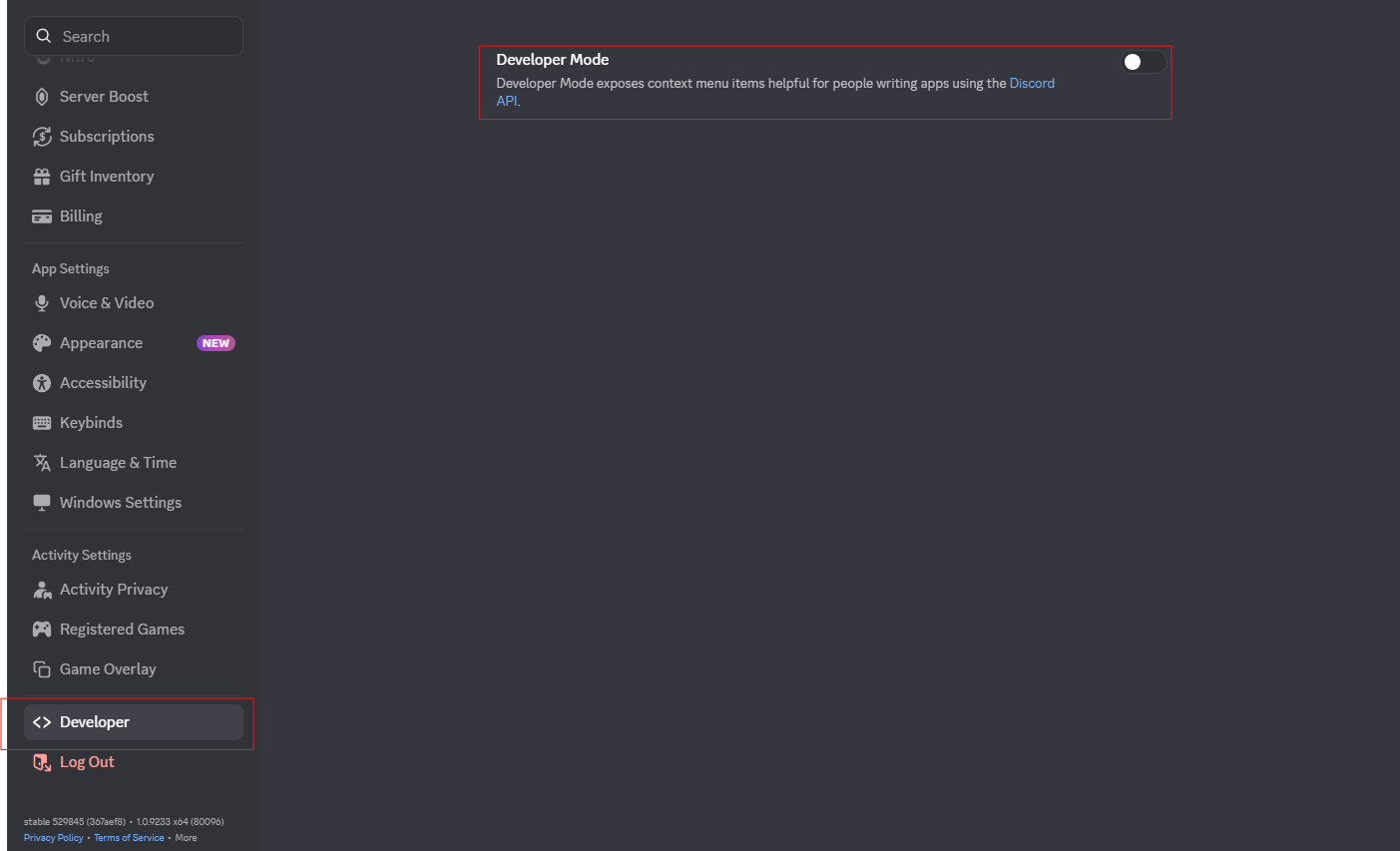
Step 2: Enable Developer Mode
Click the toggle to switch Developer Mode on. It turns blue when active. There is no save button. The change takes effect immediately and stays on until you toggle it off again.S
How to Use Developer Mode Once It Is On
With Developer Mode active, right-clicking on desktop or long-pressing on mobile reveals the Copy ID option on any of the following.
Copying a user ID: Right-click or long-press on any username or avatar anywhere in Discord. At the bottom of the context menu you will see Copy User ID. This is useful for reporting users to Discord support, adding specific users to bot permission lists, or referencing accounts in server moderation tools.
Copying a server ID: Right-click the server icon in the left sidebar. Copy Server ID appears in the menu. Server IDs are commonly required when setting up bots that need to be authorised for a specific server, or when contacting Discord support about a server-level issue.
Copying a channel ID: Right-click any channel name in the server sidebar. The Copy Channel ID option appears at the bottom. This is one of the most frequently needed IDs when configuring bots that post to specific channels, set up logging, or handle moderation in particular areas of a server.
Copying a message ID: Right-click any message in a chat. Copy Message ID is available in the menu. Message IDs are useful when reporting specific messages to Discord Trust and Safety, or when building bots that need to reference or interact with a particular message.
Copying a role ID: Right-click a role name in your server settings under Roles. The Copy Role ID option appears. Role IDs are used when configuring permission-based bot commands or setting up role-gated features in bots and integrations.
Who Actually Needs Developer Mode
The most common reason everyday users turn on Developer Mode is to copy IDs when setting up a bot. If you are adding a bot like MEE6, Carl-bot, or any logging or moderation tool to your server, there is a very good chance the setup process asks you to paste a channel ID or role ID somewhere. Developer Mode is how you get those.
The second most common reason is reporting. When you report a user or a piece of content to Discord Trust and Safety through their support form, providing the relevant IDs alongside your report makes it easier for the team to locate and action the specific account or message. Without Developer Mode you cannot easily obtain these.
Server administrators and moderators find it useful for ongoing management. Cross-referencing user IDs in audit logs, referencing specific messages in moderation notes, and configuring permission overrides in bots all become more straightforward when you can reliably copy the relevant IDs.
For users who are not building anything and are not managing a server, Developer Mode has less day-to-day relevance. There is no downside to leaving it on, but there is also no pressing reason to enable it if none of the above scenarios apply to you.
Turning Developer Mode Off
The process is identical in reverse. Open User Settings on desktop and go to Advanced, or open Appearance on mobile, and tap the toggle to disable it. The Copy ID options disappear from context menus immediately. Turning Developer Mode off has no effect on anything you have already copied or any settings you have configured using IDs you obtained while it was active.
Frequently Asked Questions
Does Developer Mode give access to anything I should not have access to?
No. Developer Mode does not grant any additional permissions within Discord. It does not allow you to see private channels, read other people's messages, or bypass any server permissions. It only adds the ability to copy IDs that identify things you already have access to within the normal Discord interface.
Do I need to be a developer to use Developer Mode?
No. The name is slightly misleading. Everyday users turn it on regularly for practical reasons like setting up bots, reporting users, or configuring server tools. No coding knowledge or developer account is required.
Why would I need a user ID instead of just a username?
Discord usernames can be changed at any time. User IDs are permanent and unique to each account. For reporting purposes, providing a user ID ensures Discord's support team can locate the exact account even if the username has been changed since you encountered the issue.
Does enabling Developer Mode affect my Discord experience in any visible way?
Beyond adding Copy ID to right-click menus, no. The interface looks and functions identically with Developer Mode on or off. There are no visual changes, no extra menus, and no performance differences.
Is Developer Mode available on all platforms?
Yes. Developer Mode works on the desktop app for Windows and macOS, the browser version of Discord, and the mobile app on both iOS and Android. The steps to enable it differ slightly between platforms as described above, but the functionality is the same across all of them.



Discussion (0)
Be the first to comment.