




Staring at a screen late in the evening affects more people than they realise. Blue light emitted by monitors and laptop displays suppresses melatonin, the hormone that signals to your body that it is time to sleep. The result is that you feel more awake than you should, sleep later, and feel less rested the next day.
Windows 11 has a built-in solution called Night Light. It shifts your screen's colour temperature toward warmer tones, which reduces blue light output and makes the display easier on your eyes during evening hours. It does not affect performance, battery life, or anything other than how your screen looks.
Here is how to turn it on, adjust it, and schedule it so it activates automatically every evening.
Method 1: Turn On Night Light Through Settings
This is the main method and gives you the most control over how Night Light behaves.
Step 1: Open Settings
Press Windows and I together to open Settings directly. Alternatively, click the Start button and select the gear icon.
Step 2: Go to System, Then Display
Click System in the left sidebar. Then click Display on the right side of the screen.
Step 3: Turn On Night Light
Under the Brightness and colour section, find the Night light toggle. Click it to switch it on. Your screen shifts to warmer colours immediately.
Below the toggle, click Night light settings to access the additional options covered in the next sections.
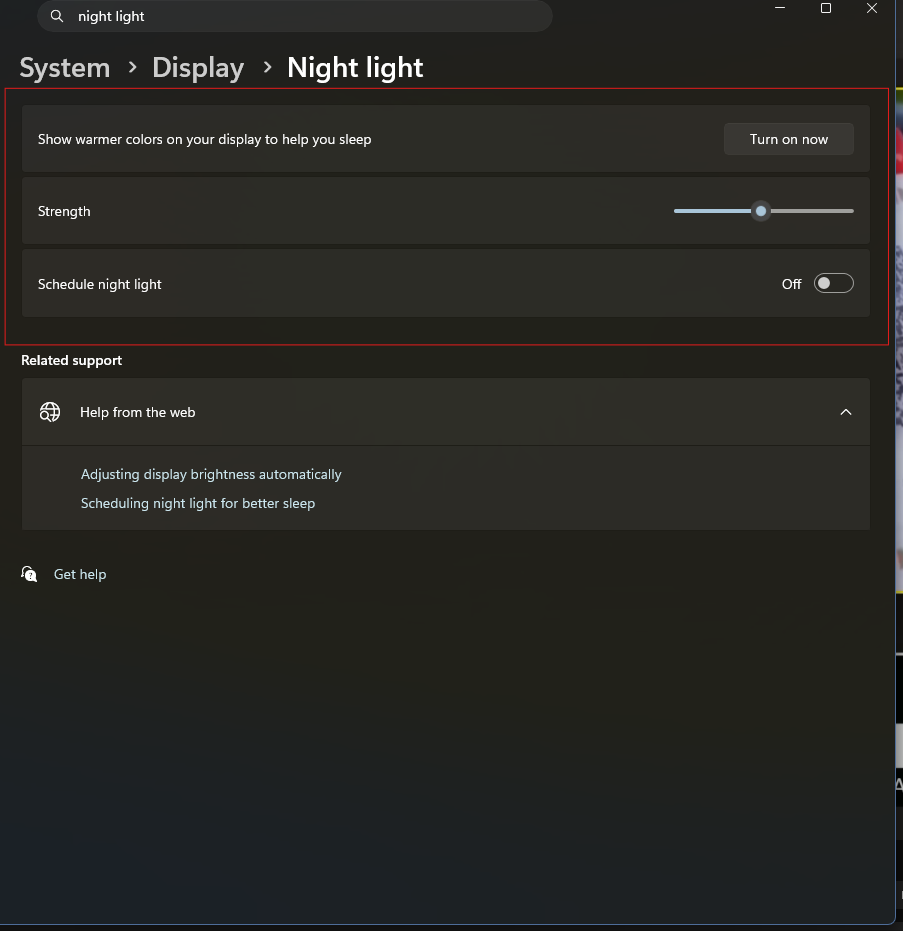
Adjusting the Strength of Night Light
The default Night Light setting reduces blue light moderately. If you want a stronger effect or prefer something subtle, you can adjust it.
Inside Night light settings, find the Strength slider. Drag it toward the right for warmer, more orange tones and stronger blue light reduction. Drag it toward the left for a lighter effect that barely changes the screen's appearance. Move the slider until the screen looks comfortable for your eyes in your current lighting environment.
Most people find a setting around 40 to 60 on the slider works well for general evening use. If you work in a very dark room, a stronger setting reduces eye fatigue more effectively.
Setting a Schedule So Night Light Activates Automatically
Turning Night Light on manually every evening is easy to forget. Windows can activate it automatically at a time you choose.
Inside Night light settings, find the Schedule night light toggle and switch it on. Two options appear.
Sunset to sunrise uses your location to determine when the sun sets and rises in your area. Night Light activates at sunset and deactivates at sunrise every day without you doing anything. This is the most convenient option for most users.
Set hours lets you choose specific times manually. Click the on-time field and enter the hour you want Night Light to activate. Click the off-time field and enter the hour you want it to deactivate. This is useful if you have a fixed routine and do not want Night Light tied to seasonal changes in sunset times.
Windows must have location access enabled for the Sunset to sunrise option to work accurately. If location is disabled, Windows uses a default time estimate rather than your actual local sunset time.
What to Do if Night Light Is Missing or Greyed Out
Some users find the Night Light toggle is greyed out or the option is missing entirely. The most common causes have straightforward fixes.
Update your graphics driver. Night Light requires a compatible display driver. An outdated or corrupted driver is the most common reason the option is unavailable. Open Device Manager, expand Display adapters, right-click your graphics card, and select Update driver. Let Windows search for updated drivers automatically.
Check your display driver type. Night Light is not available on displays using DisplayLink drivers or Windows Basic Display adapters. If your PC uses one of these, Night Light will not work. This most commonly affects USB display adapters and very old or basic hardware configurations.
Restart the Connected Devices Platform Service. Night Light depends on this background Windows service. Press Windows and R, type services.msc, and press Enter. Scroll down to Connected Devices Platform Service. Right-click it and select Restart. After the service restarts, try accessing Night Light settings again.
Try signing out and back in. Occasionally a Windows session issue prevents Night Light from responding. Sign out of your Windows account and sign back in to refresh the display settings.
Third-Party Options if Night Light Is Not Enough
Windows Night Light works well for most users. If you want stronger control over colour temperature or more automation, two well-regarded free tools provide additional options.
f.lux monitors the time of day and your location and adjusts your screen's colour temperature continuously throughout the day, with the warmest settings during the hours your body is preparing for sleep. It is free and available at justgetflux.com.
Iris Mini provides a simple always-on blue light filter with a compact interface. It is useful if you want a stronger reduction than Windows Night Light provides and prefer a set-and-forget approach.
Both tools work alongside Night Light or as a replacement for it, though using both simultaneously can produce overly warm colour output that makes colour-sensitive work difficult.
Frequently Asked Questions
Does Night Light affect colour accuracy for photo or video editing?
Yes. Night Light shifts the screen toward warmer tones, which means colours on screen no longer match their actual values. If you work with colour-sensitive tasks such as photo editing, graphic design, or video colour grading, turn Night Light off before starting that work and turn it back on afterward. Using the schedule feature to deactivate Night Light during working hours and activate it in the evening handles this automatically.
Will Night Light help with eye strain during the daytime?
Night Light is specifically designed for evening use to reduce the impact of blue light on sleep. During the day, blue light from the screen is less of a concern for sleep disruption. Daytime eye strain is more commonly caused by screen brightness being too high for the ambient lighting. Reducing brightness to match your room lighting, using a matte screen protector, and taking regular breaks are more effective for daytime comfort than Night Light.
Does Night Light reduce battery life?
No. Night Light is a colour temperature adjustment applied by software. It does not change how much power the display hardware consumes. Your battery life is unaffected by turning Night Light on or off.



Discussion (0)
Be the first to comment.