




If you have two monitors connected but only want to use one, you do not need to unplug anything or open display settings. Windows has a keyboard shortcut that switches between display modes in seconds and works on both Windows 10 and Windows 11.
The Shortcut and How to Use It
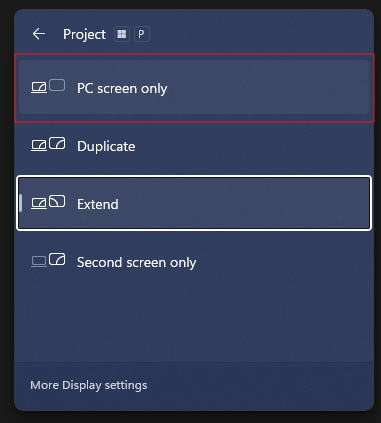
Press Windows and P together. A panel slides in from the right side of the screen showing four display mode options. You can select one by clicking it with the mouse, or use the arrow keys to highlight the option you want and press Enter to confirm.
The change applies immediately. Your monitors update within two seconds of selecting the mode.
The Four Display Modes Explained
PC screen only uses your primary monitor and turns the second display off completely. The monitor goes into standby but remains physically connected. This is the mode to select when you want to work on a single screen without unplugging anything.
Duplicate mirrors the same image across both monitors simultaneously. Useful when presenting from a laptop and you want the audience's screen to show exactly what you see.
Extend spreads your desktop across both monitors as a continuous workspace. This is the standard dual-monitor setup most people use for extra screen real estate. Each display shows different content and windows can be dragged between them freely.
Second screen only turns off the primary monitor and uses only the secondary display. This is useful when the second screen is larger or better positioned and you want it to act as the sole display temporarily.
Switching to a Single Monitor
Press Windows and P. Select PC screen only from the panel. The second monitor turns off and all your open windows consolidate onto the primary screen automatically. Any application that was open on the second display moves to the primary monitor and stacks there, ready to be repositioned.
Switching Back to Dual Monitors
Press Windows and P again and select Extend. Both monitors activate and Windows restores the extended desktop. Your windows stay on the primary monitor until you manually drag them to the second screen again.
If you were using Duplicate mode before switching to single, select Duplicate to return to that configuration instead.
Setting Which Monitor Is Primary
When you select PC screen only, Windows keeps the primary monitor active and turns off the other one. If the wrong monitor is staying on, you need to change which one Windows treats as primary.
Go to Settings, then System, then Display. Click on the monitor you want as primary in the diagram at the top. Scroll down and check the box labelled Make this my main display. From that point, PC screen only mode keeps that monitor active and turns off the other.
Why This Method Is Better Than Unplugging
Physically unplugging a monitor every time you want a single-screen setup causes wear on the cable connectors and takes time. Win + P achieves the same result in two keypresses without touching any hardware. The cable stays connected, the monitor simply goes into standby, and switching back to dual monitors takes the same two keypresses in reverse. For anyone who regularly switches between single and dual monitor configurations, this is meaningfully faster than the physical alternative.
Frequently Asked Questions
Will my open windows move when I switch to PC screen only?
Yes. Any windows sitting on the second monitor move automatically to the primary screen when you select PC screen only. They stack on the primary display rather than disappearing. Rearranging them afterward takes a moment but nothing is lost.
Does Win + P work the same on Windows 10 and Windows 11?
Yes. The shortcut, the four display modes, and the switching behaviour are identical on both versions. The visual design of the panel differs slightly between operating systems but the options and their effects are the same.
Does the second monitor fully power off when I select PC screen only?
The monitor goes into standby rather than fully powering off. It receives no video signal and the screen goes dark, but it remains connected and draws a small amount of standby power. Switching back via Win + P wakes it immediately without any delay for the monitor to boot.
What if Win + P does not show all four options?
If only some options appear, your display configuration may limit what is available. A laptop with a closed lid, for instance, may not show all modes. Make sure both monitors are detected by going to Settings, System, Display, and clicking Detect. If a second monitor is connected but not showing up there, check the cable connection and try a different port.



Discussion (0)
Be the first to comment.