




A wireless mouse helps you move more freely and removes extra cables from your desk. You can connect one through a USB receiver or Bluetooth, and both methods take only a few minutes. This guide shows you the exact steps for each type and teaches you how to fix the most common setup issues.
1) Check compatibility and requirements
Wireless mice connect through a small USB dongle or Bluetooth. You need to know which type your mouse uses before you start. This lets you avoid pairing errors and makes the setup process smoother.
USB receiver wireless mice
A USB receiver mouse works on almost any Windows computer. It uses a 2.4 GHz dongle that you plug into one of your USB ports.

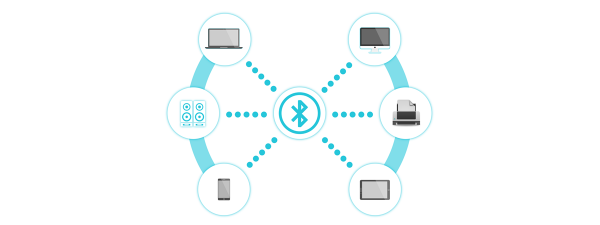
Bluetooth wireless mice
A Bluetooth mouse connects through your computer’s built-in Bluetooth radio. This method frees up your USB ports, which helps if you use a slim laptop.
2) Prepare the mouse
You need to set up the mouse correctly before your computer can detect it. A charged battery and the right power settings solve most issues instantly.
Insert or charge the battery
Open the battery door or check the charging cable. Fresh batteries or a full charge keep the connection stable.
Turn on the mouse and enable pairing mode
Find the Power switch and turn it on. If your mouse supports Bluetooth, press the Pairing button until the light blinks.
3) Set up a wireless mouse with a USB receiver
This option gives you the fastest setup because most devices connect right away. Start by inserting the receiver into an available USB port on your PC. Windows detects it immediately.
The mouse pairs with the receiver as soon as both devices turn on. Most models start working within a few seconds.

Finally, move the mouse to confirm that the cursor responds. Click left and right to make sure the input works correctly.
4) Set up a wireless mouse using Bluetooth
You can use this method when your mouse does not include a USB receiver or when you want to save USB ports.
Open Settings > Bluetooth & devices and turn on Bluetooth. Next, select Add device, choose Bluetooth, and wait for your mouse to appear in the list. Select it to connect.

Once you connect, the mouse changes its light pattern or shows “Connected” on your screen. You can start using it right away.
5) Customize mouse settings
You can adjust the mouse to match your comfort and workflow. These settings improve accuracy and speed.
Go to Settings > Bluetooth & devices > Mouse. Change the pointer speed and scroll direction until they feel natural.

Also, if your mouse offers side buttons or macros, install the brand’s optional software. Custom actions help you work faster.
Troubleshoot common wireless mouse setup issues
- Mouse not detected: Replace or recharge the battery, turn the mouse off and on again, try another USB port if you use a receiver, and restart Bluetooth if you use a Bluetooth mouse.
- Cursor lag or stuttering: Replace the battery or recharge the mouse, move the receiver away from USB-C hubs or metal objects, and keep other wireless devices a few inches away.
- Bluetooth disconnects often: Remove the device from the Bluetooth list and add it again, turn Bluetooth off and on, and disable power-saving settings that turn off Bluetooth adapters.
Tips for smoother long-term performance
- Replace or recharge batteries before they drop too low.
- Keep the USB receiver away from interference sources.
- Update mouse drivers or firmware when new versions become available.
- Store the USB dongle safely when you travel.
FAQs
Do I need drivers for a wireless mouse? Most wireless mice work automatically, but optional drivers unlock extra features.
Why won’t my wireless mouse turn on? The battery may be drained, or the power switch may be off.
Can I use a wireless mouse without a USB receiver? Yes, but only if the mouse supports Bluetooth and your computer has Bluetooth built in.
How do I reset my wireless mouse? Turn it off, remove the battery for a few seconds, then turn it back on. For Bluetooth models, remove the device from Bluetooth and pair it again.
Summary
- Check whether your mouse uses a USB receiver or Bluetooth.
- Insert batteries or charge the mouse and turn it on.
- Connect through a USB dongle or pair through Bluetooth.
- Test the mouse to confirm movement and clicks.
- Adjust settings and follow troubleshooting steps if you run into issues.
A wireless mouse, like the Onn wireless mouse, connects in minutes when you follow the right steps. You can start with the USB receiver or Bluetooth pairing method and move through the troubleshooting tips if something goes wrong. Once you customize the pointer and buttons, the mouse should feel natural and reliable every day.
Discussion (0)
Be the first to comment.