




Setting up voicemail on an Android phone helps you stay informed even when you miss a call. Most carriers support visual voicemail or traditional voicemail, and knowing how to activate voicemail on Android ensures people can leave messages when you’re busy or unavailable. This guide explains how Android voicemail works, how to access your voicemail settings, and how to create a clear Android voicemail greeting that callers will hear when you cannot pick up.
Every Android device places voicemail controls in slightly different locations, but the process remains similar across Samsung, Google Pixel, Motorola, and other phones. Once you understand where the voicemail menu is located, you can adjust your greeting, change your voicemail password, and customize alerts so you never miss a message again.
Understanding Android Voicemail Setup
Why Voicemail Still Matters On Android
Voicemail fills the gap when you cannot answer the phone. It helps callers leave details you may otherwise miss and acts as a reliable fallback when your phone has no service. Knowing how to set up Android voicemail allows you to stay reachable without answering every call in real time.
What You Need Before You Begin
You only need a working Android phone and active carrier service to enable voicemail. Some carriers require you to set a voicemail PIN the first time you dial in, while others guide you through creating a new Android voicemail greeting directly from the Phone app.
How To Set Up Voicemail On Android
Access Voicemail Settings On Your Device
Open the Phone app to locate your voicemail menu. The exact path varies by manufacturer, but all Android voicemail settings start inside the dialer.
- Open the Phone app on your Android device.

- Tap the three dots or the Settings icon in the upper corner.

- Select Voicemail or Voicemail Settings.
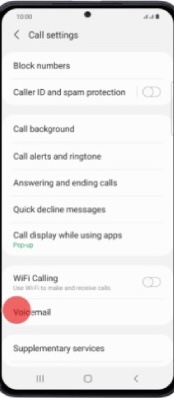
- Choose the carrier voicemail option if your phone shows multiple entries.
Record And Save Your Voicemail Greeting
Your Android voicemail greeting plays whenever you miss a call. Recording a clear greeting makes messages more helpful and avoids confusion.
- Select Greeting or Voicemail Greeting in the voicemail menu.
- Tap Record to create a custom greeting.
- Speak clearly and include your name or number if needed.
- Save the greeting and confirm it replaces the default message.
Update Your Voicemail Password
Your carrier may require a PIN to access voicemail, and updating your voicemail password helps keep messages secure.
- Select Voicemail Password or Change PIN inside the voicemail menu.
- Enter a new PIN that meets carrier requirements.
- Save the new password and test it by dialing your voicemail.
Adjust Notification Preferences
Voicemail alerts ensure you know when a message arrives. If voicemail is not working on Android, notification settings may be disabled.
- Open the Phone app and return to the voicemail menu.
- Tap Notifications or Voicemail Notification Settings.
- Enable sound alerts, vibration, or lock screen notifications.
- Turn on badge icons if you want message counters on the app icon.
Troubleshooting Common Problems
Most voicemail issues come from carrier configuration or disabled settings. These fixes help restore normal access.
- If voicemail is not working on Android, restart your phone and try again.
- Dial your own number to confirm your carrier voicemail is active.
- Clear the Phone app’s cache if voicemail notifications stop appearing.
- Check call forwarding settings to ensure calls are routed correctly.
- Reset network settings if nothing else works.
Tips
- Keep your voicemail greeting short and clear.
- Use a strong PIN to protect your carrier voicemail inbox.
- Check voicemail regularly so your inbox does not fill up.
- Enable Wi-Fi calling if your home has weak cellular coverage.
- Save important messages before deleting older ones.
FAQ
How do I check voicemail on my Android phone? Open the Phone app, press and hold 1, or tap the voicemail icon if your device supports visual voicemail.
Why is my voicemail not working? Notifications or call forwarding may be disabled, or your carrier voicemail may require reactivation.
Can I change my voicemail password on Android? Yes. Most carriers let you change your voicemail password inside the voicemail settings menu.
Why can't I find voicemail settings? Manufacturers place menus differently. Search “voicemail” inside the Settings app to locate the correct menu.
Summary
- Access voicemail settings through the Phone app.
- Record a clear Android voicemail greeting.
- Update your voicemail password for security.
- Enable notifications so you never miss messages.
- Troubleshoot quickly if voicemail stops working.
Conclusion
Android voicemail setup only takes a few minutes and ensures callers can always reach you. Once your greeting, password, and notifications are in place, your device becomes more reliable for missed calls and important updates. Reviewing your Android voicemail settings occasionally helps avoid issues and keeps your voicemail running smoothly.

Discussion (0)
Be the first to comment.