



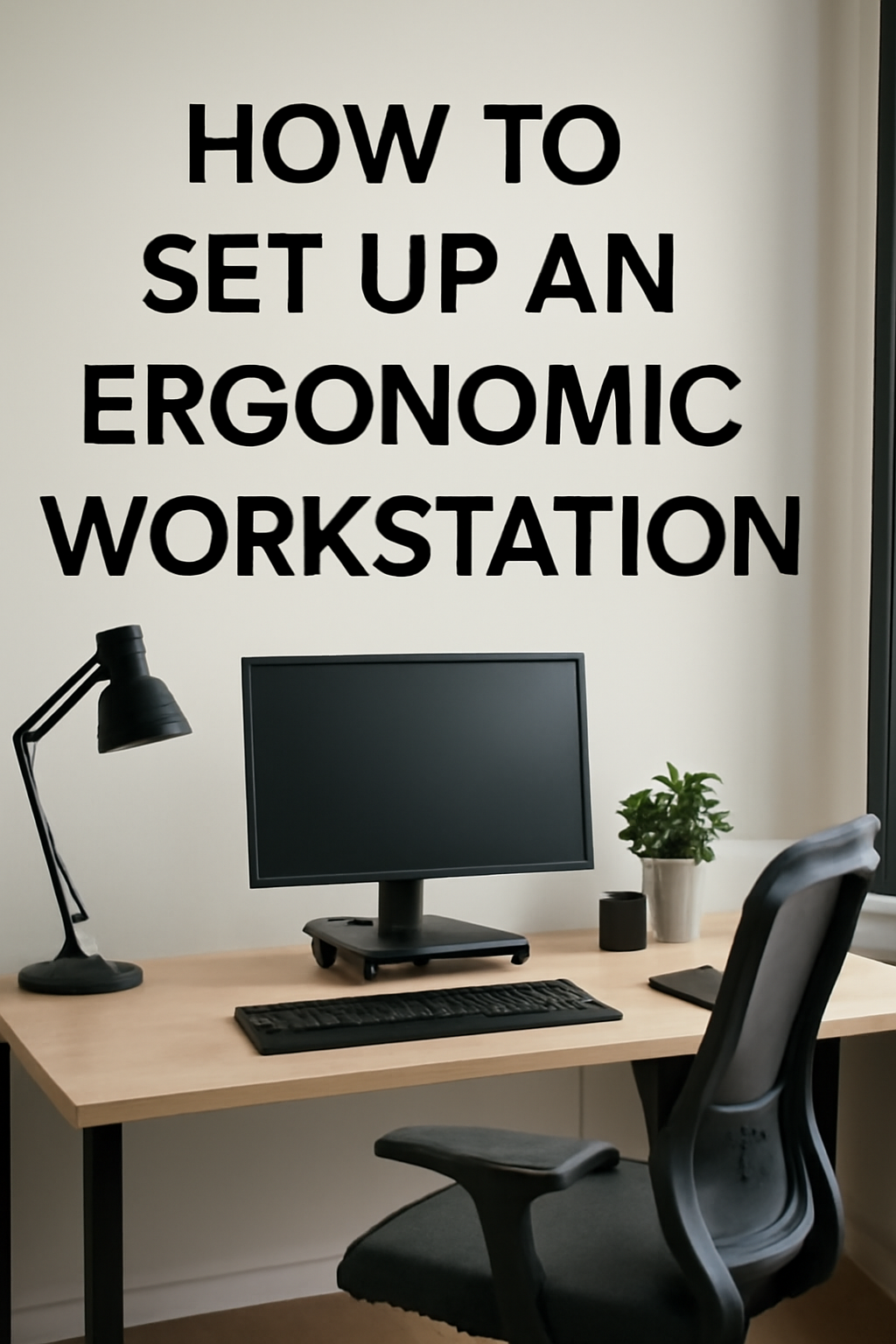
Spending hours at a computer each day can strain your back, neck, eyes, and wrists if your setup works against you. Learning how to set up an ergonomic workstation helps your body stay in a more neutral position so you feel less sore at the end of the day.
An ergonomic workstation does not require a full remodel or expensive gear. You adjust what you already have first, then add a few key items only if you still feel discomfort. Use this guide to tune your chair, desk, monitor, keyboard, and lighting so your space supports how you actually work.
Set your chair to match your body
Your chair anchors your posture. Start here before you touch the desk or monitor so everything else lines up with your seated height.
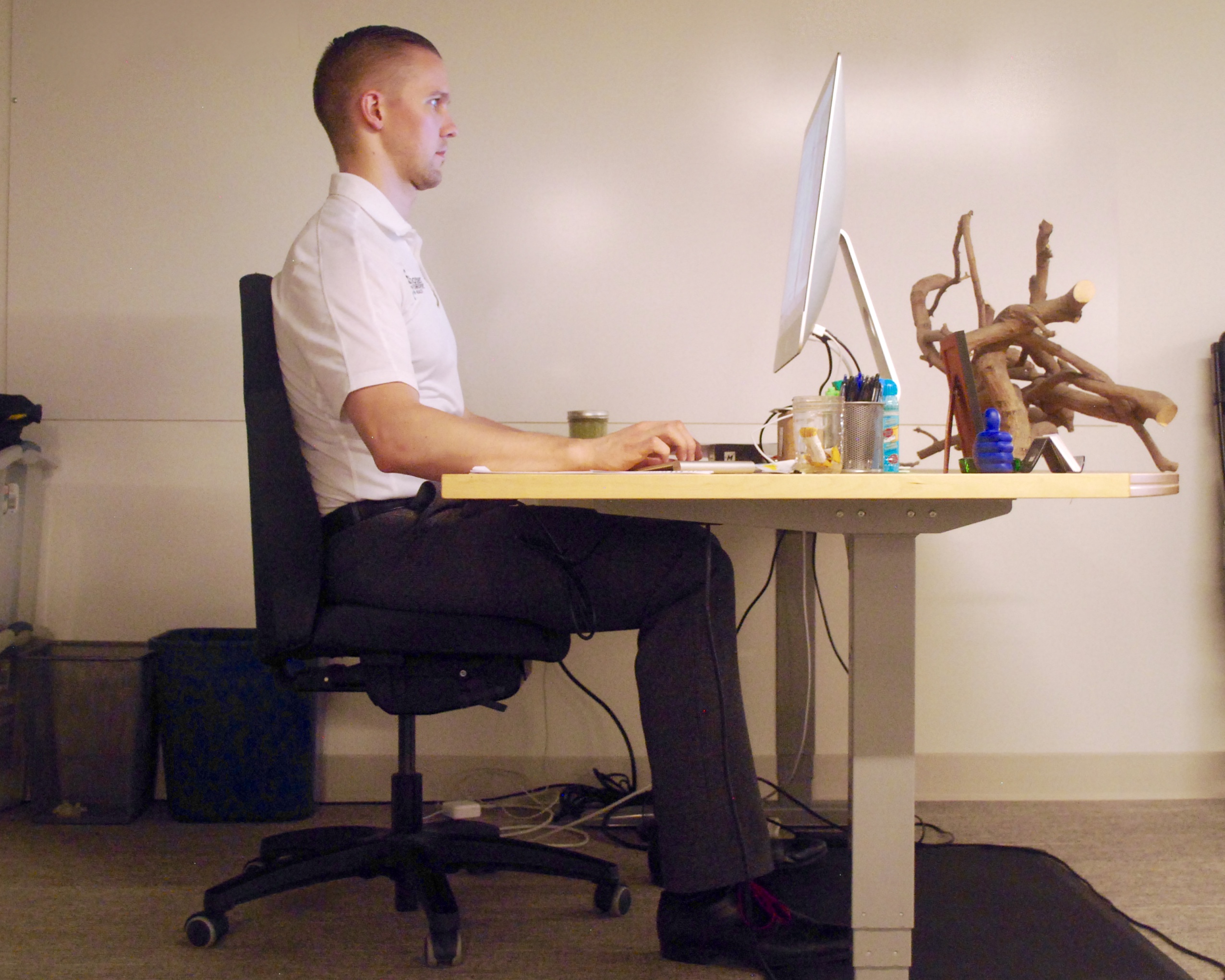
- Lower or raise the seat until your feet rest flat on the floor and your knees sit roughly level with your hips, not higher.
- Scoot your hips all the way back so your lower back touches the backrest instead of perching on the front edge.
- Adjust the backrest or lumbar support so it follows the natural curve in your lower spine and gently supports it.
- Set the seat depth so you can slide two to three fingers between the front of the seat and the back of your knees.
- Raise or lower the armrests so your shoulders relax, your elbows bend near 90 degrees, and your forearms rest lightly.
- Use a footrest if your feet do not reach the floor when you keep your knees level with your hips.
Align your desk, keyboard, and mouse
Once the chair fits, bring your work surface to your natural arm position. This reduces strain on your wrists, forearms, and shoulders.
- Adjust desk height, or use a keyboard tray, so your forearms stay parallel to the floor and your wrists stay straight while you type.
- Place the keyboard directly in front of you, centered with your body, so you do not twist your spine or reach sideways.
- Keep the keyboard close enough that your elbows hang by your sides instead of reaching forward.
- Position the mouse at the same height and distance as the keyboard, just to the side, so your arm moves as a unit from the shoulder.
- Grip the mouse lightly and move it with your arm, not just your wrist, to avoid pinching or overflexing your hand.
- Use a low-profile keyboard or a slight negative tilt if your wrists tend to bend upward while you type.
Position your monitor for neutral neck posture
Your screen height and distance affect your neck, shoulders, and eyes. A few inches in the wrong direction can lead to daily headaches or stiffness.
- Place the monitor directly in front of you so you face it head-on instead of turning your neck.
- Raise the screen so the top of the visible area sits at or just below eye level when you sit tall.
- Set the distance to about an arm’s length away, then adjust slightly based on your vision and screen size.
- Tilt the monitor slightly back so you view it straight on without lifting or dropping your chin.
- Use a riser, stack of books, or an adjustable arm if your monitor sits too low on the desk.
- For dual monitors, place the primary screen in front of you and angle the second one slightly to the side to reduce twisting.
Manage lighting and glare
Good lighting protects your eyes and helps you avoid leaning forward to see the screen. Tackle glare and shadows so your eyes can relax.
- Set your monitor perpendicular to windows when possible so bright light does not wash out the screen.
- Use blinds or curtains to soften harsh sunlight that hits your monitor or your eyes directly.
- Add a desk lamp that aims light onto your keyboard or documents instead of into your eyes.
- Match your screen brightness to the room so the display does not feel like a lightbox or a dim surface.
- Increase text size and contrast so you do not squint or lean in to read small print.
Arrange tools and accessories within easy reach
Small layout tweaks prevent constant twisting, leaning, and reaching that wear your body down over a long day.
- Place your phone, frequently used notebook, and other daily tools within a comfortable arm sweep of your chair.
- Keep items you use less often farther away so you still need to stand or move to grab them.
- Use document holders beside your monitor if you reference paper often, so your neck turns less.
- Route cables and power strips away from your feet so you can shift positions without snagging anything.
- Clear clutter around your feet and under the desk so you can stretch and reposition your legs freely.
Build movement into your workday
Even a perfect ergonomic workstation cannot replace movement. Your body needs regular position changes to feel good over time.
- Stand up or walk around for a minute or two at least once every 30 to 60 minutes of focused work.
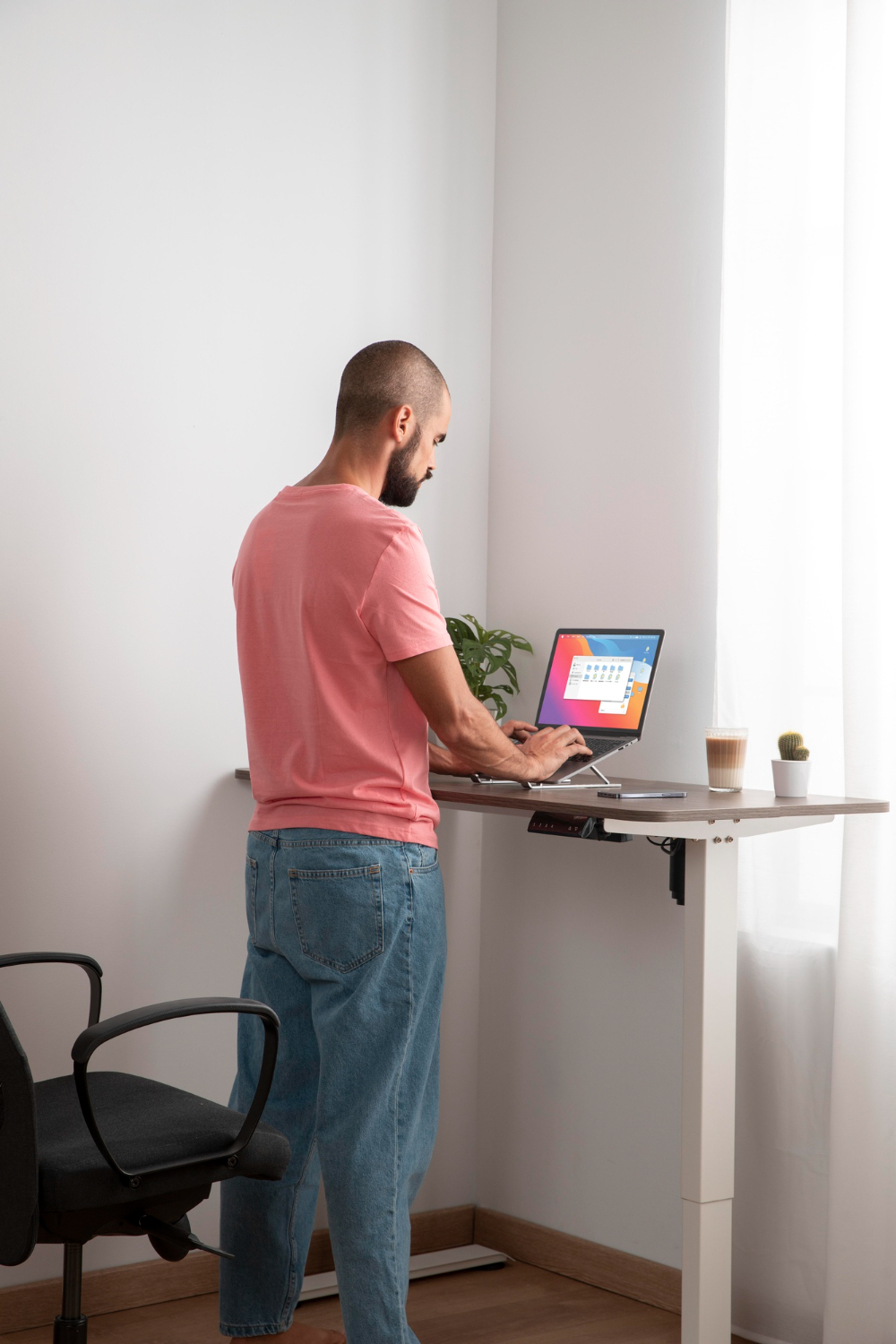
- Switch between sitting and standing if you use a sit-stand desk, but keep your monitor and keyboard aligned in both positions.
- Rotate between different seated positions, such as leaning slightly back or forward, while keeping your spine supported.
- Do simple stretches at your desk, like rolling your shoulders, opening your chest, and gently rotating your neck.
- Use quick calendar reminders or phone timers to nudge yourself to move before your body starts to ache.
Troubleshooting common problems
If you still feel sore after making basic adjustments, focus on the specific area that bothers you most and refine that part of the setup.
- If your lower back hurts, raise or add lumbar support, move your hips all the way back, and avoid sitting on the front edge of the seat.
- If your neck feels stiff, lift the monitor higher, bring it closer, and check that you do not crane your head toward the screen (chicken neck).

- If your shoulders feel tight, drop your armrests slightly, pull the keyboard closer, and stop shrugging your shoulders while you type.
- If your wrists ache, lower the keyboard or mouse so your wrists stay straight, and reduce any upward bend in your hands.
- If your eyes feel tired, reduce screen glare, increase text size, and follow the 20-20-20 rule by looking at something far away regularly.
- If one side of your body hurts more, check that you do not twist toward a side monitor or phone all day.
Tips
Use these practical tips to keep your ergonomic setup simple, flexible, and easy to maintain over time.
- Take a picture or make a quick sketch of your ideal setup so you can recreate it after someone moves your chair or monitor.
- Adjust your workstation whenever your role, equipment, or daily tasks change instead of waiting for discomfort.
- Test changes one at a time so you can tell which adjustment actually helps instead of moving everything at once.
- Consider a separate keyboard and mouse if you work on a laptop so you can raise the screen without straining your wrists.
- Use simple household items, like boxes or books, as temporary risers before you buy new stands or accessories.
FAQ
How high should my desk be for an ergonomic setup?
For most adults, a standard desk height around 28 to 30 inches works, but your body matters more than the number. Aim for a height that lets your elbows bend near 90 degrees with your forearms parallel to the floor and your wrists straight while you type.
Can I set up an ergonomic workstation with a fixed, nonadjustable desk?
Yes. Use your chair height, a keyboard tray, or a footrest to compensate. You adjust yourself to the desk, then add risers or stands to bring the monitor and accessories into the right positions.
Is a standing desk required for a healthy workstation?
A standing desk can help you add variety, but it is not mandatory. You support your health more by changing positions often, standing up for short breaks, and dialing in your seated posture than by standing all day.
How far should my monitor be from my eyes?
Start with the screen about an arm’s length away, then move it slightly closer or farther until you can read text comfortably without leaning in or squinting.
What if my feet do not reach the floor when I adjust my chair correctly?
Use a footrest, box, or sturdy platform so your feet rest flat and your knees stay roughly level with your hips. This support helps your lower back and prevents you from sliding forward in the chair.
Summary
Setting up an ergonomic workstation does not need to feel complicated. You follow a simple sequence and keep your body’s natural posture as the guide.
- Fit your chair to your height first so your feet, hips, and back feel supported.
- Align your desk, keyboard, and mouse with relaxed shoulders and straight wrists.
- Raise and center your monitor to support a neutral neck and clear vision.
- Fix lighting and glare so your eyes stay comfortable without extra strain.
- Arrange tools within reach and build movement into your day instead of sitting still for hours.
Conclusion
A few careful adjustments can turn a generic desk into an ergonomic workstation that fits you, not the other way around. When your chair, desk, and monitor all support a neutral posture, you ease the load on your joints and muscles and free up energy for focused work.
Revisit your setup regularly as your tasks, equipment, or body change. Small tweaks, made early and often, help you avoid long-term discomfort and keep your home or office workstation comfortable, sustainable, and ready for full days at the computer.



Discussion (0)
Be the first to comment.