




A properly set up gaming laptop runs smoother, stays cooler, and delivers higher FPS. Most users miss critical steps during the first setup, which leads to slow performance or overheating later. This guide walks you through every important setting so your system performs at its best.
Table of contents
- Prepare Your Gaming Laptop Out of the Box
- Optimize Performance Settings for Gaming
- Optimize Display and Refresh Rate Settings
- Improve Thermal and Cooling Performance
- Install Essential Gaming Software and Launchers
- Configure Storage and Game Install Locations
- Improve Network Performance for Online Gaming
- Benchmark Your Gaming Laptop to Verify Performance
- Set Up Peripherals and Accessories
- Long-Term Maintenance and Security Tips
- Tips for Better Gaming Laptop Performance
- FAQs
- Summary
Prepare Your Gaming Laptop Out of the Box
You gain the biggest early performance boost by updating Windows and your GPU drivers. A clean system avoids bloatware, conflicts, and launch errors.
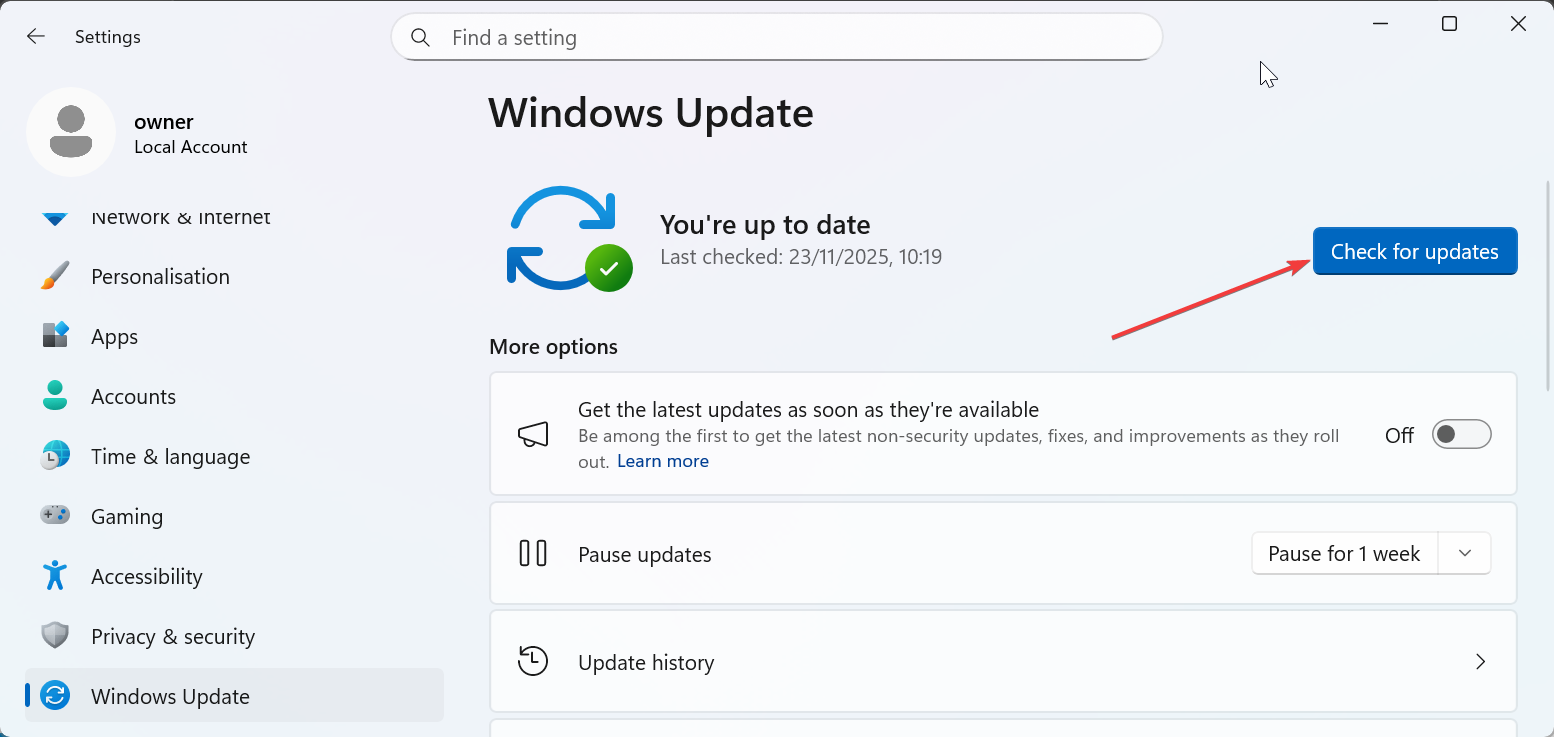
Install All Windows Updates First
Open Settings, go to Windows Update, and install everything available. You improve device stability and reduce crashes in modern games.
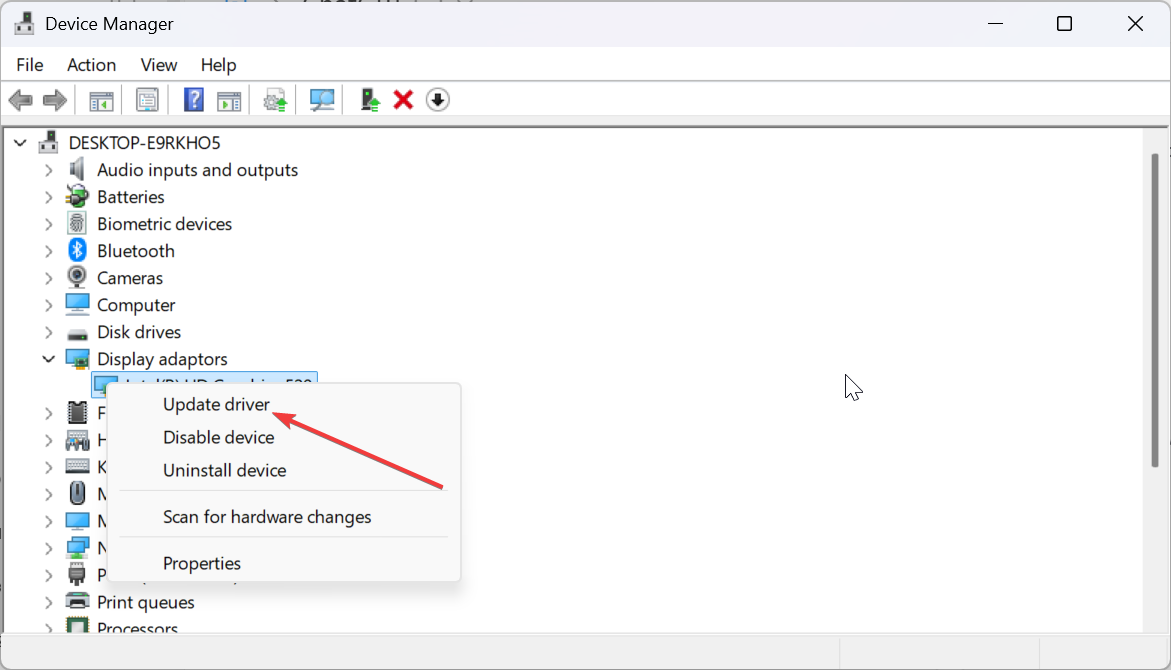
Update GPU Drivers for Nvidia or AMD
Visit the Nvidia or AMD control panel and install the latest drivers. This unlocks day-one optimizations for new titles. You can also install the latest driver update using the Device Manager on Windows.
Remove Manufacturer Bloatware
Open Apps in Settings and uninstall tools you do not need. This frees RAM and improves load times during gameplay.
Optimize Performance Settings for Gaming
Small system tweaks create noticeable FPS and responsiveness gains.
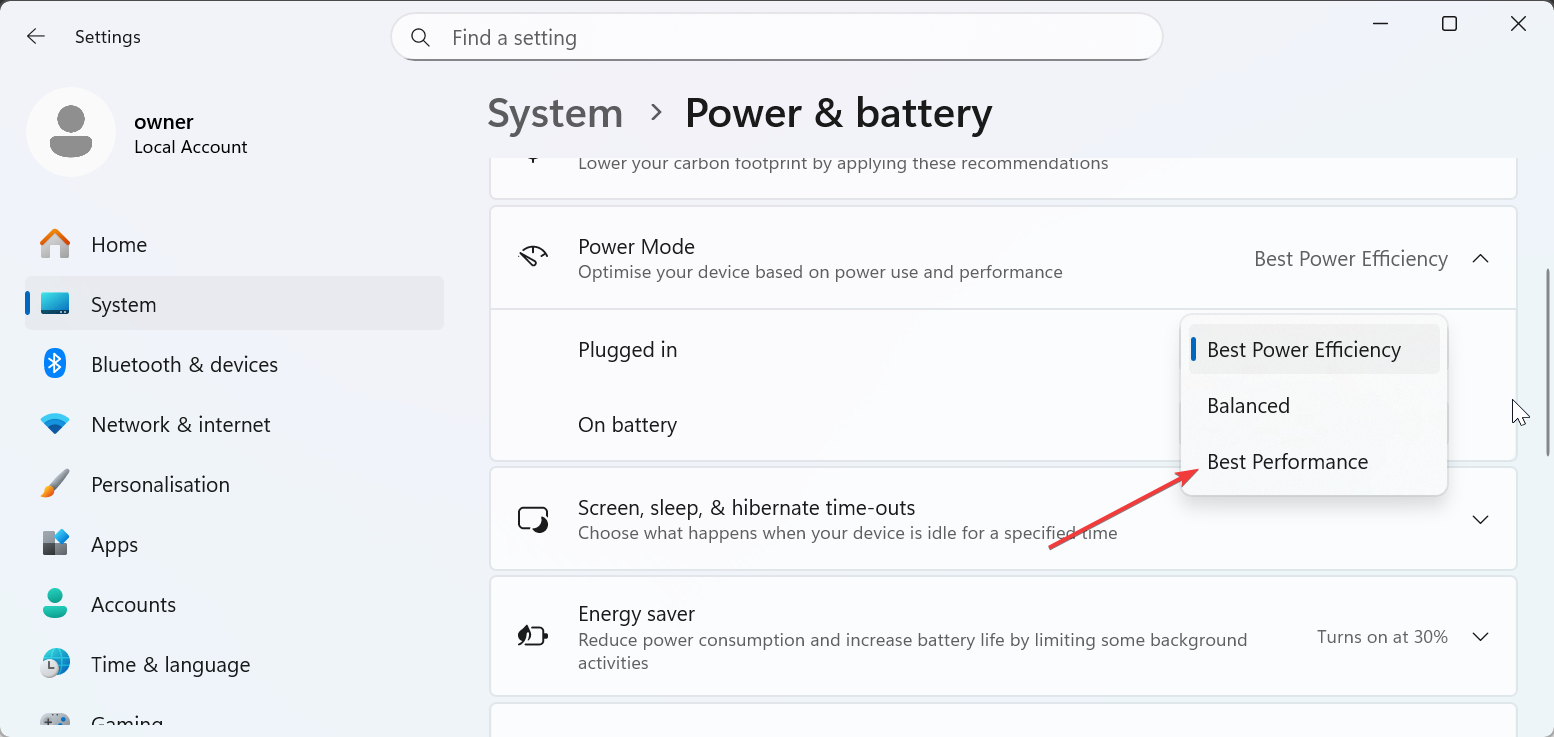
Switch Windows Power Mode to Best Performance
Go to Settings > System > Power & battery > Power Mode and choose Best performance for the two options under it. This stops the CPU from throttling during heavy gameplay.
Configure Nvidia or AMD Control Panel Settings
Change settings like Low Latency Mode, VSync, and Texture Quality. You improve frame pacing and reduce mouse delay.
Enable Hardware-Accelerated GPU Scheduling
Turn on Hardware-accelerated GPU scheduling under Graphics settings. This gives your system faster frame processing.
Optimize Display and Refresh Rate Settings
Display settings often default to lower performance modes. Raising the refresh rate improves smoothness instantly.
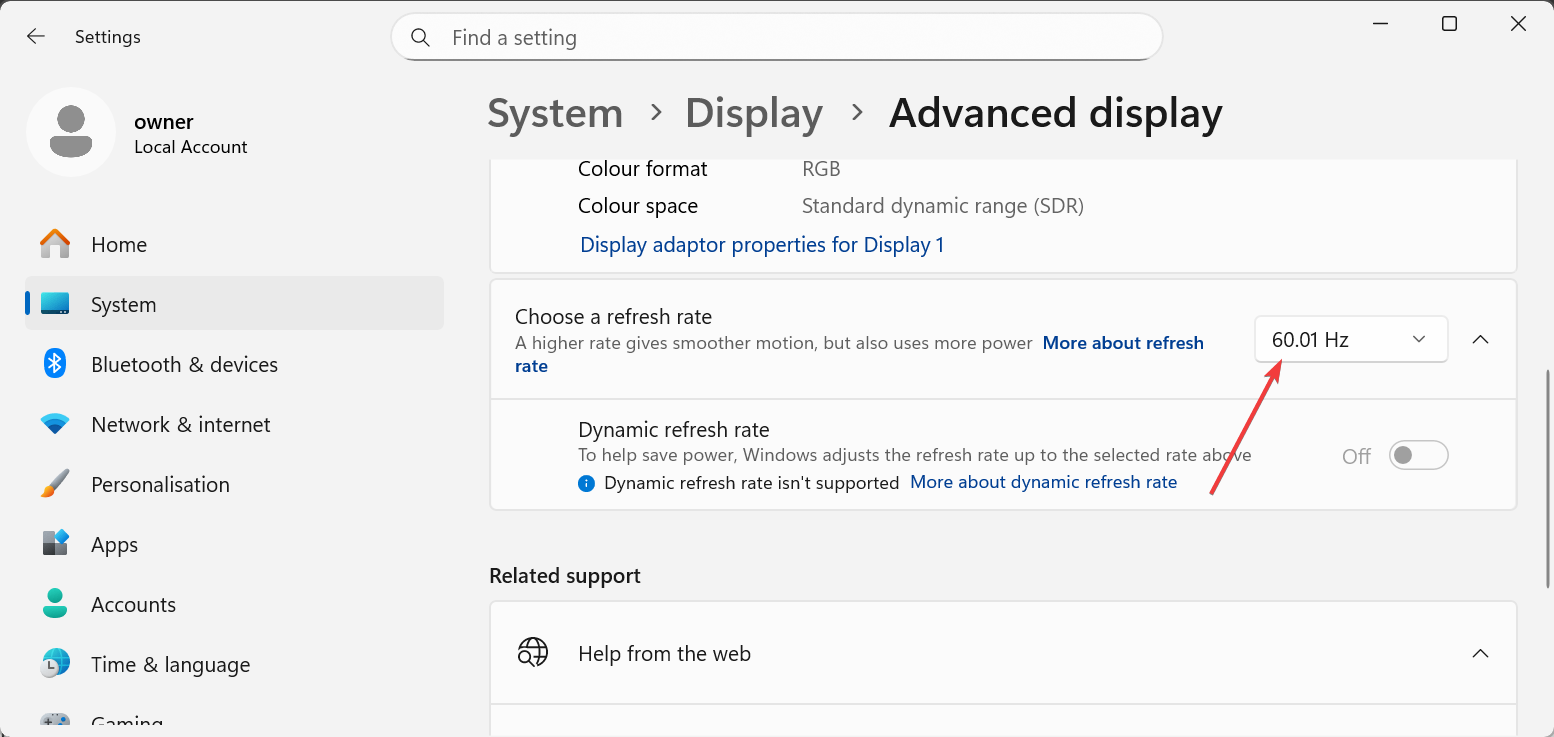
Set Your Screen to its Maximum Refresh Rate
Open Advanced display settings and choose the highest rate available, such as 120 Hz or 165 Hz. You get smoother motion in every game.
Calibrate Color and Brightness for Gaming
Use Display Calibration to adjust contrast and gamma. You improve visibility in dark environments and competitive titles.
Improve Thermal and Cooling Performance
Heat impacts FPS more than most users realize. Cooling properly helps your laptop maintain stable performance during long sessions.
Configure Manufacturer Performance Modes and Fan Curves
Open your brand utility and choose a performance or gaming profile. You get higher sustained speeds and better cooling.
Position Your Laptop for Optimal Airflow
Raise the back of the laptop or use a cooling pad. Better airflow reduces heat buildup during intense gaming.
Clean Background Processes to Reduce Heat Load
Close unused apps from Task Manager. This lowers CPU load and reduces temperature spikes.
Install Essential Gaming Software and Launchers
You need the correct launchers before downloading or organizing your game library.
Install Steam, Epic, Xbox, EA, and Ubisoft Launchers
Download the launchers you actually plan to use. Keeping everything centralized makes game management easier.

Set Download and Install Options for Each Launcher
Choose your SSD as the install location. Faster storage improves boot times, load times, and texture streaming.
Configure Storage and Game Install Locations
Your laptop performs best when the primary SSD handles game data.
Move Non-Gaming Apps to Secondary Storage
Transfer photos, documents, or office apps to a secondary drive. You keep your main SSD fast and uncluttered.
Set Default Game Installation Drives in Launchers
Check each launcher settings page and pick the correct folder before installing new games.
Improve Network Performance for Online Gaming
Smooth online gameplay requires a stable, low-latency connection.
Connect Using 5 GHz Wi-Fi or Ethernet
Use 5 GHz for cleaner wireless performance or Ethernet for the lowest latency. This reduces lag in multiplayer games.
Enable QoS or Gaming Mode on Compatible Routers
Your router can prioritize game traffic. This helps your laptop maintain stability when other devices stream or download files.
Benchmark Your Gaming Laptop to Verify Performance
Benchmarking ensures that your setup changes worked.
Run Synthetic Benchmarks Like 3DMark or Cinebench
These tests show how your CPU and GPU perform under load. You can compare your results with similar hardware. If need be, you can get an external GPU for your gaming laptop to improve the performance.
Test In-Game Benchmarks in Titles You Already Play
Games with built-in benchmark tools measure FPS and frame time accuracy. You confirm whether further tweaks are needed.
Set Up Peripherals and Accessories
Correct accessory setup improves comfort, accuracy, and performance.
Configure External Mouse Settings and DPI
Adjust DPI and polling rate in your mouse software. Consistent mouse control improves aim and reduces overshoot.
Connect External Monitors and Set Display Modes
Choose Extend or Duplicate, then set the correct refresh rate. This prevents scaling issues on larger displays.
Pair Gaming Headsets for Spatial Audio Support
Enable spatial audio in Windows or your headset app. This improves directional sound in competitive games.
Long-Term Maintenance and Security Tips
Regular upkeep prevents overheating, slowdowns, and battery wear.
Enable Security Tools Like Antivirus and Controlled Folder Access
Keep protection lightweight to avoid performance loss. You stay safe from malware that targets gamers.
Clean Vents and Fans Regularly
Dust buildup increases internal temperature. Cleaning the vents improves cooling efficiency.
Monitor Battery Health and Adjust Charging Habits
Use battery-care modes if your laptop supports them. These modes protect your long-term battery health.
Tips for Better Gaming Laptop Performance
- Keep your laptop plugged in during gaming to unlock full GPU power.
- Update GPU drivers weekly for new game optimizations.
- Use a cooling pad if your laptop often hits high temperatures.
- Disable apps like Discord overlays or screen recorders when you need maximum FPS.
- Store your heaviest games on your fastest SSD.
FAQs
Why is my gaming laptop lagging during games? Your system may lag due to outdated drivers, high temperatures, or background apps using CPU resources. Updating software and improving cooling often fixes the issue.
Should I game on battery power? Battery mode reduces CPU and GPU performance to preserve battery life. Plug your laptop in to get maximum FPS.
Do I need a cooling pad? A cooling pad helps lower temperature during long sessions. Many users notice more consistent performance when using one.
How often should I update Nvidia or AMD drivers? Update drivers at least once per month. New releases often include improvements for recently launched games.
Summary
- Update Windows and GPU drivers.
- Optimize Windows and GPU settings for maximum performance.
- Raise your display refresh rate and adjust visual settings.
- Improve cooling and remove unnecessary background apps.
- Install launchers, set storage paths, and benchmark your system.
You now have a fully optimized gaming laptop ready for high performance and stable gameplay. These steps prevent slowdowns, boost FPS, and keep your system cool under pressure.

Discussion (0)
Be the first to comment.