




Setting up a Logitech G27 racing wheel takes only a few steps once you understand driver needs, calibration tools, and per-game configuration. Older hardware like the G27 still works well on Windows 10 and Windows 11, but driver mismatches, USB power issues, and mounting problems often cause detection failures.
This guide shows how to install the wheel correctly, tune it for the best force feedback, and troubleshoot common issues so you can get back on track quickly.
Table of contents
- Step 1: Check your PC and hardware requirements
- Step 2: Mount the G27 wheel, pedals, and shifter
- Step 3: Install Logitech drivers and software
- Step 4: Calibrate the G27 in Windows
- Step 5: Configure the G27 in your games
- Step 6: Optional advanced tuning
- Troubleshoot common G27 problems
- Tips for getting the most out of your G27
- Summary
Step 1: Check your PC and hardware requirements
The G27 uses older Logitech software, so verifying compatibility on modern versions of Windows prevents setup issues. A stable USB port and proper power delivery help the wheel stay responsive.
Verify ports and power
Plug the wheel directly into a USB port on your PC. Avoid unpowered USB hubs since they can cause disconnects. Make sure the power adapter connects firmly to the wheel base.
Inspect cables and connectors
The pedal and shifter modules use dedicated connectors on the wheel base. Seat each cable until you hear a click. This avoids intermittent loss of pedal or shifter input.
Step 2: Mount the G27 wheel, pedals, and shifter
Install the wheel base
Clamp the wheel to a desk or cockpit with a solid edge. Keep the wheel centered at a comfortable distance. A flat surface reduces unwanted wheel vibration.

Position and secure the pedals
Place the pedals against a wall or use a carpet grip so they do not slide. Adjust your seating position so you can fully depress the brake and clutch without strain.
Connect the shifter module
Insert the shifter cable into the wheel base until it locks. This ensures all gears register correctly in Windows and in racing sims.
Step 3: Install Logitech drivers and software
The G27 relies on Logitech Gaming Software, sometimes labeled Logitech Profiler. This software enables force feedback, steering angle adjustments, and calibration tools.
Go to the official website to download the correct version of the Logitech Gaming Software for your PC. After the download is complete, double-click the file and follow the onscreen instructions to complete the installation. Next, restart your PC so Windows initializes the wheel properly.

Lastly, go Start, search for game controllers, and open the Game Controllers panel to confirm that Windows detects the wheel. A successful installation shows the G27 with calibration and properties options available.

Step 4: Calibrate the G27 in Windows
Adjust wheel rotation and deadzones
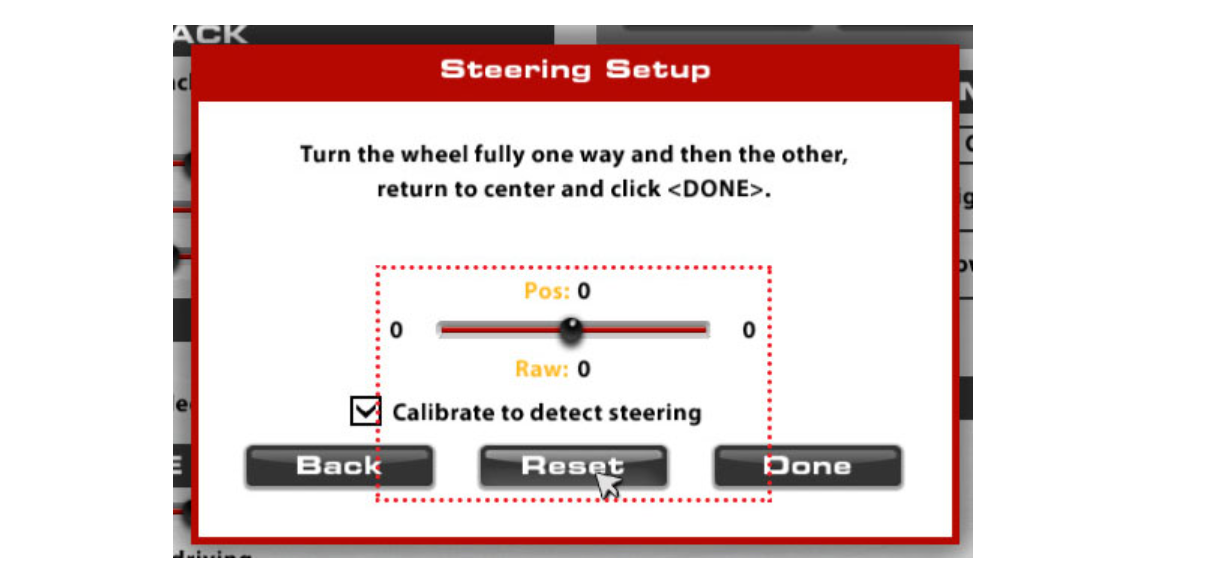
Set the wheel rotation to 900 degrees unless your game recommends a lower value. Adjust deadzones to zero for more precise input unless you notice hardware noise.

Calibrate pedals and clutch
Press each pedal through its full range in the calibration window. This step confirms that Windows reads the gas, brake, and clutch correctly.
Step 5: Configure the G27 in your games
Assetto Corsa and ACC
Use 900-degree rotation and moderate force feedback gain. Reduce road effects if the wheel feels too sharp. ACC may require lower dampening settings for consistent steering.
iRacing
Enable linear mode and set the force limit based on car type. Map the clutch, gears, and buttons so they match your driving style.
Euro Truck Simulator 2 and American Truck Simulator
Use low steering non-linearity for smoother highway control. Map cruise control, lights, and engine brake functions to the wheel for easier long-haul driving.
Project Cars 2 and other sims
Start with a preset designed for Logitech wheels. Adjust force feedback gain to avoid clipping during cornering.
Step 6: Optional advanced tuning
Create custom force feedback curves
Use LUT-style tuning inside Logitech software to smooth the center of the wheel. Reduce gain if the wheel fights too aggressively during hard turns.
Assign macros and button profiles
Map common racing functions like pit limiter, camera switching, and telemetry to unused wheel or shifter buttons. This improves in-race convenience.
Troubleshoot common G27 problems
- G27 not detected in Windows: Try a different USB port, restart the PC, and reinstall the Logitech software. Disable USB power management in Device Manager for added stability.
- Pedals not responding: Reseat the RJ-11 pedal cable and recalibrate in Windows. Dirty connectors can cause intermittent pedal dropout.
- Shifter not showing up in games: Confirm that the shifter appears in Logitech Gaming Software. In some sims, enable manual clutch and H-pattern controls manually.
- Weak or no force feedback: Check both global force feedback settings and per-game options. Some games override Logitech profiles, so restoring defaults usually fixes the issue.
Tips for getting the most out of your G27
- Keep connectors clean to prevent intermittent input loss.
- Use zip ties or adhesive clips for cable organization.
- Enable per-game profiles for faster switching.
- Lower gain settings if long sessions cause wheel overheating.
- Use a stable mounting surface to reduce vibration.
FAQs
Why is my G27 not showing up in Windows? The wheel may fail to register if USB power settings disable the port or if the Logitech driver did not install correctly. Try another USB port and reinstall the software.
Does the G27 work with Windows 10 and Windows 11? Yes. The G27 works on both versions of Windows when you install Logitech Gaming Software. Calibration and force feedback options appear in the Game Controllers panel.
Why are my pedals not responding in games? Loose or dirty pedal connectors often cause missing input. Reseat the RJ-11 cable, then run calibration in Windows to detect the full pedal range.
Can I use the G27 with newer racing games? Most modern PC racing titles still support the G27. Some games require manual button mapping or force feedback tuning, but core functions work normally.
Summary
- Check ports, cables, and power to ensure stable operation.
- Mount the wheel, pedals, and shifter securely.
- Install Logitech Gaming Software and verify detection in Windows.
- Calibrate steering and pedals for accurate input.
- Tune settings in each game for the best force feedback and control.
The G27 still delivers strong performance once you install drivers correctly and calibrate the wheel for your preferred games. Stable mounting and proper tuning extend its lifespan and improve handling, especially in simulation titles. Follow this setup routine when installing the wheel on a new PC or moving between games to keep performance consistent.
Lastly, if you are considering an update, you consider using the Logitech G29 instead.


Discussion (0)
Be the first to comment.