




Fitbit devices include a built-in silent alarm feature that vibrates on your wrist instead of playing a sound. This makes Fitbit alarms ideal for waking up quietly, setting reminders, or avoiding missed alerts during the day.
Depending on your Fitbit model, you can set alarms directly on the device or through the Fitbit app on Android or iPhone. At the time of writing, both methods still work reliably across supported Fitbit smartwatches and trackers.
How To Set An Alarm Directly On Your Fitbit Device
Many newer Fitbit models allow you to create alarms directly on the watch or tracker without using your phone. This method works best if you prefer quick setup or want to adjust alarms on the fly.
- Wake your Fitbit screen and swipe to find the Alarms app.
- Tap Alarms to open it.
- Swipe up or down to choose the hour and minutes.
- If available, tap AM or PM to adjust time format.
- Tap the time to confirm the alarm.
- Tap the alarm again to set repeat days or change options.
Supported models typically include Fitbit Charge series, Inspire series, Luxe, Sense series, Versa series, and similar touchscreen devices.
How To Turn On Smart Wake
Smart Wake attempts to wake you during a lighter sleep stage within a 30-minute window before your alarm time. This can help reduce grogginess when waking up.
- Open the alarm you just created.
- Scroll until you see Smart Wake.
- Toggle Smart Wake on.
How To Set A Fitbit Alarm Using The Fitbit App
If your Fitbit does not support on-device alarm creation, you can still set alarms through the Fitbit app on Android or iPhone. The alarm syncs to your device automatically.
- Open the Fitbit app on your phone and the Today button.
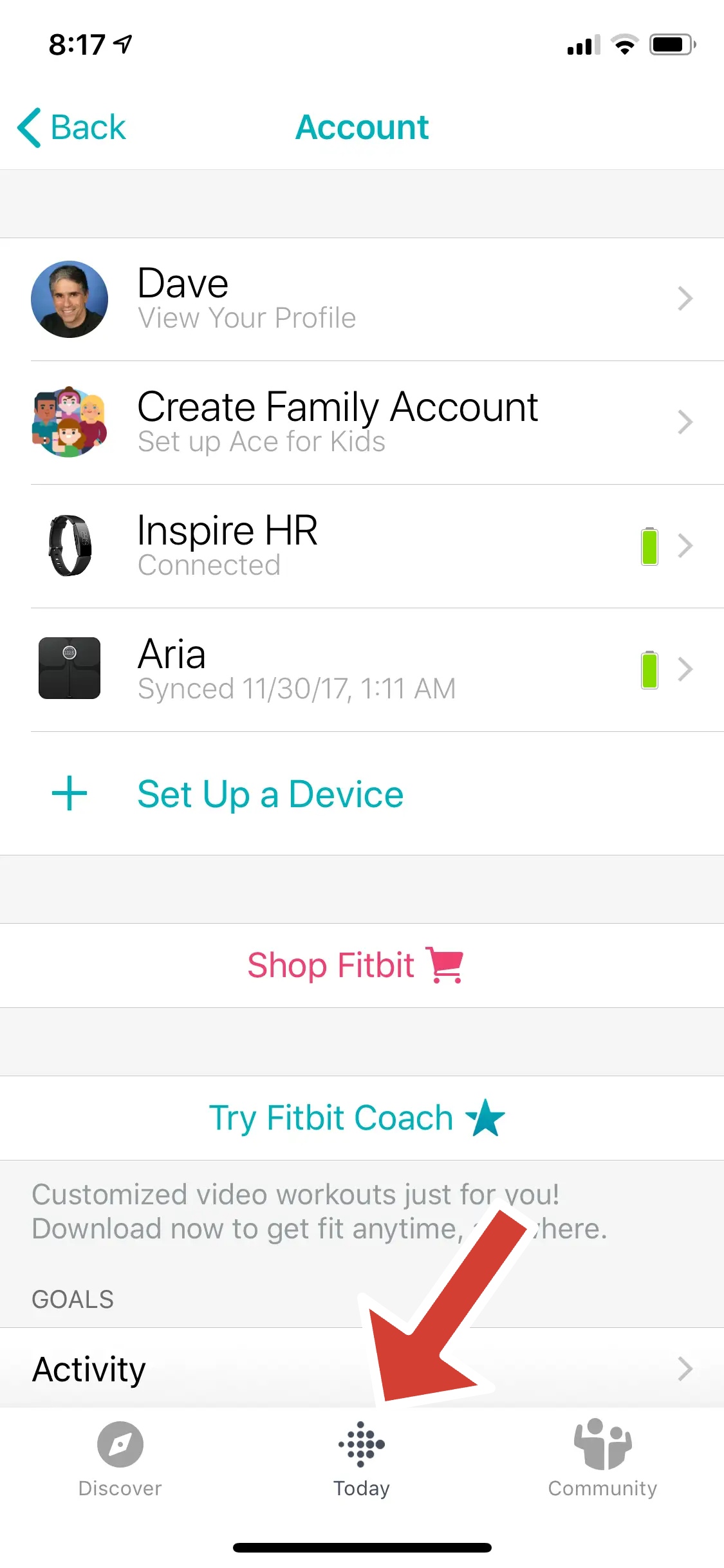
- Tap your profile icon in the top corner.
- Select your Fitbit device from the list.
- Tap Silent Alarms.
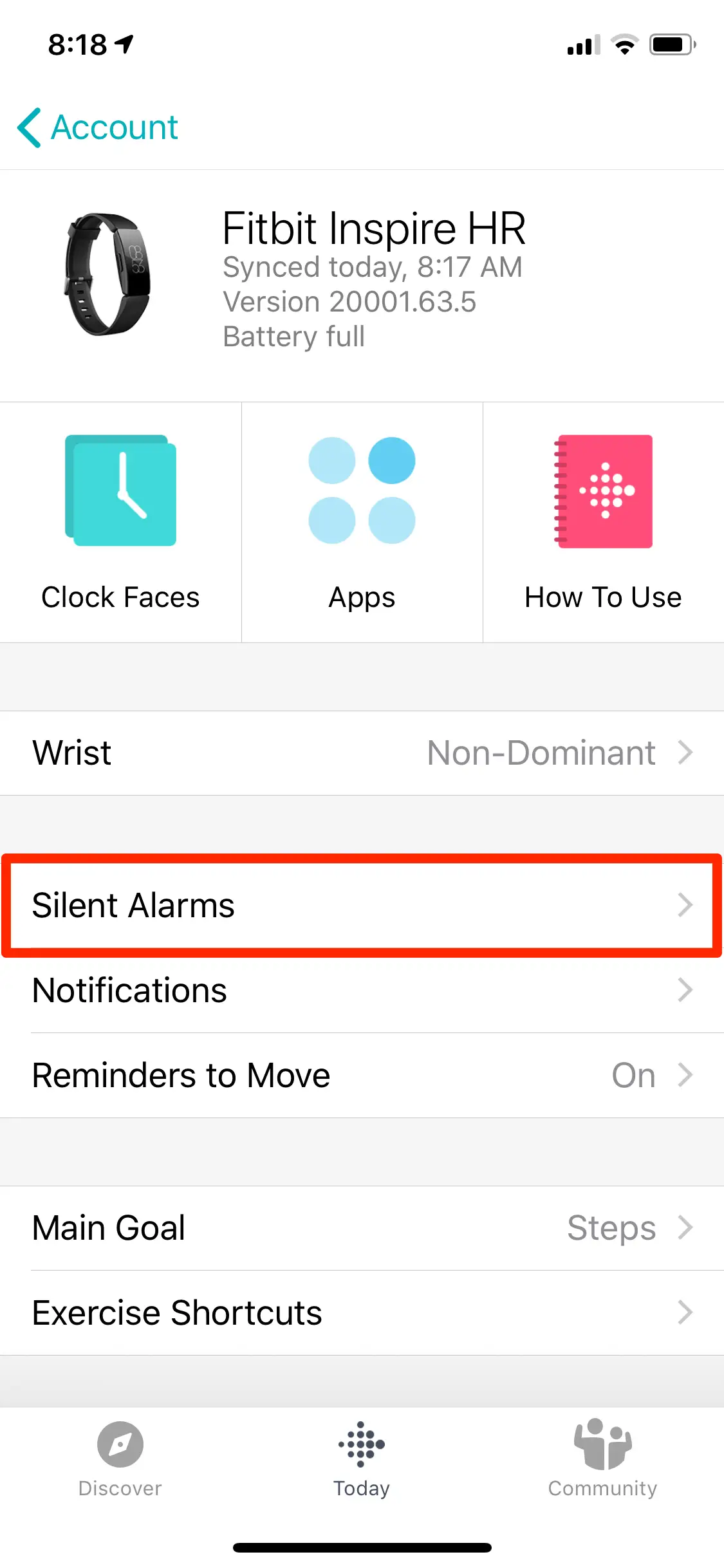
- Choose Set A New Alarm.
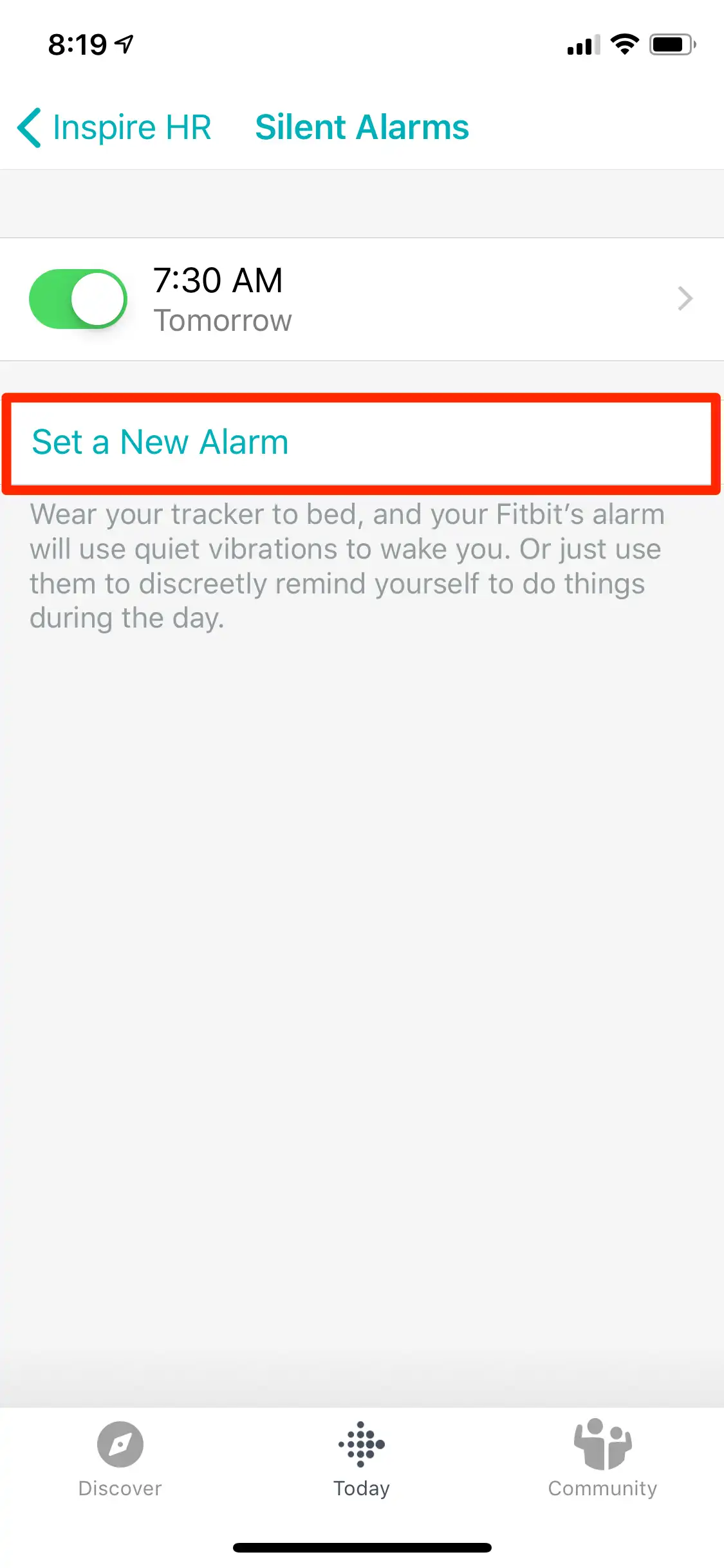
- Select the time and optional repeat days.
- Tap Save.
If the alarm does not appear on your Fitbit right away, manually sync the device from the app’s device screen.
How To Dismiss An Alarm On Fitbit
When a Fitbit alarm goes off, the dismissal method depends on your device model. Most newer models use touch gestures, while older trackers rely on physical buttons.
- Swipe up or tap the dismiss icon on touchscreen models.
- Press side buttons on button-based trackers.
- Follow the on-screen prompt shown when the alarm vibrates.
How To Turn Off Or Delete Fitbit Alarms
You can disable or remove alarms at any time using either your Fitbit device or the Fitbit app.
- Open Alarms on your Fitbit.
- Tap the alarm you want to change.
- Toggle it off to disable, or select Remove if available.
For app-based removal, open Silent Alarms in the Fitbit app, select the alarm, and delete it from the list.
Troubleshooting Common Problems
If your Fitbit alarm does not go off, the issue is usually related to syncing, battery level, or Do Not Disturb settings.
- Manually sync your Fitbit in the app.
- Make sure the device battery is not critically low.
- Check that the alarm is enabled and not deleted.
- Disable Do Not Disturb or Sleep Mode if needed.
Tips
- Use silent alarms for meetings and reminders during the day.
- Set repeating alarms for workdays to avoid manual resets.
- Wear your Fitbit snugly for stronger vibration feedback.
- Enable Smart Wake for a more natural morning routine.
FAQ
How many alarms can I set on Fitbit?
Most Fitbit devices support up to eight active alarms.
Do Fitbit alarms work without a phone nearby?
Yes, once synced, alarms trigger directly on the Fitbit device.
Can I set different alarms for different days?
Yes, you can choose specific repeat days for each alarm.
Why is my Fitbit alarm not vibrating?
Low battery, loose wrist fit, or disabled alarms are common causes.
Summary
- Fitbit offers silent alarms that vibrate instead of making noise.
- Alarms can be set on-device or through the Fitbit app.
- Smart Wake helps you wake during lighter sleep stages.
- Most alarm issues relate to syncing or battery levels.
Conclusion
Fitbit alarms are a simple but powerful feature for waking up, staying on schedule, and managing reminders without disrupting others. Whether you set alarms on the device or through the app, taking advantage of silent alarms and Smart Wake can make your Fitbit far more useful in daily life.

Discussion (0)
Be the first to comment.