




When your Fitbit shows the wrong time or date, your activity and sleep tracking can fall out of sync. This guide explains how to reset time and date on Fitbit devices across the most common models. The steps work whether your Fitbit lost connection, switched time zones, or stopped syncing after an update.
Most Fitbit models update time automatically through the Fitbit app, but manual adjustment is still possible when automatic sync fails. This quick walkthrough helps you correct inaccurate time settings so your stats stay reliable.
Reset Time And Date On Fitbit
Fitbit allows time correction through the app or through automatic syncing. Use these steps to update the time and date instantly.
Update Time And Date Using The Fitbit App
- Open the Fitbit app on your phone and make sure Bluetooth is turned on.
- Select your Fitbit device from the top-left corner of the app dashboard.

- Scroll down and choose App Settings or Advanced Settings, depending on your model.
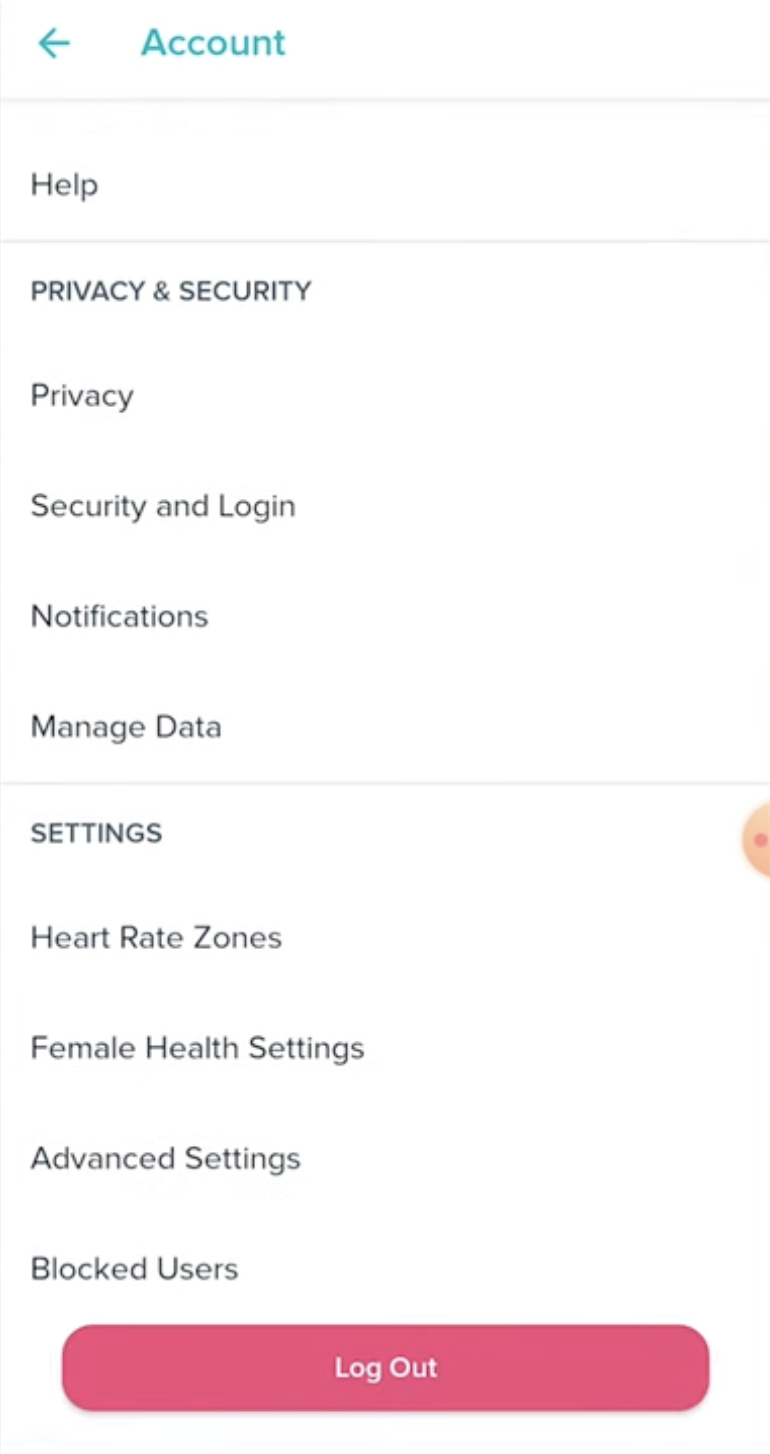
- Toggle Set Automatically to sync the time from your phone.

- If needed, select Time Zone and choose the correct one manually.
- Force a sync by pulling down on the device dashboard.
Manually Adjust Time And Date (If Automatic Sync Fails)
- Open the Fitbit app and go to your profile.
- Select your Fitbit device.
- Turn off Set Automatically.
- Choose the correct time zone from the list.
- Return to the device dashboard and trigger a manual sync.
Sync Time And Date Through A Restart
- Restart your Fitbit by holding the side button for 10 seconds, or use the device's restart option in Settings.
- Open the Fitbit app after the reboot.
- Allow the device to pair again, which forces a fresh time and date sync.
Troubleshooting Common Problems
These tips help if your Fitbit still shows the wrong time or won’t sync your updated settings.
- If your Fitbit refuses to sync, restart your phone and reopen the Fitbit app.
- If the time is one hour off, reselect the correct time zone manually inside the app.
- If Bluetooth keeps disconnecting, remove the Fitbit from your Bluetooth list and pair it again.
- If time changes do not save, check for available firmware updates for your Fitbit.
- If you use multiple Fitbits, ensure only one stays active at a time to avoid conflicting time settings.
Tips
- Keep your Fitbit app updated to avoid syncing errors.
- Allow the app to run in the background so time settings update automatically.
- When traveling, enable automatic time zone detection for a faster update.
- Restart your Fitbit once a month to avoid minor software glitches.
- Confirm your phone’s time and date settings are correct, since Fitbit pulls data from your device.
FAQ
Why Is My Fitbit Showing The Wrong Time?
Your Fitbit may not have synced recently, or your phone’s time zone settings may have changed. A manual sync usually fixes the issue.
Do All Fitbit Models Update Time Automatically?
Yes, most models update time through your phone’s settings. Manual adjustment is still possible if auto-sync fails.
Does Changing Time Affect My Activity Data?
No, your step count and sleep data remain intact. The updates only correct how the information displays.
Can I Change Time On Fitbit Without The App?
Most models require the app, but older devices may refresh time after a reboot and reconnect.
Why Won’t My Fitbit Sync After Changing Time?
This often happens due to Bluetooth issues. Restart both your Fitbit and your phone, then try syncing again.
Summary
- Use the Fitbit app to update time settings manually or automatically.
- Restart your Fitbit to force a fresh sync when time stays inaccurate.
- Fix syncing issues by repairing Bluetooth connections or updating the Fitbit app.
- Select the correct time zone if your Fitbit shows the wrong hour.
- Keep your phone’s time accurate, since Fitbit relies on it for updates.
Conclusion
Resetting the time and date on your Fitbit takes only a few steps and ensures accurate tracking throughout the day. By using the Fitbit app, syncing your device, or restarting it when necessary, you can quickly fix time display issues and keep your stats aligned with your schedule. These simple adjustments help maintain a smooth and reliable Fitbit experience.

Discussion (0)
Be the first to comment.