




Microsoft has been gradually layering AI into different parts of Windows 11, and gaming is no exception. Gaming Copilot inside the Xbox Game Bar is part of that shift.
At a glance, it looks like just another widget. In practice, it’s meant to assist you while you’re actively playing, without forcing you to leave the game.
What Gaming Copilot Actually Is
Gaming Copilot is an AI-powered assistant integrated into Xbox Game Bar.
It is designed to:
- Answer game-related questions
- Provide tips and walkthrough guidance
- Help with system-level queries while gaming
- Reduce the need to alt-tab out of your game
It works as an overlay, so it stays accessible without interrupting your session.
How to Open Gaming Copilot in Xbox Game Bar
The process is simple, but only works if Game Bar is enabled.
Step-by-Step
- Press Windows + G to open Xbox Game Bar
- Look for the Copilot widget in the overlay
- If it’s not visible:
- Click the Widgets menu (top bar)
- Select Copilot
- The Copilot panel will open on screen
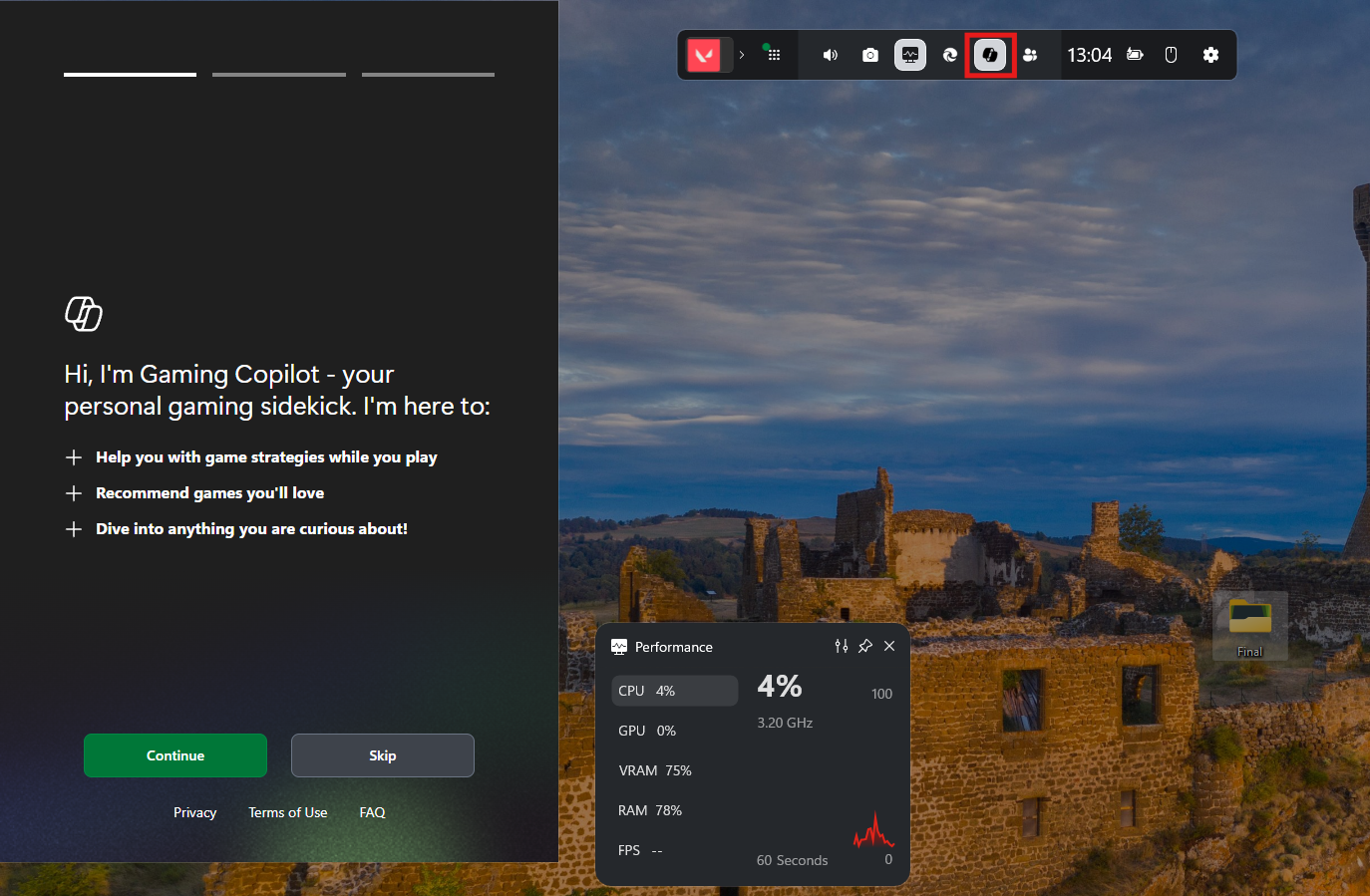
You can pin it if you want it to stay visible during gameplay.
What You Can Actually Do with It
Gaming Copilot is not meant to replace gameplay or act as a cheat system. It’s more of a contextual assistant.
In-Game Help
You can ask:
- Strategy-related questions
- Boss fight tips
- Build recommendations
It pulls general knowledge, not real-time game data.
Quick Information Without Leaving the Game
Instead of opening a browser:
- Ask directly in the overlay
- Get summarized answers
This reduces interruptions during gameplay.
System-Level Assistance
You can also ask:
- Performance-related questions
- Basic Windows queries
It acts as a lightweight assistant beyond gaming.
Real-World Usage: Where It Helps
Gaming Copilot is useful in specific situations:
When You Don’t Want to Alt-Tab
This is its biggest advantage.
- No switching windows
- No breaking immersion
- Faster access to information
For Casual or Single-Player Games
If you:
- Get stuck in a mission
- Need quick guidance
It works well without overcomplicating things.
Learning New Games
For unfamiliar titles:
- You can ask basic mechanics
- Understand systems faster
Where It Falls Short
It’s important to keep expectations realistic.
- It does not have real-time game awareness
- It cannot analyze your gameplay directly
- It depends on general knowledge, not live data
So it’s helpful, but not deeply integrated.
Requirements and Availability
To use Gaming Copilot:
- Xbox Game Bar must be enabled
- You need a supported version of Windows 11
- Feature availability may depend on region and updates
If you don’t see it, your system may not have received the update yet.
Real Insight
Gaming Copilot is not revolutionary on its own. Its value comes from where it’s placed.
Putting an assistant inside Game Bar:
- Reduces friction
- Keeps focus on the game
- Makes help feel immediate
It’s less about capability and more about convenience.
Should You Use It
Use it if:
- You frequently look up game tips
- You want quick answers without leaving your game
- You play story-driven or complex games
Skip it if:
- You prefer external guides
- You need advanced or real-time assistance
Final Thoughts
Gaming Copilot in Xbox Game Bar is a small but practical addition to Windows 11.
It doesn’t change how games are played, but it changes how you access help. That distinction matters.
Used occasionally, it saves time. Used often, it reduces friction. That’s where its real value lies.
FAQs
How do I open Gaming Copilot?
Press Windows + G and open the Copilot widget.
Is Gaming Copilot available on all systems?
No, it depends on updates and availability.
Can it see my gameplay?
No, it does not have real-time awareness.
Is it useful for competitive gaming?
Not really, it’s better for casual or single-player use.
Do I need internet for it?
Yes, it relies on online AI responses.



Discussion (0)
Be the first to comment.