




WSL updates are usually delivered automatically through Windows Update. However, there are times when you may want to manually check for updates to the WSL kernel and other components. In these cases, the wsl.exe command-line tool makes the process quick and easy.
If you are switching from WSL 1 to WSL 2, keep in mind that this is not an update. It is an upgrade, and the steps are different.
This guide explains how to update the Windows Subsystem for Linux on Windows 11. It also shows how to enable automatic updates so WSL stays up to date without manual checks.
Install WSL updates on Windows 11
To manually update WSL on Windows 11, follow these steps:
- Open Start
- Search for Command Prompt
- Right-click the top result and choose Run as administrator

(Optional) Check the current WSL version:
wsl --version
Update WSL to the latest available version:
wsl --update
(Optional) Confirm the update was installed:
wsl --version
(Optional) Roll back to the previous version if needed:
wsl --update --rollback
After completing these steps, Windows 11 will download and install the latest available WSL updates.
Keep in mind that there can be a delay between a new WSL kernel being released on GitHub and its availability through Windows Update. Because of this, the version installed on your device may not always match the newest public release.
Enable automatic WSL updates on Windows 11
To allow WSL to receive updates automatically, use these steps:
- Open Settings
- Click Windows Update
- Click Advanced options
- Turn on Receive updates for other Microsoft products
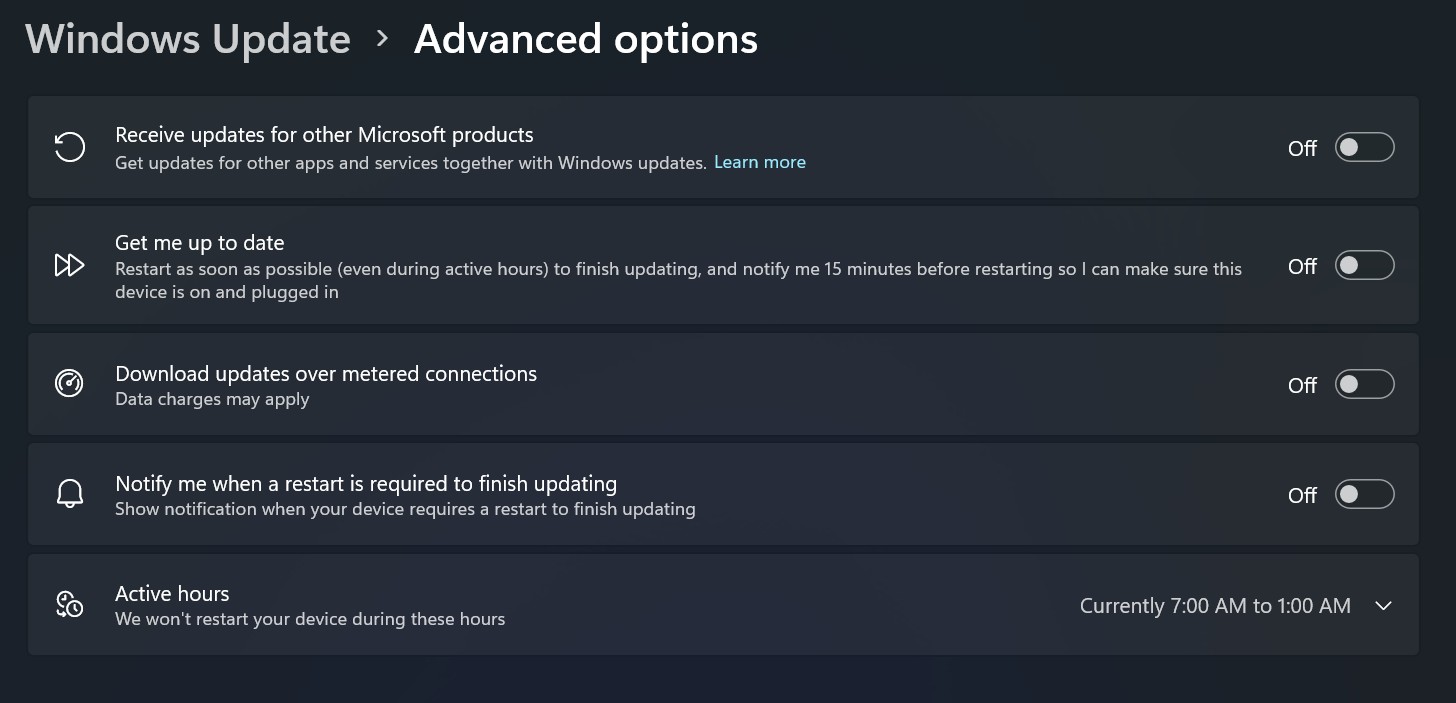

Once enabled, WSL updates will download and install automatically along with other Microsoft updates.
FAQs about updating WSL on Windows 11
How do I update WSL on Windows 11?
Open Command Prompt or PowerShell as an administrator and run the wsl --update command. Restart the computer if prompted.
Do I need to update WSL manually?
Most updates arrive through Windows Update, but running wsl --update lets you check and install updates immediately.
How can I check my current WSL version?
Run the wsl --version command to see the installed version and kernel details.
Is updating WSL the same as upgrading to WSL 2?
No. Updating installs newer components, while upgrading from WSL 1 to WSL 2 requires enabling virtualization and converting the distribution.
Can I undo a WSL update?
Yes. Use wsl --update --rollback to return to the previous version if issues occur.
Why is my WSL version older than the one on GitHub?
Microsoft may release kernels on GitHub before they are pushed through Windows Update, which causes a short delay.
Will updating WSL affect my Linux distributions?
No. Updating WSL does not change your installed Linux distros or their packages.
Updating WSL on Windows 11 is a simple process, whether you rely on Windows Update or prefer manual control using the command line. Enabling automatic updates helps keep the subsystem secure and stable, while manual updates give you faster access to improvements when needed. By understanding both options, you can keep WSL running smoothly with minimal effort.


Discussion (0)
Be the first to comment.