




Windows 11 offers many ways to open the Settings app, and each method is designed to save time depending on where you are in the system. Whether you prefer keyboard shortcuts, menus, or search, there is always a quick way to access Settings.
The Settings app is one of the most important parts of Windows 11. It lets you manage system features, personalize the desktop, control privacy options, install updates, and adjust hardware settings. Since Microsoft continues to update and expand this app, knowing how to open it quickly can improve your daily workflow.
This guide explains almost every practical way to open the Settings app on Windows 11.
Ways to Open the Settings App on Windows 11
You can open the Settings app using the keyboard, Start menu, Taskbar, Search, Run command, or even the desktop context menu.
Overview of Methods
| Method | Best For |
|---|---|
| Keyboard shortcut | Fastest access |
| Start menu | Mouse users |
| Search | Finding Settings quickly |
| Taskbar and Quick Settings | System controls |
| Run command | Advanced users |
| Desktop context menu | Display and personalization |
Open Settings Using a Keyboard Shortcut
The fastest way to open the Settings app is with a keyboard shortcut.
Steps
- Press Windows key + I
The Settings app opens instantly from anywhere in Windows.
Open Settings from the Quick Link Menu
The Quick Link menu provides fast access to system tools.
Steps
- Right-click the Start button.
- Select Settings from the menu.


This method is useful if you are already working near the Start button.
Open Settings from the Start Menu
The Start menu is another common way to access Settings.
Steps
- Open Start.
- Click the Settings icon in the Pinned section.
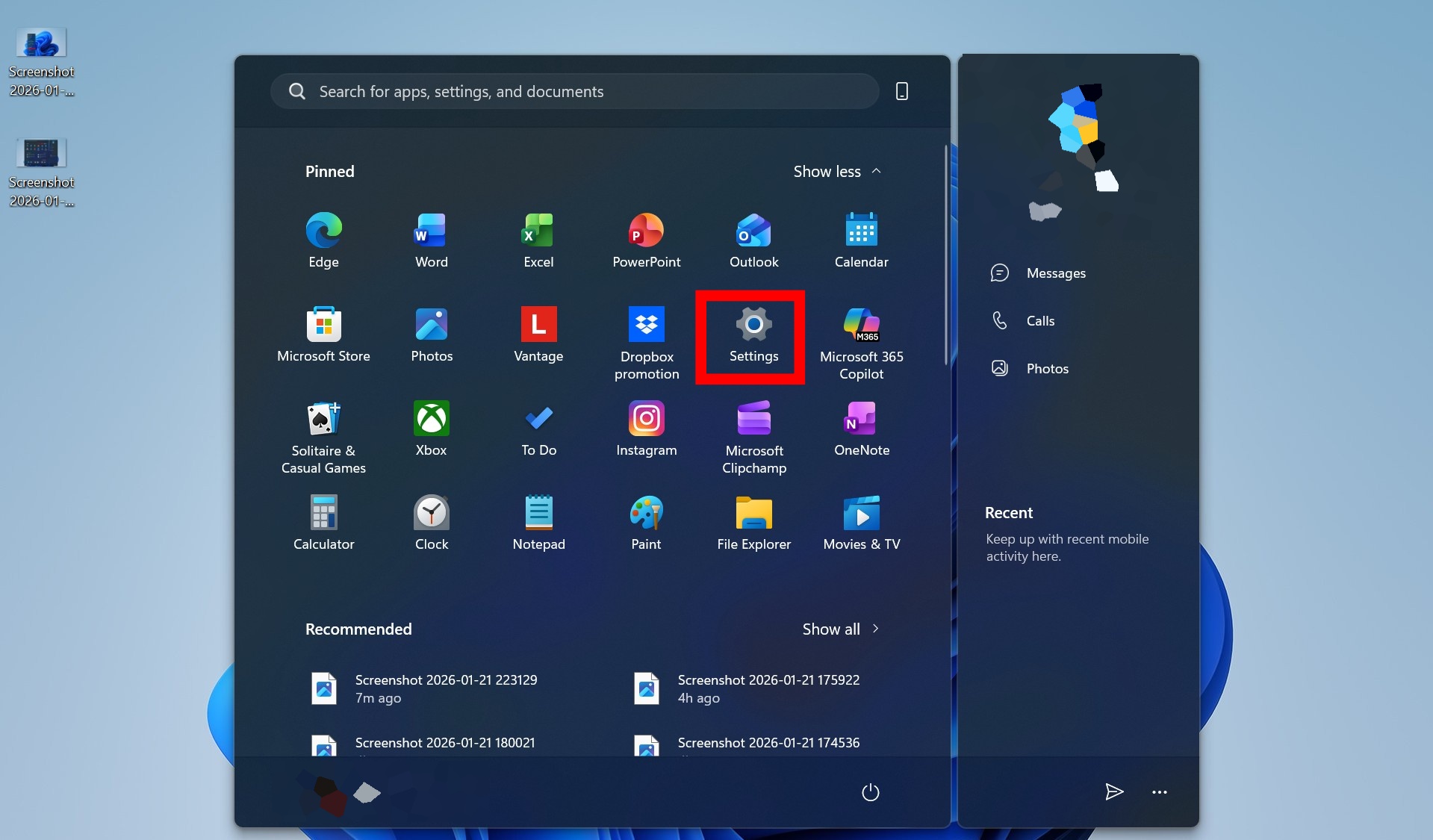
If the icon is not visible:
- Click All apps
- Scroll down to S
- Select Settings
You can also pin Settings next to the power button for quicker access.
Open Settings Using Search
Windows Search lets you open Settings with just a few keystrokes.
Steps
- Click the Search button on the Taskbar or press Windows key + S.
- Type Settings.
- Select the top result.
This method works well when you already use Search for apps and files.
Open Settings from the Taskbar and Quick Settings
The Taskbar includes several shortcuts that open the Settings app or specific pages inside it.
Available Options
- Right-click the Taskbar and choose Taskbar settings
- Press Windows key + A, then click the Settings (gear) button
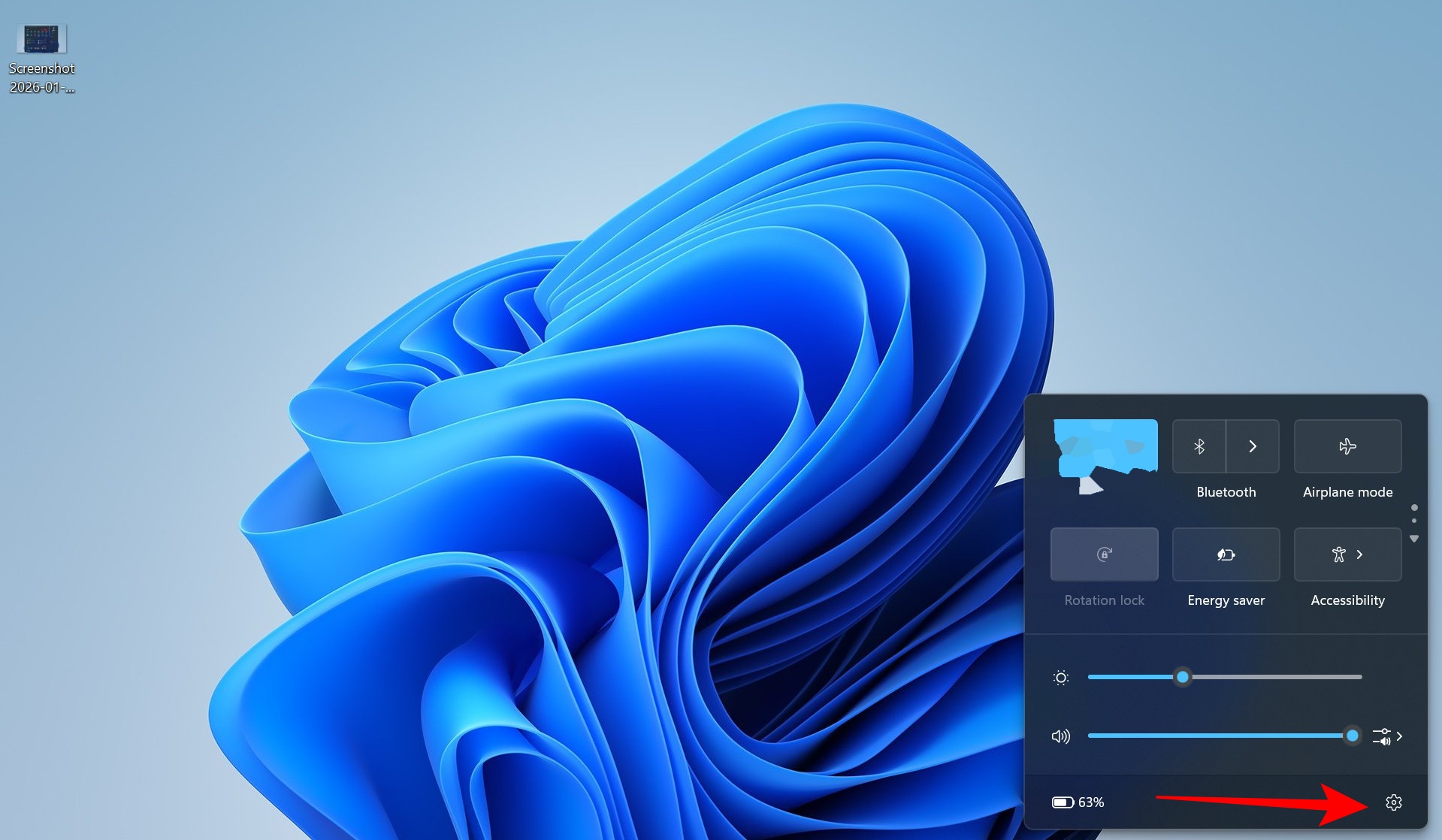

- Right-click the clock, network, or volume icons to open related Settings pages
You can also pin the Settings app to the Taskbar:
- Open Start.
- Right-click Settings.
- Choose Pin to taskbar.
Open Settings Using the Run Command
The Run dialog offers a quick way to open Settings using commands.
Steps
- Press Windows key + R.
- Type
ms-settings: - Click OK.
You can also open specific pages directly using this command.
Examples
| Command | Opens |
|---|---|
| ms-settings:windowsupdate | Windows Update |
| ms-settings:signinoptions | Sign-in options |
| ms-settings:display | Display settings |
Open Settings from the Desktop Context Menu
You can access some Settings pages directly from the desktop.
Steps
- Right-click on the desktop.
- Choose Display settings or Personalize.
This opens the Settings app to the selected section.
Windows 11 provides many simple and flexible ways to open the Settings app, whether you prefer using the keyboard, mouse, or system menus. Learning these methods helps you access system controls faster and manage your device more efficiently. Once you find the method that fits your workflow, navigating Windows 11 becomes quicker and more convenient.
Discussion (0)
Be the first to comment.