




Facebook Messenger does not include a direct log out button on iPhone or iPad. Meta designed Messenger to stay linked to your Facebook account, so you need a workaround to sign out. The steps below show the fastest and most reliable ways to log out completely on iOS.
Table of contents
Fastest way to log out of Messenger on iPhone and iPad
The quickest method depends on whether the Facebook app sits on your device. Start with the Facebook app method, then move to iOS Settings if needed.
Log out of Messenger using the Facebook app
Signing out of the Facebook app also disconnects Messenger on the same device.
- Open the Facebook app on your iPhone or iPad.
- Next tap Menu.
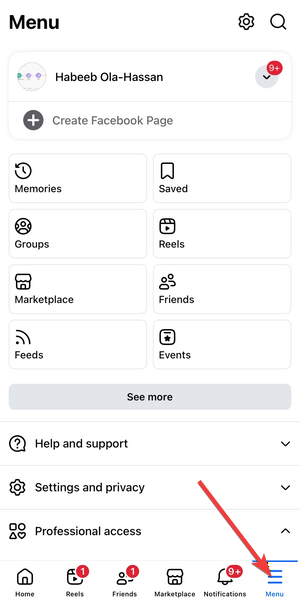

- Lastly, scroll down, and choose Log out.
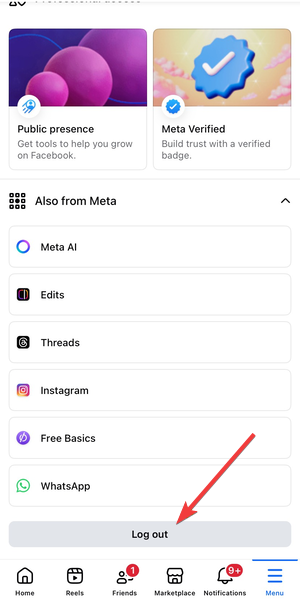

- Close both the Facebook and Messenger apps.
Messenger loses access immediately because Facebook ends the active session.
Alternative methods that also sign you out of Messenger
Some setups require a different approach, especially when multiple accounts exist.
Remove your Facebook account from Messenger
Messenger can remove the linked account without uninstalling the app.
- Open Messenger.
- Next, tap the Menu option in the bottom right corner.
- Now, tap your profile at the top.
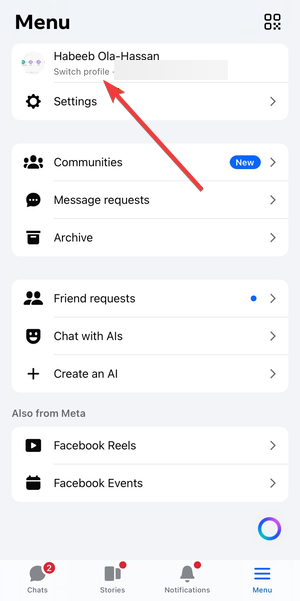

- Finally, select Log into another account.
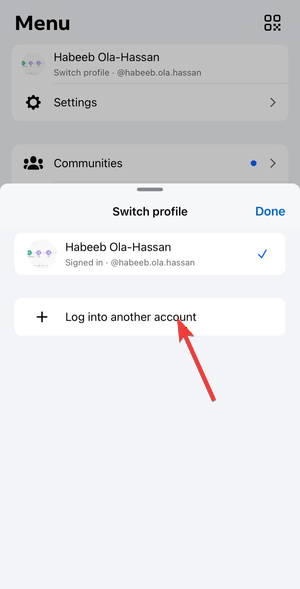

After removal, Messenger should return to the login screen.
Delete and reinstall the Messenger app
Reinstalling Messenger clears stored sessions and cached data.
- Press and hold the Messenger app icon.
- Tap Remove App, then tap Delete App.


- Restart your iPhone or iPad.
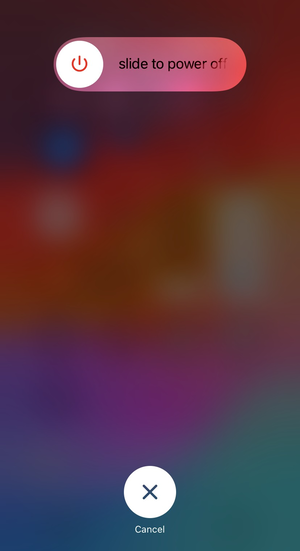

- Reinstall Messenger from the App Store.
Use this option if Messenger keeps signing you back in automatically.
iPhone vs iPad differences you should know
On iPad, menus may appear in a split layout instead of stacked screens. The Settings paths stay the same, but options may show in side panels. Check the left sidebar on iPad when you cannot find an option right away.
How to confirm you’re fully logged out of Messenger
A successful log out shows the Messenger login screen when you open the app. You should stop receiving new messages and notifications tied to that account. If chats still appear, repeat the sign-out steps and force-close the app again.
Common problems and fixes
- Messenger logs back in automatically: Auto-login often happens when Facebook stays signed in on the device. Log out of the Facebook app first, then remove the Messenger account from iOS Settings. If the issue persists, reinstall Messenger to clear the session.
- Notifications still appear after logging out: Notifications can linger if the account did not fully disconnect. Open Messenger settings and confirm no account remains listed. Restart your iPhone or iPad to refresh notification services.
Tips for managing Messenger accounts on iOS
- Log out of the Facebook app before you switch Messenger accounts.
- Disable app restores if you want a cleaner sign-out after reinstalling.
- Use separate device profiles if you share an iPad with family members.
FAQs
Does deleting Messenger log me out of Facebook?
No. Deleting Messenger removes the app and its local session, but your Facebook account can stay signed in elsewhere.
Will logging out of the Facebook app always log out of Messenger?
In most cases, yes, because Messenger uses the same Facebook session on the device. If Messenger still shows your chats, remove the account in iOS Settings or reinstall Messenger.
How do I log out of one Messenger account but keep another?
Use Switch accounts in Messenger and remove only the account you want to sign out. If you cannot find it, remove the account through iOS Settings instead.
Can I log out of Messenger remotely?
You can sign out of active sessions from your Facebook account security settings on the web. After you end the session, reopen Messenger on your iPhone or iPad and confirm it shows the login screen.
Summary
- Messenger does not include a built-in log out button on iOS.
- Log out of the Facebook app first to disconnect Messenger faster.
- Reinstall Messenger if it keeps auto-logging in.
Logging out of Facebook Messenger on iPhone and iPad requires a workaround, not a hidden button. Start with the Facebook app sign-out, then remove the Messenger account in iOS Settings if needed. When Messenger shows the login screen, you have fully signed out on that device.


Discussion (0)
Be the first to comment.