



A Belkin router uses a local IP address and a browser login page to access its settings. Most login issues happen because the wrong IP or password is used. This guide explains how you can reach the dashboard, fix access problems, and reset the router when needed.
Table of contents
Check your Belkin router’s default login details
You need the correct IP address and login credentials before accessing the router. Belkin devices often use the same defaults across multiple models, which helps identify the proper entry point.
Find the default Belkin router IP address
Most Belkin routers use 192.168.2.1. Some ISP-provided models may use a different gateway value, so check your network adapter details if the page does not open. This prevents confusion when the login page fails to load.
Find default username and password
Belkin usually leaves the username field empty. The password may be set to “admin” or printed on the router label. Using the correct default removes most login errors.
Log into the Belkin router using a browser
Browser login works on Windows, macOS, and ChromeOS. These steps give you the fastest route to the Belkin dashboard.
Connect to the router network
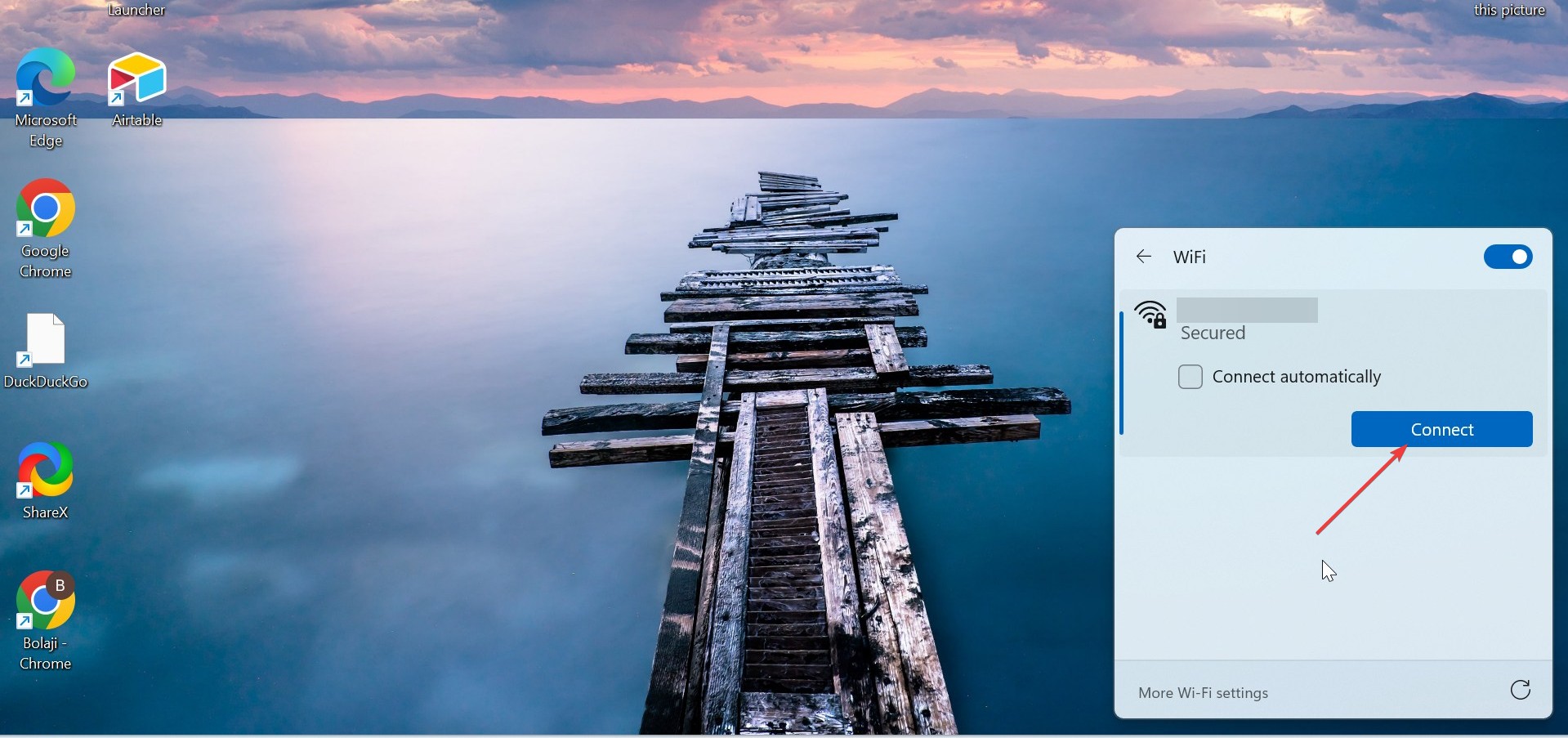
Connect to the the Belkin router’s WiFi or plug in with an Ethernet cable. This ensures the device allows direct access to the admin page. Avoid guest networks because they block router management features.
Enter the router login IP in the browser
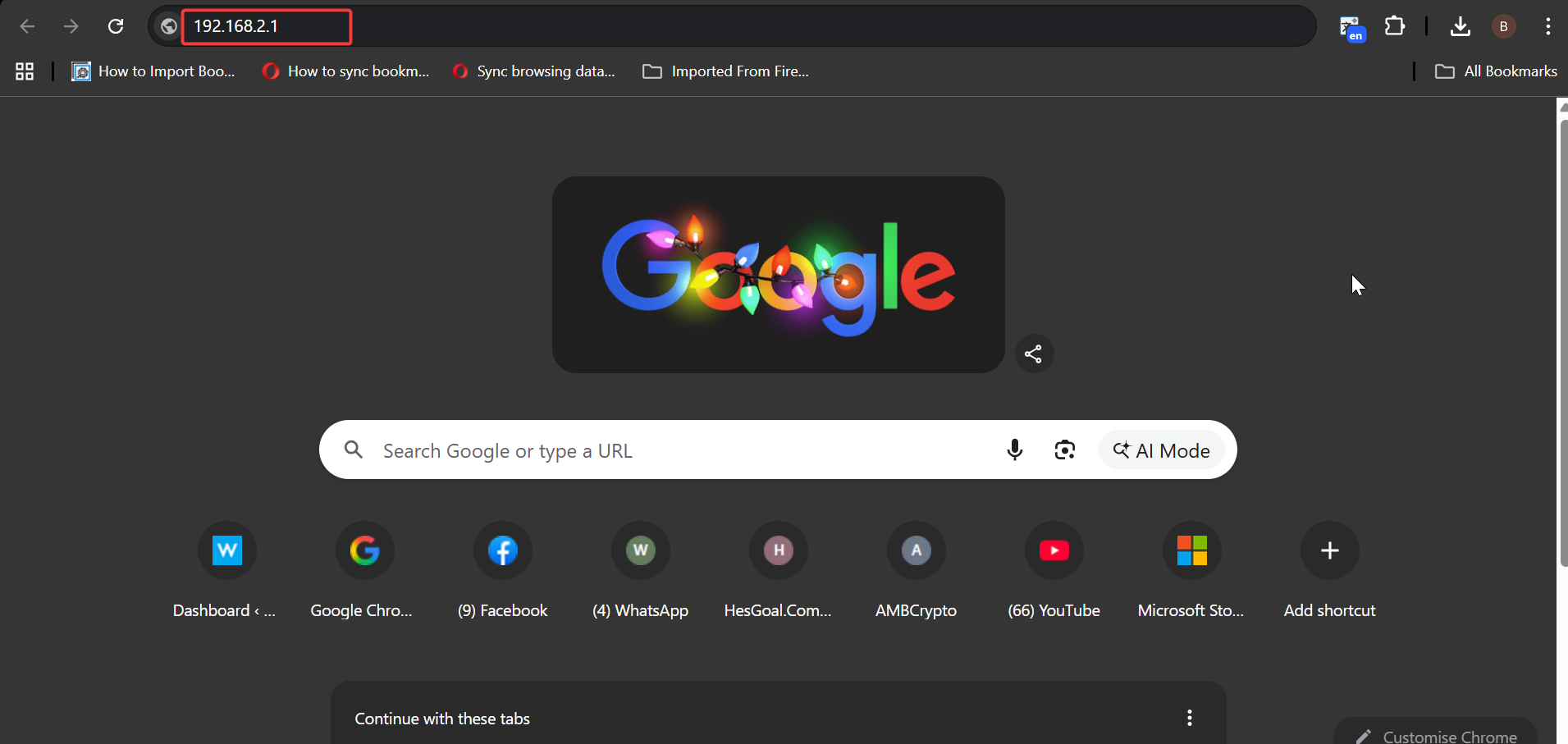
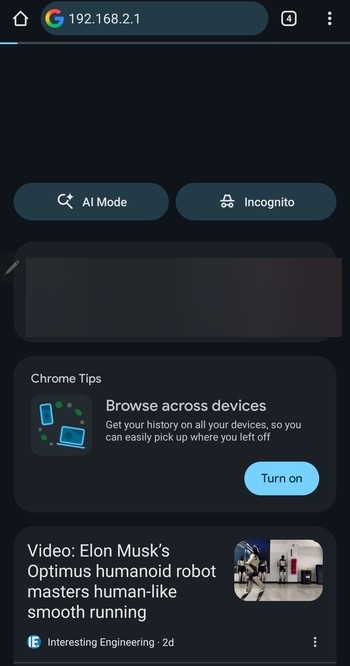
Type 192.168.2.1 into the browser’s address bar and press Enter. Make sure you don’t use the search bar because that triggers a web search instead of opening the router. Some Belkin routers also respond to https://router as a shortcut.
Enter your login credentials
Enter the correct password when the login screen appears. Older Belkin firmware uses a simple text box, while newer models display a cleaner login layout. After signing in, the dashboard loads with options for WiFi, security, and network tools.
Log into your Belkin router from a phone
Many users manage routers from their phones. Mobile browsers can load the login page as long as you use the correct gateway address.
Find the router IP on iPhone or Android
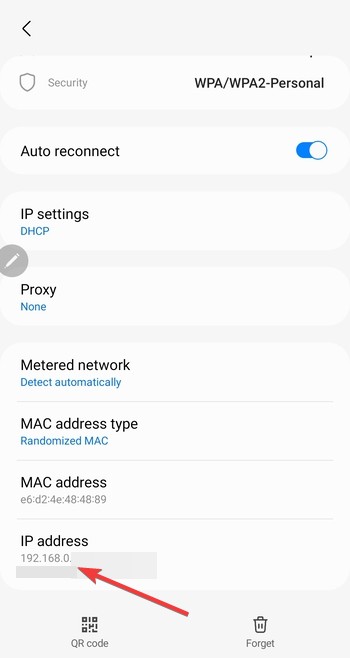
Open your WiFi settings and tap the connected network. Your phone displays the “Router” or “Gateway” address. This value replaces 192.168.2.1 if your device uses a different IP.
Open the Belkin login page in a mobile browser
Type the IP into Safari or Chrome to reach the admin page. Some mobile browsers warn you about unsecured pages when HTTP is used. Continue to the site to access the login screen.
Reset your Belkin router if the password doesn’t work
A reset restores factory defaults when the admin password gets lost. You regain access to the dashboard but must reconfigure the device afterward.
Use the router reset button
Press and hold the reset button for about 10 seconds. The router restarts and loads its original settings. This clears custom passwords and configurations.
Reconfigure the router after reset
Log in again using the default credentials. Set up your WiFi name, password, and admin login to secure the router. Update both bands if the router supports dual-band WiFi.
Fix issues when you can’t reach the Belkin login page
- Check if you’re connected to the correct network: Phones may switch to cellular data or another WiFi band. Connect directly to the Belkin network before retrying the login page.
- Resolve browser security blocks on the login page: Modern browsers block some HTTP pages by default. Use the option to continue to the local address so you can reach the login screen safely.
- Try the alternate Belkin login URLs: Some routers support additional access URLs like https://router or https://192.168.2.1/login. Using these alternatives helps when the primary address fails.
- Fix DNS or VPN conflicts: VPNs, custom DNS, and private browsing features can block local IP connections. Turn them off temporarily and reload the login page.
- Log in via Ethernet if WiFi login fails: A wired connection bypasses wireless interference and routing errors. This gives you a stable connection for the login process.
Tips for secure Belkin router access
- Change the admin password after your first login.
- Disable remote management unless you need it.
- Use WPA2 or WPA3 for wireless security.
- Create a guest network to protect your main connection.
- Check for firmware updates in the router dashboard.
FAQs
Why can’t I access 192.168.2.1? The router may use a different gateway address. Check your network details to confirm the correct IP and make sure you’re connected to the Belkin network.
What if the Belkin login page loads slowly or times out? A weak wireless signal, VPN use, or DNS conflicts can cause timeouts. Switch to Ethernet or disable VPN and retry the login page.
How do I find my router’s WiFi password? Open the router dashboard and check the Wireless section for the active password. If you can’t log in, look for a sticker on the router base.
Can I change Belkin router settings from another device on the network? Yes. Any device connected to the same network can open the router login page using the correct IP address and password.
Summary
- Identify the default Belkin IP address and credentials.
- Connect to the router network and open the IP in your browser.
- Use the correct default password to enter the dashboard.
- Fix login issues by checking networks, DNS, and browser settings.
- Reset the router if the admin password cannot be recovered.
Belkin routers offer a straightforward login process once you use the correct IP and credentials. These steps help you access the dashboard, fix connection issues, and reset the device when needed.
Discussion (0)
Be the first to comment.