



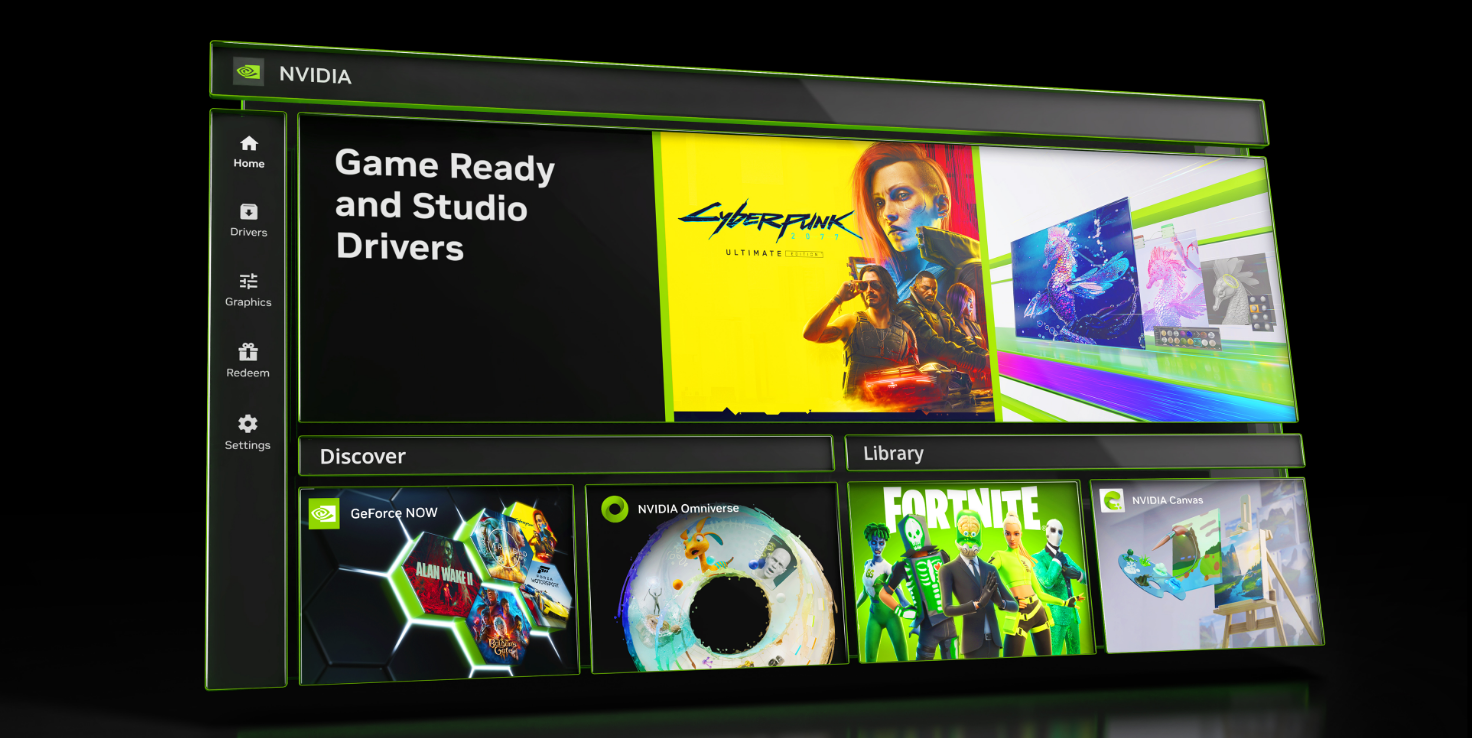
The NVIDIA App is the new unified application that replaces older NVIDIA tools like GeForce Experience and NVIDIA Control Panel for many users. It lets you manage GPU drivers, optimize games, adjust graphics settings, and access NVIDIA features from one place.
This guide explains how to install the NVIDIA App on Windows, how to use its main features, and what you should know before switching.
What Is the NVIDIA App
The NVIDIA App is NVIDIA’s modern GPU management tool designed to simplify driver updates, game optimization, and system monitoring.
It combines features from:
- GeForce Experience
- NVIDIA Control Panel
- NVIDIA overlay tools
The goal is to provide a cleaner interface with fewer background services.
System Requirements
Before installing the NVIDIA App, make sure your system meets these requirements:
- Windows 10 or Windows 11
- Compatible NVIDIA GPU
- Internet connection for driver downloads
- Administrator access
Older GPUs may not support all features.
How to Install the NVIDIA App on Windows
Follow these steps to install the NVIDIA App safely.
Step-by-Step Installation
- Open your web browser
- Visit NVIDIA’s official website
- Download the NVIDIA App installer
- Run the downloaded setup file
- Follow the on-screen instructions
- Restart your PC if prompted
Once installed, the app automatically detects your GPU.
How to Use the NVIDIA App
After installation, launch the NVIDIA App to access its features.
Update NVIDIA Graphics Drivers
Steps:
- Open the NVIDIA App
- Go to the Drivers section
- Check for available updates
- Click Download and Install
Keeping drivers updated improves performance and stability.
Optimize Games Automatically
Steps:
- Open the Games section
- Select a supported game
- Click Optimize
The app adjusts graphics settings based on your hardware.
Manage Graphics Settings
You can control:
- GPU performance profiles
- Resolution and refresh rate
- Power management settings
These options replace many Control Panel settings.
Monitor System Performance
The NVIDIA App provides:
- GPU usage
- Temperature monitoring
- FPS tracking
This helps diagnose performance issues during gaming.
| Feature | NVIDIA App | GeForce Experience |
|---|---|---|
| Interface | Modern and simplified | Older design |
| Driver updates | Yes | Yes |
| Game optimization | Yes | Yes |
| Overlay features | Integrated | Separate |
| Control Panel functions | Integrated | Limited |
| Background services | Fewer | More |
The NVIDIA App is designed to be lighter and more unified.
Common Issues and Fixes
NVIDIA App Not Opening
Fixes:
- Update Windows
- Reinstall the app
- Update GPU drivers manually
App Not Detecting GPU
Fixes:
- Ensure correct NVIDIA drivers are installed
- Check Device Manager for GPU status
- Restart NVIDIA services
Driver Download Fails
Fixes:
- Check internet connection
- Disable VPN temporarily
- Run the app as administrator
Final Thoughts
The NVIDIA App is a modern replacement for older NVIDIA utilities, offering a cleaner interface and better integration of driver updates, game optimization, and performance monitoring. For most users, it simplifies GPU management and reduces the need for multiple NVIDIA tools.
If you use an NVIDIA graphics card on Windows, installing the NVIDIA App is worth considering.
FAQs
Is the NVIDIA App free
Yes, it is completely free.
Does it replace NVIDIA Control Panel
For many settings, yes, but some advanced options may still require the Control Panel.
Is it required for NVIDIA GPUs
No, but it simplifies driver and settings management.
Does it affect gaming performance
No negative impact when used normally.


Discussion (0)
Be the first to comment.