



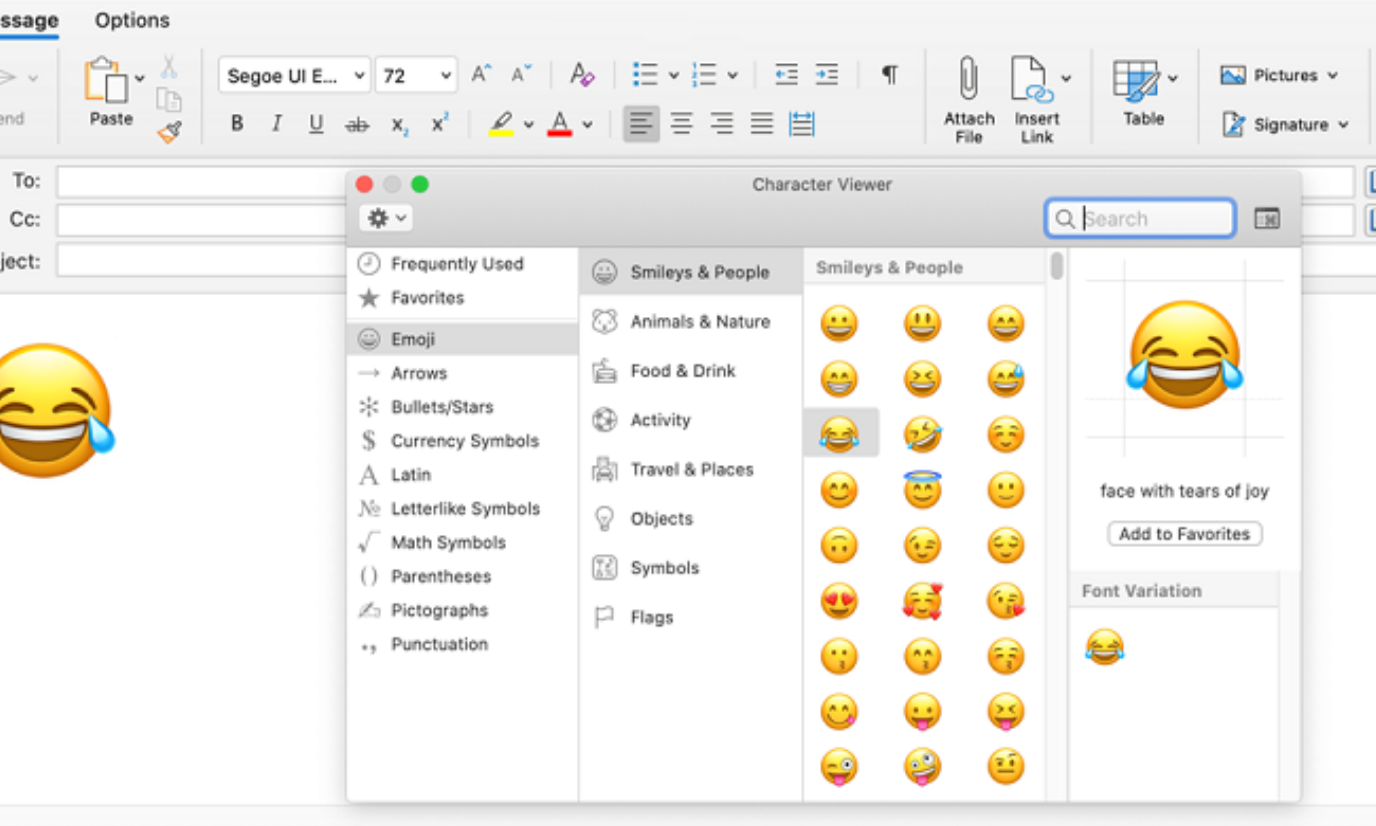
If you want to insert emojis in a Microsoft Outlook email, you can do it using the built-in emoji panel in Windows or through Outlook’s formatting tools. Emojis can make emails more expressive and help convey tone, especially in informal messages or internal communication.
Microsoft Outlook supports emojis in both the desktop app and the web version. This guide explains the easiest ways to insert emojis in Outlook emails.
Why Use Emojis in Outlook Emails?
Emojis can make messages clearer and more engaging when used appropriately.
People often use emojis in emails to:
- Add friendly tone to messages
- Highlight important points
- Make emails more engaging
- Improve communication in casual or team conversations
However, they should be used carefully in formal or professional communication.
Insert Emojis in Outlook Using the Windows Emoji Panel
The fastest way to add emojis in Outlook is by using the Windows emoji keyboard.
Step 1: Open a New Email
- Launch Microsoft Outlook.
- Click New Email to start composing a message.
Step 2: Open the Emoji Panel
- Place your cursor where you want the emoji.
- Press the keyboard shortcut:
Windows + . (period)
or
Windows + ; (semicolon)
This opens the Windows emoji panel.
Step 3: Insert an Emoji
- Browse the available emojis.
- Click the emoji you want to use.
The emoji will appear in your email message.
Insert Emojis Using Outlook Web
If you are using Outlook in a web browser, the process is slightly different.
- Open Outlook Web.
- Click New message.
- In the message editor, click the emoji icon in the formatting toolbar.
- Select an emoji from the list.
The emoji will be inserted into your email.
Insert Emojis by Copying and Pasting
Another simple method is copying emojis from an online emoji library.
Steps:
- Find the emoji you want online.
- Copy it.
- Paste it into your Outlook email.
Outlook supports most modern emojis.
Tips for Using Emojis in Professional Emails
Emojis can be helpful but should be used thoughtfully.
Helpful tips include:
- Use emojis sparingly in work emails
- Avoid emojis in formal business communication
- Use simple emojis that clearly convey meaning
- Ensure the emoji is appropriate for the message
Overusing emojis may make emails appear unprofessional.
Final Thoughts
Learning how to insert emojis in a Microsoft Outlook email can help make your messages more expressive and engaging. The easiest method is using the Windows emoji panel, which works across most Windows applications.
Whether you use Outlook desktop or the web version, adding emojis is quick and can enhance communication when used appropriately.
FAQs
What is the shortcut to insert emojis in Outlook?
Press Windows + . (period) or Windows + ; (semicolon) to open the emoji panel.
Can I use emojis in Outlook emails?
Yes. Outlook supports emojis in both the desktop and web versions.
Why don’t emojis appear correctly in some emails?
Some older email clients may not support newer emoji formats.
Are emojis appropriate in professional emails?
They can be used in casual workplace communication but should be limited in formal emails.


Discussion (0)
Be the first to comment.