



Need to hide a quick search or keep a surprise gift secret? Learning how to go on incognito mode on Mac helps you browse without saving history, cookies, or autofill data in your main browser profile. This guide explains private browsing on Mac in Safari, Google Chrome, Mozilla Firefox, Microsoft Edge, and Opera.
Incognito Mode On Mac is perfect when you share a Mac with family, use a work laptop at home, or sign in on a public computer. Just remember that private browsing does not hide activity from your Internet provider, employer, school, or the websites you visit.
What Incognito Mode On Mac Actually Does
Every Mac browser has its own name for private browsing, but the basics stay the same. When you open a private or incognito window, the browser creates a temporary session that does not reuse your normal history and cookies.
When you close all private windows, the browser discards that session. Your Mac will not keep:
- Visited page history in the browser
- Search bar and address bar entries tied to that window
- Regular cookies and site data from the private session
- Form entries such as names, emails, or addresses you typed
However, private browsing on Mac still allows:
- Files you download to stay on disk until you delete them
- Bookmarks you save to remain in your main profile
- Tracking by your Internet provider, school, employer, or website analytics
With those limits in mind, here is how to turn on Incognito Mode on Mac in each major browser.
How To Go On Incognito Mode On Mac In Any Browser
You can open a private window from the menu or by using a keyboard shortcut. The exact steps change slightly between Safari, Google Chrome, Firefox, Microsoft Edge, and Opera.
Use Private Browsing In Safari On Mac
Safari is the default browser on macOS, so most users start Incognito Mode on Mac here. Apple calls it a Private Window.
To open a Safari Private Window:
- Click the Safari icon in the Dock to launch the browser.
- In the top menu bar, select File.
- Choose New Private Window.
- Alternatively, press Shift + Command + N on your keyboard.

You will see a darker Smart Search field and a brief message explaining Private Browsing. That visual change confirms you are now using Safari Private Browsing on Mac.
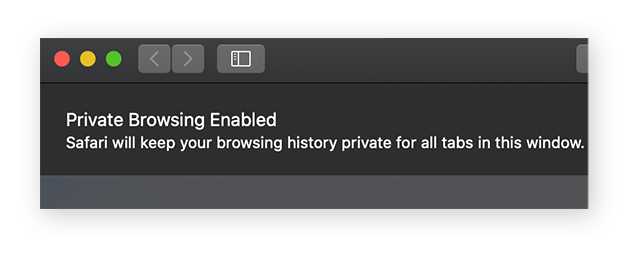
To exit private browsing in Safari:
- Close the Private Window by clicking the red close button in the top-left corner.
- Or press Command + W until all private tabs and windows close.

Open Chrome Incognito Mode On Mac
If you use Google Chrome on Mac, private browsing appears as Incognito Mode. This mode keeps your main Chrome profile clean while you test sites, sign in with a different account, or search for sensitive topics.
To open an Incognito window in Chrome:
- Launch Google Chrome from the Dock or Applications folder.
- Click the three-dot menu in the top-right corner.
- Select New Incognito Window.
- Or press Shift + Command + N as a shortcut.
Chrome Incognito Mode On Mac shows a dark theme with the classic hat-and-glasses icon. A short message explains what data Chrome will and will not save.
To leave Incognito Mode in Chrome:
- Close the Incognito Window using the red close button.
- Or press Command + W to close the current Incognito tab or window.
Start Private Browsing In Firefox On Mac
Mozilla Firefox uses the term Private Window and highlights it with a purple mask icon. Private browsing in Firefox is helpful when you want stricter tracking protection on Mac.
To open a Private Window in Firefox:
- Open Mozilla Firefox on your Mac.
- Click the three-line menu in the upper-right corner.
- Choose New Private Window.
- Or use the shortcut Shift + Command + P.
The new Firefox window will show a purple mask icon and a brief description of Enhanced Tracking Protection. That confirms Private Browsing has started.
To exit Private Browsing in Firefox:
- Close the Private Window using the red close button.
- Or press Command + W until you return to normal windows.
Use InPrivate Browsing In Microsoft Edge On Mac
Microsoft Edge brings the Windows-style InPrivate browsing mode to macOS. If you signed into Edge with a Microsoft account, InPrivate browsing on Mac keeps that activity out of your main history.
To open an InPrivate window in Edge:
- Launch Microsoft Edge on your Mac.
- Click the three-dot menu in the top-right corner.
- Select New InPrivate Window.
- Or press Shift + Command + N as a shortcut.
You will see an InPrivate label and a short explanation of what Edge saves. That confirms you are using Edge private browsing on Mac.
To close InPrivate browsing:
- Click the red close button on the InPrivate window.
- Or press Command + W to close tabs until the window closes.
Open A Private Window In Opera On Mac
Opera also supports private browsing on Mac through its Private Window mode. It combines built-in tracking protection with a clean private session.
To start a Private Window in Opera:
- Open Opera from the Dock or Applications folder.
- Click File in the top menu bar, then choose New Private Window.
- Or press Shift + Command + N to open one directly.
The private window shows a mask icon and a short privacy message. That indicates Opera private browsing is active on your Mac.
To end private browsing in Opera:
- Close the Private Window using the red close button.
- Or use Command + W until all private tabs close.
Incognito Mode Limits On Mac
Private browsing on Mac is great for hiding local traces of what you did in the browser. It does not make you invisible online. To understand what Incognito Mode On Mac does not cover, keep these limits in mind.
- Your Internet provider can still see traffic that passes through its network.
- Your workplace or school can monitor activity on a managed Mac or Wi-Fi network.
- Websites can still log your visits, collect analytics, and use fingerprinting techniques.
- Any files you download stay on your Mac until you remove them manually.
- Malware, phishing, and unsafe downloads remain dangerous, even in Incognito Mode.
If you want an extra layer of privacy, combine Incognito Mode with a trusted VPN service to encrypt your connection before it leaves your Mac.
Quick Tips For Private Browsing On Mac
- Open a private window whenever you sign in to banking, healthcare, or shared email accounts on a public Mac.
- Use separate private windows to stay logged in to different accounts on the same site at once.
- Close all private windows when you finish so Mac clears that temporary session.
- Avoid installing new extensions while in Incognito Mode unless you fully trust the developer.
- Use a password manager instead of saving passwords in any browser, private or not.
Frequently Asked Questions
Does Incognito Mode Hide My IP Address On Mac?
No. Incognito Mode On Mac does not change your IP address. Websites and network admins can still see which device connects. You need a VPN or privacy-focused router to mask your IP.
Can I Make Every New Window Incognito By Default?
Some browsers let you change the default startup behavior. For example, you can set Safari to open with a New Private Window in Safari > Settings > General. Other browsers require you to open a private window manually each time.
Why Do Sites Still Recognize Me In Incognito Mode?
Even when you use private browsing on Mac, websites can identify you with logins, browser fingerprinting, or network data. Incognito Mode mainly hides history and cookies from other users of your Mac, not from the sites themselves.
Is Incognito Mode Enough For Sensitive Work Data?
Incognito Mode helps keep work searches out of your personal history, but it does not replace company security tools. For sensitive data, follow your employer’s security policy and use approved VPN, browser, and endpoint protection tools.
How Do I Clear Regular History If I Forgot To Use Incognito Mode?
Every Mac browser lets you clear history after the fact. Open your browser settings, look for History or Privacy, and choose options to delete recent browsing history, cookies, and cache for the time range you want.
Troubleshooting steps
- Close all private windows to reset the incognito session fully.
- Restart the browser if a private window refuses to open or loads with old cookies.
- Disable problematic extensions that may override private browsing behavior.
- Update the browser when keyboard shortcuts stop working for private mode.
- Clear regular browsing data if sites still auto-log you in outside of Incognito Mode.
Summary
- Incognito Mode on Mac stops browsers from saving history, cookies, and form entries.
- Safari, Chrome, Firefox, Edge, and Opera all support private windows with quick shortcuts.
- Private browsing does not hide activity from your provider, employer, or visited websites.
- Downloads and bookmarks remain saved outside of private mode.
- Use a VPN if you need network-level privacy in addition to local browsing privacy.
Conclusion
Once you know how to go on Incognito Mode On Mac, you can keep casual browsing separate from your main history in every major browser. Safari, Chrome, Firefox, Edge, and Opera all offer a fast way to open a Private or Incognito window with a simple menu option or keyboard shortcut.
Use private browsing on Mac when you share a computer, test websites, or sign in to accounts you do not want saved in your normal profile. Combine it with good security habits and, when needed, a VPN to protect more of your online activity beyond your local device.
Discussion (0)
Be the first to comment.