




If you need to check when and where a photo was taken, or which camera settings were used, iPhone makes this easier than most users realize. iOS stores detailed photo metadata automatically, and you can access it using built-in tools or third-party apps, depending on how much detail you need.
Table of contents
- Understand what photo metadata is on iPhone
- View photo metadata using the Photos app
- Get detailed EXIF metadata using third-party apps
- View metadata for multiple photos at once
- Export photo metadata from an iPhone
- Remove or hide photo metadata for privacy
- Why photo metadata may be missing or incomplete
- Tips for working with photo metadata on iPhone
- FAQs
- Summary
Understand what photo metadata is on iPhone
Photo metadata is extra information saved alongside an image file. It helps identify when a photo was taken, where it was captured, and how the camera was configured.
Types of metadata stored in iPhone photos
iPhone photos mainly include EXIF data like date, time, camera model, and exposure settings. Some images also contain location data and limited IPTC-style details added by apps or edits.
View photo metadata using the Photos app
The Photos app provides the quickest way to view basic metadata without installing anything.
Check metadata from a single photo
- Open the Photos app.
- Tap any photo to open it.
- Swipe up on the photo or tap the ⓘ Info button.


You’ll see the date, time, file size, camera type, and basic exposure details.
See location data on the photo map
If location services were enabled, the info panel shows a small map preview. Tapping it opens the exact capture location inside Photos.

What metadata you cannot see in Photos
Photos does not show full EXIF data like ISO, shutter speed, white balance, or lens details. It also hides technical file headers and embedded app data.
Get detailed EXIF metadata using third-party apps
Some users need more than Photos provides, especially photographers and content creators.
When a third-party app makes sense
Install a dedicated metadata app, like Photo Metadata Viewer, if you need advanced camera settings, lens data, or technical validation for images.

What extra data these apps reveal
Third-party tools display ISO values, shutter speed, focal length, aperture, color profiles, and sometimes editing history.
View metadata for multiple photos at once
Batch inspection remains limited on iOS, but a few options exist.
Batch metadata viewing limitations on iOS
Photos only shows metadata one image at a time. iOS does not include a native batch metadata view.
Workarounds for batch inspection
You can select multiple photos and use third-party apps or export them to a Mac or PC for batch metadata analysis.
Export photo metadata from an iPhone
Exporting metadata matters when sharing images for work, verification, or archiving.
Export metadata with the image file
AirDrop and direct file transfers usually preserve full metadata. Messaging apps and social networks often remove it automatically.
Export metadata separately
Some apps let you export metadata as a text or CSV file, which helps with audits or image catalogs.
Remove or hide photo metadata for privacy
Metadata can expose sensitive details, especially location data.
Remove location data before sharing
When sharing a photo, tap Options at the top and disable Location. iOS removes GPS data before sending.
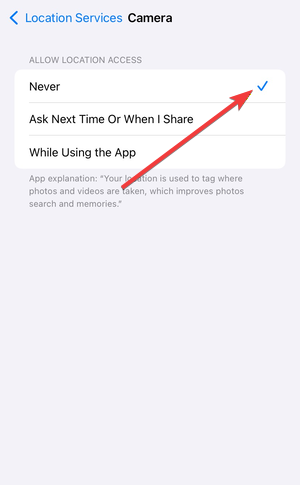
Disable location metadata for future photos
Go to Settings → Privacy & Security → Location Services → Camera, then set it to Never or While Using without Precise Location.
Why photo metadata may be missing or incomplete
Missing metadata usually has a simple explanation.
Screenshots, downloads, and edited photos
Screenshots and downloaded images often lack camera data. Heavy editing can also strip or overwrite metadata.
Photos shared through apps or social networks
Most social platforms remove metadata automatically to protect user privacy and reduce file size.
Tips for working with photo metadata on iPhone
- Check metadata before editing or sharing photos.
- Use AirDrop instead of messaging apps to preserve data.
- Disable camera location access if privacy matters.
- Use third-party apps only when you need advanced details.
- Keep iOS updated to avoid Photos app UI changes.
FAQs
How do I see EXIF data on iPhone without apps?
You can only view basic metadata like date, location, and camera type using the Photos app.
Does iPhone remove metadata when sending photos?
Yes, many sharing methods remove metadata unless you explicitly allow it.
Can I recover metadata from an edited photo?
Sometimes. Light edits preserve most EXIF data, but filters and exports may remove it.
Do screenshots have metadata on iPhone?
Screenshots usually include date and device info but no camera data.
Summary
- Photos app shows basic metadata quickly.
- Advanced EXIF details require third-party apps.
- Batch viewing works best outside iOS.
- Sharing methods often remove metadata.
- Privacy settings control future photo data.
iPhone stores more photo metadata than most users expect, but Apple keeps advanced details hidden by default. Once you know where to look and when to use extra tools, you can inspect, export, or remove photo metadata with confidence and control.


Discussion (0)
Be the first to comment.