




If your Apple Watch keeps running out of storage, updates fail, apps stop syncing, and performance drops. Storage fills up fast because apps, music, photos, and messages sync automatically in the background. Clearing the right data in the right order restores space quickly and prevents the issue from coming back.
Table of contents
- Check what’s using storage on Apple Watch
- Remove apps you no longer use
- Delete music, podcasts, and audiobooks
- Remove photos synced to Apple Watch
- Clear messages and mail data
- Turn off automatic app installs
- Restart Apple Watch to refresh storage
- Unpair and re-pair Apple Watch (last resort)
- Tips to keep Apple Watch storage from filling again
- FAQs
- Summary
Check what’s using storage on Apple Watch
Before deleting anything, identify what actually consumes your storage. This step helps you focus on items that free the most space first.
Check storage directly on Apple Watch
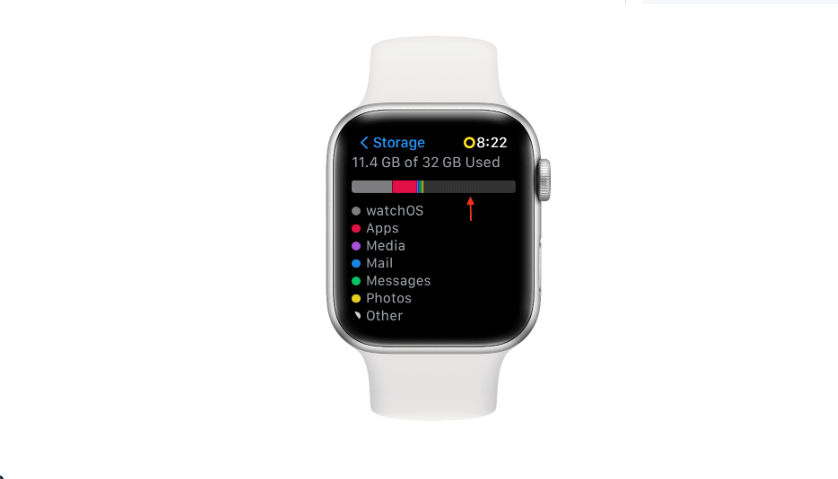
To check your Apple Watch storage directly from the watch, open Settings, tap General, then tap Storage. You’ll see the total used space and a list of apps ranked by size.
Check storage from the iPhone Watch app
Open the Watch app on your iPhone, go to General → Storage. This view updates faster and shows a clearer breakdown of apps and media.

Remove apps you no longer use
Unused apps often store cached data that grows over time. Removing them frees space immediately.
Delete apps directly from Apple Watch
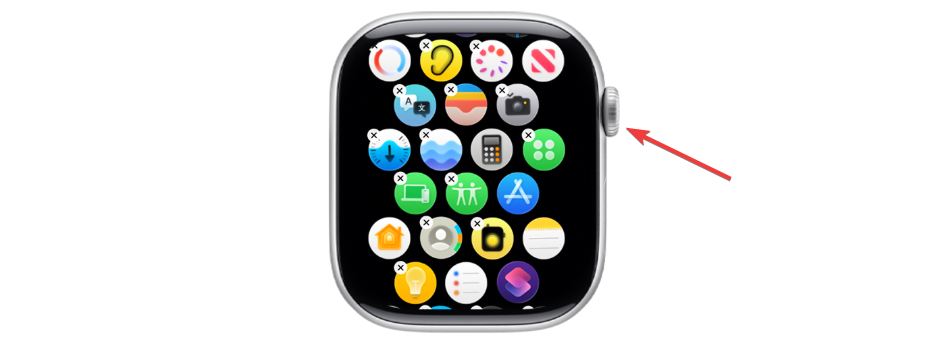
Press the Digital Crown, tap and hold an app icon, then tap Remove App. Use this when storage is almost full and apps fail to update.
Remove apps using the iPhone Watch app
Open the Watch app, scroll to Installed on Apple Watch, tap an app, then turn off Show App on Apple Watch. This method works better when apps refuse to uninstall on the Watch.
Delete music, podcasts, and audiobooks
Offline audio files take up more space than most apps combined.
Remove synced music from Apple Watch
Open the Watch app, tap Music, then remove downloaded playlists or albums. Turn off automatic music syncing to stop future downloads.
Delete podcasts and audiobooks
Go to Watch app → Podcasts or Audiobooks, then remove downloaded episodes or titles. Podcasts often re-download automatically, so disabling auto-sync helps long-term.
Remove photos synced to Apple Watch
Photos sync quietly and accumulate over time, especially if you take many screenshots or burst photos.
Reduce or disable photo syncing
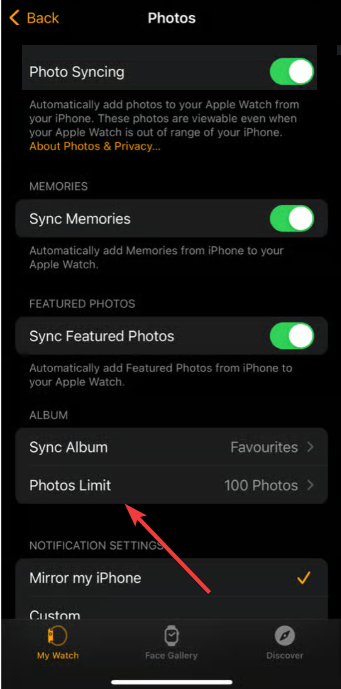
Open the Watch app, tap Photos, then lower the photo limit or turn off syncing completely. This change frees space instantly without deleting photos from your iPhone.
Clear messages and mail data
Message attachments and email previews slowly consume storage, even if conversations look small.
Delete message threads with media
Open Messages on the Watch or iPhone and delete threads with photos or videos. Removing a few large threads can reclaim significant space.
Adjust Mail sync settings
In the Watch app, go to Mail and limit how much mail syncs to the Watch. Fewer synced messages means less background storage use.
Turn off automatic app installs
Every app you install on your iPhone can automatically install on your Watch.
Open the Watch app, tap General, then turn off Automatic App Install to prevent silent storage usage.
Restart Apple Watch to refresh storage
Storage numbers sometimes fail to update after deletions.
Restarting the Watch forces the system to recalculate available space and reflect recent changes correctly.
Unpair and re-pair Apple Watch (last resort)
If storage stays full despite deleting content, corrupted sync data may exist.
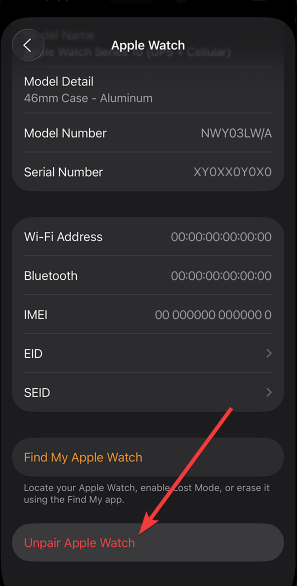
Unpairing and pairing again clears hidden system data and restores accurate storage reporting.
Tips to keep Apple Watch storage from filling again
- Limit music, podcast, and photo syncing
- Remove unused apps every few weeks
- Disable automatic app installs
- Keep watchOS updated to avoid storage bugs
FAQs
Why does Apple Watch storage show “System Data”?
System Data includes cached files and temporary system resources. Restarting or re-pairing usually reduces it.
How much free space does Apple Watch need for updates?
Most updates require at least 1–2 GB of free space to install properly.
Will deleting apps from Apple Watch remove them from my iPhone?
No. App removal only affects the Watch unless you delete the app directly from the iPhone.
Summary
- Check storage to identify the largest space users.
- Remove apps, media, and photos for the fastest results.
- Restart or re-pair the Watch if storage does not update correctly.
Freeing up space on Apple Watch restores smooth performance, allows updates to install without errors, and prevents repeated storage warnings. Regular cleanup and smarter sync settings keep storage under control long term.


Discussion (0)
Be the first to comment.