




Upgrading to Windows 11 24H2 should be uneventful. For many users it is. But a significant number of people finish the upgrade and immediately find themselves with no internet access, broken mapped drives, a missing Wi-Fi icon in the taskbar, or network adapters that simply refuse to stay enabled. This is not a hardware problem and it is not something you did wrong. It is a direct result of how 24H2 tightened its networking security, and it has caught countless home and small office users off guard. Here are the three easiest fixes that have actually worked for people in this situation.
Why Windows 11 24H2 Breaks Network Connectivity
The core problem is that Windows 11 24H2 introduced stricter security requirements around two things: DHCP and SMB networking. DHCP is the system that assigns your device an IP address on the network. SMB is the protocol Windows uses to share files and drives across a local network.
After the upgrade, some machines stop receiving a valid IP address from the router entirely, getting stuck with a 169.x.x.x address instead, which means no internet. Others lose access to mapped network drives because the new SMB security requirements are stricter than what older servers, NAS devices, and Windows 10 machines can satisfy. Network Discovery also sometimes resets after the upgrade, making your PC invisible to other devices on the network.
All of these symptoms trace back to the same root cause. The good news is the fixes are straightforward.
Fix 1: Reset Your Network Stack
This is the first thing to try if you have no internet access or are getting a 169.x.x.x IP address. It flushes everything out and forces Windows to rebuild its network configuration from scratch.
- Press Windows key + S, search for Command Prompt, right-click it, and select Run as administrator.
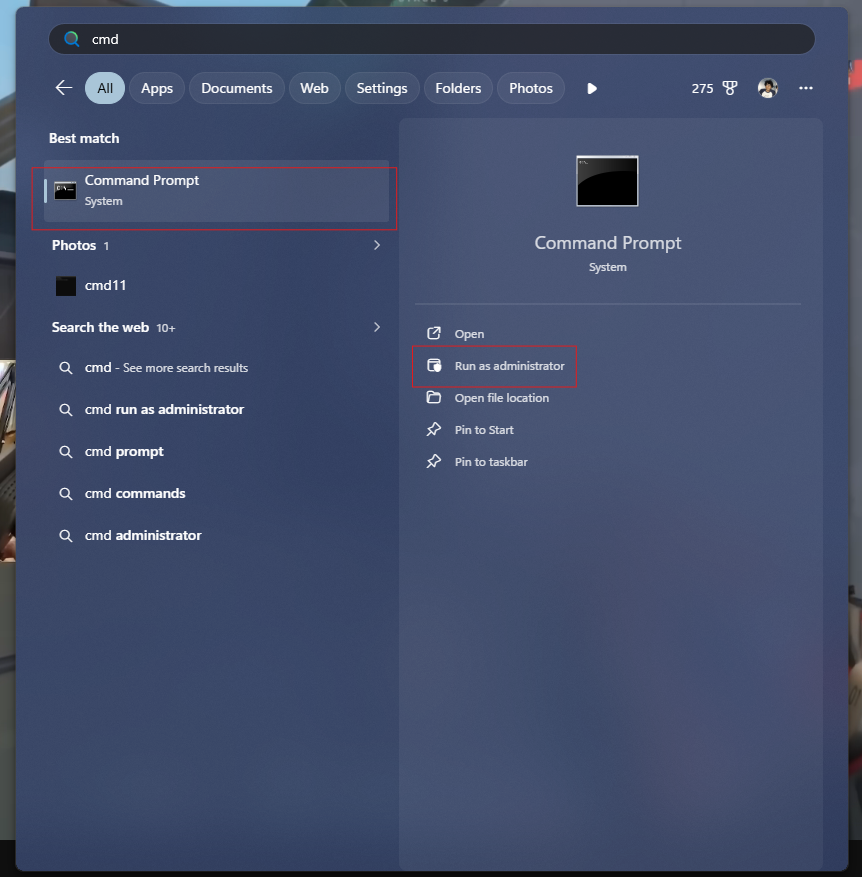
- Run each of these commands one at a time, pressing Enter after each and waiting for it to complete before moving on:
netsh winsock reset
ipconfig /flushdns
netsh int ip reset
ipconfig /release
ipconfig /renew
- Restart your PC after all commands complete.
This resolves the majority of DHCP failures and IP addressing issues introduced by the 24H2 upgrade. Most users with a straight internet connectivity problem find this alone fixes it.
Fix 2: Fix Network Discovery and Sharing Settings
If your PC has internet access but cannot see other devices on the network, cannot connect to mapped drives, or has disappeared from the network entirely, this is the fix to try first. The 24H2 upgrade frequently resets these settings without warning.
- Open Settings with Windows key + I. Go to Network and Internet, then Advanced network settings, then Advanced sharing settings.
- Under Private networks, turn on both Network discovery and File and printer sharing.
- Expand All networks and turn off Password protected sharing if your home or office network does not use account-based authentication for shared folders.
- Apply the changes and restart your PC.
For most home network users this alone restores visibility between devices and brings mapped drives back online.
Fix 3: Fix SMB Security Settings via PowerShell
If mapped drives and network shares are still broken after Fix 2, the issue is that Windows 11 24H2 now enforces strict SMB security requirements that many home servers, NAS devices, and Windows 10 machines cannot meet. Two PowerShell commands relax these requirements and restore access.
- Press Windows key + S, search for PowerShell, right-click it, and select Run as administrator.
- Run this command and press Enter: Set-SmbClientConfiguration -RequireSecuritySignature $false
- Run this command and press Enter: Set-SmbClientConfiguration -EnableInsecureGuestLogons $true
- Confirm any prompts and restart your PC.
These commands tell Windows 11 to stop demanding strict security signatures from SMB servers and to allow guest connections to network shares, which is how virtually every home and small office network is set up. This is safe to run on a private trusted network.
Final Thoughts
Work through these three fixes in order. The majority of users experiencing network problems after the 24H2 upgrade will be back online after one of these three steps. If all three fail, check Windows Update for any available cumulative updates as Microsoft has released patches specifically addressing 24H2 networking bugs since the initial release.
Frequently Asked Questions
Why did my network stop working after upgrading to Windows 11 24H2?
Windows 11 24H2 tightened security requirements around DHCP and SMB networking. These changes conflict with how many home and small office networks are configured, causing internet failures, broken mapped drives, and devices disappearing from the network.
Will these fixes work on Windows 11 Home?
Yes. All three fixes work on both Windows 11 Home and Pro. The Command Prompt and PowerShell commands do not require any edition-specific features.
Is it safe to run the PowerShell SMB commands?
Yes, for home and small office environments. The commands allow guest SMB connections and remove strict signature requirements, which is how most private home networks already operate. They do not create meaningful additional risk on a trusted private network.
What if none of these fixes work?
Check Windows Update for any available cumulative updates. Microsoft has released patches addressing specific 24H2 networking bugs. If the upgrade was recent, you can also roll back to Windows 11 23H2 through Settings, then System, then Recovery, provided the ten-day rollback window has not expired.



Discussion (0)
Be the first to comment.