



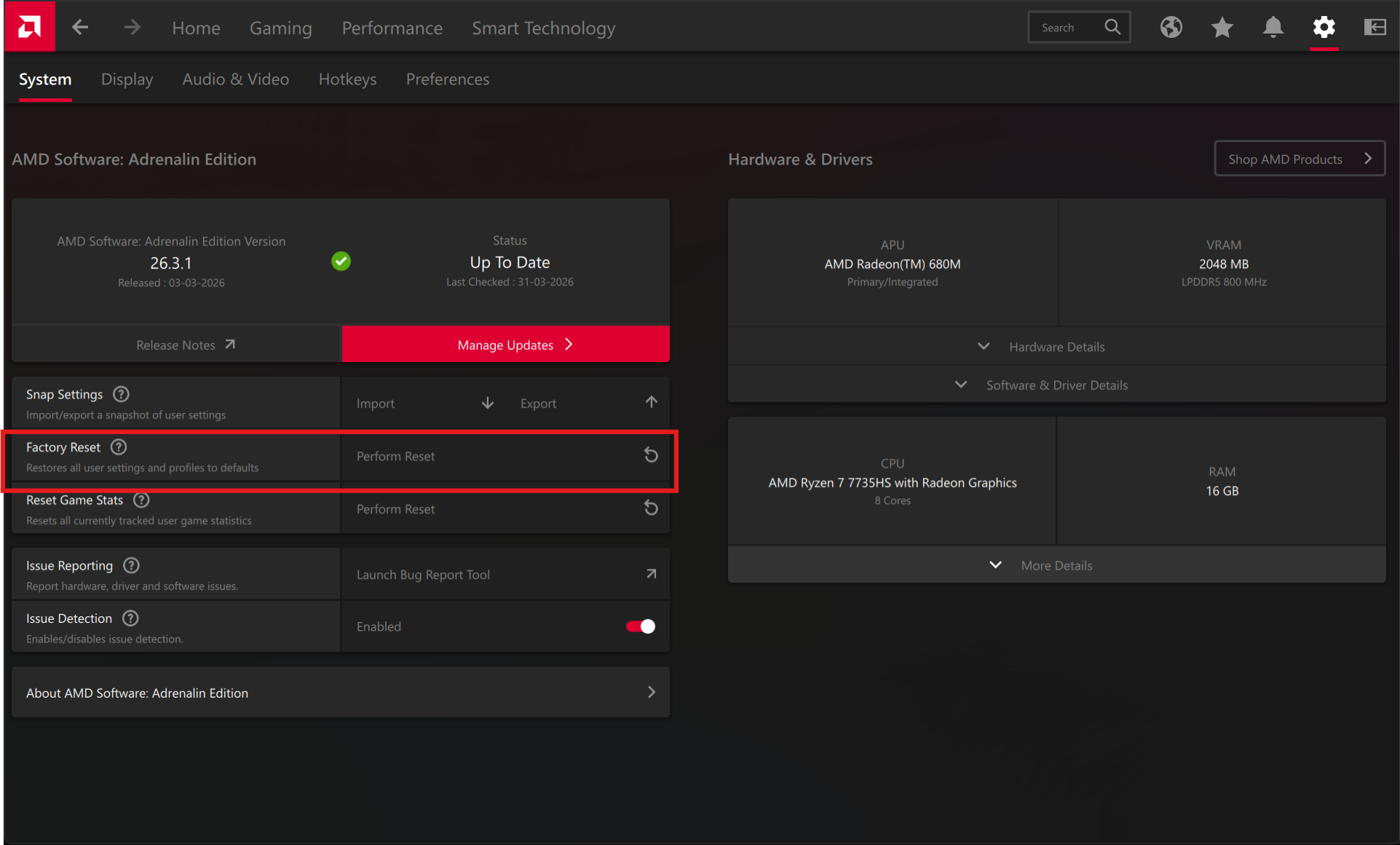
If your graphics settings feel off, games are behaving inconsistently, or features aren’t working as expected, resetting your AMD settings can often fix things quickly.
In AMD Software: Adrenalin Edition, a factory reset essentially returns everything to default, removing custom tweaks, profiles, and potential misconfigurations.
This is especially useful after updates or when troubleshooting issues.
What a Factory Reset Actually Does
A reset will:
- Restore all graphics settings to default
- Remove custom tuning (GPU, fan curves, etc.)
- Clear per-game profiles
- Reset display and video settings
It does not:
- Remove your drivers (unless you choose a full reinstall)
- Delete games or files
Think of it as wiping your configuration, not your system.
Method 1: Factory Reset During Driver Reinstall (Recommended)
This is the cleanest and most reliable method.
Steps:
- Open AMD Software: Adrenalin Edition
- Go to Settings (gear icon)
- Navigate to System
- Click on Check for Updates
- Choose Reinstall driver (or install latest version)
- Enable Factory Reset option
- Proceed with installation
This removes old settings and installs a clean driver setup.
Why This Works Best
It ensures:
- No leftover corrupted settings
- Clean driver environment
- Fewer compatibility issues
Method 2: Reset Individual Settings (Quick Fix)
If you don’t want a full reset, you can reset sections manually.
Steps:
- Open AMD Software
- Go to Gaming > Graphics
- Click Reset
You can also reset:
- Display settings
- Performance tuning
This is useful for minor issues.
Method 3: Use AMD Cleanup Utility (Advanced)
If things are seriously broken, use AMD’s cleanup tool.
What It Does
- Removes all AMD drivers completely
- Clears leftover files and settings
- Allows fresh installation
This is more aggressive than a factory reset.
Use it only if:
- Drivers are corrupted
- Adrenalin is not working properly
When You Should Do a Factory Reset
A reset makes sense if:
- Settings are behaving inconsistently
- Features like Anti-Lag or FreeSync are not working
- You changed too many settings and want a clean start
- You’re facing crashes or performance issues
When You Don’t Need It
Avoid resetting if:
- Everything is working fine
- You just want small adjustments
- The issue is clearly game-specific
Resetting unnecessarily means reconfiguring everything again.
Real-World Insight
Most issues with AMD settings come from:
- Conflicting tweaks
- Old profiles after updates
- Incorrect tuning
A factory reset fixes these by removing hidden conflicts.
In practice, it’s one of the fastest ways to troubleshoot.
What to Do After Reset
Once reset is complete:
- Re-enable features you actually use
- Avoid changing too many settings at once
- Test games before tweaking again
Keeping things minimal usually results in better stability.
Final Thoughts
A factory reset in AMD Software: Adrenalin Edition is not something you need often, but when things go wrong, it’s one of the most effective fixes.
It clears out hidden issues and gives you a clean starting point without overcomplicating the process.
FAQs
Does factory reset delete AMD drivers?
Not unless you choose a full reinstall option.
Will I lose my custom settings?
Yes, all custom configurations will be removed.
Is it safe to reset AMD settings?
Yes, it does not affect your system or files.
Should I use cleanup utility instead?
Only if a normal reset does not fix the issue.
How often should I reset AMD settings?
Only when needed for troubleshooting.



Discussion (0)
Be the first to comment.