



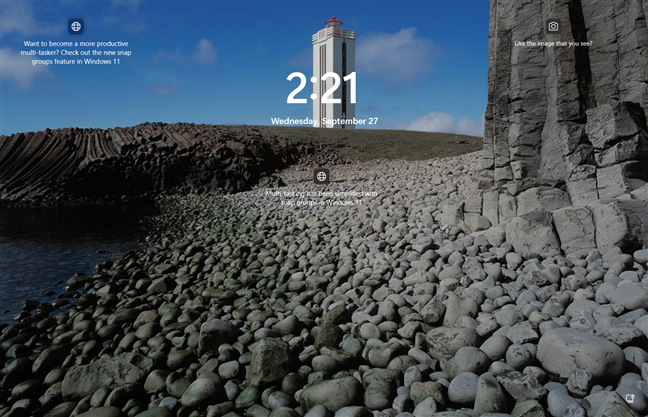
Windows 11 includes a built-in feature called Windows Spotlight that automatically displays high-quality wallpapers from Microsoft. These images often feature landscapes, nature scenes, and iconic locations from around the world. While Windows Spotlight is commonly used on the lock screen, it can also be enabled for your desktop background, allowing your wallpaper to change automatically without any manual effort.
Enabling Spotlight desktop wallpapers is quick and does not require third-party apps or advanced system tweaks. Once turned on, Windows will periodically update your desktop background with new images, helping keep your workspace visually fresh. Below are the step-by-step instructions to enable Windows Spotlight on the desktop in Windows 11.
Enable Windows Spotlight for Desktop Wallpapers
Steps:
- Press Windows + I to open Settings.
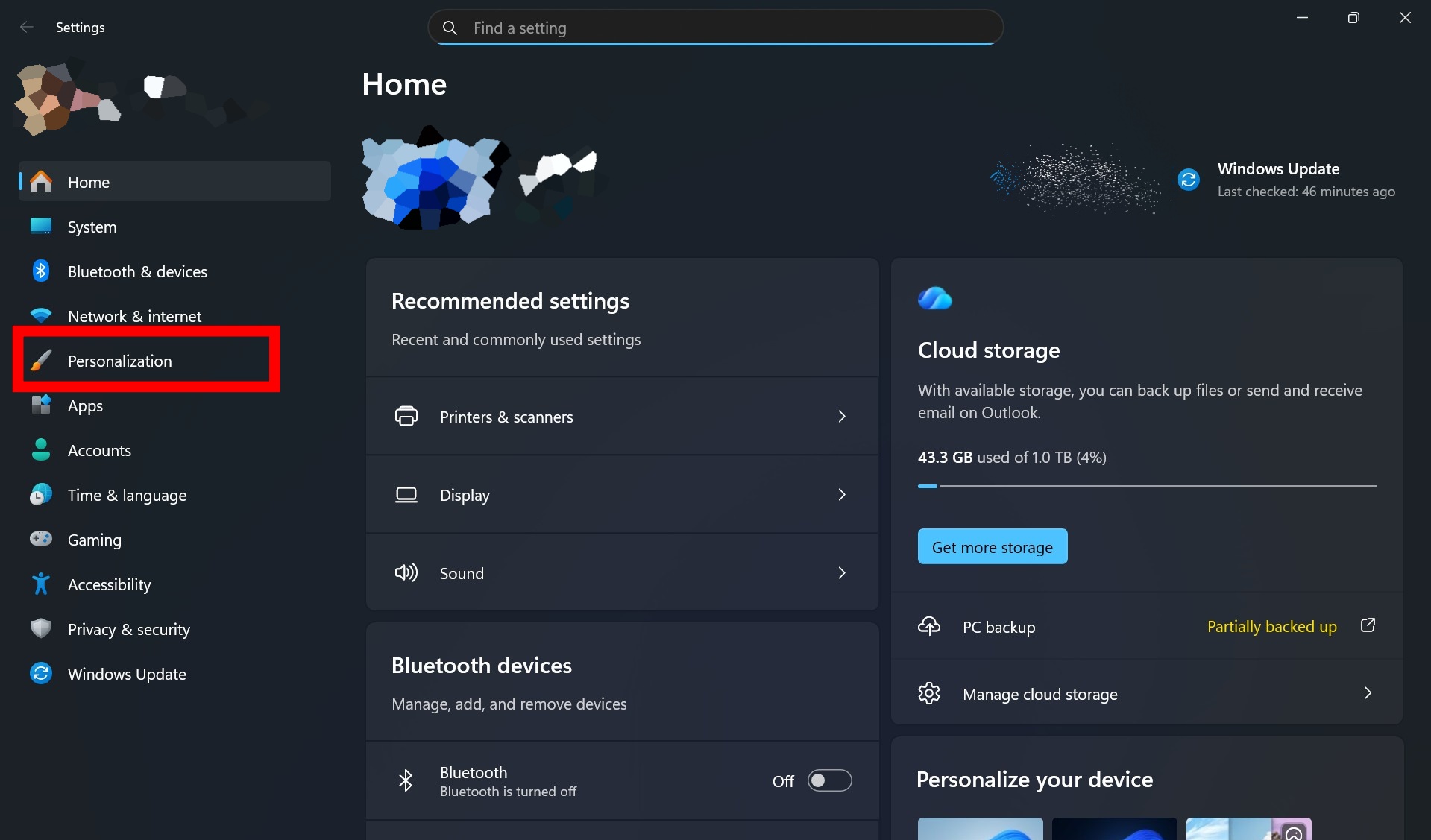
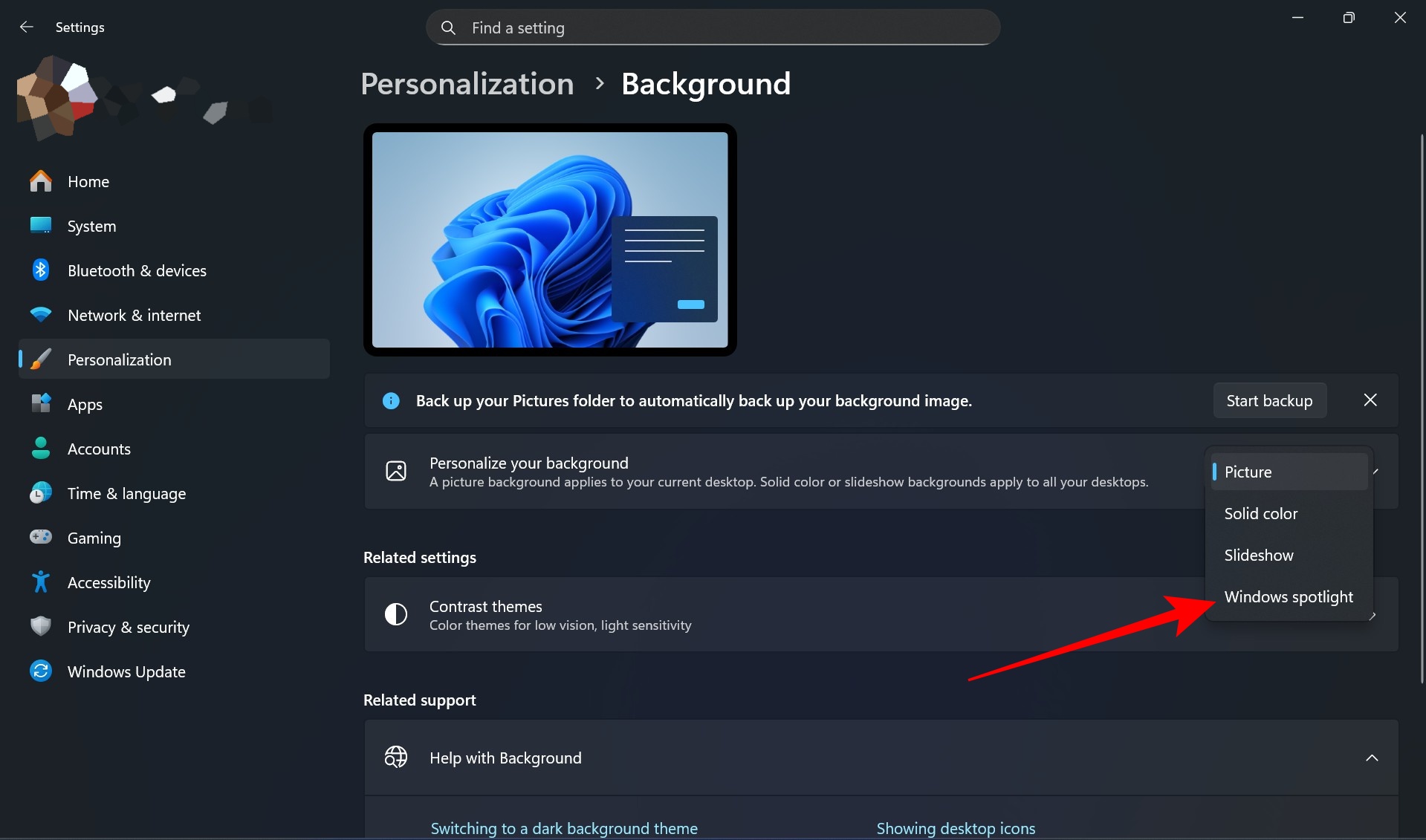
- Click Personalization from the left-hand menu.

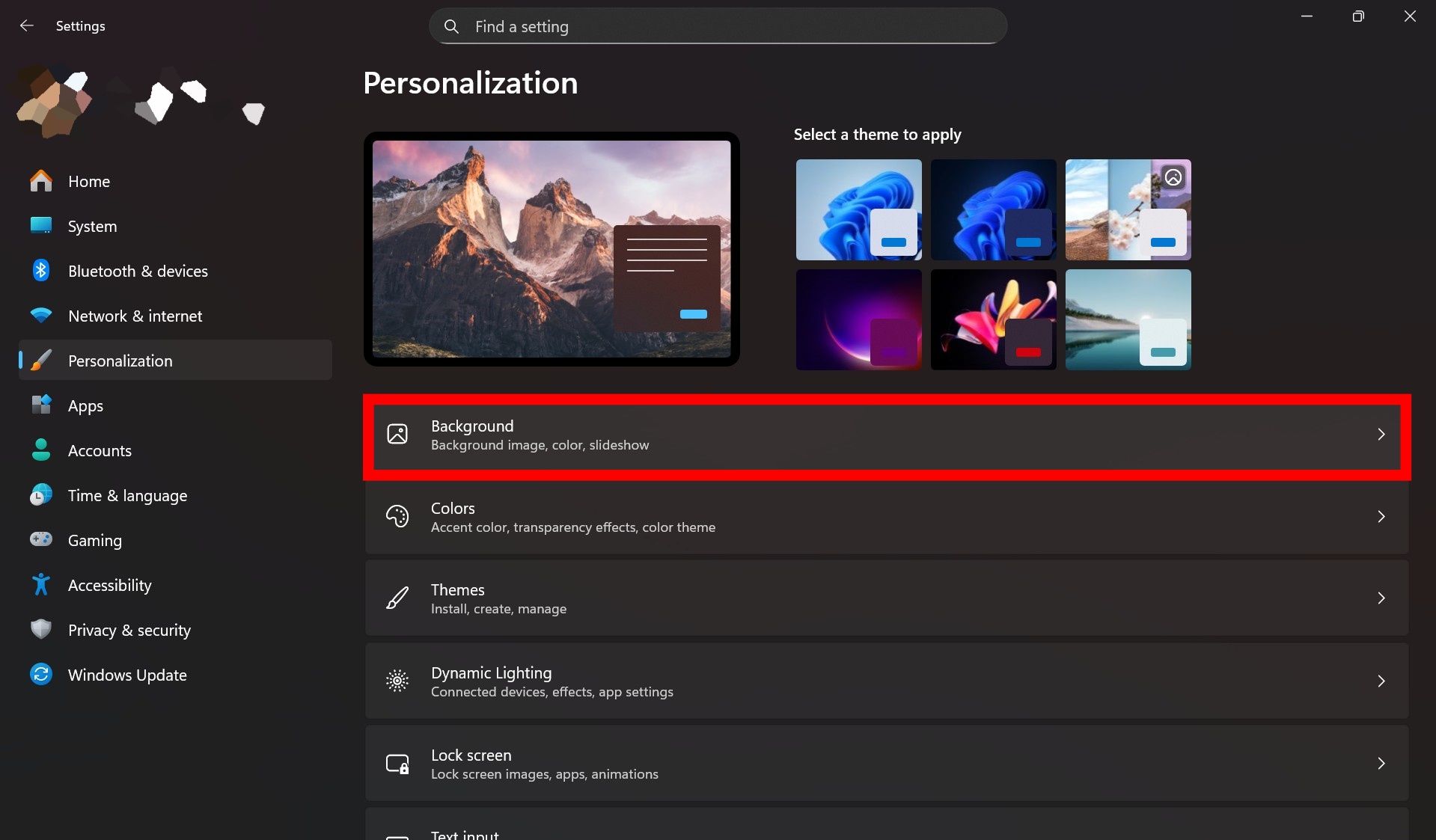
- Select Background.

- Click the Personalize your background dropdown menu.
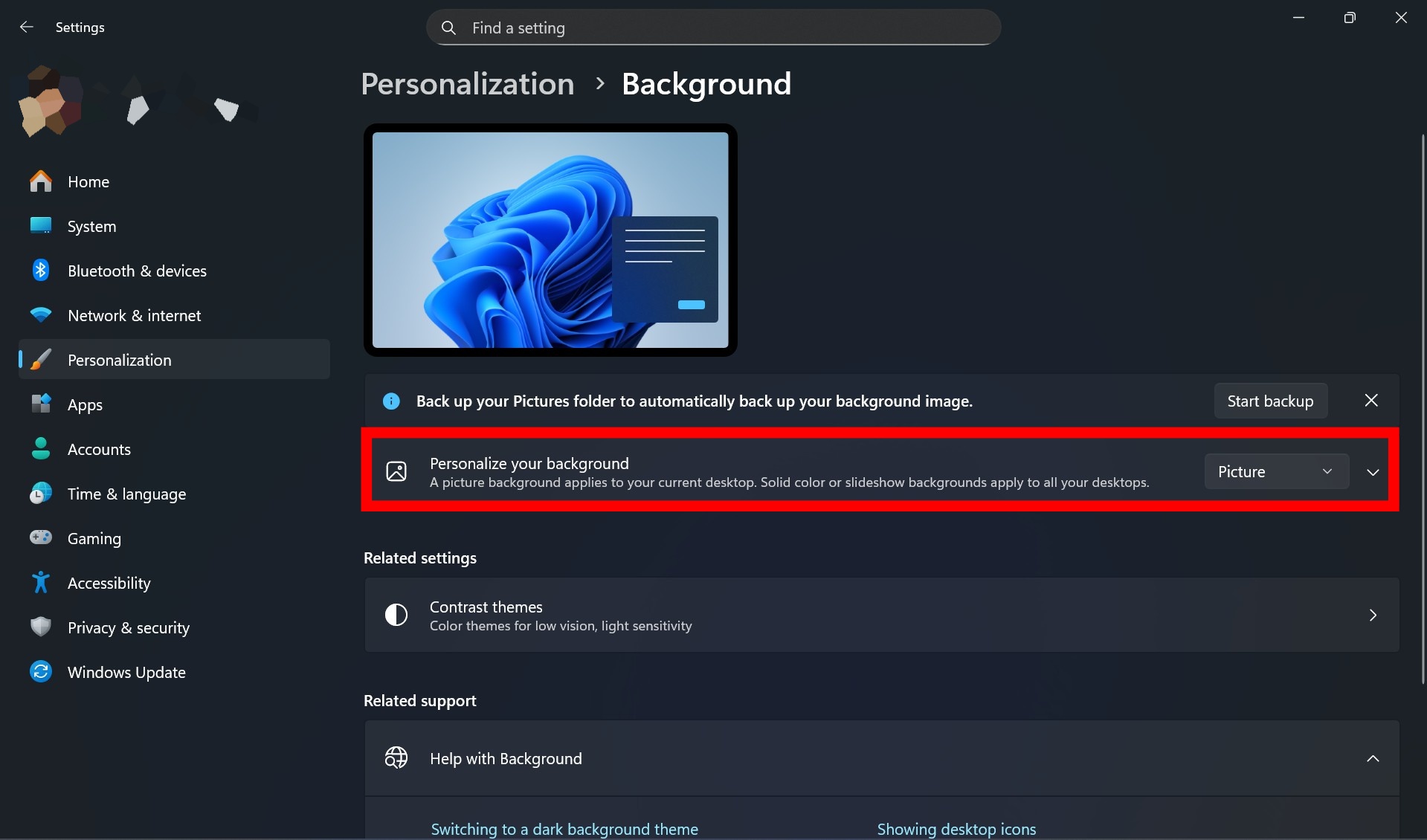

- Choose Windows Spotlight.
- Close the Settings app.
Your desktop wallpaper will now update automatically.
After enabling this option, Windows will begin downloading and rotating Spotlight images in the background. You may notice a small Learn about this picture icon on your desktop, which provides more details about the current wallpaper.
Things to remember
- Make sure your PC is connected to the internet so Windows can download new Spotlight images.
- Wallpapers may not change immediately. Windows updates them periodically in the background.
- You can provide feedback on Spotlight images by clicking the Learn about this picture icon on the desktop.
Using Windows Spotlight for desktop wallpapers is an easy way to keep your Windows 11 experience visually appealing without extra work. With just a few clicks, you can enable automatic wallpaper rotation and enjoy professionally curated images that refresh your desktop regularly. Once enabled, Windows handles everything automatically, giving you a clean and dynamic desktop with no ongoing maintenance required.

Discussion (0)
Be the first to comment.