




Touchscreens are useful when you need them and frustrating when you don’t. Accidental taps, screen smudges, or unintended inputs can quickly become annoying, especially on laptops.
The good part is that Windows 11 gives you a straightforward way to completely disable or re-enable touch input, without affecting your system permanently.
This guide focuses on the methods that actually work and when you should use them.
What “Disable Touch by Finger” Actually Means
Disabling touch input:
- Turns off all finger-based interaction
- Does not affect keyboard or mouse
- Can be reversed anytime
It essentially disables the touchscreen hardware at the driver level.
This is useful when you want your device to behave like a traditional laptop.
Method 1: Disable Touchscreen via Device Manager (Most Reliable)
This is the standard and most effective method.
Steps:
- Right-click Start
- Select Device Manager
- Expand Human Interface Devices
- Look for:
- HID-compliant touch screen
- Right-click it
- Select Disable device
- Confirm
Touch input will stop immediately.
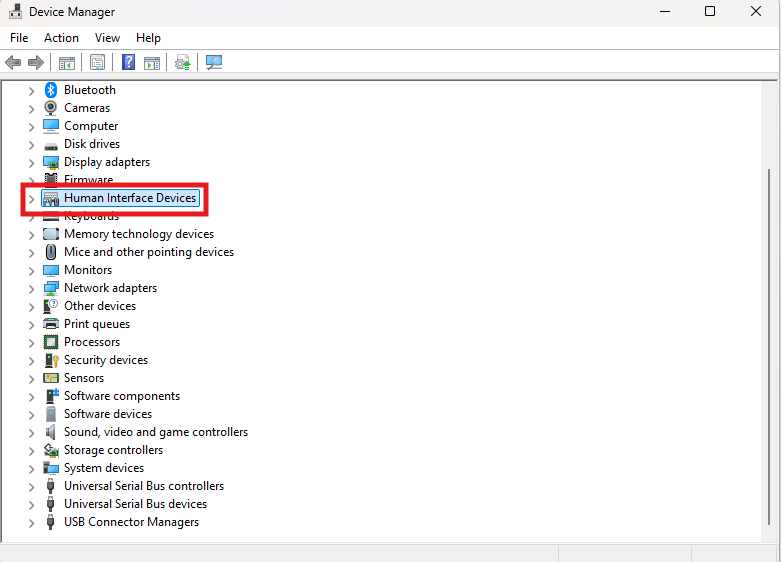
Under HID select the device you want to disable.
To Re-enable:
- Repeat the same steps
- Click Enable device
No restart is usually required.
What This Method Actually Does
It disables the driver responsible for touch input.
- No background services are affected
- No system files are modified
- It’s completely reversible
This is why it’s the preferred approach.
Method 2: Disable Touch via Device Manager (Multiple Entries Case)
Some systems have more than one HID device.
If touch still works after disabling one:
- Disable other HID-compliant touch screen entries
- Avoid disabling unrelated HID devices (like keyboard or pen input)
This requires a bit of attention but works reliably.
When You Should Disable Touch
Disabling touch makes sense in specific situations:
Accidental Touch Issues
- Typing while palms touch the screen
- Unwanted clicks during usage
Cleaning or Maintenance
- Prevent inputs while wiping the screen
Using Laptop in Traditional Mode
- When touch adds no value to your workflow
When You Should Keep It Enabled
Keep touch on if you:
- Use gestures regularly
- Work in tablet or 2-in-1 mode
- Prefer direct interaction with apps
For some workflows, touch is genuinely useful.
Limitations to Be Aware Of
- Disabling touch removes all gesture support
- Stylus input may also be affected (device-dependent)
- No quick toggle exists in Settings
You need to use Device Manager each time.
Real-World Insight
Most users don’t toggle touch frequently. They either:
- Disable it once and leave it off
- Or keep it enabled and adapt to it
Frequent switching is possible, but not very convenient.
What Not to Do
Avoid unnecessary complexity.
Do not:
- Use registry tweaks
- Install third-party tools
- Disable random HID devices
Device Manager is enough.
Final Thoughts
Disabling touch by finger in Windows 11 is simple, reversible, and safe when done through Device Manager.
It’s one of those small adjustments that can noticeably improve usability, especially if you don’t rely on touch input.
The key is knowing when it helps and when it doesn’t.
FAQs
Can I disable touch temporarily?
Yes, and re-enable it anytime via Device Manager.
Will this affect my keyboard or mouse?
No, only touchscreen input is disabled.
Does it require a restart?
Usually no.
Will stylus input stop working?
Sometimes, depending on the device.
Is there a shortcut to toggle touch?
No, Device Manager is the primary method.



Discussion (0)
Be the first to comment.