




If you use a touchscreen laptop, a 2-in-1 device, a drawing tablet, or a Windows 11 tablet, you have probably come across the press and hold gesture. It is the touch equivalent of a right-click. Press your finger or pen tip on the screen, hold it for a moment, and Windows shows the right-click context menu just as if you had clicked the right mouse button.
For some people this is genuinely useful. For others, particularly digital artists and graphic designers using drawing tablets, it is one of the most frustrating things about using Windows. It interrupts pen strokes, pops up unwanted menus at the worst possible moments, and generally gets in the way. The good news is that you can turn it on or off in Windows 11, and this guide shows you exactly how to do it through every available method.
What Is Press and Hold for Right-Clicking in Windows 11?
On a touchscreen or pen-enabled device, Windows 11 maps the press and hold gesture to a right-click action by default. When you touch the screen and hold your finger or pen tip in place without moving, Windows interprets that as the equivalent of pressing the right mouse button and brings up the context menu.
This behavior applies separately to touch input and pen input. You can disable it for one without affecting the other. If you want to turn off the gesture for your drawing pen but keep it active for finger touch, Windows 11 lets you do exactly that.
The setting is also adjustable in terms of duration. You can control how long you need to hold before the right-click triggers, which gives you some middle ground if you do not want to disable the feature entirely but want it to be less sensitive.
When You Would Want to Turn This Off
The most common reason to disable press and hold for right-clicking is drawing and illustration work. If you use a stylus or drawing tablet with Windows 11, the press and hold detection constantly interferes with long, slow strokes. When you draw a deliberate line across the screen, Windows can interpret the sustained contact as a hold and open a context menu instead of registering your stroke. This is a workflow killer for anyone doing digital art.
Kiosk setups and shared devices are another common case. If a device is configured for public use or a specific application, disabling the press and hold gesture makes the interface simpler and prevents users from accidentally triggering right-click menus that should not be accessible.
Gaming on touchscreen devices is a third scenario. Certain touch-based games or apps interpret a long press as an intentional in-app action, and having Windows intercept that gesture before the app can respond creates unintended behavior.
On the flip side, if you have a touchscreen device and find yourself frequently needing right-click menus without a physical mouse or touchpad, keeping this feature enabled is genuinely practical.
Method 1: Using Windows 11 Settings
Starting with Windows 11 build 26120.3671 and later, Microsoft added direct options for press and hold inside the Bluetooth and Devices settings page. If your Windows 11 installation is up to date, this is the cleanest and fastest place to change the setting.
- Open Settings with Windows key + I, then go to Bluetooth and devices.
- Click Touch for finger input, or Pen and Windows Ink for stylus input.
- Expand Additional touch settings and toggle Enable press and hold to perform a right-click equivalent on or off.
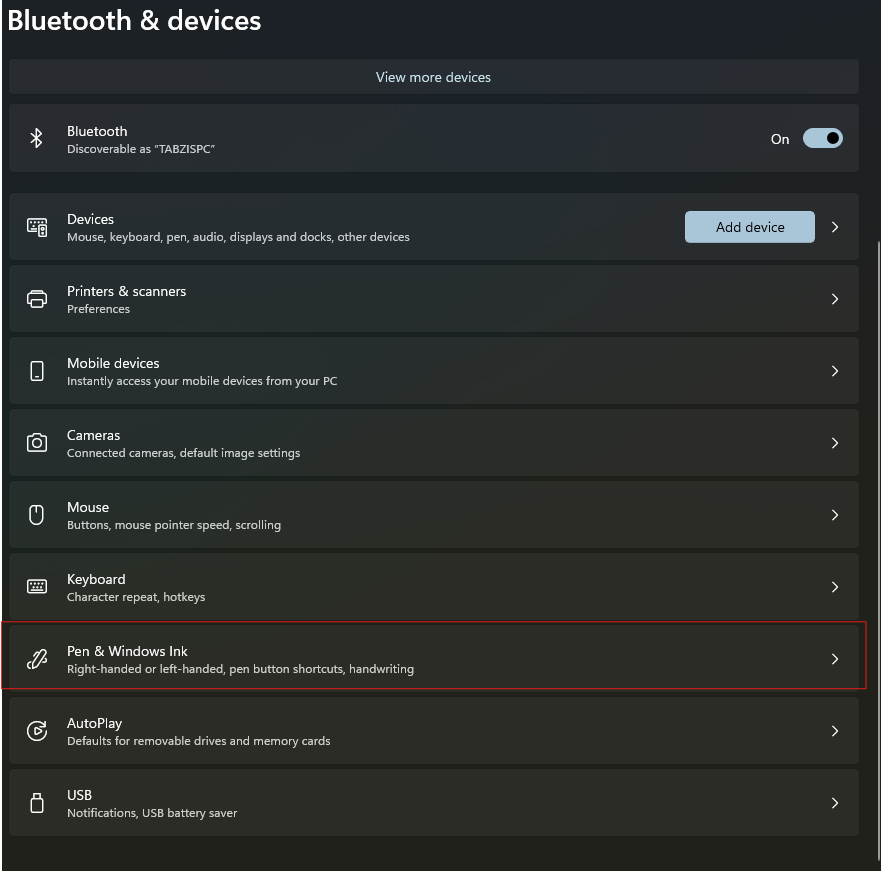
The change takes effect immediately with no restart needed. If you do not see the Touch page because your Windows 11 version is older, use the Control Panel method below instead.
Method 2: Using Control Panel
The Control Panel method works on all versions of Windows 11 and gives you access to the same setting plus the option to adjust the hold duration.
- Press Windows key + R, type control, and press Enter. Set the view to Large icons and click Pen and Touch.
- Click the Touch tab for finger input or the Pen Options tab for stylus input. Select Press and hold from the list and click Settings.
- Uncheck Enable press and hold for right-clicking to disable the feature, or check it to enable it. Click OK to save.
While you are in this dialog, you can also drag the duration slider to the right to require a longer hold before the right-click triggers. This is useful if you want to keep the feature but make it less sensitive during drawing or writing.
Repeat the process on the other tab if you want to adjust both pen and touch independently.
Method 3: Using the Registry Editor
The Registry method is for advanced users who want to apply the change programmatically or across multiple accounts. Before editing the Registry, always export a backup through File and then Export in Registry Editor.
For Touch Input
- Press Windows key + R, type regedit, and press Enter.
- Navigate to: HKEY_CURRENT_USER\Software\Microsoft\Wisp\Touch
- Find or create a DWORD value named TouchMode_hold. Set it to 0 to disable press and hold, or 1 to enable it.
- Sign out and back in, or restart your PC to apply the change.
For Pen Input
- In Registry Editor, navigate to: HKEY_CURRENT_USER\Software\Microsoft\Wisp\Pen\SysEventParameters
- Find the value named HoldMode. Set it to 3 to disable press and hold for the pen, or 1 to enable it.
- Restart your PC to apply the change.
The pen and touch Registry values are stored in separate locations and use different numbers, which is why they need to be adjusted separately.
How to Adjust the Press and Hold Duration
If you do not want to disable the feature entirely but want it to feel less sensitive, adjusting the hold duration is a good middle ground. Open Control Panel, go to Pen and Touch, select the relevant tab, click Press and hold, then click Settings. Move the duration slider to the right to require a longer hold before the right-click triggers. This gives your pen strokes more room to register as deliberate input before Windows interprets them as a hold.
Why Digital Artists Should Disable This Feature
If you use any drawing software on Windows 11 with a tablet or stylus, turning off press and hold for the pen is one of the first things you should do after setting up your device. The feature was designed for general touch navigation, not for drawing, and it actively works against how artists use a pen.
When you draw a slow, controlled stroke, the sustained contact registers as a hold. Windows then interrupts the stroke to display a context menu, freezing the pen tip momentarily and breaking your line. Disabling press and hold for the pen removes this entirely. Your strokes register cleanly from start to finish. The right-click context menu remains accessible through the side button on most stylus pens, so you do not lose that functionality.
Final Thoughts
Press and hold for right-clicking is one of those Windows 11 settings that is genuinely useful for some users and actively harmful for others. The fact that Windows lets you control it independently for touch and pen input is more thoughtful than most people realize. A tablet user browsing the web benefits from keeping it enabled. A digital artist benefits significantly from turning it off for the pen. Both can have what they need without compromising each other. Whichever situation applies to you, the Control Panel method is the most reliable route and takes less than a minute to complete.
Frequently Asked Questions
Why does Windows 11 show a context menu when I hold my pen on the screen?
This is the press and hold for right-clicking feature. When you hold a pen tip or finger on a touchscreen without moving, Windows 11 interprets it as a right-click and shows the context menu. It is enabled by default and can be turned off through Pen and Touch in Control Panel or through Bluetooth and devices in Settings.
Can I disable press and hold for the pen but keep it active for finger touch?
Yes. Windows 11 controls pen and touch press and hold independently. The Pen Options tab in the Pen and Touch dialog controls the stylus setting and the Touch tab controls finger touch. You can disable one without affecting the other.
Where is the Pen and Touch setting in Windows 11?
Open Control Panel, set the view to Large icons, and click Pen and Touch. If it does not appear, your device does not have touchscreen or pen hardware. On newer Windows 11 builds you can also find the touch setting in Settings under Bluetooth and devices and then Touch.
Will disabling press and hold affect other touch gestures?
No. Disabling press and hold for right-clicking only removes that specific gesture. All other touch gestures including tap, double tap, swipe, pinch to zoom, and scroll remain completely unaffected.
Can I make press and hold less sensitive instead of disabling it completely?
Yes. Inside the Press and Hold Settings dialog in Control Panel under Pen and Touch, there is a duration slider. Moving it to the right increases the hold time required before the right-click triggers, reducing accidental activations without fully disabling the feature.



Discussion (0)
Be the first to comment.