




Modern browsers are no longer just tools to open websites. They are a primary attack surface. That’s where Enhanced Security Mode in Microsoft Edge comes in.
It’s designed to reduce risk while browsing, but like most security features, it involves trade-offs. Understanding those trade-offs matters more than simply turning it on.
What Enhanced Security Mode Actually Does
Enhanced Security Mode hardens how Edge runs websites.
Instead of allowing full compatibility by default, it:
- Reduces attack surface for unknown or risky sites
- Applies stricter security policies
- Limits certain advanced web features that could be exploited
Under the hood, it enforces protections like:
- Disabling Just-In-Time (JIT) compilation for JavaScript on untrusted sites
- Increasing isolation between processes
- Applying stricter sandboxing
This makes it harder for malicious code to execute.
Security Levels: Balanced vs Strict
Edge offers two modes, and the difference is practical.
Balanced Mode (Default Recommendation)
- Applies extra protection to less frequently visited sites
- Keeps commonly used websites fully functional
- Minimal impact on usability
This is the best option for most users.
Strict Mode
- Applies protection to all websites
- Maximum security coverage
- Higher chance of site breakage
This is useful if you prioritize security over convenience.
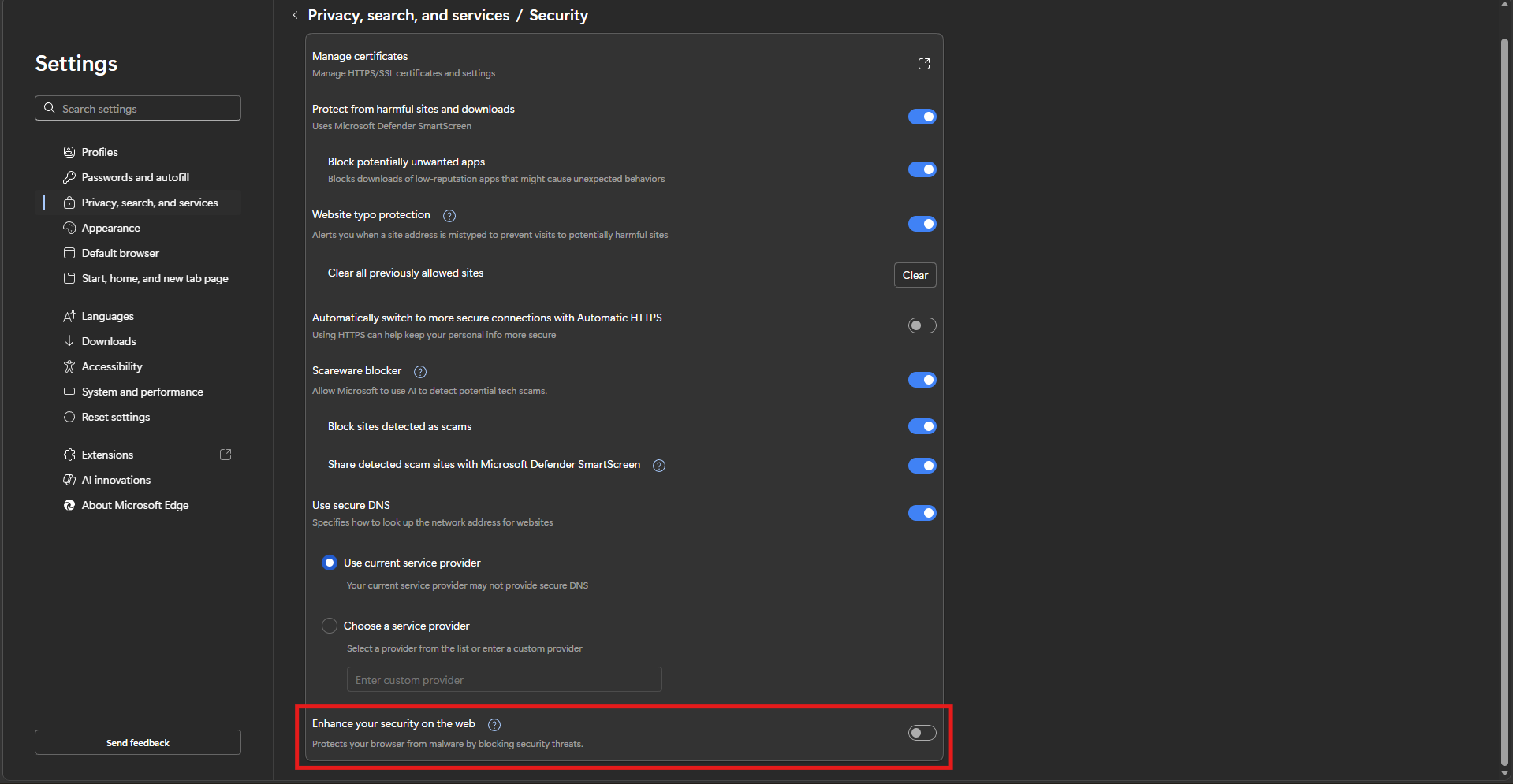
How to Enable or Disable Enhanced Security Mode
Steps:
- Open Microsoft Edge
- Click the three-dot menu
- Go to Settings
- Navigate to Privacy, search, and services
- Scroll to Security
- Toggle:
- Enhance your security on the web → ON or OFF
- Choose:
- Balanced
- Strict
Changes apply immediately.
How It Works in Real Use
When enabled, the feature is mostly invisible.
You’ll notice:
- No change on trusted, frequently used sites
- Slight delays or restrictions on unfamiliar sites
- Occasional compatibility issues with complex web apps
It does not interrupt your workflow unless a site depends on features that are restricted.
When You Should Enable It
Enhanced Security Mode is useful if you:
- Browse unfamiliar or untrusted websites
- Download files from the web frequently
- Want an extra layer of protection without installing extensions
For most users, Balanced mode is the right choice.
When It Can Cause Issues
Strict mode, in particular, can create friction.
You may notice:
- Websites not loading correctly
- Features like video players or scripts breaking
- Web apps behaving inconsistently
This is because some sites rely on features that the mode restricts.
Real-World Insight
In practice, Balanced mode offers the best trade-off.
- It protects where risk is higher
- It stays out of the way where you already trust the site
Strict mode is better suited for:
- Security-focused users
- Testing environments
- High-risk browsing scenarios
Should You Keep It On or Off?
Keep it ON if:
- You want better default security
- You browse a wide range of websites
- You don’t want to rely on external tools
Turn it OFF if:
- You experience repeated site compatibility issues
- You rely on complex web apps that break
Limitations to Be Aware Of
- It does not replace antivirus or safe browsing habits
- It cannot prevent all types of attacks
- Some protections depend on site behavior and context
It’s an added layer, not a complete solution.
Final Thoughts
Enhanced Security Mode in Microsoft Edge is one of those features that works best when you barely notice it.
Balanced mode gives you a meaningful security improvement without disrupting normal usage. Strict mode pushes security further but requires compromise.
The goal is not maximum restriction. It’s practical protection without breaking your workflow.
FAQs
What does Enhanced Security Mode do?
It reduces browser attack surface and limits risky features on websites.
Which mode should I use?
Balanced mode is best for most users.
Does it slow down browsing?
Not significantly, but some sites may load differently.
Can it break websites?
Yes, especially in Strict mode.
Is it better than antivirus?
No, it complements it, not replaces it.



Discussion (0)
Be the first to comment.